

On this page
Write a sales order
The step before the invoice, for a distributor selling to known customers on credit. Write what a customer asked for at the rate agreed, see what they owe as you write, confirm how many of each will be sent, and cancel what will not go. The lists, and practice. Sales orders are a pilot, and add to trading without taking anything from it.
10 minute read
What a sales order is
A sales order is what a customer asked for, at rates agreed with them, written down before any goods go. It is not a sale yet. It moves no stock and posts nothing, and nothing of it is in Tally.
It becomes a sale once, when it is fulfilled: one sales invoice is made, and that invoice is what moves the stock and posts to the accounts. See Sales orders, invoices and receipts.
Three things about an order move apart from one another, and its page says each in its own words, side by side at its head.
| Thing | Its words |
|---|---|
| The order | Draft, Confirmed, to fulfil, Fulfilled, Cancelled |
| The money | An amount to receive with its due date, Past its due date, or Paid |
| Tally | Waiting for Tally, In Tally, not checked yet, In Tally, checked, and the others in Sales orders, invoices and receipts |
What you already have without it
Sales orders add one step to trading. They take nothing from it.
Sales and purchase bills with GST, stock by warehouse, credit days on a bill, receipts against bills, what each customer owes by age, and their statement are part of every account, whether or not it is in this pilot. A business that bills straight from New, Sales invoice goes on doing so. See Make a sales bill and Customers and suppliers.
Who this is for
One company, a distributor, selling stock items it keeps in Tally to business customers it knows, on credit.
| To do this | You need |
|---|---|
| Write an order, change a draft, confirm it, change the confirmed quantities, cancel it | Write and confirm sales orders |
| Fulfil an order, record money received | Fulfil sales orders and record what is received |
| Read the orders, and change nothing | See bills and entries |
| Add or empty practice orders | Business settings |
The role Order desk starts with the first. Dispatcher starts with the first two, and also sees the bills and the stock. Billing staff are not given sales orders by that role. See Users and roles.
A pilot, and what it needs first
Sales orders work today, and are open to a few businesses while they are being tried.
- You have been let in. Ask us from Settings, Help and support, or through the walk-through form. Until then Wholesale and distribution cannot be picked under Business type.
- Your books are open in Orzoni. The computer that runs Tally is linked and your company has been read.
- You have switched it on. Open Settings, Business type, press Wholesale and distribution, and press Use this. Or keep the kind you have, and switch on Sales orders under Parts of Orzoni. See Choose your kind of business.
Being let in switches nothing on, and gives nobody a permission.
The list at the side gains a group named Orders. Under Sales orders it holds Sales orders and New order. There is no set-up screen: an order uses the customers, the items and the cash and bank accounts your books already hold.
Write the order
- Open Sales orders, then New order. The keyboard is on Customer.
In Customer, start typing and choose one from the list.
The customer has to be one your Tally books already hold. A new one is added under Customers first.
- Type the Credit days agreed, and Their order number, if they gave one.
Under Item 1, start typing and choose the item. Type How many, and the Rate agreed, before GST.
Under the item is Tally's count of it, and the rate this customer was last charged for it. Where they have not bought it before, it is the item's selling price. Rate agreed starts as that figure, and you change it to what was agreed.
- Press Add an item for each further item. The cross at the end of a line takes it off.
Press Work out the total.
The total is worked out by the same part of Orzoni that makes every bill: CGST and SGST for a customer in your own state, IGST for one in another.
- Press the button again. It now reads Save the draft, with the total.
The order gets the next order number, and its own page opens. It reads Draft.
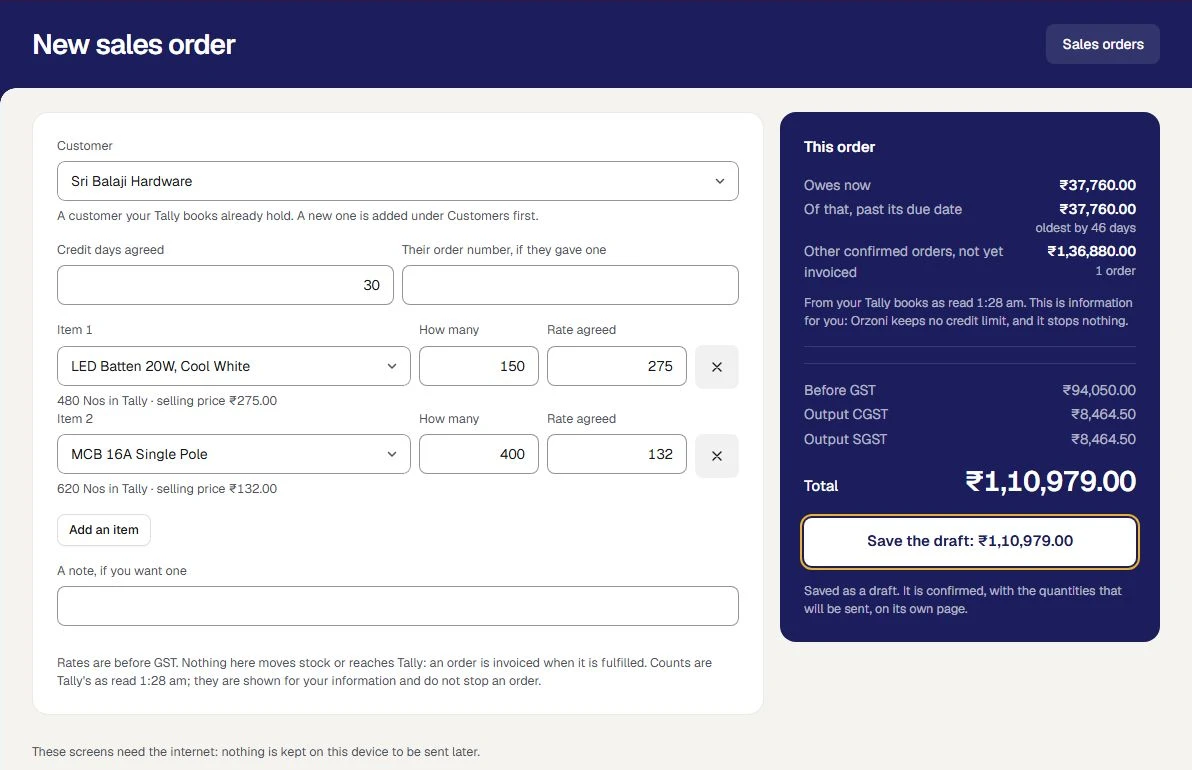
Rates are before GST. An item is on an order once: put all of it on one line. An order holds up to 60 lines, and credit days are a whole number from 0 to 365. No price list is kept: the rate is typed for each order.
If you change anything after the total was worked out, the total is asked for again before you can save.
| If the screen says | What to do |
|---|---|
| A name is not a customer in your books | Choose one from the list. A new customer is added under Customers first |
| enter the quantity ordered, or enter the rate agreed, before GST | Fill in that line |
| An item is on the order twice. Put it on one line. | Take one line off, and put the whole quantity on the other |
| An item has no unit in Tally | It is billed from Bills, not put on an order |
| A reason from the part that makes bills, such as an item kept by batch, or a company registered for GST in more than one state | Such a sale is billed in Tally. The order is not priced here |
Each of these ends Nothing was saved.
Change a draft
A draft can be changed freely. On its page, press Change the draft, change what you need, work out the total and save. A draft is priced afresh each time it is saved.
What the customer owes
As soon as you choose the customer, the panel beside the order shows what they owe. The same figures are on the order's own page, in the card What the customer owes.
| Line | What it is |
|---|---|
| Owes now | What is unpaid on their bills in your Tally books |
| Of that, past its due date | How much of it is overdue, and the oldest by how many days |
| Other confirmed orders, not yet invoiced | What their other confirmed orders will add once they are fulfilled. Shown when there are any |
They come from your books' own account of what is unpaid: the same figure Customers and Cash and dues show. Under them it says when Tally was last read.
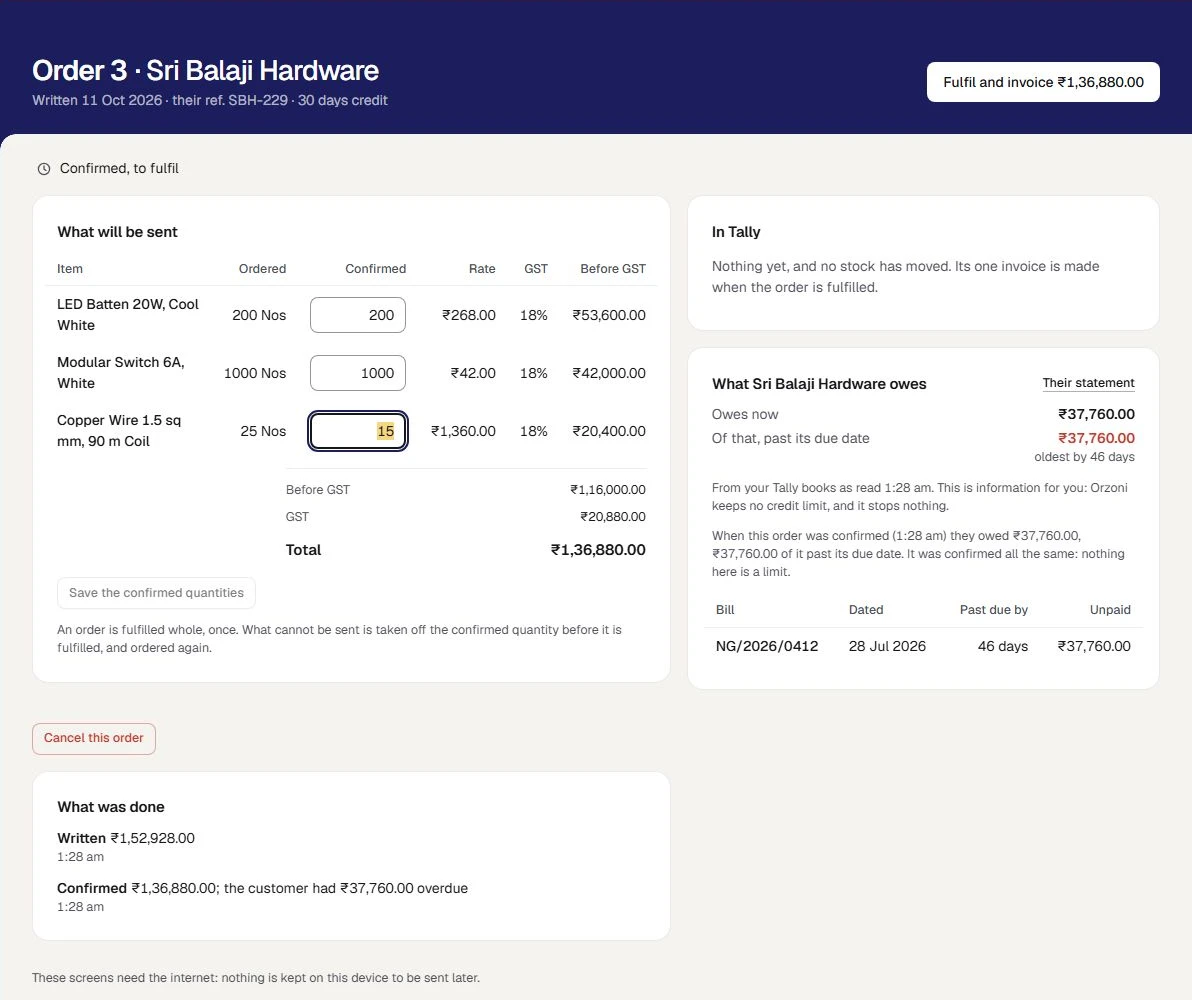
It is information, and only that. Orzoni keeps no credit limit, and these figures stop nothing. An order for a customer with overdue bills is confirmed and fulfilled all the same. The screen says so itself: This is information for you: Orzoni keeps no credit limit, and it stops nothing.
What the customer owed at the moment an order was confirmed is kept with the order, and shown on its page: It was confirmed all the same: nothing here is a limit. So you can see later what was known when it was confirmed.
The order's page also lists the customer's oldest unpaid bills, up to twelve, with how far each is past due. Whoever holds See figures and reports has a link, Their statement, to the customer's own page. The statement is trading's, and is the same for every account.
Confirm the order
Confirming says how many of each will be sent, at the rates agreed.
- Open the order. Under What was ordered, each line has a box under Confirmed. It starts as what was ordered.
- Type the confirmed quantity for each line: all that was ordered, less, or nothing.
- Press Confirm order, at the head of the page.
A small message says Confirmed. It moves no stock until it is fulfilled. The order reads Confirmed, to fulfil, and the card becomes What will be sent. The order is priced on what is confirmed.
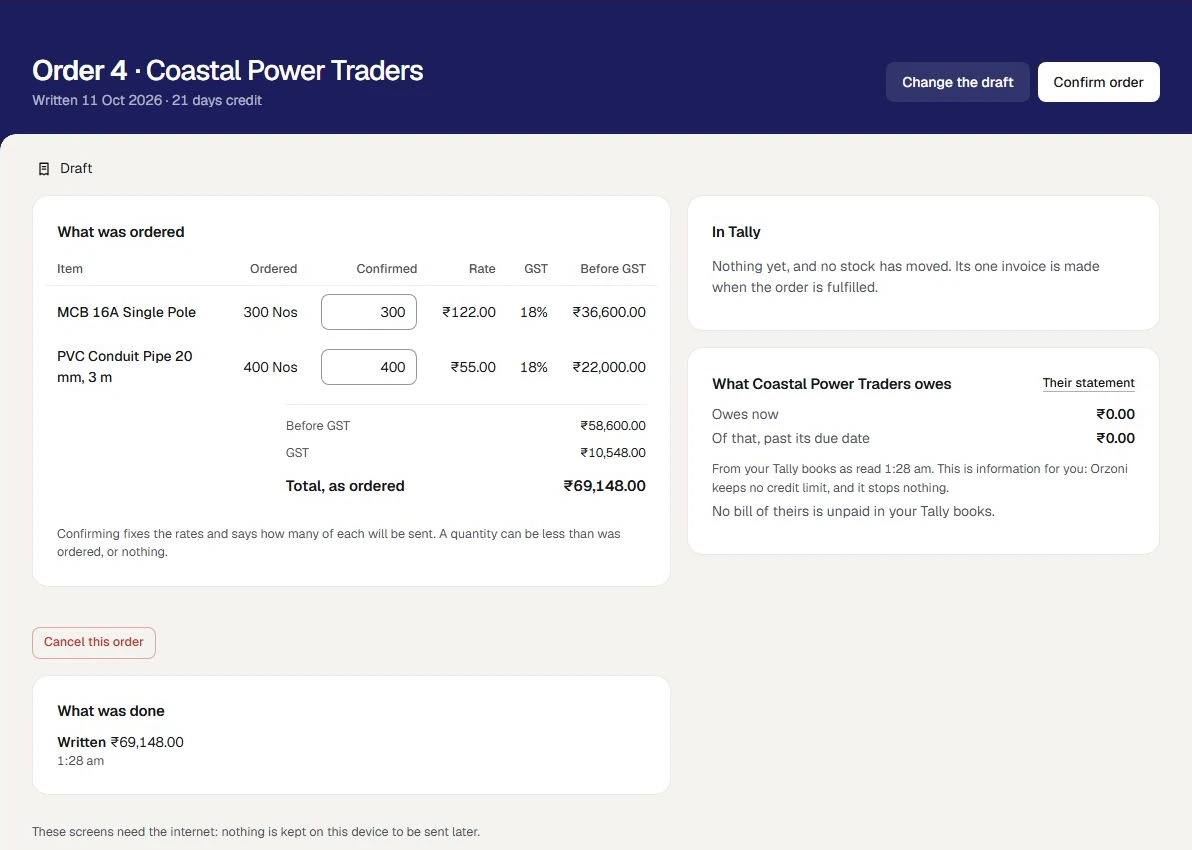
- Confirming moves no stock and posts nothing. Nothing goes to Tally.
- Stock is not reserved. Tally's count is shown for your information and does not stop an order. Two orders can be confirmed for the same goods.
- At least one line has to have a quantity. An order with nothing confirmed is cancelled, not confirmed.
Change the confirmed quantities
Until an order is fulfilled, its confirmed quantities can still be changed. Type the new quantity, and press Save the confirmed quantities. While a change is typed and not saved, Fulfil and invoice is not offered.
Anything else on a confirmed order, such as a rate or an item, is not changed. Cancel it and write it again.
Cancel an order
A draft or a confirmed order can be cancelled.
- On the order's page, press Cancel this order.
- Say why. A confirmed order needs a reason. A draft does not.
- Press Cancel the order.
The order is kept, marked Cancelled, with your reason. It moved no stock and posted nothing, so nothing is undone.
A fulfilled order is not cancelled. Goods that come back, or a wrong invoice, are put right in Bills, with a credit note against the invoice. See Change, cancel or delete an entry.
The list of orders
Sales orders opens on To fulfil: the confirmed orders waiting for their goods to go.
| View | What it lists |
|---|---|
| Drafts | Orders written and not confirmed |
| To fulfil | Confirmed orders, the one confirmed longest ago first |
| To be paid | Fulfilled orders with something left to receive, the oldest first |
| Fulfilled | Every fulfilled order |
| Cancelled | Every cancelled order |
| Needs attention | Orders with an entry that is not in Tally as it should be. Shown only when there is one |
The line above the list says how many orders are to fulfil and what they come to, and what there is to receive on fulfilled orders.
Each row has the order's number, when it was written and the customer's own reference, the customer and the invoice number, how it stands, and the total. Under How it stands, the order, the money and Tally each have a line of their own.
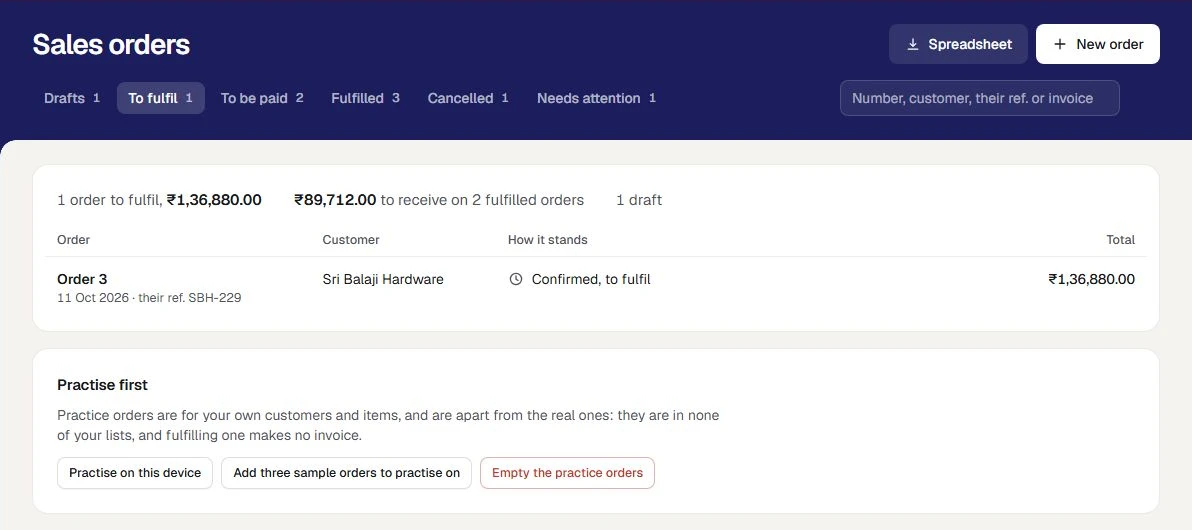
Find an order. Type in the box at the top right and press Enter. It looks in the order number, the customer, their reference and the invoice number.
Save the list. Whoever holds See figures and reports or Business settings has Spreadsheet, which saves the view as a file.
Practise first
Whoever holds Business settings has a card at the foot of the list, Practise first.
- Press Add three sample orders to practise on. They are made for your own customers and items.
- Press Practise on this device. The list opens with a dark bar across the top that reads Practice.
- Write an order, confirm it, fulfil it and record money against it.
- Press Leave practice, on the bar.
Practice orders are in none of your real lists and take no real order number. Fulfilling one makes no invoice and moves no stock: its page reads A practice order: no invoice is made, and nothing goes to Tally.
Empty the practice orders clears them.
If something stops you
| The screen says | Why | What to do |
|---|---|---|
| Writing a sales order is not yours to do | Your role does not have Write and confirm sales orders | Ask the owner for the Order desk or Dispatcher role |
| Sales orders are closed to new orders | The business is no longer in the pilot | Orders already written can still be confirmed and fulfilled from Sales orders |
| This order was changed on another screen | Someone else changed it | The order is shown as it now stands. Look, then make your change again |
| Enter each confirmed quantity as a number: nothing, or up to what was ordered. | A box under Confirmed is empty, or holds more than was ordered | Type a number from 0 to what was ordered |
| Nothing is confirmed on this order. | Every confirmed quantity is nothing | Confirm at least one line, or cancel the order |
| This did not reach Orzoni, or its answer was lost | The connection dropped as you pressed | Check the connection and press again. The same order is not written twice |
These screens need the internet. Nothing is kept on the device to be sent later.
If sales orders are closed to new orders
A bar at the head of every sales order screen can read Sales orders are closed to new orders for this business. It means the business is no longer in the pilot.
- An order already written can still be changed, confirmed, fulfilled or cancelled, and money can still be received against it.
- Everything can still be read, and saved as a file.
- No new order can be written, and practice orders cannot be added or emptied.
- Bills work as they always have.
Nothing was deleted. Press Ask us on the bar, or write to us from Settings, Help and support.
Sales orders cannot be switched off while an order is confirmed and not fulfilled. Fulfil or cancel each one first.
Mistakes you can undo
| The mistake | How to put it right |
|---|---|
| A wrong item, quantity, rate or customer on a draft | Change the draft |
| A wrong quantity on a confirmed order | Type the right one and Save the confirmed quantities |
| A wrong rate or item on a confirmed order | Cancel this order, with a reason, and write it again |
| An order that will not go | Cancel this order |
What it does to your data and to Tally
- A draft and a confirmed order are kept in Orzoni. Nothing of them goes to Tally, and no stock moves.
- What the customer owes is read from your books. Nothing is written by showing it.
- What the customer owed when an order was confirmed is kept with the order.
- A cancelled order made nothing in Tally, so nothing is undone there.
- What was done is written down under Settings, Users and roles, What was done: an order confirmed, fulfilled or cancelled, money received. Each order also lists what was done to it, with when and by whom.
What next
- Sales orders, invoices and receipts: fulfilling, the one invoice, and what is received.
- Customers and suppliers: what each customer owes, and their statement.
- Make a sales bill: billing with no order before it.
What sales orders do not do
Sales orders are a pilot for one company, a distributor selling to known customers on credit. They are the step before the invoice, and no more. These are the lines they keep, said plainly because each is something a distributor might otherwise assume.
- No price list and no schemes are kept. The rate agreed is typed on each order, with the rate that customer was last charged shown beside it.
- No credit limit is kept, and nothing holds an order. What a customer owes is shown as information, and an order is confirmed and fulfilled whatever it says.
- An order is fulfilled whole, and once. There are no part deliveries and no back orders: what cannot be sent is taken off the confirmed quantity, and ordered again.
- Stock is not reserved for an order. Tally's count is shown beside an item for information, and does not stop an order.
- No delivery note, no delivery challan and no sales order in Tally is made. The invoice is the one entry, and the one thing that moves stock.
- No transport details and no e-way bills are made here, and there are no routes and no van sales.
- An order does not name a warehouse or a batch. The goods leave from wherever the invoice takes them, as for any bill, and an item Tally keeps by batch is billed in Tally.
- An order is written by your own people, for a customer your books already hold. There is no customer portal, and no order arrives from a marketplace or by itself.
- No salesman targets and no commission are kept, and no purchase orders are made.
- Money received is recorded by a person. Orzoni does not ask a bank whether a payment arrived.
- A fulfilled order is not cancelled or changed. Goods that come back, or a wrong invoice, are put right in the books with a credit note.
- Sales orders are worked online. With no internet the screens say so, and nothing is kept on the device to send later.
- For a company registered for GST in one state. Where a company is registered in more than one, an order is not priced here, and the screen says why.
Orzoni gives no advice on tax. The GST on an order is worked out by the part of Orzoni that makes every bill, with the limits it already has.
Still stuck? Write to orzoni.official@gmail.com and say which step you are on, or book a walk-through call.