

On this page
Take in a job
How a repair or servicing job is taken in and worked. Who it is for, what is being worked on, the day promised and who has it. The list of jobs, ordered by the day promised. The steps a job moves through, one at a time. Writing the estimate as work and parts, revising it, and recording that the customer agreed.
9 minute read
What a job is
A job is work taken in for a customer: a repair, a service visit, an installation. It is Orzoni's own record. Nothing of it is in Tally but the money.
Three things about a job move apart from one another, and its page says each in its own words, side by side at its head.
| Thing | Its words |
|---|---|
| The job | New, In progress, Ready to hand back, Completed, Cancelled |
| The money | An advance held, Unpaid, an amount left to pay, Paid, or an amount left as credit |
| Tally | Waiting for Tally, In Tally, not checked yet, In Tally, checked, and the others in A job's money, and Tally |
Completed means the job was handed back and its invoice is made. It does not mean paid, and it does not mean in Tally.
Who this is for
Whoever takes jobs in at the desk, and whoever does the work.
| To do this | You need |
|---|---|
| Take a job in, change its details, write and revise its estimate, record that the customer agreed, mark it started or ready | Take in and work jobs |
| Take money, complete a job, cancel one | Take money on jobs, complete and cancel them |
| Read the jobs, and change nothing | See bills and entries |
The role Technician starts with the first. Service desk starts with the first two. See Users and roles.
Jobs are a pilot, open to a few businesses while they are being tried. Before a first job, the desk has been set up: see Set up jobs.
Take the job in
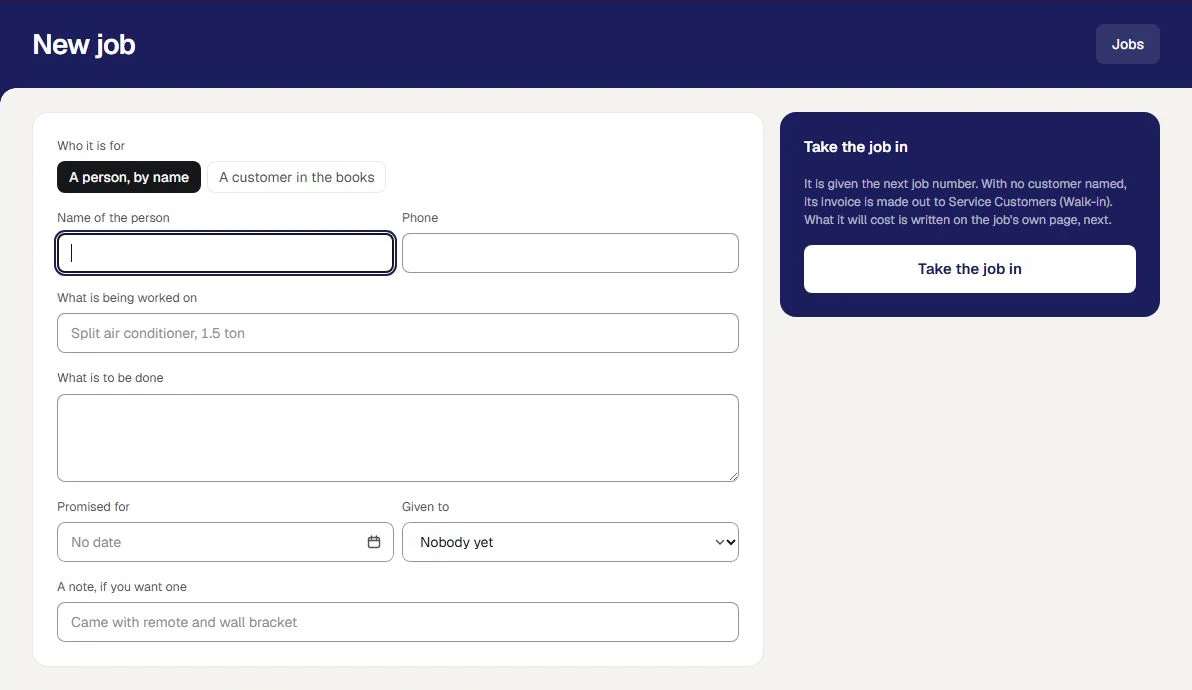
- Open Jobs, then New job. The keyboard is on the first box.
Under Who it is for, choose one.
- A person, by name. Write the Name of the person and their Phone. The job's invoice will be made out to the walk-in party chosen under Set up.
- A customer in the books. A box named Customer opens. Start typing and choose one from the list. The invoice is made in this customer's name. You can still write the name and phone of the person you deal with.
- In What is being worked on, say what it is, such as
Split air conditioner, 1.5 ton. - In What is to be done, say it in a few words.
- Choose the day in Promised for, if you promised one.
- Under Given to, choose one of your people, or leave Nobody yet.
- Add A note, if you want one, such as what came with it.
- Press Take the job in.
The job gets the next job number, and its own page opens. It reads New.
| If the screen says | What to do |
|---|---|
| Write the name of the person the job is for. | Write a name, or choose a customer from your books |
| A name is not a customer in your books | Choose one from the list, or take the job in by the person's name. A new customer is added under Customers |
| Say what is to be done, in a few words. | Fill in What is to be done |
Pressing Take the job in twice takes in one job, not two.
Change what was written down
While a job is open, press Change details on its page. Change what you need and press Save the changes. A change to the day promised, or to who has the job, is written down under What was done.
What the job will cost, its advance and its state are not changed there. A completed or cancelled job's details are not changed.
The list of jobs
Jobs opens on Open: every job that is new or in progress, ordered by the day promised, the earliest first. A job with no day promised comes last.
| View | What it lists |
|---|---|
| Open | Jobs that are new or in progress, by the day promised |
| Ready | Jobs marked ready, waiting to be handed back, by the day promised |
| To be paid | Completed jobs with something left to pay, and what there is to collect |
| Completed | Every completed job, the latest first |
| Cancelled | Every cancelled job |
| Needs attention | Jobs with an entry that is not in Tally as it should be. Shown only when there is one |
The line above the list says how many jobs are open, how many are ready to hand back, how many are past the day promised, how many are promised for today, and what there is to collect.
Each row has the job's number and what is being worked on, who it is for, the day promised and who has it, how it stands, and its estimate or what was invoiced. Under How it stands the job, the money and Tally each have their own line. A job past its day reads past beside the date.
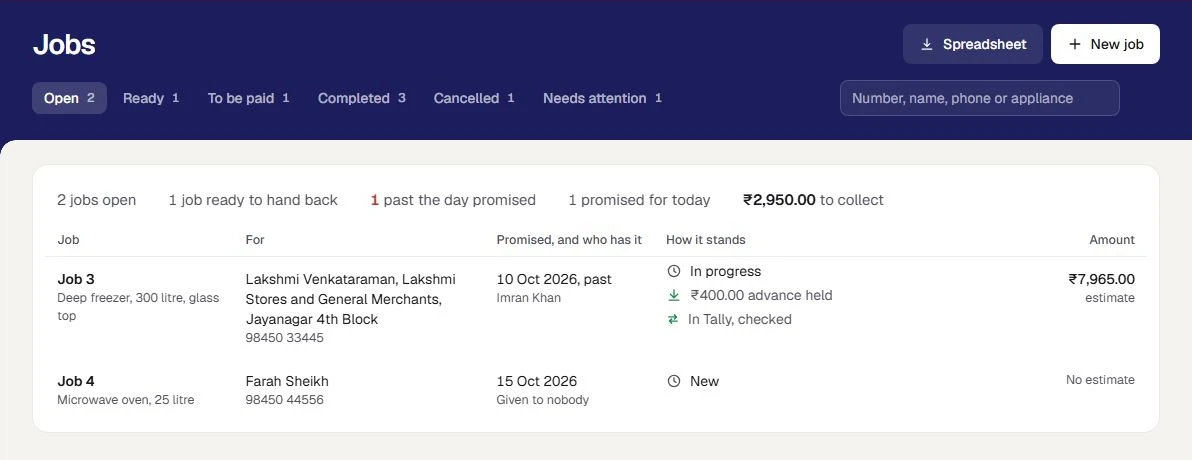
Find a job. Type in the box at the top right and press Enter. It looks in the job number, the name, the phone, the customer, and what is being worked on.
Save the list. Whoever holds See figures and reports or Business settings has Spreadsheet, which saves the view as a file.
The steps a job moves through
A job moves one step at a time, and only forward.
| From | The button | To | Who |
|---|---|---|---|
| New | Start job | In progress | Take in and work jobs |
| In progress | Mark ready | Ready to hand back | Take in and work jobs |
| In progress or Ready to hand back | Complete and invoice, with the amount | Completed | Take money on jobs, complete and cancel them |
| New, In progress or Ready to hand back | Cancel this job | Cancelled | Take money on jobs, complete and cancel them |
The job's page leads with the one thing to do next: the white button at its head. On a job that is ready, it is Complete and invoice.
A job is not marked ready before it is started, and not completed before it is started. Complete and invoice is offered only once the customer has agreed to the latest estimate. Completing and cancelling are in A job's money, and Tally.
Everything done to a job is listed on its page under What was done, with when and by whom.
Write the estimate
What a job will cost is an estimate. An estimate is never an invoice: nothing of it goes to Tally, and no stock moves.
- On the job's page, in the card Estimate, press Write an estimate.
Fill in the first line. Each line is Work or Part, from stock.
Kind of line What you fill in Work What the work is, Amount, before GST, and GST. You have to choose the GST rate: none is assumed Part, from stock Item, one of the stock items in your books, How many, and Rate, before GST. It is charged at the GST rate Tally holds for the item - Press Add work or Add a part for another line. The cross at the end of a line takes it off.
Press Work out the total.
The total is worked out by the same part of Orzoni that makes every bill, so it is the figure the invoice will come to. It shows what the lines come to before GST, each tax, any rounding, and the total.
- Press the button again. It now reads Save as revision 1, with the total.
A small message says Saved. Record that the customer agreed once they have.
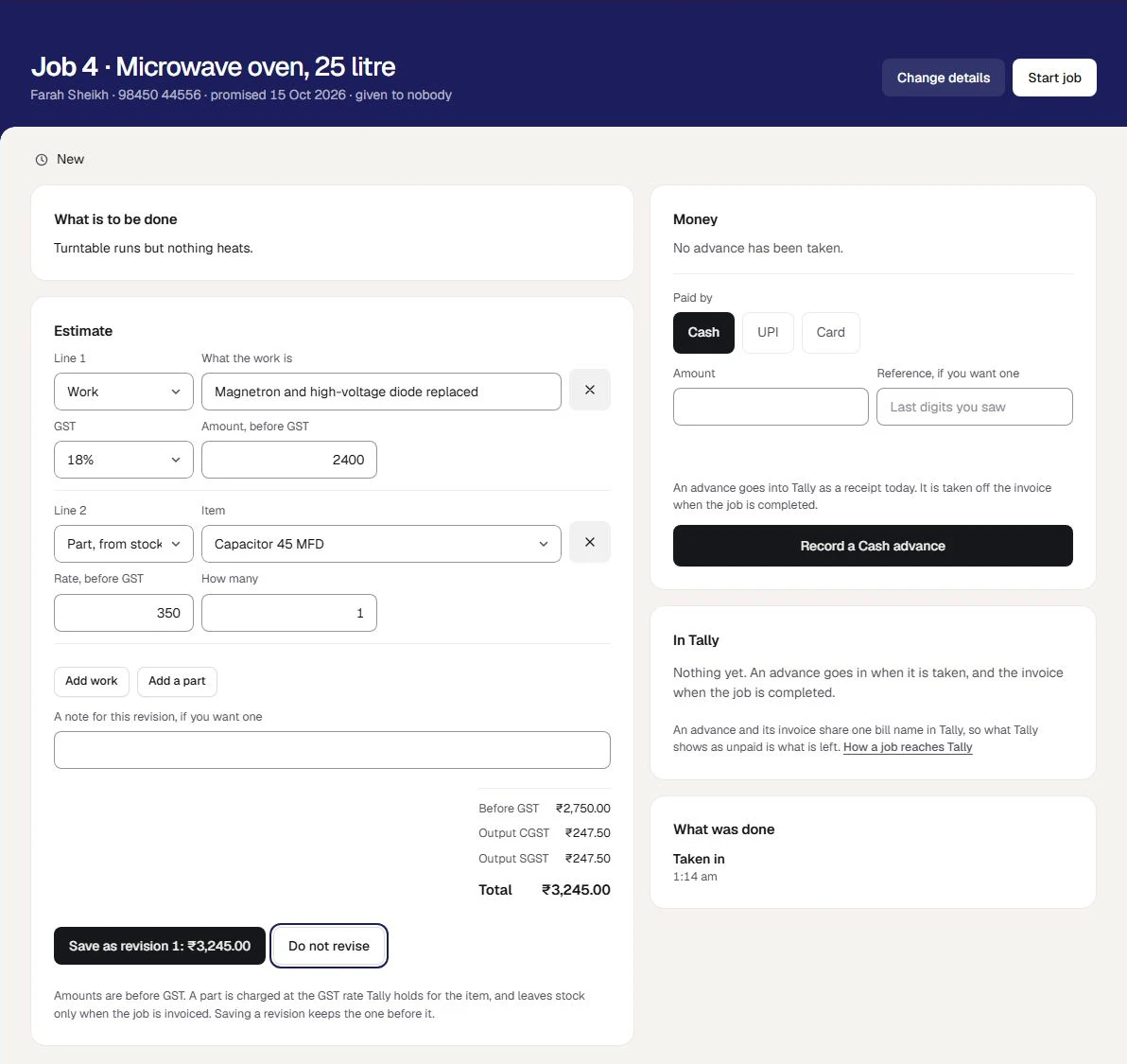
Amounts are before GST. If you change anything after the total was worked out, the total is asked for again before you can save. An estimate holds up to 30 lines.
A part's rate starts as the selling price kept for the item, where there is one, and you can change it. A part leaves stock only when the job is invoiced.
| If the screen says | What to do |
|---|---|
| Say what GST the work carries. None is assumed. | Choose a rate under GST on that line |
| Say what the work is. | Fill in What the work is |
| The ledger work is billed as has not been chosen. | Whoever holds Business settings chooses it under Jobs, Set up |
| This job has no customer named, and the party such a job is billed to has not been chosen. | The same |
Each of these ends Nothing was saved.
Record that the customer agreed
- Under the estimate, press Record that the customer agreed.
- In How they agreed, say how: in person, by phone, by message.
- Press Record that they agreed.
Under the estimate it now reads The customer agreed to this, with how they agreed, when it was recorded and by whom.
- Only the latest revision can be agreed to.
- The job is invoiced from the latest revision, and only once the customer has agreed to it.
- Orzoni records what you were told. It does not ask the customer anything, and sends them nothing.
Revise the estimate
If the work turns out to be more, or less, press Revise the estimate. The lines of the latest revision are there to change. Work out the total, and save it as the next revision.
- Every revision is kept. Under the estimate, a line such as 1 earlier revision, kept as it was opens them: each with its total, who made it and when, whether it was agreed and how, and its lines.
- A revision made after the customer agreed is not agreed. It reads The customer has not agreed to this yet, until you record that they agreed to it. The job cannot be completed before then.
- Do not revise closes the form and changes nothing.
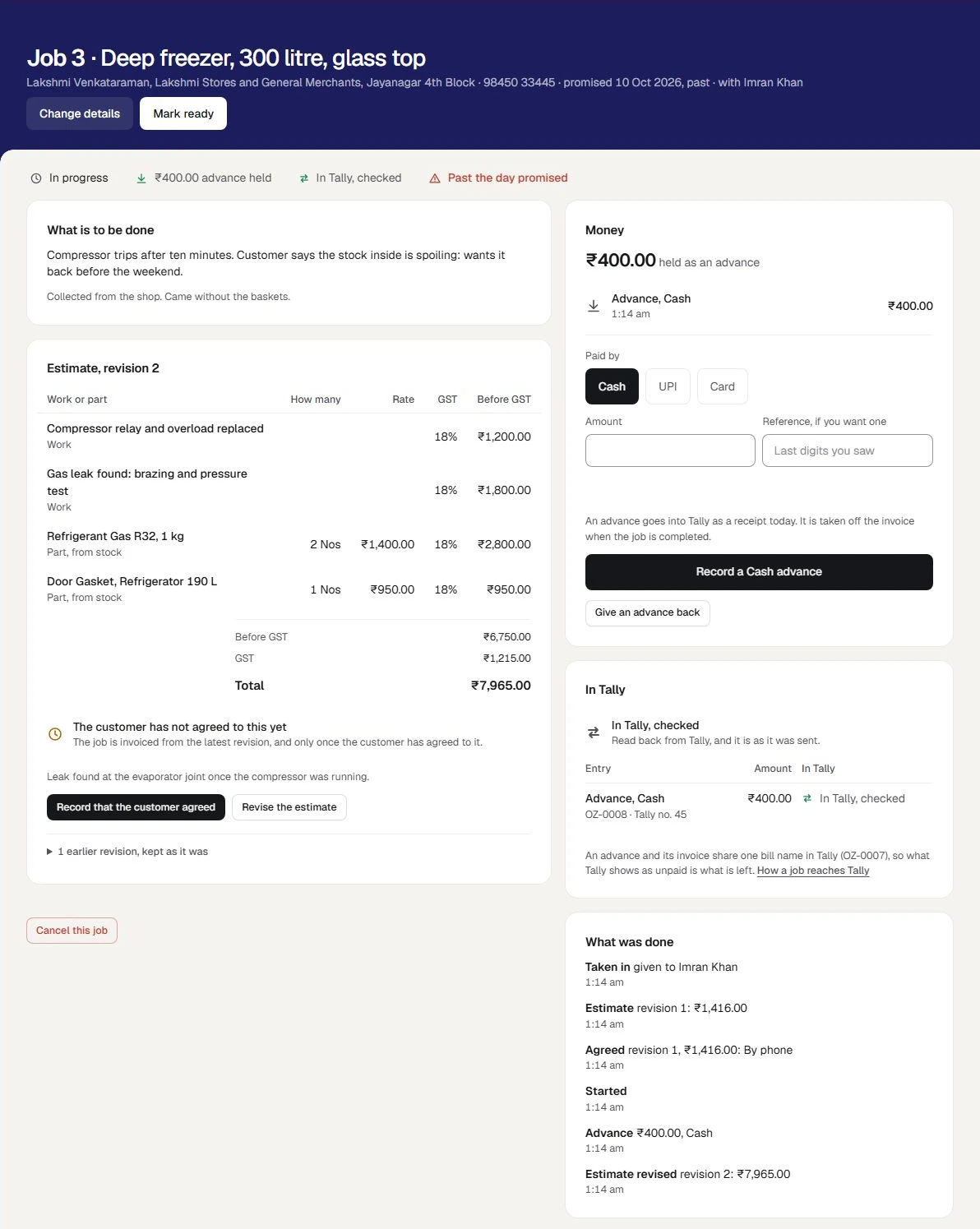
A completed or cancelled job's estimate is not revised.
If something stops you
| The screen says | Why | What to do |
|---|---|---|
| Taking a job in is not yours to do | Your role does not have Take in and work jobs | Ask the owner for the Service desk or Technician role |
| Jobs are closed to new work | The business is no longer in the pilot | Jobs already taken in can still be worked from Jobs |
| This job was changed on another screen | Someone else changed it | The job is shown as it now stands. Look, then make your change again |
| That is not the latest revision of this job's estimate | Someone revised it while you were looking | Look at the job again |
| This did not reach Orzoni, or its answer was lost | The connection dropped as you pressed | Check the connection and press again. The same job is not taken in twice |
| Invoices and payments cannot reach Tally yet | Something under Set up is still to choose | Jobs can be taken in meanwhile. Whoever holds Business settings presses Set up |
These screens need the internet. Nothing is kept on the device to be sent later.
Mistakes you can undo
| The mistake | How to put it right |
|---|---|
| A wrong name, date or person on an open job | Change details |
| A wrong line or amount in an estimate | Revise the estimate. The one before is kept |
| Agreement recorded on the wrong figure | Revise the estimate to the right figure, and record that the customer agreed to that |
| A job taken in that will not be done | Cancel this job, with a reason |
What it does to your data and to Tally
- A job, its estimate and every revision are kept in Orzoni. Nothing of them goes to Tally.
- No stock moves for an estimate. A part leaves stock once, by the invoice.
- Moving a job on to in progress or ready sends nothing to Tally.
- What goes to Tally is an advance when one is taken, the invoice when the job is completed, and what is paid after. See A job's money, and Tally.
What next
- A job's money, and Tally: the advance, completing and the invoice, the final payment, and cancelling.
- Set up jobs: the set-up, the roles and practice jobs.
- Team: attendance and payroll: the people a job can be given to.
What taking in a job does not do
- It books no time. A job has a day promised. There is no calendar, no hours and no visit slots.
- It tells nobody. No message is sent to the customer, or to the person the job is given to.
- It shows nobody only their own. Everyone who may see jobs sees every job.
- It prints no job sheet, and keeps no photos or files.
- It tracks no warranty and no serial number.
- It sends no estimate to Tally, and holds no stock for one.
- Nothing works with no internet. The screen says so, and takes nothing in.
The whole list is in Set up jobs.
Still stuck? Write to orzoni.official@gmail.com and say which step you are on, or book a walk-through call.