

On this page
Take a café order
An order taken at the counter, tap by tap. The menu and the choices sheet, the name and the table or token, the total Orzoni works out, Confirm order and Save as a draft, the order's own page, adding to an order or taking something off it, voiding, and the Orders list. On a computer, a tablet or a phone.
10 minute read
What an order is
An order is what one customer asked for at the counter. It is taken in Orzoni, sent to the kitchen, paid for and finished there.
Four things come out of one sale, and these guides keep their names apart:
| Thing | What it is | Where it lives |
|---|---|---|
| The order | What was asked for, and how it stands | Orzoni |
| A kitchen ticket | What the kitchen is asked to make | Orzoni, and on paper if you print it |
| A payment | Money recorded against the order. The customer's slip is the paper printed for the customer | Orzoni |
| The sales bill | The sale in your books | Tally |
This guide is about the first. An order here is not an order from a Shopify store: those are under Connectors, Shopify, and are covered in Orders from your store. It is not a sales invoice typed in the bill form either: see Make a sales invoice.
Who this is for
Anyone who serves at the counter. Taking an order needs the permission Take orders and payments. The roles Counter staff and Shift manager start with it, and so do the owner and an admin. See Users and roles.
The café counter is a pilot, open to a few businesses while it is being tried. Before the first order, the business has been let in, Café counter is switched on, and the menu has at least one thing on it. Set up a café does all three.
New to the screens? Try them on the training counter first, where nothing is a real sale: Practise on the training counter.
Start an order
Any of these opens a new order:
- New order, on Today and on Orders.
- The marigold New button, then Order. It is the first thing listed, under Counter.
- On a phone, the Orders tab at the foot, then New order.
The page is headed New order, with Tap what was asked for. under it and a line saying whether the prices include GST.
Build the order
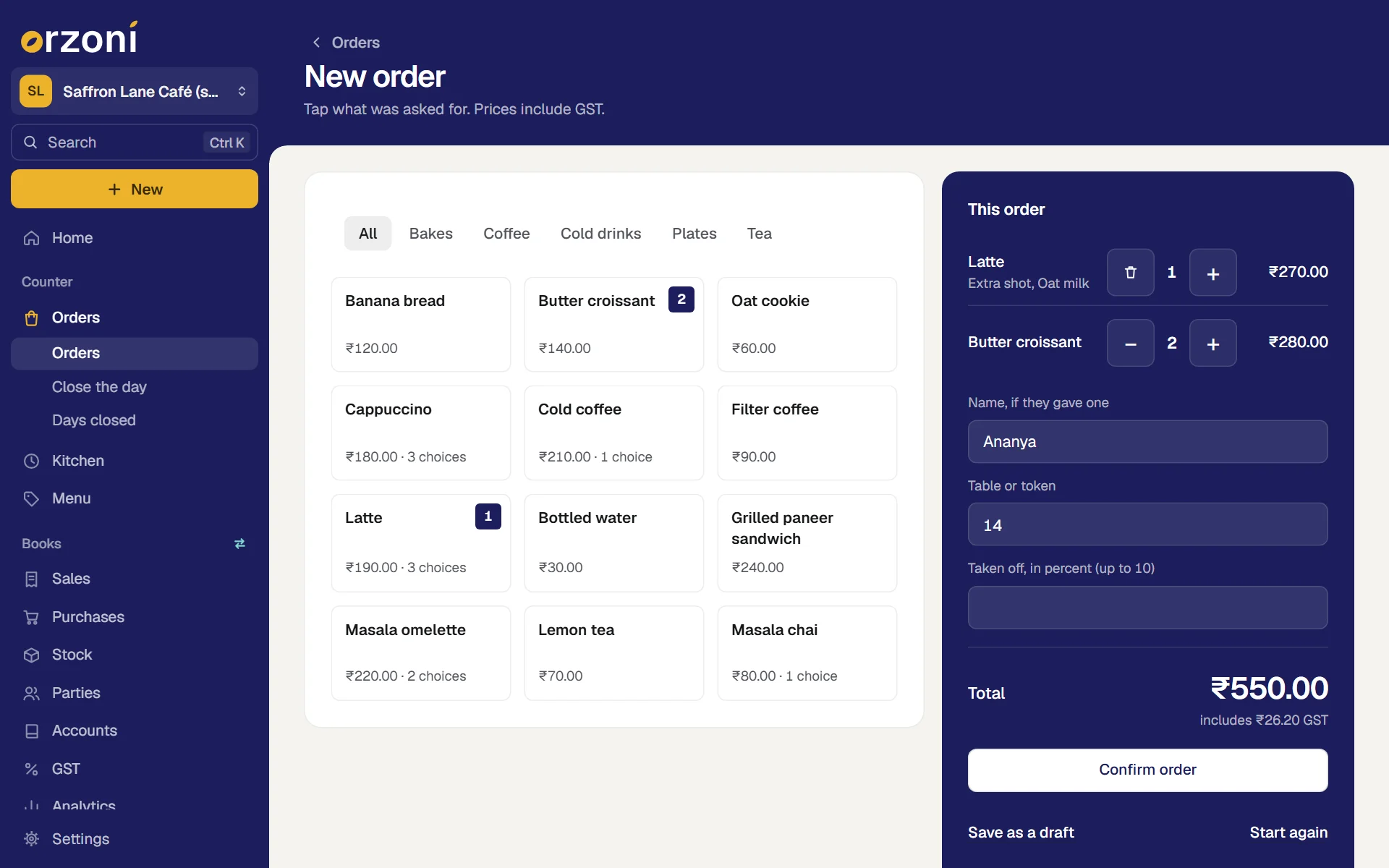
Tap what the customer asked for. Each tap adds one.
The tile shows how many are on the order. The row above the tiles keeps the menu to one part, such as Coffee or Bakes. All shows everything.
- Where a thing has choices, a sheet opens. Pick them, and press Add. See The choices sheet.
Look at This order, at the right. Each line has what it is, how many, and what it comes to.
Press + for one more and − for one fewer. At one, the button becomes a bin and takes the line off. Tap a line's name to change its choices or its note.
- Type a name in Name, if they gave one, and a number in Table or token. Both are optional. They are printed on the ticket, so the kitchen knows whose it is.
Check the Total.
Orzoni works it out from the menu: the prices, the choices, the GST, and rounding to the rupee where that is switched on. Nobody types a total. The small line under it says how much of it is GST.
The choices sheet
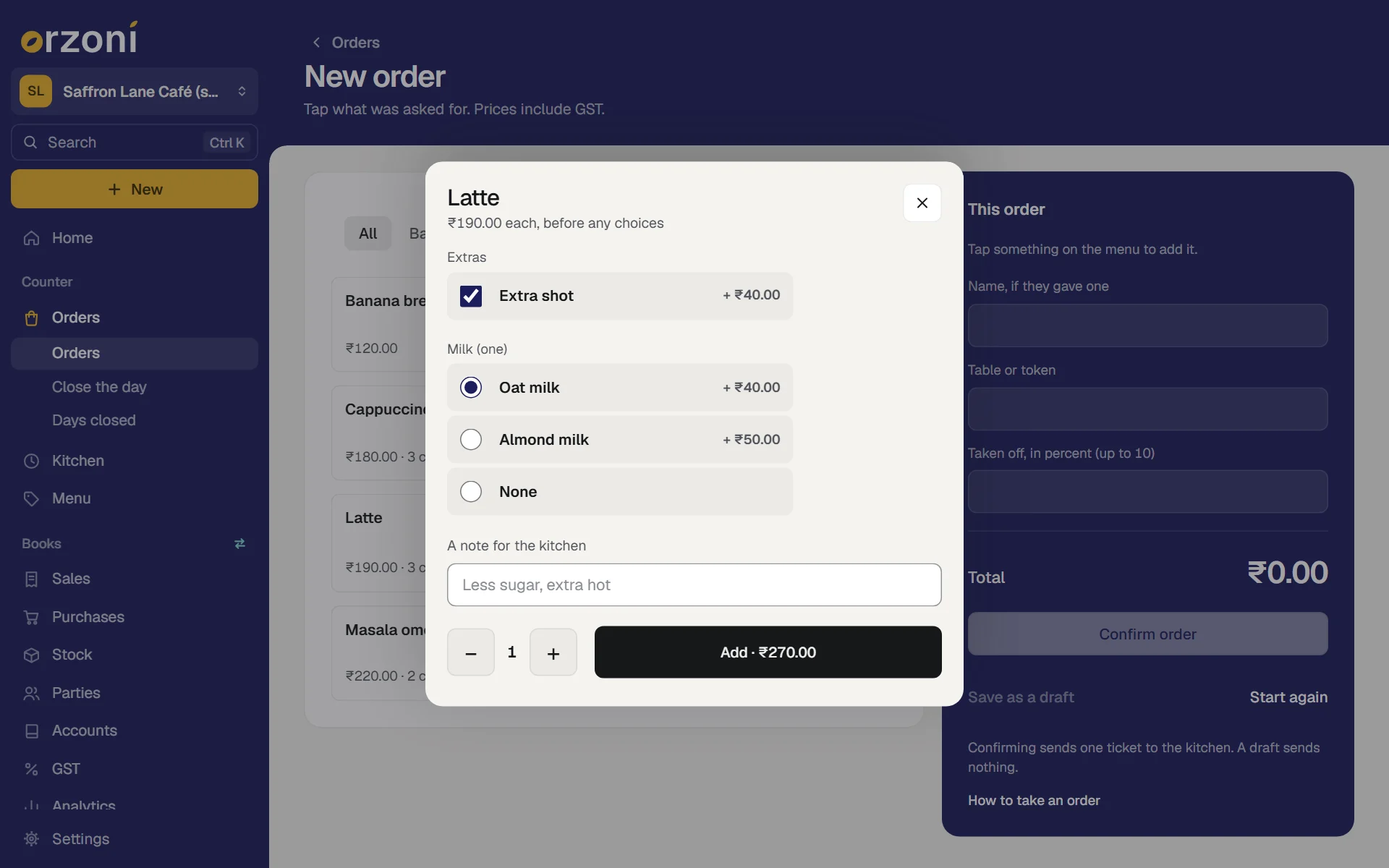
A latte with oat milk and an extra shot is one thing with two choices.
- Tap Latte. The sheet is headed Latte, with ₹190.00 each, before any choices.
- Tick Extra shot. Where a group lets the customer pick several, each choice is a box to tick.
- Choose Oat milk. Where a group allows one only, its heading says (one) and None is among the choices.
- Type anything the kitchen should know in A note for the kitchen, such as "extra hot".
Set how many with − and +, and press Add.
The button carries the price as you choose: Add · ₹270.00. That is ₹190 for the latte, ₹40 for the oat milk and ₹40 for the shot.
Two lattes with different choices are two lines. Something with no choices is one line that counts up.
The name, and the table or token
Both boxes are optional, and both are there so the right person gets the right order.
- Table or token takes up to 20 characters: a table such as T5, or the token number you call out, such as 14. It stands beside the order's number on the kitchen ticket and in the kitchen's queue, under For in the Orders list, and on the customer's slip.
- Name, if they gave one is shown with it in each of those places.
- An order with neither reads Walk-in.
A discount
Where the owner allows one, the box Taken off, in percent is under the table or token, and its label says how much may be given. Type the percent. The total follows as you type.
Without that box, no discount can be given at the counter. The owner sets it under Settings, Counter: see Set up a café.
On a phone or a tablet
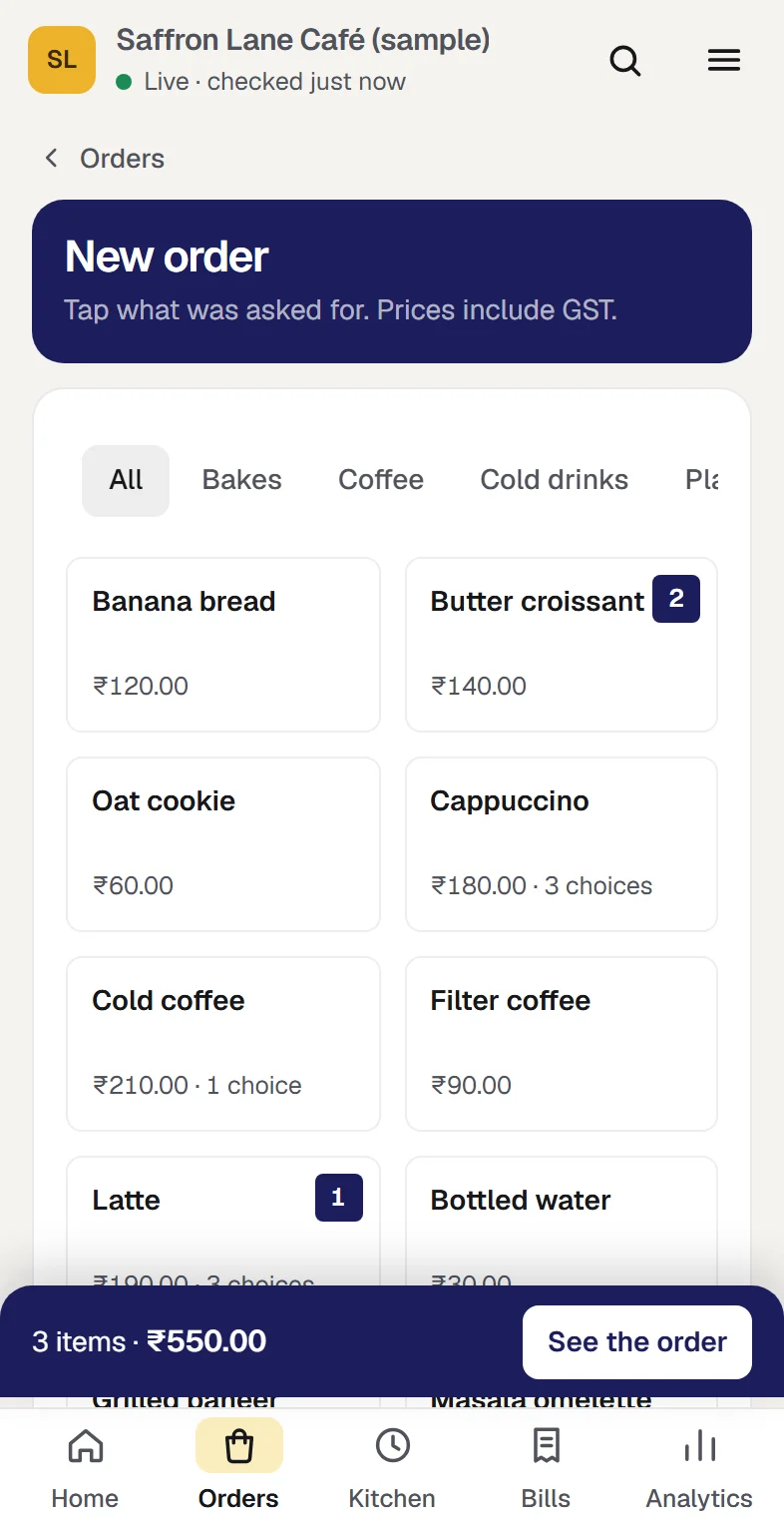
The menu fills the screen, and the order is a bar at the foot.
- Tap things on the menu, as above. The bar counts them: 3 items · ₹550.00.
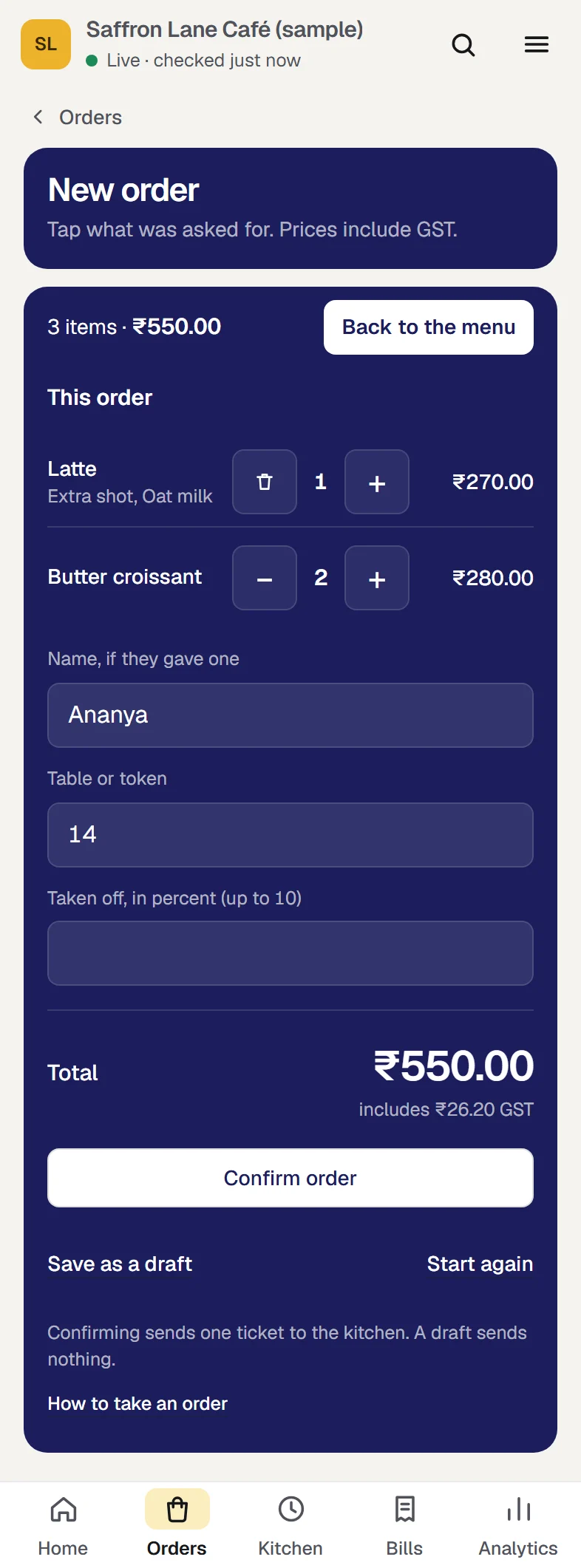
- Press See the order. The order opens over the menu, with the same boxes and buttons.
- Press Back to the menu to add more.
Confirm the order
Press Confirm order.
- The order is fixed as sold, and given its number for the day, such as Order 7. Numbers start again from 1 each day.
- One ticket goes to the kitchen, holding everything on the order.
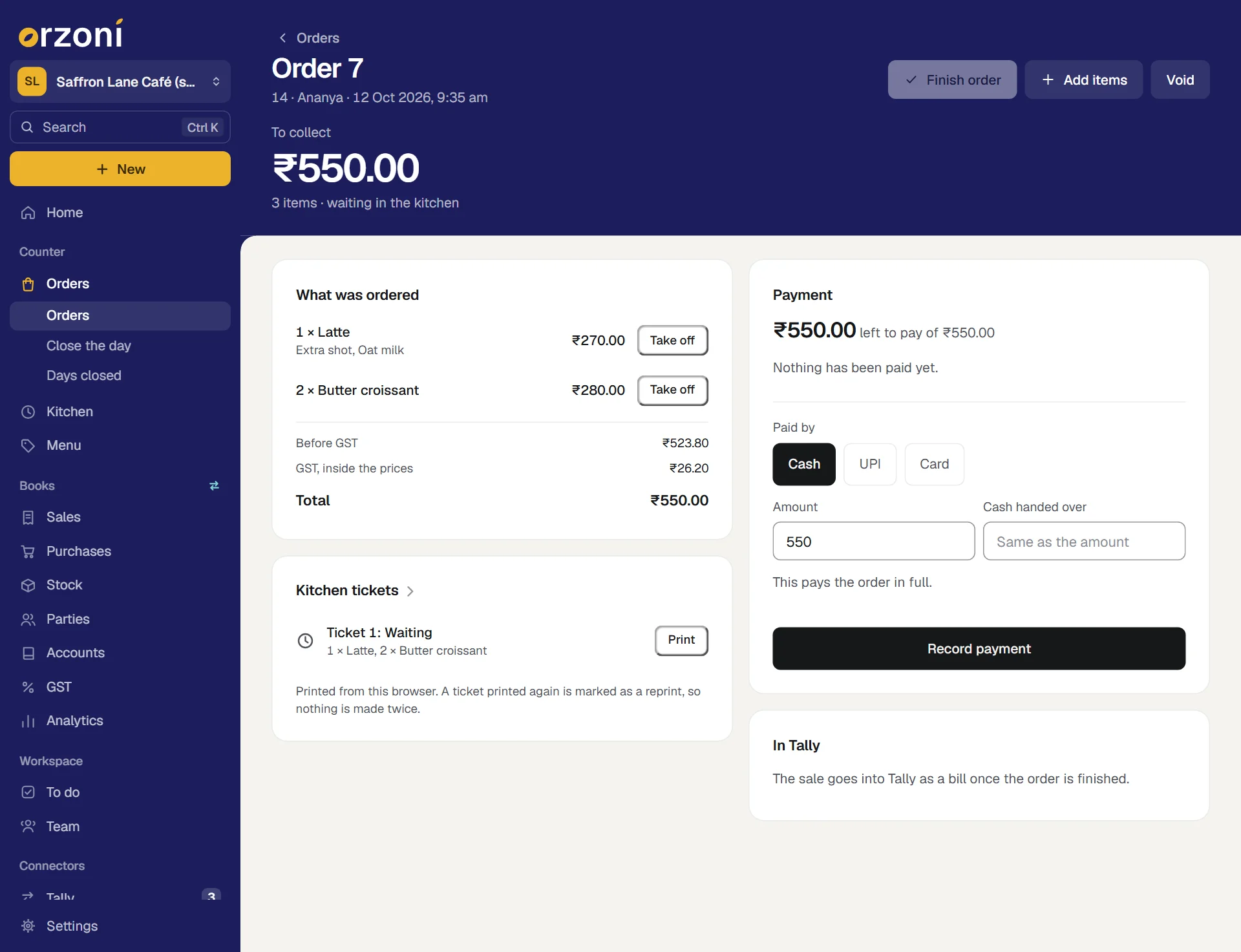
- The order's own page opens, and says so: Order 7 is confirmed and with the kitchen, with Ticket 1 is in the kitchen's queue. Take payment now or later.
Print the ticket, on that line, prints the kitchen ticket from this browser.
Not ready to confirm
Press Save as a draft. The order is kept, nothing is sent to the kitchen, and a small message says so: Order 6 is saved as a draft. Nothing was sent to the kitchen.
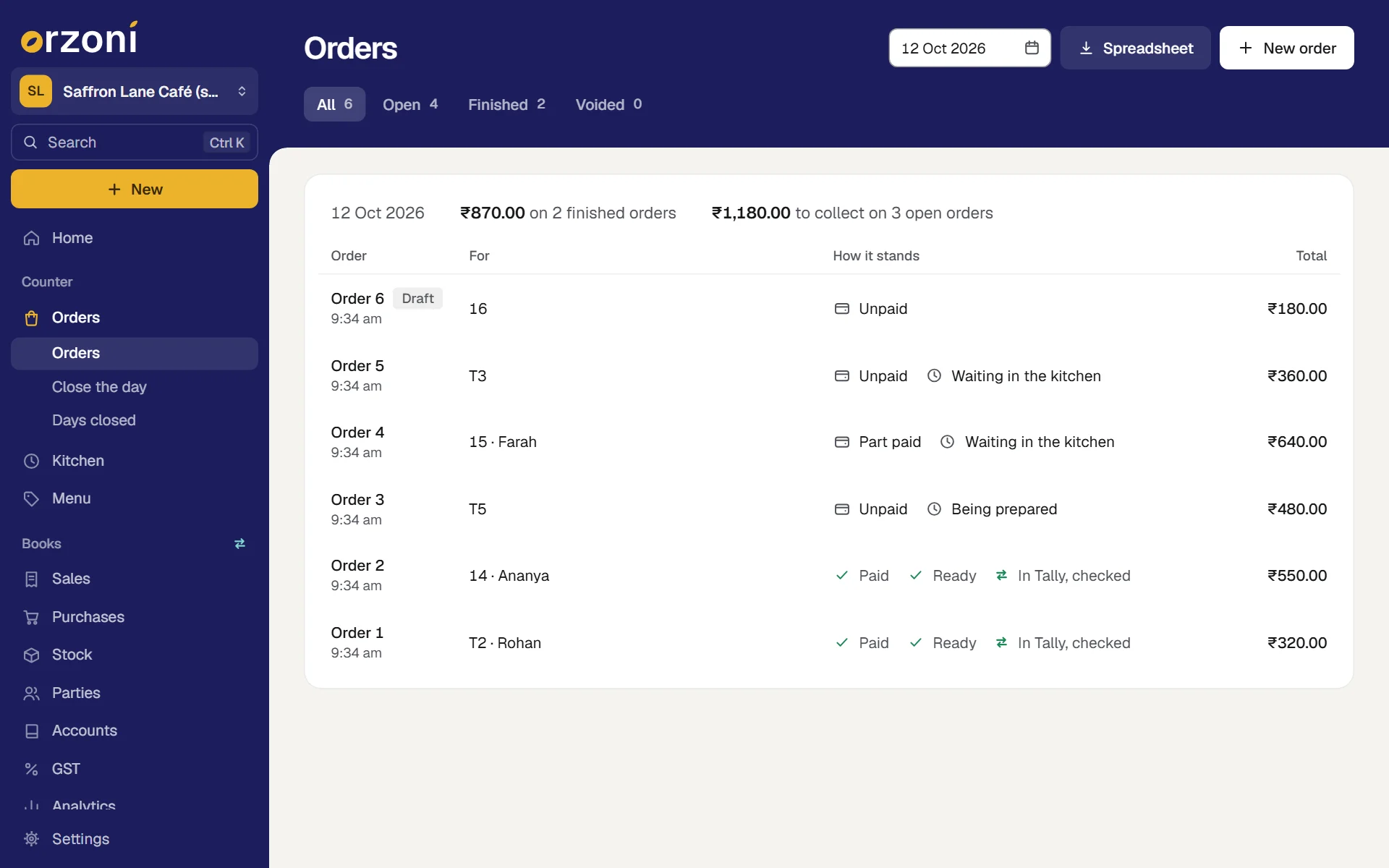
A draft is listed under Orders with the tag Draft. Open it and press Continue the order to carry on, or Discard to drop it. A draft takes its prices from the menu afresh each time it is saved or confirmed.
Start again clears what is on the order being built. It asks first.
An order half built is kept while Orzoni is open, so a look at another screen does not lose it.
The order's own page
Open an order from Today or from Orders. The top of the page says how it stands: To collect with the amount, Paid, not finished yet, or Finished and paid.
| Card | What is on it |
|---|---|
| What was ordered | Each line with its choices and price, then Before GST, GST and Total |
| Kitchen tickets | Each ticket with how it stands, and Print or Reprint |
| Payment | What is left to pay, each payment recorded, and the boxes for the next one. See Collect a split payment |
| Put right | On a finished order: money given back, and a payment recorded as the wrong kind. See Put a finished order right |
| In Tally | How the sale stands in your books, once the order is finished: the sale, and a receipt for each way it was paid. See Café receipts, and how a sale reaches Tally |
The buttons at the top depend on how the order stands.
| The order is | Buttons |
|---|---|
| A draft | Continue the order, Discard |
| Confirmed | Finish order, Add items, Void |
| Finished | Print the customer's slip |
Finish order wakes once the order is paid in full. Until then it says Record the payment first when you point at it.
Change an order after confirming
A confirmed order can be added to, and things can be taken off it, until it is finished. The first ticket is never rewritten. The kitchen is sent a new ticket that holds only what changed.
Add to it
On the order's page, press Add items.
The page is headed Add to Order 7, with What you add goes to the kitchen as a ticket of its own.
- Tap what is being added. The order at the right lists it under Being added, with Added now as its sum.
Press Add and send to the kitchen.
A small message says Added. The kitchen has a new ticket for it. The order's page shows the new total and Ticket 2, a change.
Take something off
- On the order's page, under What was ordered, press Take off beside the line.
Orzoni asks, for example, Take Latte off this order? The kitchen is sent a ticket that says so. Agree.
A small message says Taken off. The kitchen has been told. The line stays on the page, marked Taken off, and the total comes down.
The last thing on an order has no Take off: an order with nothing on it is voided instead.
Void it
An order that will not go ahead is voided, and kept.
- If any payment was recorded, take each one back first. See Collect a split payment.
Press Void, and say why in a few words.
A small message says Voided. The kitchen is sent a ticket that takes everything off. The order stays in the list under Voided, with your reason, and makes no bill.
A finished order is not voided. Money given back on it is recorded on its own page, under Put right: see Put a finished order right.
An example, from start to finish
At the made-up Saffron Lane Café, Ananya asks for a latte with oat milk and an extra shot, and two butter croissants. She is given token 14.
| Step | What is on screen |
|---|---|
| Tap Latte, tick Extra shot, choose Oat milk, press Add | A line for the latte at ₹270.00: ₹190 for the latte, ₹40 for the milk, ₹40 for the shot |
| Tap Butter croissant twice | A line for two croissants at ₹280.00, and Total ₹550.00 |
| Type Ananya and 14, press Confirm order | Order 7 is confirmed and with the kitchen, and one ticket in the queue |
| She pays ₹300 in cash with a ₹500 note | Change to give: ₹200.00. Left to pay after this: ₹250.00 |
| She pays the other ₹250 by UPI | Paid in full |
| Press Finish order | Order 7 is finished. One sales bill for ₹550.00 goes into Tally, with a receipt for the cash and one for the UPI |
One order, one kitchen ticket, two payments, one sales bill.
The Orders list
Orders, under Counter at the side, lists the orders of one day, newest first.
- The tabs keep it to All, Open, Finished or Voided, each with its count.
- Open lists every order not yet finished or voided, from any day, the oldest first. An order left open yesterday is still there today.
- Needs attention is a fifth tab, shown when there is something in it: every finished sale, from any day, that is not in Tally as it should be, with the reason under it. See Café receipts, and how a sale reaches Tally.
- The date box at the top shows another day.
- Each row says how the order stands, in separate words: the money (Unpaid, Part paid, Paid), the kitchen (Waiting in the kitchen, Being prepared, Ready) and Tally (such as In Tally, checked).
- The line above the rows adds the day up: what finished orders came to, and what is still to collect on open ones. It is added up over every order of the day, however many rows are on show.
- A long list shows its first 200 rows, with Show more under them.
- Spreadsheet, on a wide screen, downloads every order of the list on show. It is offered to whoever holds Business settings or See figures and reports.
If something stops you
Orzoni says what is wrong in red above the button, and nothing is sent until it is put right.
| Orzoni says | Why | What to do |
|---|---|---|
| Prices have changed since this screen was opened. The order now comes to a new sum | The menu was changed while you were taking the order | The screen now shows the new prices and total. Tell the customer, then press Confirm order again. Nothing was charged at the old price |
| This order was changed on another screen. It is shown here as it now stands: look, then make your change again. | Someone else added to it, took a payment or finished it meanwhile | Look at the order as it now is, then do what you meant to, if it is still needed |
| A thing is no longer on the menu. Take it off the order. | It was taken off the menu after you tapped it | Take the line off, and confirm |
| A thing's name, then one of the choices is no longer offered. Choose again. | A choice was removed from the menu | Tap the line and choose again |
| The most that may be taken off an order here is a percent | The discount typed is more than the owner allows | Type a smaller one |
| Nothing is on the menu yet | The menu is empty | Whoever holds Business settings adds to it: Set up a café |
| Café counter is switched off for this company. | The part is switched off under Settings, Business type | The owner switches it on. See Choose your kind of business |
| The café counter is closed to new orders for this business | The counter is no longer open to this business | Orders already taken can still be paid, finished or voided, and the day closed. Ask us under Settings, Help and support. See Choose your kind of business |
| Could not reach Orzoni. Check that you are online, then try again. | This phone or computer is offline | Check the connection. The counter needs to be online, and shows nothing old while it is not, so that nothing is taken twice |
An order holds up to 40 lines, and up to 99 of one thing on a line.
Mistakes you can undo
| The mistake | How to put it right |
|---|---|
| A wrong thing tapped, before confirming | − or the bin on its line. Start again clears the lot |
| The wrong choices, before confirming | Tap the line's name, choose again, and press Change |
| Something missed, after confirming | Add items. The kitchen gets a ticket for what was added |
| Something that should not be on it, after confirming | Take off beside the line. The kitchen gets a ticket that says so |
| The whole order, before it is finished | Take back any payment, then Void with a reason |
| Money to give back on a finished order, or a payment recorded as the wrong kind | On the order's page, under Put right. See Put a finished order right |
Pressing Confirm order twice, or on a slow connection, makes one order and one ticket.
What it does to your data and to Tally
- An order, its lines and its tickets are kept in Orzoni, with who took it and when.
- Nothing reaches Tally when an order is taken, confirmed, changed or voided. The sale goes into Tally as one sales bill when the order is finished.
- An order keeps its own copy of what it sold: the name, the price, the choices and the GST. A menu changed later changes no order already taken.
- Taking an order goes on while the computer that runs Tally is off. See Café receipts, and how a sale reaches Tally.
Where the line is
The pilot is counter service. Three things a busy counter might look for are not part of it, and each has a plain way to work today. What the café counter covers has the whole list.
Moving or merging tables
Orzoni does not move an order to another table, or merge two tables into one. An order has one table or token, typed when it is taken. Where people move, call out the token and carry the order to them.
Splitting one bill between people
Splitting one bill between people, with a bill for each, is not built. One order makes one bill. For people paying apart, take an order for each of them. For people sharing one order, record each person's payment against it: see Collect a split payment.
Orders from food delivery services
Orders from food delivery services are not brought in. Take such an order at the counter as it arrives, like any other, with the service's name in Table or token.
What next
- Use the kitchen queue: where the ticket goes.
- Collect a split payment: cash, UPI and card against one order.
- Café receipts, and how a sale reaches Tally.
- Put a finished order right.
- Close the day.
- Orders from your store: the other kind of order, from a Shopify store.
Still stuck? Write to orzoni.official@gmail.com and say which step you are on, or book a walk-through call.