

On this page
Team: attendance and payroll
Mark who came in with one press each, keep the people who work for you and their departments, and let the month's pay work itself out, with advances, bonuses, deductions and a payslip for each person.
14 minute read
Kept in Orzoni only
Team in the rail, under Workspace, has four screens: Attendance, People, Departments and Payroll.
All of it is Orzoni's own. Tally is never told who came in, what anyone is paid, or that a month was paid. The one way anything here reaches your books is Record in your books, at the end of this guide, and only when you press it.
Start by adding the people who work for you. Until someone is added, Attendance and People read Nobody in your team yet and offer Add the first person.
Attendance
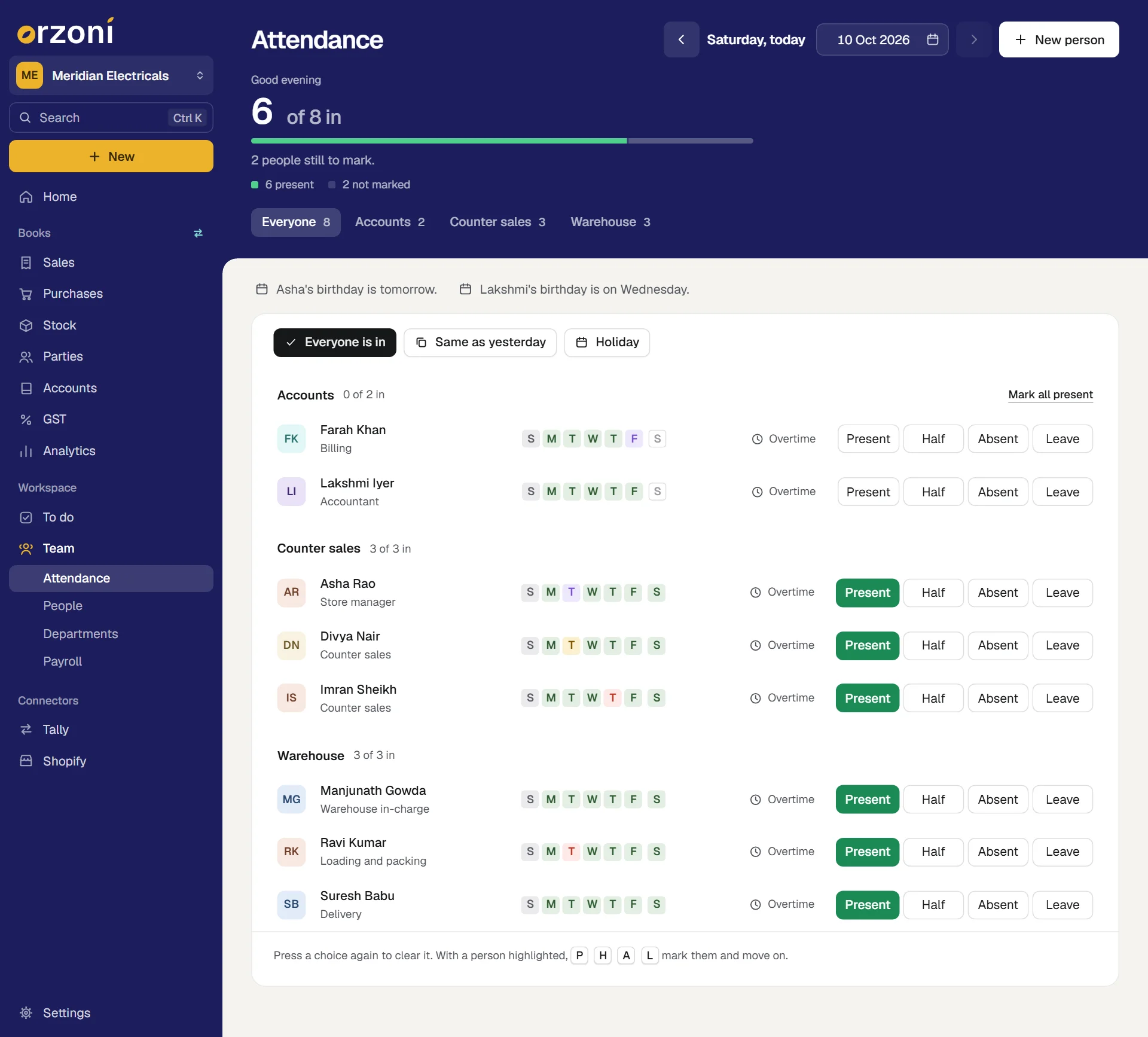
The band says the day and leads with how many are in, out of how many are due in. Someone on their weekly off, or on a holiday, is not due in. The bar under it and the line of counts say what the rest are: present, half day, absent, on leave, on holiday, weekly off or not marked.
Mark a day
- Find the person's row. With departments set up, the list is divided by department, and the band has a view for each.
Press Present, Half, Absent or Leave.
The mark turns solid, and the figure on the band counts again. Nothing else needs pressing: it is saved.
- To take a mark back, press the same mark again.
For a whole team, the three buttons above the list save the pressing:
| Button | What it does |
|---|---|
| Everyone is in | Marks present everyone still unmarked. Marks already made and weekly offs are left alone. With a department's view chosen, it reads All of that department in, and marks that department only |
| Same as yesterday | Gives everyone still unmarked what they had on the last day that was marked. When that day was not yesterday, the button names it: "Same as Monday". The hours of staff paid by the hour are carried too. Overtime, notes and holidays are not |
| Holiday | Makes the day a holiday for everyone, after asking once. It replaces whatever was marked. Not a holiday takes it back, and leaves the day not marked for them |
Each department's heading also has Mark all present, for that department alone.
The kinds of mark
| A day can be | How it gets that way |
|---|---|
| Present | You press Present, or one of the buttons for everyone |
| Half day | You press Half |
| Absent | You press Absent |
| Leave | You press Leave |
| Holiday | The Holiday button for the whole team, or Holiday on one person's calendar |
| Weekly off | By itself, on the days of the week set for that person. It needs no marking |
| Not marked | A working day nobody has marked. Payroll counts it as you have chosen: see How days count below |
What each one is paid is under How pay is worked out below.
Overtime, hours and notes
- Overtime on a row opens that person's day: type the Overtime hours and a Note, if any, and press Save. The button then shows the hours, such as "+2 h".
- Someone paid by the hour has an Hours box on their row. Type the hours worked and leave the box. A day with hours typed and no mark is marked present for you.
- Hours are between 0 and 24.
- Overtime and hours belong to a day that was worked. On a day marked absent, on leave or a holiday, they are not kept.
- A note needs a mark: Orzoni says Mark the day first when the day has none.
Another day
The arrows beside the date go a day back or forward. Press the date for a calendar, or type one. Today brings you back.
- A day that has not come cannot be marked.
- A person is listed only on the days they were with you: from the day they joined to their last day.
- The letters on each row are that person's last seven days, ending with the day on show. Point at one for the day and its mark.
- A row tagged Paid, locked belongs to a month already marked as paid. Its marks cannot be changed until you press Undo paid on Payroll.
Birthdays, and years completed with you, are said above the list on the day and in the week before.
Keys on Attendance
- Press Tab until a person is highlighted. Then P, H, A and L mark them present, half day, absent or on leave, and move to the next person.
- Up and Down move between people.
- F2 opens the calendar for the day.
- Alt C opens New person.
- Ctrl F5 opens Attendance from anywhere, and Ctrl F4 opens Payroll. A browser keeps some keys for itself, so these two may not reach Orzoni in every browser.
People
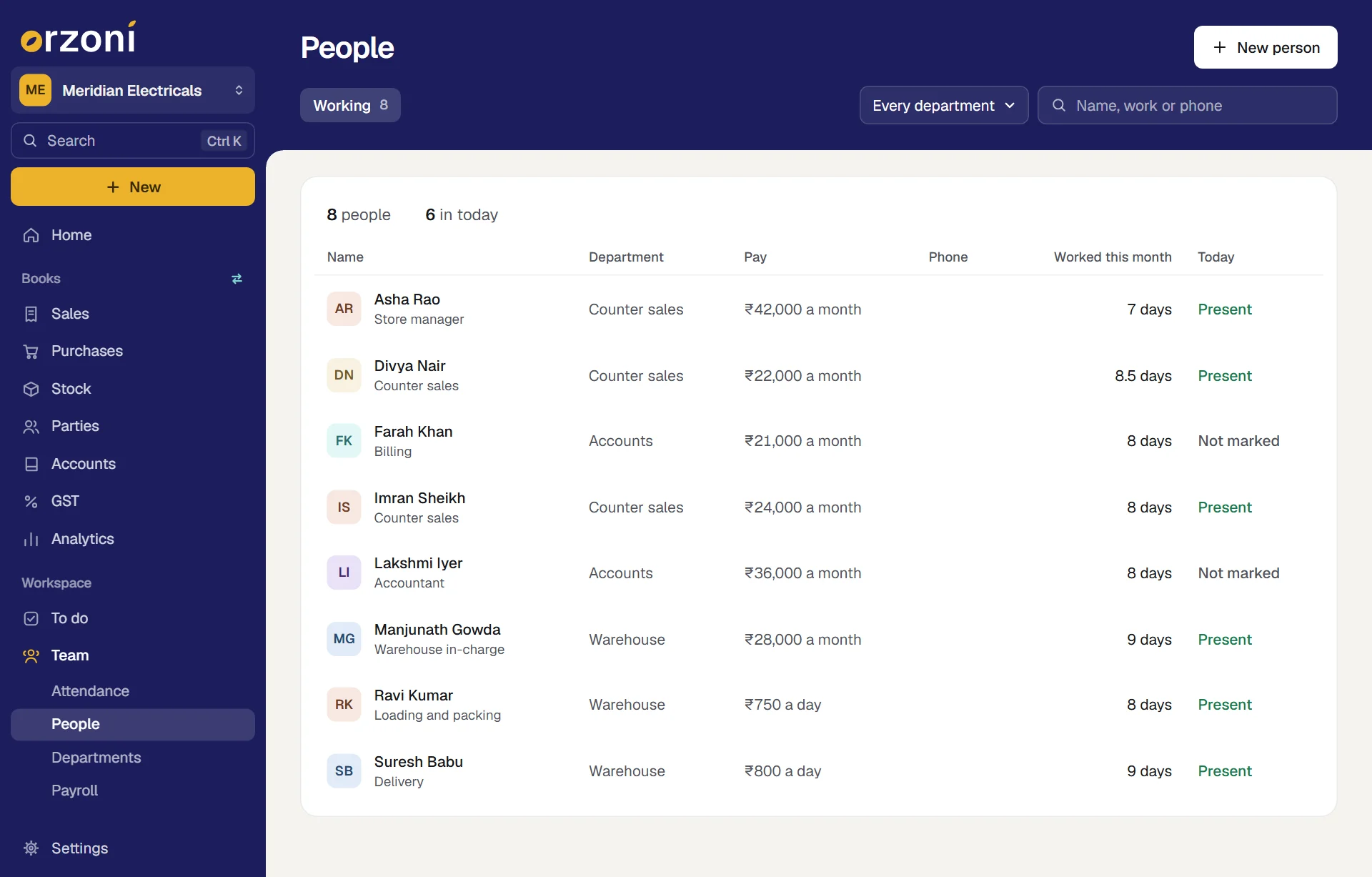
The list has each person's name and work, department, pay, phone, days worked this month and how today stands. The first line counts the people on show and how many are in today.
- The views are Working, and Left and All once someone has left.
- With departments set up, Every department narrows the list to one.
- The search box takes a name, their work or a phone number.
- Press a person to open their page. Up and Down move through the list, and Enter opens.
Add a person
- Press New person, or Alt C.
- Type their Name. Nothing else must be filled.
- Fill in what you know: Work they do, Phone, if any, Department, Date of birth, if you know it.
- Choose Paid by: The month, The day or The hour. The box under it changes to match: Salary a month, Pay a day or Pay an hour.
- Type the Overtime pay an hour, if any.
- Under Weekly off, press each day of the week they do not work. Sunday is pressed to begin with. At least one working day must be left.
- Fill in Joined on. Days before it are not paid. Leave it empty for someone who has been with you a while.
Press Add to the team.
Orzoni says they are in the team, and they are on Attendance to be marked.
One person's page
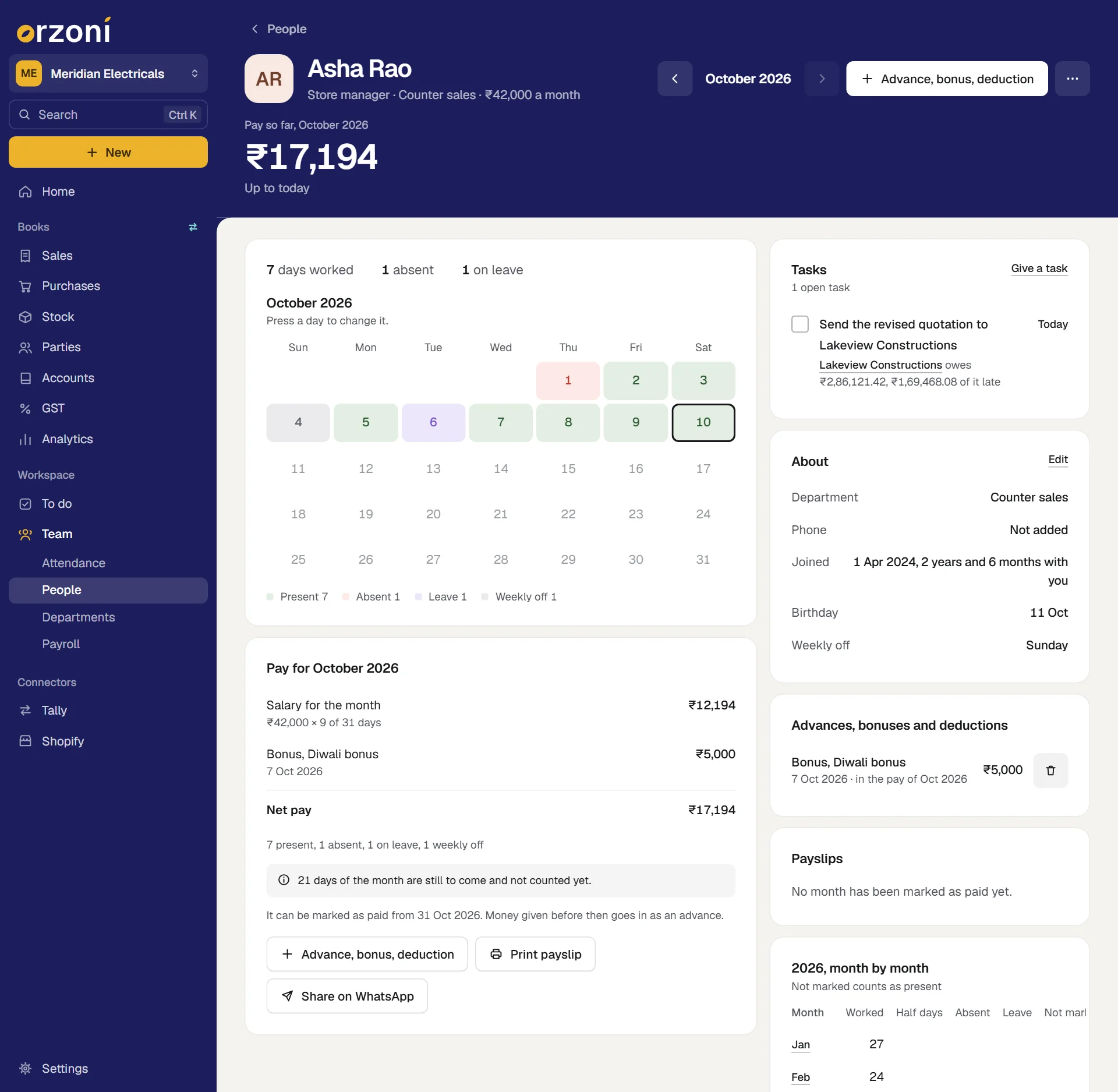
The band has the person's name, work, department and pay, and leads with their pay for the month: Pay so far while the month is running, Pay for the month once it is over, Paid once you have paid it. The arrows step a month back or forward.
| On the page | What it is for |
|---|---|
| The calendar | The month day by day. Press a day to change it |
| Pay for the month | The working of the pay line by line, and the buttons for the payslip. See Payroll below |
| Tasks | The open tasks given to them, with Give a task. See Tasks and follow-ups |
| About | Department, phone, the day they joined and how long they have been with you, birthday and weekly off. Edit changes them |
| Advances, bonuses and deductions | Each one, with the month whose pay it is in. The bin removes one, after asking |
| Payslips | Every month marked as paid. Press one to open that month |
| The year, month by month | Days worked, half days, absent, leave and not marked, for each month of the year |
To change one day on the calendar:
- Press the day. A menu opens with the weekday and the date.
Choose Present, Half day, Absent, Leave or Holiday.
To add overtime or a note, choose Overtime and note. For someone paid by the hour it reads Hours, overtime and note.
- To take a mark off, choose Clear the mark.
Days still to come, and days before they joined or after they left, cannot be pressed. In a month marked as paid, no day can.
The More button has Edit details, Mark as left and Payroll for this month.
- Edit details opens the same form as a new person. A change to the pay applies to months still to be marked as paid.
- Mark as left asks for their Last day at work. They are paid up to that day, and their attendance and payslips are kept. Back at work undoes it.
- Delete is at the foot of Edit details, only for someone with no attendance or pay on record: a person added by mistake. It asks twice. Anyone else is marked as left.
Departments
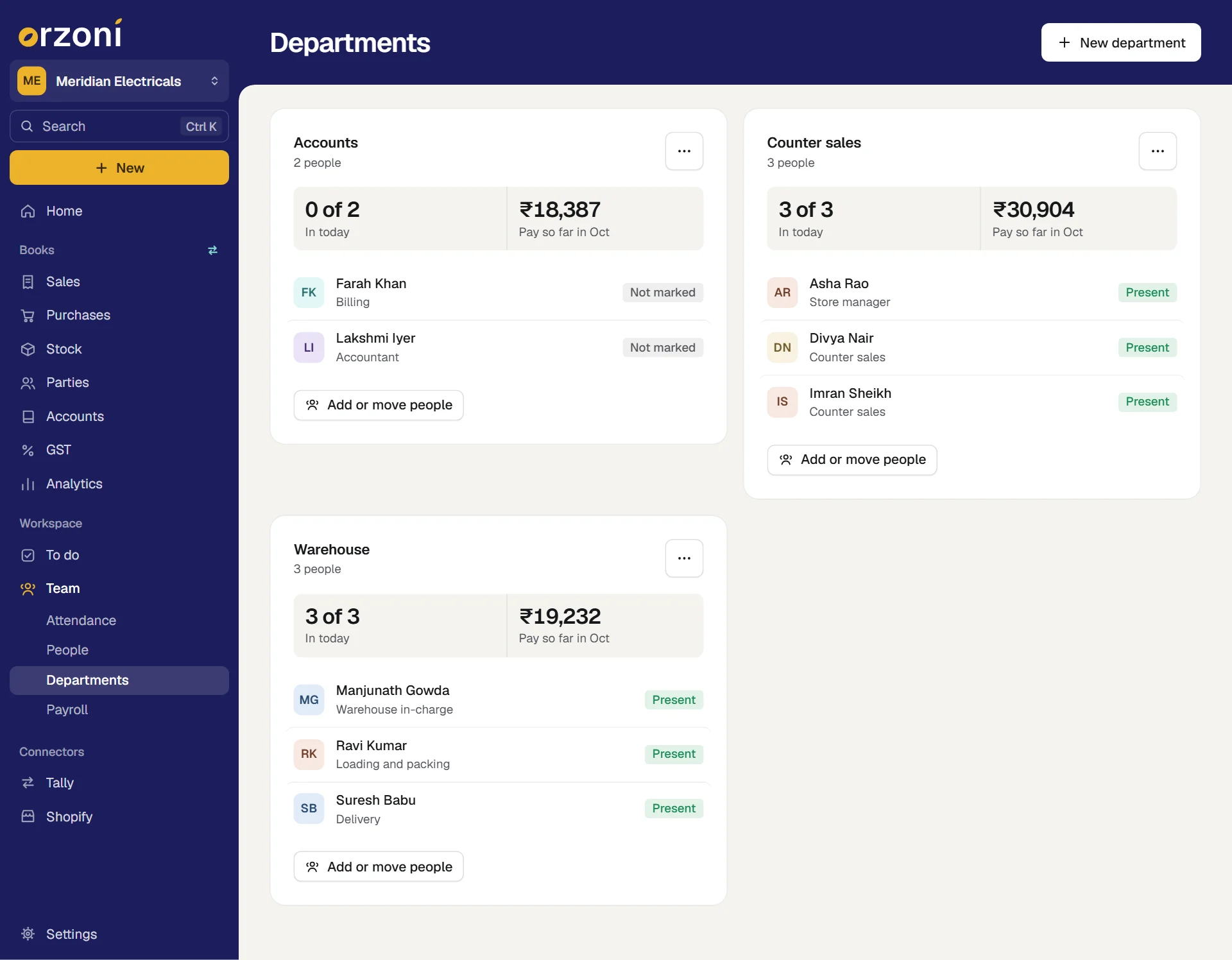
A department is wherever a group of your people works: a counter, a godown, an office. A person is in one department at a time, or in none.
- Press New department, or Alt C.
- Type a name, or press one of those offered: Counter, Godown, Accounts, Delivery, Sales or Office.
Press Add department.
A list of your people opens straight away.
- Tick everyone who works there, and press Save. Someone already in another department is shown as such, and ticking them moves them.
Each card has how many of its people are in today, the pay so far this month, and its first six people. Press a person for their page.
- Add or move people opens the list of ticks again.
- The More button on a card has Rename, Attendance for this department and Remove.
- Removing a department leaves its people in your team, in no department. It is asked once more first.
- People in no department are on a card of their own, with Put them in a department.
Two departments cannot share a name.
Payroll
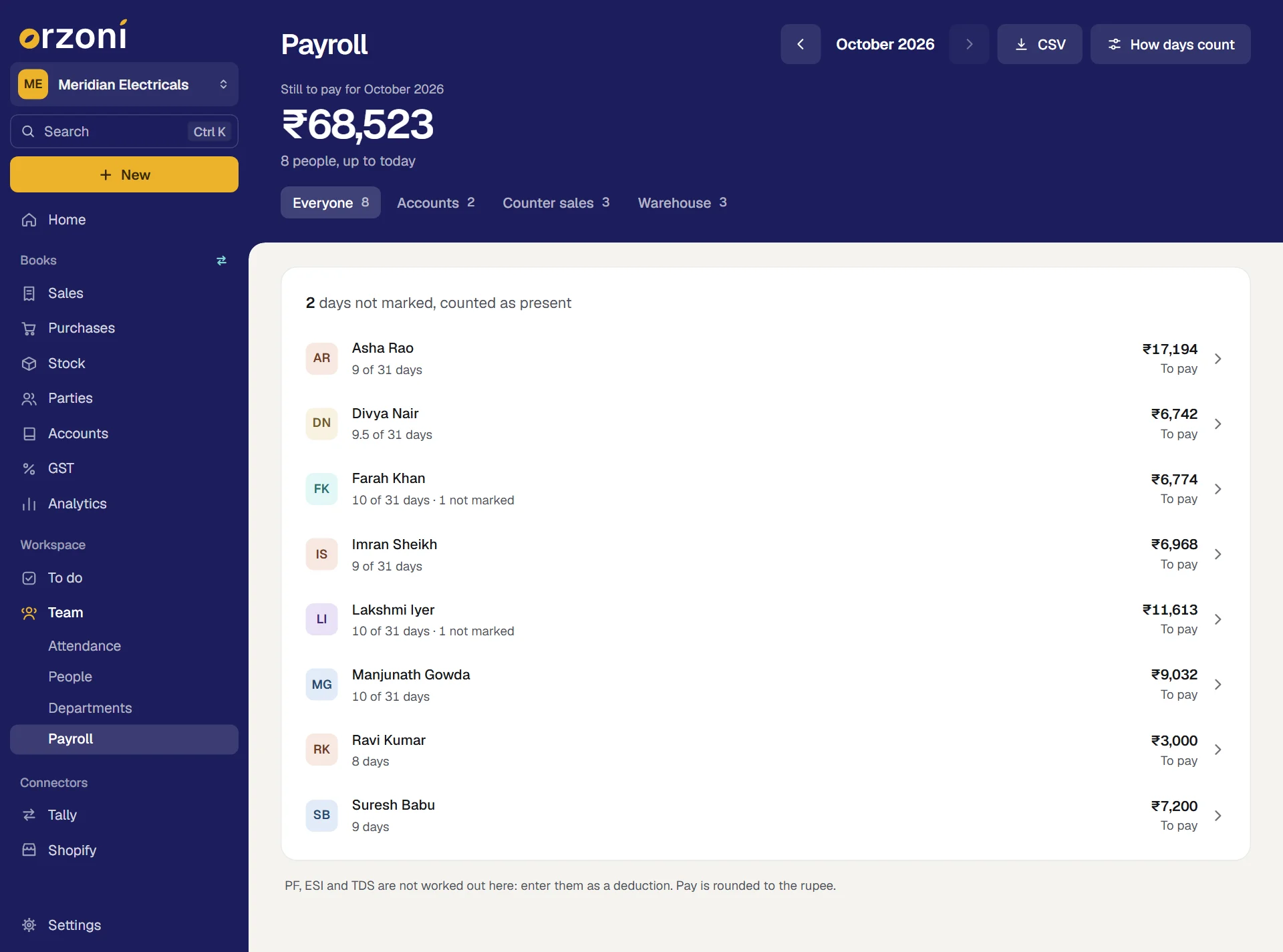
The band leads with what is still to pay for the month, and for how many people. Once everyone is paid it says so, with the total. The arrows step a month back or forward, and with departments set up there is a view for each.
Each row has the person, the days or hours counted, and their pay, marked To pay or Paid. Press a person to unfold the working of their pay.
How pay is worked out
Each day of the month counts as a whole day, half a day or nothing. How it counts depends on how the person is paid.
| The day is | Paid by the month | Paid by the day | Paid by the hour |
|---|---|---|---|
| Present | A day | A day | The hours entered |
| Half day | Half a day | Half a day | The hours entered |
| Absent | Nothing | Nothing | Nothing |
| Leave | A day | Nothing, or a day if you choose Paid | Nothing |
| Holiday | A day | Nothing, or a day if you choose Paid | Nothing |
| Weekly off | A day | Nothing | Nothing |
| Not marked | A day, or nothing if you choose Absent | A day, or nothing if you choose Absent | Nothing |
Then the sum:
| Paid by | The sum |
|---|---|
| The month | Salary, multiplied by the days counted, divided by the days in the month |
| The day | Pay a day, multiplied by the days counted |
| The hour | Pay an hour, multiplied by the hours entered on days marked present or half day |
A salary of ₹42,000 with 9 days counted in October, a month of 31 days, comes to ₹42,000 × 9 ÷ 31, which is ₹12,194. The payslip writes it "₹42,000 × 9 of 31 days".
Then, for everyone:
- Overtime is added: the overtime hours, multiplied by the person's overtime pay an hour.
- Bonuses are added.
- Deductions, and the part of any advance that falls in this month, are taken off.
- What is left is the Net pay.
Pay and overtime are each rounded to the nearest rupee.
A few things follow from the table:
- Someone on a monthly salary who works on their weekly off earns nothing extra: that day is paid anyway. A half day on a weekly off counts as a full day for the same reason.
- A weekly off marked Absent is not paid on a monthly salary. That is how to take back an off day.
- Someone paid by the day who works on a weekly off is paid for it as one more day.
- Someone paid by the hour is paid for hours and nothing else. A day marked present with no hours entered pays nothing, and their pay says so.
- Days still to come are never counted, so the pay grows as the month goes on. Days before someone joined or after they left are never counted either.
How days count
How days count on the band holds two choices for the whole company. They apply to every month still to be marked as paid.
- A working day nobody marked counts as Present or Absent. It starts as Present, which suits a team where you mark only who was away. Absent suits a team where everyone is marked every day. Either way, Payroll says how many days were not marked, on the person's row and in their working.
- Leave and holidays, for staff paid by the day: Not paid or Paid. It starts as Not paid. A monthly salary always pays for leave, holidays and weekly offs.
Advances, bonuses and deductions
- Press Advance, bonus, deduction, under a person's pay on Payroll or on their own page.
- Choose Advance, Bonus or Deduction.
- Type the Amount, and the day it was Given on: today or earlier.
- Choose the month under In the pay of. That is the month whose pay it counts in.
- For an advance, choose Taken back over: one month all at once, or up to 24 months in equal parts.
- Add a Note, if any, saying what it is for. It is printed on the payslip.
- Press Save.
| Kind | What it does |
|---|---|
| Advance | Money given before payday. It comes off the pay of the month you choose. Spread over several months, it comes off each in equal parts of whole rupees, with any rupee left over in the first. ₹10,000 over 3 months is ₹3,334, then ₹3,333 twice |
| Bonus | Added to the pay of the month you choose |
| Deduction | Taken off the pay: a fine, a uniform, or PF and other amounts you work out yourself |
To remove one, open the person's page and press the bin beside it under Advances, bonuses and deductions.
Pay someone
- Unfold the person on Payroll and read the working. Under the lines of pay is how their days fell, and a note for anything counted without being marked.
Press Mark as paid.
It is offered from the last day of the month, or from their last day at work if that came sooner. Before then the slip says the day it opens. Money given earlier goes in as an advance.
- Give the day under Paid on: today or earlier.
- Choose Paid from: Cash, Bank or UPI, or type your own words in the box under them.
Press the button, which names the amount.
The row now reads Paid, and the amount still to pay on the band goes down.
The payslip
- Print payslip prints the slip under your business's name: who it is paid to, how they are paid, how the days fell, each line with how it is worked out, the net pay in figures and in words, whether it is paid, and a place for each of you to sign.
- Share on WhatsApp writes the same slip as a message, with the person's phone number filled in. Read it, and press send in your own WhatsApp. Orzoni sends nothing by itself.
- CSV on the band downloads the month for everyone as a spreadsheet: a row for each person, with days paid, hours, overtime, pay, bonus, deductions, advance taken back, net pay, days not marked and when and how they were paid.
A payslip can be printed or shared before the month is paid. The printed one then reads Not paid yet.
Record in your books
Marking pay as paid changes nothing in Tally. To put the payment in your books:
- Open a slip that is marked as paid, on Payroll or on the person's page.
Press Record in your books.
A Payment entry opens with the amount filled in, and a note saying "Salary for" the month and the person.
- Complete it and send it like any other entry: see Purchases, notes and other entries.
What you make in Orzoni goes into Tally through the Tally connector, a small Windows app that sits beside Tally. If that computer or Tally is off, your work waits, the screen says so, and it goes in by itself when both are back. See When a bill is waiting or refused.
Nothing joins the slip to the entry afterwards. Undoing paid does not take the entry out of Tally, and sending it twice makes two entries.
If something is not right
| Orzoni says | What to do |
|---|---|
| The month is marked as paid, so its attendance is locked | Press Undo paid for that person on Payroll, make the change, and mark it as paid again |
| The month is not over yet | Wait for the day it names. Record money given before then as an advance |
| The pay works out below zero | An advance or a deduction is more than the pay. Move part of it to a later month |
| They have attendance or pay on record, so they cannot be deleted | Use Mark as left on their page |
| They have attendance marked before the day they joined, or after the day they left | Choose another day, or clear those days on their calendar first |
| A month is already marked as paid, on saving an advance | Choose a later month under In the pay of, or undo paid first |
Who sees Team
What someone sees here depends on their role:
- Mark attendance opens Attendance alone, to see the team and mark each day. No pay is shown.
- Manage the team and pay opens People, Departments, Payroll and each person's page.
- Record in your books also needs Make bills and record payments.
Users and roles says which role holds which.
What next
- Tasks and follow-ups: give a task to someone in the team.
- Analytics: the Workspace page shows who is in today, the week's attendance and the month's pay as tiles.
- Purchases, notes and other entries: the Payment entry that puts a salary in your books.
- Users and roles: let someone mark attendance without seeing pay.
- Home: says when attendance has not been marked today.
Still stuck? Write to support@orzoni.com and say which step you are on, or book a walk-through call.