

On this page
Keep your store's counts in step
The Counts view of a connected Shopify store. How each count is worked out from Tally, the three ways counts are sent, turning counts on, keeping some back, what happens when a count is changed on Shopify, and how the store's locations are linked to your warehouses.
11 minute read
What Counts is for
Counts sets two figures side by side for every listing: what your store shows now, and what it should show going by Tally.
Three things hold throughout:
- Counts go one way only, from Tally to the store. The store receives. It never changes Tally.
- Nothing is sent until a person has seen what would change. A store starts by looking only, and the first set of counts always waits for your word.
- The count is the only thing Orzoni ever changes on your store. Not a name, not a price, not a product.
How a store is connected is in Connect your Shopify store. A listing has a count only once it is matched to an item: see Match your store's listings.
How a count is worked out
A count is one listing at one of the store's locations. For each, Orzoni starts from Tally and takes away what is already spoken for:
- What Tally holds of the item, in the warehouse that location is linked to.
- Less what is waiting for a bill: units ordered on the store that Tally has not been billed for yet.
- Less what you keep back, if you keep any back.
- In packs, where one sale of the listing is more than one of the item. What is left is divided by the pack, and only whole packs count.
The answer is never below 0. If Tally's own count has gone below nothing, the store is shown 0.
Two rows from the picture below:
| Listing | Worked out | Should show |
|---|---|---|
| Cotton Kurta, Blue / M | 16 in Tally, less 2 waiting for a bill, less 1 kept back | 13 |
| Brass Diya, Pack of 6 | 36 in Tally, less 6 waiting for a bill, less 1 kept back, leaves 29. In packs of 6 | 4 |
Open Counts
- In the rail, press Connectors, then Shopify.
Press Counts.
A number beside Counts means that many counts wait for your word.
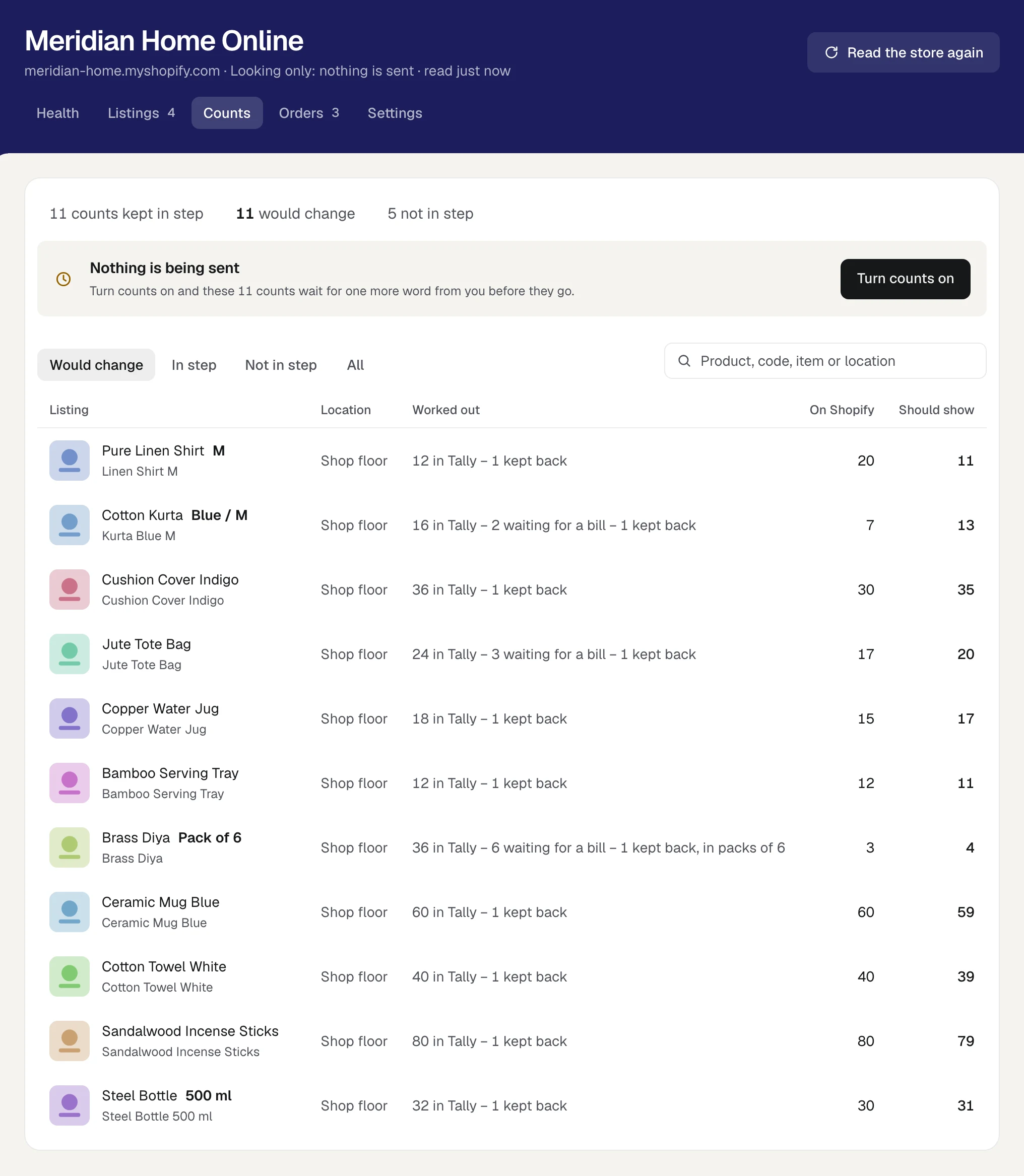
Read the list
The first line gives the figures for the whole store: how many counts are kept in step, how many would change, how many would show 0, and how many are not in step.
| Column | What it shows |
|---|---|
| Listing | The product and its variant, with the item it is matched to under it |
| Location | The store's location the count is for |
| Worked out | The sum, in figures. For a count that is not in step, the one reason why |
| On Shopify | What the store shows now, or Not known |
| Should show | What the sum comes to |
Four views stand above the list:
| View | What it holds |
|---|---|
| Would change | Counts where the store shows something other than it should. Once counts are being sent and none waits, this view is named To send |
| In step | Counts where the store already shows what it should |
| Not in step | Counts Orzoni does not send, each with its reason |
| All | Every count |
What would change is listed first, with counts going to 0 and the largest moves at its head. The search box takes a product, a code, an item or a location. A long list shows 200 rows at a time.
Why a count is not in step
| The row says | What it means |
|---|---|
| No item chosen | The listing is not matched yet |
| Set aside | You said the listing is not kept in Tally |
| Not counted by the store | The store keeps no count for this listing |
| Its location has no warehouse | The location is not linked to a warehouse in Tally |
| Its item is no longer in Tally | The item was renamed or removed in Tally. Match the listing again |
| Its item has no unit to count in | The item has no unit in Tally, or is counted in two units at once |
| The same item as another listing | Two listings are matched to the same item with the same number of it to a sale |
| Changed on Shopify | Someone set the count on the store. See A count changed on Shopify |
| Refused by Shopify | The store would not take the count. Health says what it said |
| Tally is being set to this count | You merged the store's count into Tally. Nothing is sent for it meanwhile. See Products on Shopify and in Tally, shown as one |
| Its item is being added to Tally | The item is being made in Tally from the store's product |
The three ways counts are sent
How counts reach your store is chosen under the store's Settings, in Sending counts.
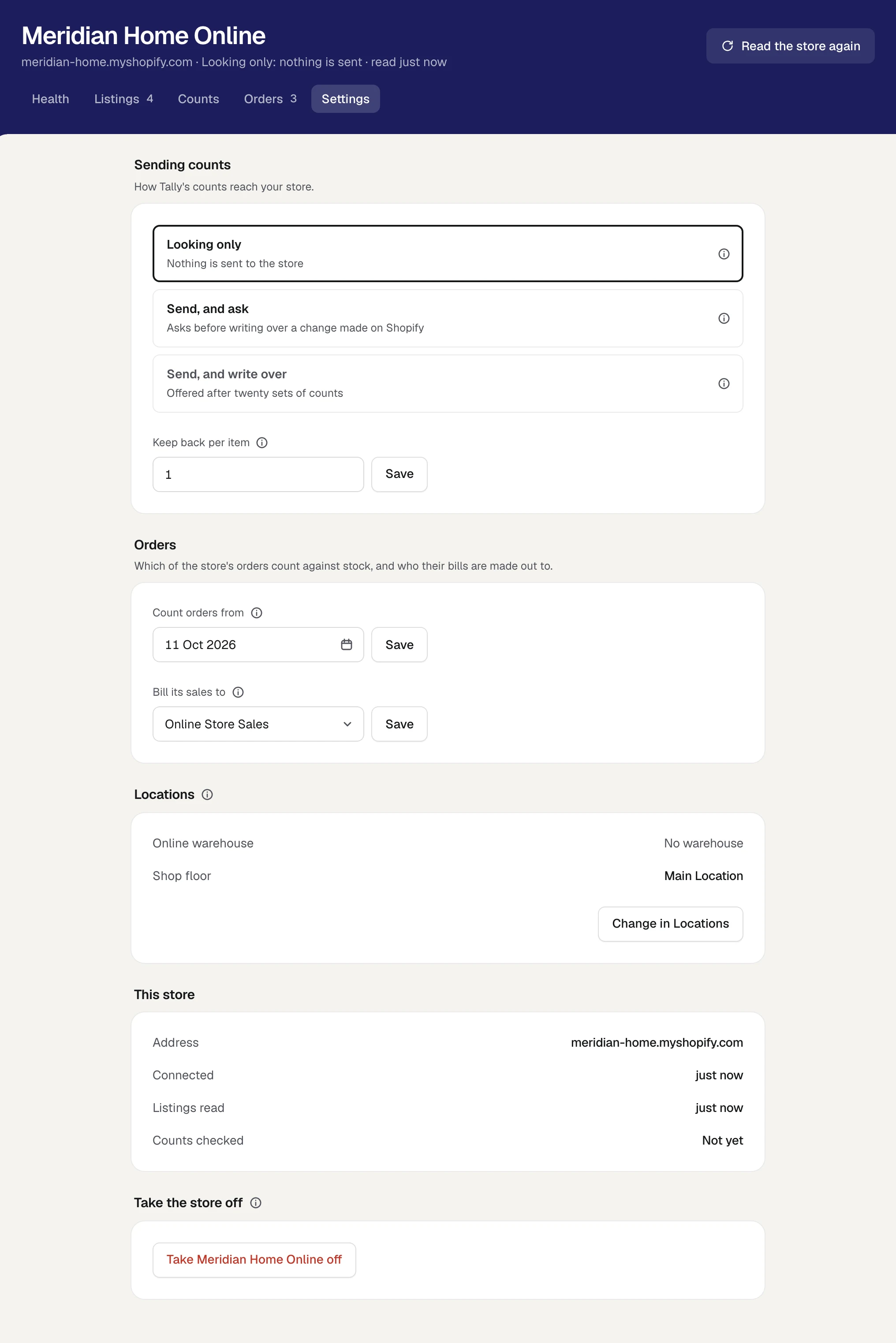
| Choice | What it does |
|---|---|
| Looking only | Nothing is sent to the store. Orzoni works out what every listing should show and lists it under Counts. Use it while you match listings and check the figures |
| Send, and ask | Tally's counts go to the store as they change. A count someone changed on Shopify is not written over: both figures are shown under Health, and you choose. The first counts, and any large change, wait for your word |
| Send, and write over | Tally's count replaces whatever the store shows, without asking, even where someone changed it on Shopify. A large change still waits for your word |
- A store starts on Looking only. So does one that was taken off and connected again.
- Send, and write over is offered once twenty sets of counts have gone through with nothing changed on the store. Until then the first two modes keep you in charge of every count. Choosing it asks once more, on the choice itself: press it again.
- The small "i" beside each choice says the same in a few words. Point at it, or tap it on a phone.
- To stop sending, choose Looking only. Counts already on the store stay as they are.
Turn counts on
Press Turn counts on, on Health or on Counts. It is the same as choosing Send, and ask under Settings.
Nothing is sent yet. Counts opens on Would change, and the line over the list says, for example, 11 counts wait for your word, with the reason: The first counts sent to a store wait for you.
- Look through the list. Each row says what Shopify shows now and what it would show.
Press Send these 11.
Orzoni says 11 counts on their way to the store. From then on, counts follow Tally by themselves.
On Health, Turn counts on is offered only when nothing needs you there and at least one count can be kept in step.
When counts wait for your word
After the first set, counts are sent by themselves as Tally changes. A set is held for a person only when it is large or unusual. Any one of these is enough:
| The line says | The rule |
|---|---|
| The first counts sent to a store wait for you. | Always, however few they are |
| A location was linked to a warehouse: the first counts for it wait for you. | Always. A warehouse new to Tally is empty, and every count there would go to 0 |
| More than 3 in 10 counts would change at once. | And more than 10 counts, so a small shop is not held every morning |
| More than 20 counts would go to 0. | |
| One count would move by more than 10,000. | |
| A count that stood above 10 would go to 0. | |
| Many listings were matched at once. | More than 10 counts would be sent because of one press under Listings |
While a set waits, Health lists it under Needs you, and Counts carries its number. Open Counts, look, and press Send these. The line also says how many listings would show 0.
Keep some back
A shop that also sells over the counter can keep the last few of each item off the store, so they are not promised twice.
- Open the store's Settings.
- In Keep back per item, type a number.
- Press Save.
The store is then shown that many fewer of each item than Tally holds. Worked out says so on every row, as in 1 kept back. Leave the box empty to keep none back.
What is held, and what is sent
- An order lowers the count at once. Its units are held off the count until its bill is read from Tally, and Worked out shows them as waiting for a bill. When the bill arrives, Tally's own count falls by the same units and the order is cleared in the same step, so a sale is never taken off twice. See Orders from your store.
- A count is sent as what the listing should show, never as "two fewer". Sent twice, or sent late, it does no harm.
- Counts going to 0 are sent first, so a sell-out is never stuck behind anything else.
- Each night every count is read back from the store. Health says when under its answer, and the store's Settings says it beside Counts checked.
- Lately sent, at the foot of Health, lists the last few sendings and how each went.
- If the computer that runs Tally is offline, orders still lower the counts. Tally's own changes follow when it is back.
A count changed on Shopify
Under Send, and ask, Orzoni does not write over a count that someone set on the store.
- Health lists it under Needs you: 1 count was changed on Shopify. Counts lists it under Not in step, as Changed on Shopify.
- The row on Health shows both figures, such as Shopify shows 20 and Tally works out 11.
Choose which is true:
- Tally is right. Press Use Tally's count. Tally's figure is sent to the store.
- The store is right. Press Correct Tally and put Tally's stock right. Then press Use Tally's count: the two now agree, so nothing changes on the store.
An order on the store lowers its count too. That is not a change someone made, and is not asked about.
Under Send, and write over there is no asking: Tally's count replaces the changed one.
Where the listing is linked to an item as one product, the item's own page can also bring the store's count into Tally, with Merge as one. See Products on Shopify and in Tally, shown as one.
How locations map to warehouses
A store keeps its stock at one or more locations. Each is linked to one warehouse in Tally, and shows that warehouse's count.
- A location with no warehouse is not counted, and nothing is sent for it.
- One warehouse is linked to one location only. Shown at two, every piece would be offered twice.
- A store with one location and a company with one warehouse are linked by themselves when the store is read.
The store's Settings lists each location with the warehouse it is linked to, or No warehouse. To change a link, press Change in Locations there, or open Settings at the foot of the rail and choose Locations.
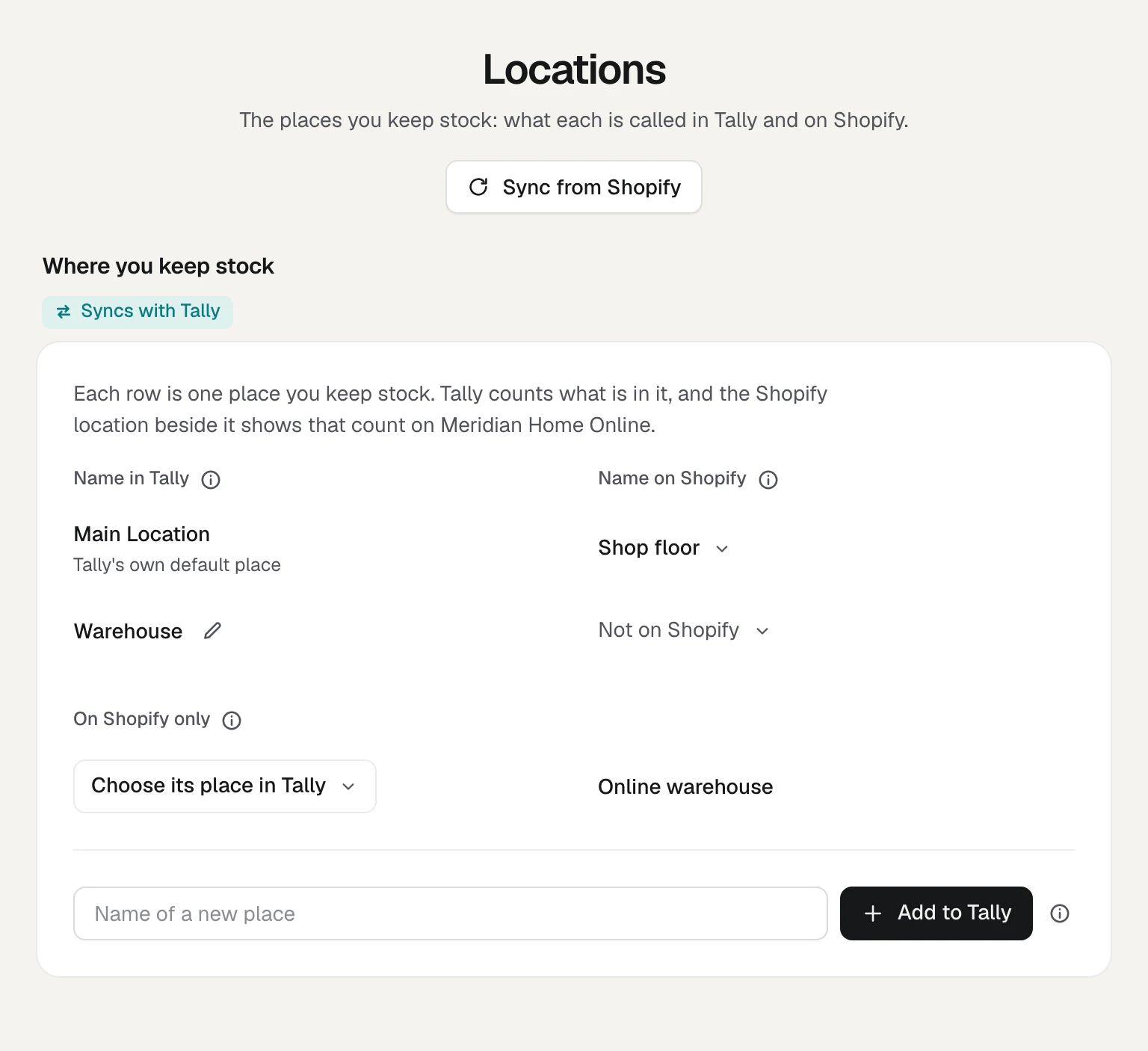
Each row is one place you keep stock, with its Name in Tally and its Name on Shopify.
| To do this | Do this |
|---|---|
| Link a place in Tally to a store's location | Press Not on Shopify beside the place and choose the location. It can be pressed while a location of the store is still listed under On Shopify only |
| Give a store's location its place in Tally | Under On Shopify only, press Choose its place in Tally and pick the place |
| Add a store's location to Tally as a new place | In the same list, press Add to Tally as with the location's name. The two are linked once Tally has it. A place new to Tally starts empty, so the store shows 0 there until stock is in it |
| Unlink | Press the location's name beside the place, then Unlink |
| Read the store's locations again | Press Sync from Shopify |
| Rename a store's location | Rename it in Shopify, under Settings, Locations, then press Sync from Shopify |
When counts are being sent, the first counts for a newly linked location wait for your word, however few they are.
A location can also be linked from Health, in the line 1 location of the store has no warehouse. Renaming a place in Tally and adding one are in Locations.
Who may do what
| To do this | A person needs |
|---|---|
| See Counts, Settings and Locations | See stock |
| Keep back per item, link or unlink a location, Sync from Shopify, Use Tally's count | Change stock |
| Send these, the word that lets a waiting set go | Business settings |
| Turn counts on, and choose how counts are sent | Business settings, together with Change stock |
Someone without Business settings sees the three choices greyed, and is told How counts are sent, and taking the store off, are for someone with Business settings. See Users and roles.
What next
- Orders from your store: the orders whose units are held off the count, and making their bills.
- Your store's health: everything that needs someone, in one place.
- Match your store's listings: a listing has no count until it is matched.
- Warehouses and pack sizes: what each warehouse holds, and correcting a count in Tally.
Still stuck? Write to support@orzoni.com and say which step you are on, or book a walk-through call.