

On this page
The Tally connector on your computer
The small Windows app beside Tally. Its status screen, its settings, the icon beside the clock, how to keep it running, the Connection view on the web, and how to unlink, move to a new computer, update, repair or uninstall it.
7 minute read
What it is, and what it is not
The Tally connector is a small Windows app on the computer that runs Tally. Its installed name is Orzoni for Tally. It does three things:
- reads your books from Tally and checks them against Tally's own balances
- hands what changed up to Orzoni on the web
- sends into Tally what is made on the web
It is not where anyone works. Bills, payments, stock and everything else are done on the web, from any device. The connector's own window is for seeing how the reading of Tally stands, and for a few settings.
To install it, see Install the Tally connector. To set it up, see Connect Tally and link the computer.
Open its window
On the computer that runs Tally, use any of these:
- the Orzoni for Tally shortcut on the desktop
- Orzoni for Tally in the Start menu
- its icon beside the clock (click it)
Closing the window does not stop the connector. It stays beside the clock and keeps your books in step. To stop it completely, right-click the icon beside the clock and choose to quit the connector. While it is stopped, nothing moves between Tally and the web.
The status screen
Once a company is set up, the window opens on the status screen: how the reading of Tally stands, for each company.
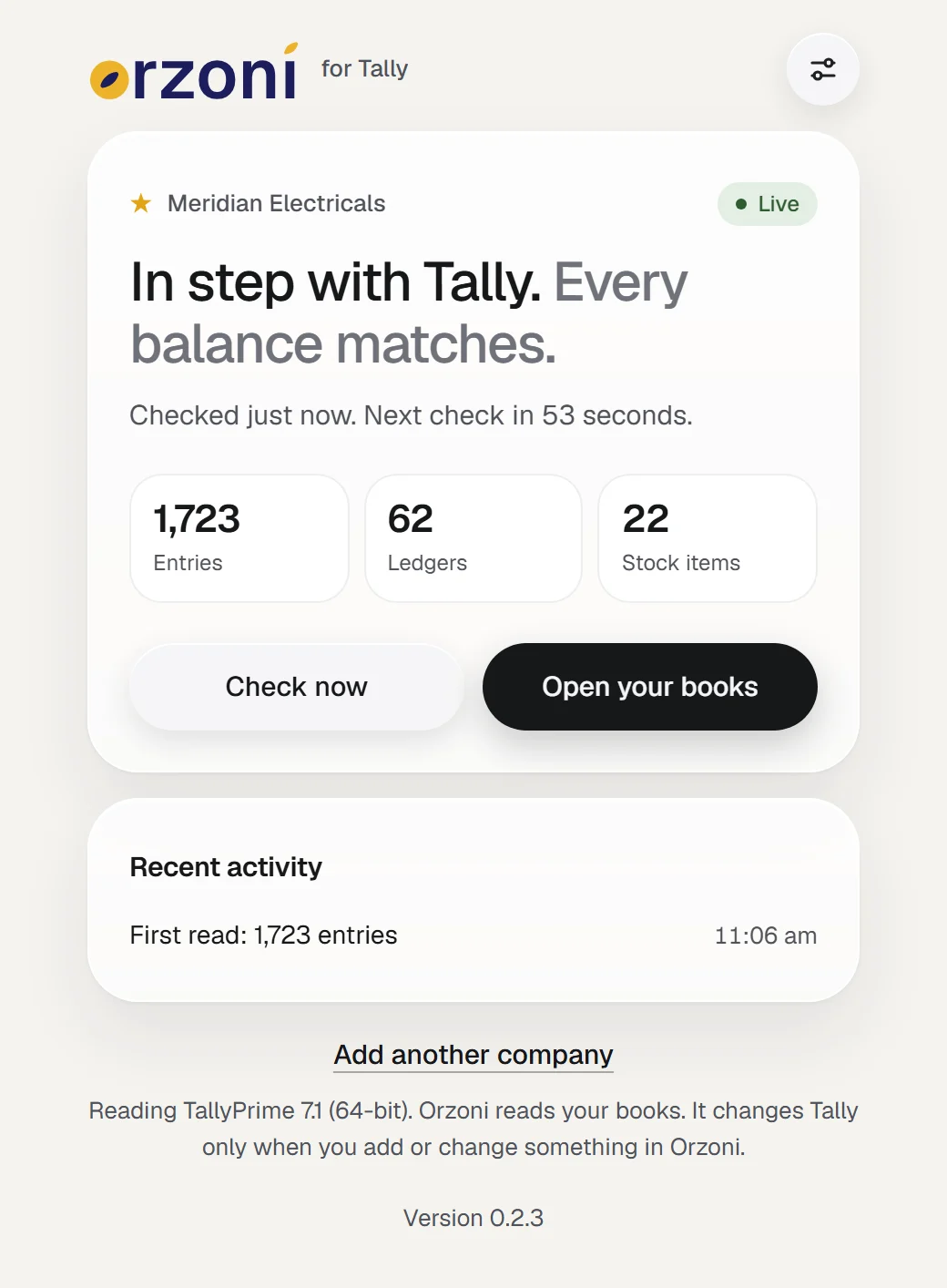
It shows:
- A tag, which says in a word or two how things stand.
- One line in full, for example In step with Tally, with when Tally was last read and when the next check is.
- The facts: the company, which Tally it is read from (for example "TallyPrime 7.1 (64-bit)"), how many entries, ledgers and stock items have been read, the business this computer is linked to, and how the web stands, for example "Up to date as of 3:42 pm".
- What is waiting, only when there is something: how many entries are waiting to go into Tally, or how many Tally refused, with a link to the list on the web.
- Two buttons: one checks Tally straight away, and one opens Orzoni on the web in your browser.
- Recent activity: what changed in Tally and when it was picked up.
- At the foot: a way to add another company, and the version installed.
With more than one company set up, a row of chips at the top lets you look at each one. A dot on each chip shows how it stands: green for in step, amber for waiting, red for one that needs a look.
If linking was put off, the screen starts with a card saying there is one step left, and a button to link this computer. See Connect Tally and link the computer.
What it can say
The tag is green when all is well, amber while the connector is waiting for something, and red when something needs a look. The line under it says which of these is so.
| How things stand | What to do |
|---|---|
| In step with Tally: every balance matches | Nothing |
| Reading changes from Tally, or waiting for the first read | Nothing. It finishes by itself |
| Handing your books up to the web for the first time | Nothing. They open on the web as soon as it finishes |
| Tally is closed | Open Tally with your company loaded. Reading starts again by itself |
| The company is not open in Tally | Open it in Tally, beside any other. Reading starts again by itself |
| Orzoni on the web cannot be reached | Check that the computer is online. It is tried again by itself |
| The last check did not finish | The reason is shown, and it is tried again by itself. If it stays, see Troubleshooting |
| Some balances differ from Tally | Open Data health on the web. It names each one |
| The web has not taken the latest books | The reason is shown. Press the button that checks Tally. If it stays, see Troubleshooting |
While Tally is closed or the computer is offline, the connector also says from when the books on the web are.
The settings
The settings button is at the top right of the status screen.
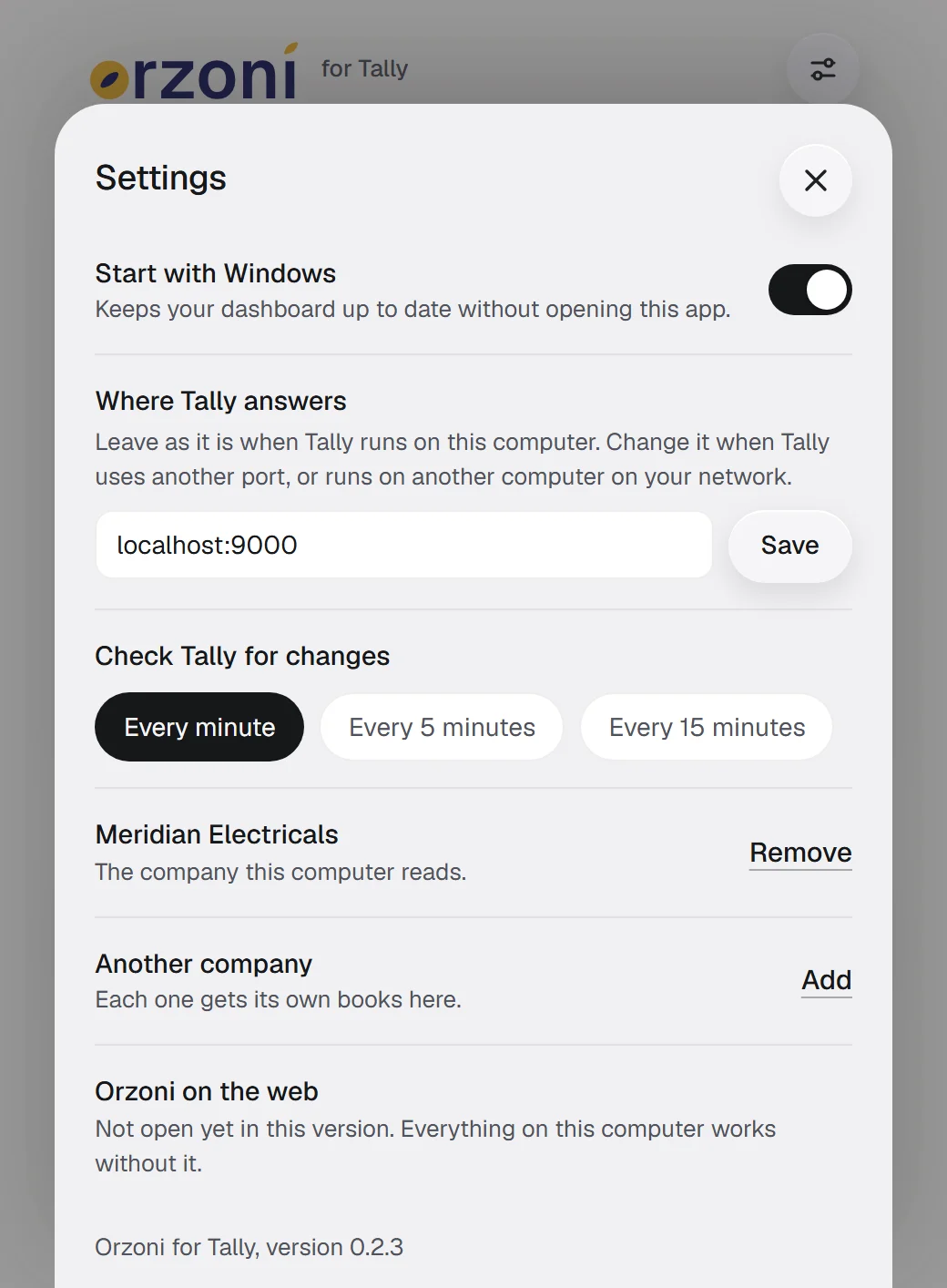
| Under | Setting | What it does |
|---|---|---|
| Tally | Where Tally answers | Says where Tally is asked: this computer, port 9000, unless it was changed. Change it only when Tally uses another port, or runs on another computer on your own network. Nothing outside your network is accepted, so your books never leave your office on their way from Tally to the connector |
| Tally | Check Tally for changes | Every minute, every 5 minutes or every 15 minutes |
| Tally | The company's name | A way to stop reading that company. Its working copy is removed from this computer, and nothing in Tally is touched. See Several companies |
| Tally | Another company | Reads another company that is open in Tally |
| This computer | Start with Windows | Starts the connector when you sign in to Windows, beside the clock and without opening a window. Leave it on |
| This computer | Update automatically | For when updates are served from the web. See Updates, below |
| This computer | Send crash reports | See Crash reports, below |
| This computer | Something not right? | Sends a report by hand, with the recent activity log |
| Your account | The business this computer is linked to | Unlink ends the link. When the computer is not linked, the same row starts linking |
The version is at the foot of the sheet.
How often to check Tally
Every minute suits almost everyone: a check that finds nothing new costs Tally very little. Choose a longer gap if Tally runs on a slow computer or holds a very large company and you notice it pause. Whatever you choose, the connector leaves longer between checks by itself when Tally is slow to answer, and you can always check at once.
The icon beside the clock
The connector lives beside the clock, in the corner of the Windows taskbar. If you cannot see it, press the small arrow there: Windows tucks icons away.
- Click it to bring the window back.
- Right-click it for a short menu: open Orzoni on the web, show the connector's window, check Tally now, the version installed, and quit the connector.
Keep it running
Your team can only send bills into Tally, and see what changed there, while this chain holds:
- The computer is on and awake. A computer that has gone to sleep is offline. In Windows power settings, set it not to sleep during working hours.
- It is online.
- The connector is running. With Start with Windows on, it starts by itself when you sign in to Windows.
- Tally is open, with the company loaded.
When any link breaks, the web says which: Computer offline, Tally closed or Company not open in Tally. Nothing is lost: what was made meanwhile waits, and goes in when the chain is whole again.
The Connection view, on the web
You do not have to walk to the computer to see how it stands. On the web, open Connectors, Tally, Connection.
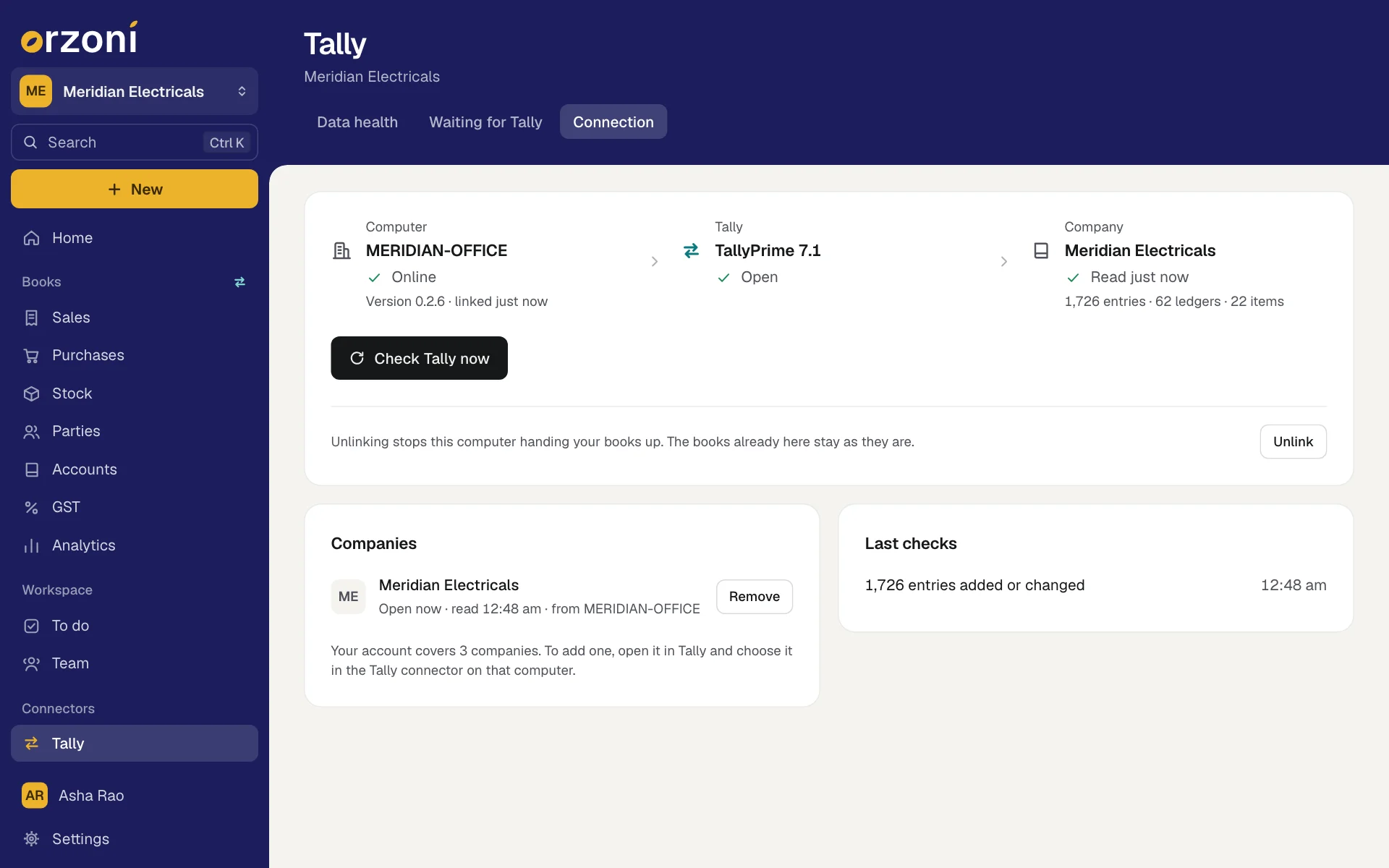
| Part | What it shows |
|---|---|
| Computer | Its name, Online or Offline with when it was last seen, the connector's version, and when it was linked |
| Tally | Which Tally it is, and Open, Closed, Not answering or Not known |
| Company | The company's name, when it was last read, and how many entries, ledgers and items |
| Check Tally now | Asks the computer to check Tally this moment. It is greyed out while the computer is offline |
| Companies | Every company handed up, with when each was read. Remove takes one off the web |
| Last checks | What the last checks brought in, or why one failed |
Under the three parts, Unlink ends the link. Unlinking, removing a company and linking are for the owner and for anyone given Tally connection under Users and roles. Everyone else sees how things stand, without those buttons.
Unlink the computer
There are two ways. Either is enough.
- On the web: Connectors, Tally, Connection, then Unlink. The button asks once more, by the computer's name. Press it again to confirm.
- On the computer: the connector's settings, under Your account, Unlink, then confirm.
What happens:
- The computer stops handing your books up at once.
- The books already on the web stay as they last stood. People can still sign in and look.
- Anything waiting on the web to go into Tally waits for a computer to be linked again.
- Nothing in Tally is touched.
To take a company's books off the web as well, see Several companies.
Move to a new computer
A business is linked to one computer at a time. When Tally moves to a new computer:
- On the web, unlink the old computer: Connectors, Tally, Connection, Unlink.
- On the new computer, with Tally open on the company, install the connector.
- Go through set-up and link it. See Connect Tally and link the computer.
The books are read from Tally afresh on the new computer and set against the copy on the web. What was made in Orzoni stays on the web: tasks, the team, saved reports and the rest.
If you forget step 1, linking the new computer is refused with "This account is already linked to a computer". Unlink the old one and try again.
Updates
Orzoni on the web needs no installing. Everyone always has the newest screens.
A new version of the connector installs over the one you have, with nothing to set up again:
- A new version is sent to you. Open its link on the computer that runs Tally.
- Run it. The first screen is headed Update Orzoni for Tally and names the version you have and the one it will put in its place.
- Press Install. If the connector is open it is closed, and can be opened again when the installer finishes.
Your settings, the working copy of your books and the link to your business are kept. Nothing needs linking again.
Repair
If the connector will not start or behaves oddly, run the installer for the version you already have. The screen is headed Orzoni for Tally is already installed and offers three choices. Pick one and press Continue.
| Choice | What it does |
|---|---|
| Open Orzoni for Tally | Starts the app. Nothing is changed |
| Repair | Puts the app's files back as they were when it was installed. Your settings and the copy of your books are kept |
| Uninstall | Removes Orzoni for Tally from this computer. Nothing in Tally is touched |
Uninstall
- Unlink the computer first, as above. Otherwise the web goes on showing it as a computer that is offline.
- Open Windows Settings, then Apps, then Installed apps. Find Orzoni for Tally and choose Uninstall. Or run the installer again and choose Uninstall.
- The uninstaller asks: Also remove the copy of your books and the settings that Orzoni for Tally keeps on this computer?
- Choose No if you may install it again. Choose Yes to remove everything.
Your data in Tally is not touched either way. Uninstalling only ever removes the connector. The books on the web stay until you remove the company there.
Crash reports
If part of the connector fails, it writes a short note so the fault can be found and fixed.
- What a note holds: the version, the kind of fault, the error message, where in the program it happened, and which screen was open.
- What it never holds: your figures, your entries, or anything else read from your books. The name of your Windows account is taken out of any file path. A message can carry Tally's own words for a refused entry, which is why sending is a switch you can turn off.
The notes stay on your computer and are not sent anywhere. Send a report saves one with the last lines of the connector's activity log, which records when checks ran and what went wrong, not what is in your books.
What happens next
- How Orzoni stays in step with Tally: what a check does, and every status.
- Several companies: add, switch between and remove companies.
- Troubleshooting: when the connector cannot find Tally.
Still stuck? Write to support@orzoni.com and say which step you are on, or book a walk-through call.