

On this page
Set up a shop counter
From a company in Tally to a first sale across the counter. Choose Retail shop as your kind of business, give your items their selling prices, say which warehouse the shop sells from and where its money is kept, read the list that says whether the counter is ready, give your staff their roles, and practise before the first real sale. The shop counter is a pilot.
10 minute read
What you will have at the end
A counter you can sell from. The items Tally already holds, found by name or by code. What is left of each, beside it. The money recorded as cash, UPI or card. And each sale in your Tally books as an ordinary sales bill, with its receipts.
It takes about twenty minutes, most of it giving your items their selling prices. Do it once, in the order below.
Who this is for
The owner of one shop with one counter, or whoever sets it up. The shop sells goods that Tally already holds as stock items and counts one by one: stationery, gifts, home goods.
It is not for goods Tally keeps by batch or expiry, for a pharmacy or a jeweller, or for anything sold by weight. The full list is at the foot of this page: What the shop counter does not do.
| To do this | You need |
|---|---|
| Choose Retail shop, and fill in Set up under Shop | Business settings |
| Give an item its selling price | Change stock |
| Give people their roles | Users and roles |
| Ring up the practice sale and record its payment | Ring up counter sales and take payment |
| Record a return | Record a return, or put a payment right |
The owner holds all of them. See Users and roles.
A pilot, and what it needs first
The shop counter works today, and is open to a few businesses while it is being tried. Three things have to be in place.
- You have been let in. Ask us from Settings, Help and support, or through the walk-through form. Until then Retail shop cannot be picked under Business type.
- Your books are open in Orzoni. The computer that runs Tally is linked and your company has been read. If not, start with Your first ten minutes.
- Tally has what a counter needs. It is listed next.
Being let in switches nothing on, and gives nobody a permission. You choose Retail shop yourself, when you are ready.
What to have ready in Tally
Orzoni offers you what Tally has. It does not invent any of it. Check that these are there.
| In Tally | For | An example |
|---|---|---|
| Your stock items, each with a unit | What the counter sells. An item with no unit has no count, and is not sold at the counter | Gel Pen Blue 0.5 mm, in Nos |
| A GST rate on each item, if you charge GST | The tax on each line of a sale. No rate is assumed | 18% |
| A part number or an alias on an item, if you scan | The codes the counter finds an item by | 8901234500017 |
| A customer, under Sundry Debtors | The walk-in customer a sale is billed to when no customer is named | Counter Sales (Walk-in) |
| A cash ledger | Cash taken at the counter | Cash |
| A bank ledger for UPI | Where UPI money arrives | UPI Collections |
| A bank ledger for cards | Where card money arrives | Card Settlements |
| Output GST ledgers, if you charge GST | The tax on each bill | Output CGST, Output SGST |
| A ledger named Round Off, if you round | The paise a rounded total moves by | Round Off |
The customer can be added from Orzoni: New, then Customer. The other ledgers are made in Tally, and appear in Orzoni after the next read.
Step 1: choose your kind of business
- Open Settings, then Business type.
- Under What kind of business is this, press Retail shop. It carries the tag Pilot.
- Press Use this.
The list at the side gains a group named Shop. Under Counter it holds New sale, Sales, Stock and Tally check and Set up. Home stays on your figures.
A business that wants to keep the kind it has can switch on the part alone: under Parts of Orzoni, press the switch beside Shop counter. See Choose your kind of business.
The shop counter has an outlet of its own, apart from a café counter's. A business can have both, and neither holds the other's sales.
Step 2: give your items their selling prices
An item is sold at the counter at its own selling price. No price is typed at the counter.
- Open Items, and open the item.
- In the part Reorder, fill in Selling price, each.
- Press Save.
Do this for each item you sell. The price is what the customer pays, or the price before GST, as you choose in Step 3.
An item can be sold at the counter only when all of these are so. Where one is not, the counter lists the item with the reason beside it.
| The item reads | What it means | What to do |
|---|---|---|
| No selling price yet | No price has been set for it | Set one, as above |
| No GST rate in Tally | Your company charges GST, and Tally holds no rate for this item | Give the item its GST rate in Tally. No rate is assumed |
| No unit in Tally, so no count is kept for it | Tally keeps no count of an item with no unit | It is billed from Bills, not sold at the counter |
| Kept by batch in Tally | A sale of it has to name a batch | It is billed in Tally. The counter does not sell goods kept by batch |
Step 3: say how the shop sells
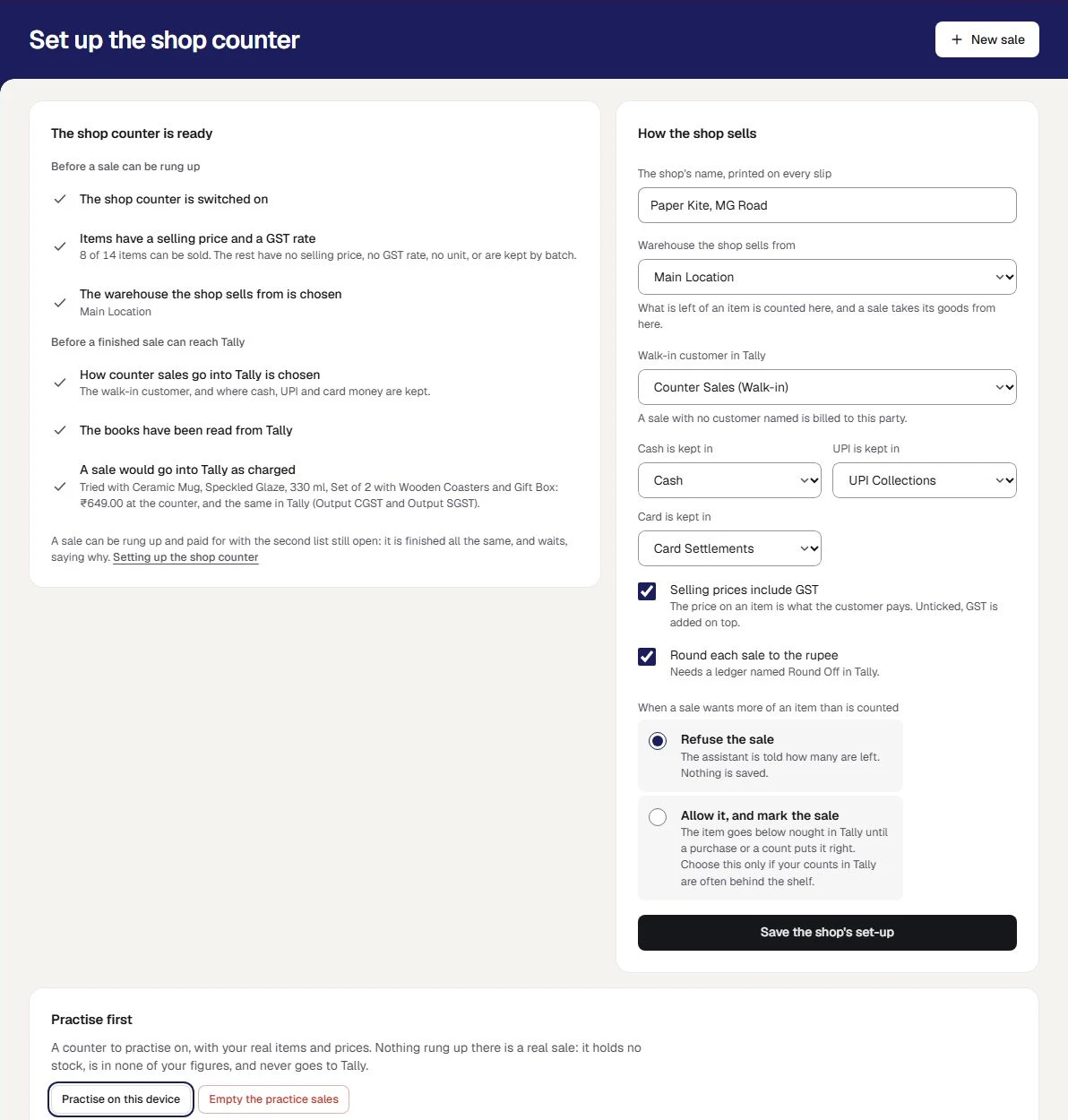
- Open Shop, then Set up.
- Fill in the card How the shop sells.
- Press Save the shop's set-up. A small message says Saved.
| On the card | What it is for |
|---|---|
| The shop's name, printed on every slip | The name under your company's on each slip |
| Warehouse the shop sells from | Where a sale takes its goods from, and where what is left is counted. It must be chosen when your company keeps stock in more than one warehouse: until then nothing can be rung up |
| Walk-in customer in Tally | The party a sale is billed to when no customer is named |
| Cash is kept in, UPI is kept in, Card is kept in | The cash or bank ledger each kind of money arrives in |
| Selling prices include GST | Ticked, the price on an item is what the customer pays. Unticked, GST is added on top |
| Round each sale to the rupee | Needs a ledger named Round Off in Tally |
| When a sale wants more of an item than is counted | The rule in the next part |
Every list offers what Tally has. A list that reads None in Tally yet means the ledger has still to be made in Tally.
When a sale wants more than is counted
You choose one of two rules.
| The rule | What happens |
|---|---|
| Refuse the sale | The assistant is told how many are left. Nothing is saved. This is how a shop counter starts |
| Allow it, and mark the sale | The sale is rung up, and its page says what was short. The item goes below nought in Tally until a purchase or a count puts it right |
Choose Allow it, and mark the sale only if your counts in Tally are often behind the shelf. How the count is worked out is in Shop sales, stock and Tally.
Is the counter ready
The card beside the form is a list, worked out from your books as they stand. It is headed The shop counter is ready, or says how many lines are still to do.
| Part | The line | It is ticked when |
|---|---|---|
| Before a sale can be rung up | The shop counter is switched on | Step 1 is done |
| Before a sale can be rung up | Items have a selling price and a GST rate | At least one item can be sold. The line says how many can, of how many |
| Before a sale can be rung up | The warehouse the shop sells from is chosen | Shown only when your company has more than one warehouse |
| Before a finished sale can reach Tally | How counter sales go into Tally is chosen | The walk-in customer and the three ledgers are chosen |
| Before a finished sale can reach Tally | The books have been read from Tally | Tally has been read at least once |
| Before a finished sale can reach Tally | A sale would go into Tally as charged | One sale of one item was tried against the part of Orzoni that makes every bill, and came to the same at the counter and in Tally |
The last line is a trial only. Nothing is sent to Tally by it. If the two sums differ, the line says what each came to: the GST Tally is set up to charge does not match the item's rate, and that is put right in Tally with your accountant.
Step 4: give your staff their roles
A business that has the shop counter is offered two more roles, and two more switches under Shop.
| Role | What it starts with |
|---|---|
| Shop assistant | Rings up sales at the shop's counter and records how they were paid. No returns, bills, figures or settings |
| Shop supervisor | Everything a shop assistant does, and records returns, puts a payment right, and sees the bills and the stock. No figures or settings |
| Switch | What it covers |
|---|---|
| Ring up counter sales and take payment | New sales, the money recorded against them, and finishing a sale. Sees what is left of each item |
| Record a return, or put a payment right | Goods brought back on a finished sale, and a payment recorded as the wrong kind |
- Open Settings, then Users and roles.
- Invite each person, or change the role of someone already there. See Invite your team.
Stock and Tally check is for whoever holds See figures and reports or Business settings. The owner and an admin see everything.
Practise first
The foot of Set up has a counter to practise on, with your real items and prices.
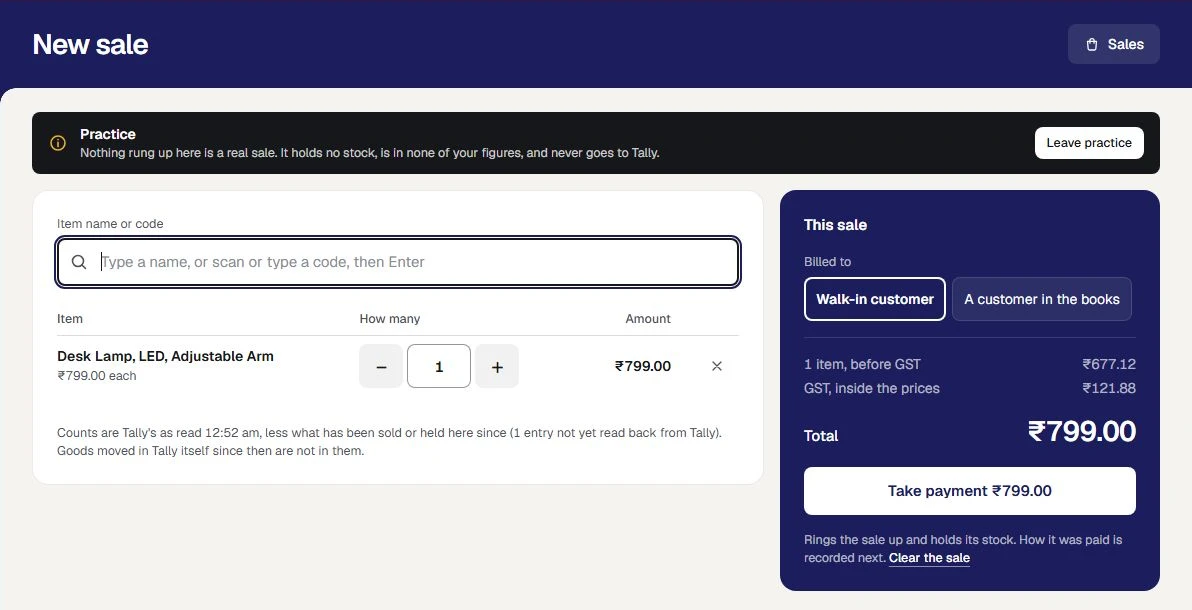
- Press Practise on this device. New sale opens, with a dark bar across the top that reads Practice.
- Ring up a sale, record its payment, and finish it, as in Ring up a counter sale.
- Press Leave practice, on the bar.
Nothing rung up there is a real sale. It holds no stock, is in none of your figures, and never goes to Tally. Its sale page reads Practice: no bill is made, and nothing goes to Tally. No counts are shown on the practice counter.
Whoever holds Business settings can press Empty the practice sales to clear them.
Step 5: ring up a first real sale
Open Shop, then New sale, and follow Ring up a counter sale. When the sale is finished, its page reads Waiting for Tally, then In Tally, not checked yet, then In Tally, checked.
If the counter is closed to new sales
A bar at the head of every shop screen can read The shop counter is closed to new sales for this business. It means the business is no longer in the pilot.
- Sales already rung up can still be paid for, finished or voided.
- Returns can still be recorded.
- Everything can still be read, and saved as a file.
- No new sale can be rung up, and the set-up cannot be changed.
Nothing was deleted. Press Ask us on the bar, or write to us from Settings, Help and support.
Mistakes you can undo
| The mistake | How to put it right |
|---|---|
| A wrong ledger or warehouse under Set up, found before any sale | Choose the right one and press Save the shop's set-up |
| A wrong selling price | Change it on the item's page. The counter charges the new price from the next sale |
| Retail shop chosen by mistake | Choose another kind under Business type. Nothing is deleted |
| A practice sale left behind | Empty the practice sales |
What this does to your data and to Tally
- Choosing Retail shop changes what the side of the screen lists. It sends nothing to Tally and deletes nothing.
- Set up is kept in Orzoni. It names ledgers and a warehouse Tally already has, and changes none of them.
- A selling price is kept in Orzoni. No price goes into Tally.
- The trial sale on the list is worked out and thrown away. Nothing reaches Tally.
- Practice sales stay on the practice counter, and never reach Tally.
What next
- Ring up a counter sale: find an item, take the payment, print the slip.
- Shop sales, stock and Tally: the bill each sale becomes, and what is left of each item.
- Returns at the shop counter: goods brought back, and a payment put right.
- Items: the item's own page, where its selling price is.
What the shop counter does not do
The shop counter is a pilot for one shop with one counter. These are the lines it keeps, said plainly because each is something a shop owner might otherwise assume.
- One shop for each company, selling from one warehouse. There is no second outlet, and goods are not moved between outlets at the counter.
- Whole items that Tally counts one by one. Goods Tally keeps by batch or expiry are not sold at the counter, nothing is weighed, and it is not for a pharmacy or a jeweller.
- An item is sold at its own selling price. There are no discounts, schemes or loyalty points, and a price is not changed at the counter.
- A sale is paid for in full before it is finished. Sales on credit, and goods put aside for a customer to pay for later, are not taken at the counter.
- Payments are recorded by the person at the counter. Orzoni does not ask a bank or a payment company whether a UPI or card payment arrived, and it returns no money itself.
- A code is typed, or scanned by a scanner that types like a keyboard and ends with Enter. Orzoni does not drive a scanner, and scanning has been tried only as typed characters followed by Enter, with no scanner in hand.
- The slip is printed from the browser, on the printer it has. Orzoni does not drive a receipt printer or a cash drawer, and prints no barcode labels.
- There is no drawer count and no day close at the shop counter. Stock and Tally check sets a day's sales against Tally, and puts nothing right itself.
- An exchange is a return and then a new sale. A finished sale is not opened again, and what it sold is not changed.
- The counter is worked online. With no internet it says so and rings nothing up, and nothing is kept on the device to send later.
- For a company registered for GST in one state. Where a company is registered in more than one, a sale is kept, and says why its bill is not made.
Two more things are worth knowing before you start.
- No scanner, receipt printer or cash drawer has been tried with it, and Orzoni drives none of them. Try your own on the practice counter first.
- It gives no advice on tax. The GST on a sale is the rate Tally holds for each item.
Still stuck? Write to orzoni.official@gmail.com and say which step you are on, or book a walk-through call.