

On this page
Get help
Where an answer is found, and how to reach a person. The guides and the box that answers a typed question, a message to us from Settings, a report from the Tally connector, what to have ready when you write, and our email address.
5 minute read
Where to look first
| You want | Go to |
|---|---|
| To know how something is done | The guides. Type your question in the box at the top |
| To put right something that looks wrong | Troubleshooting, which is set out by what you see on screen |
| To know what a word on a screen means | The words Orzoni uses |
| To ask a person | Settings, Help and support in Orzoni, or orzoni.official@gmail.com |
| To tell us the Tally connector itself is misbehaving | Send a report in the connector's settings, and a message to say what happened |
| To be shown round on a call | Ask for a walk-through |
The guides, and the box that answers a question
Every screen of Orzoni has a guide, step by step, in the words you see on screen. They are listed at orzoni.com/guides, section by section.
The box at the top of that page reads Search the guides, or ask a question.
- Type a question, or a word or two: "how do I add staff", "Windows warning", "send a bill on WhatsApp".
- From the third letter on, answers appear under From the guides. Each one is a part of a guide: the guide's name, the heading of the part, and the sentence that fits best.
- Press an answer, or Enter for the first one. The guide opens at that heading.
- Plain wording and typing mistakes are allowed for. You do not need the guides' own words.
- A question about the price, or about how safe your books are, is answered first with a line that leads to the pricing page or to Security and your data.
- When nothing fits, the page says No guide has those words. Try one shorter word, such as "bill" or "stock", or write to us.
Inside a guide, On this page lists its parts and All guides lists every guide.
Write to us from inside Orzoni
This is the simplest way to reach us, because your message arrives with your name and your business already on it.
Open Settings, then Help and support. On a phone, open the menu at the top right, then Help at its foot.
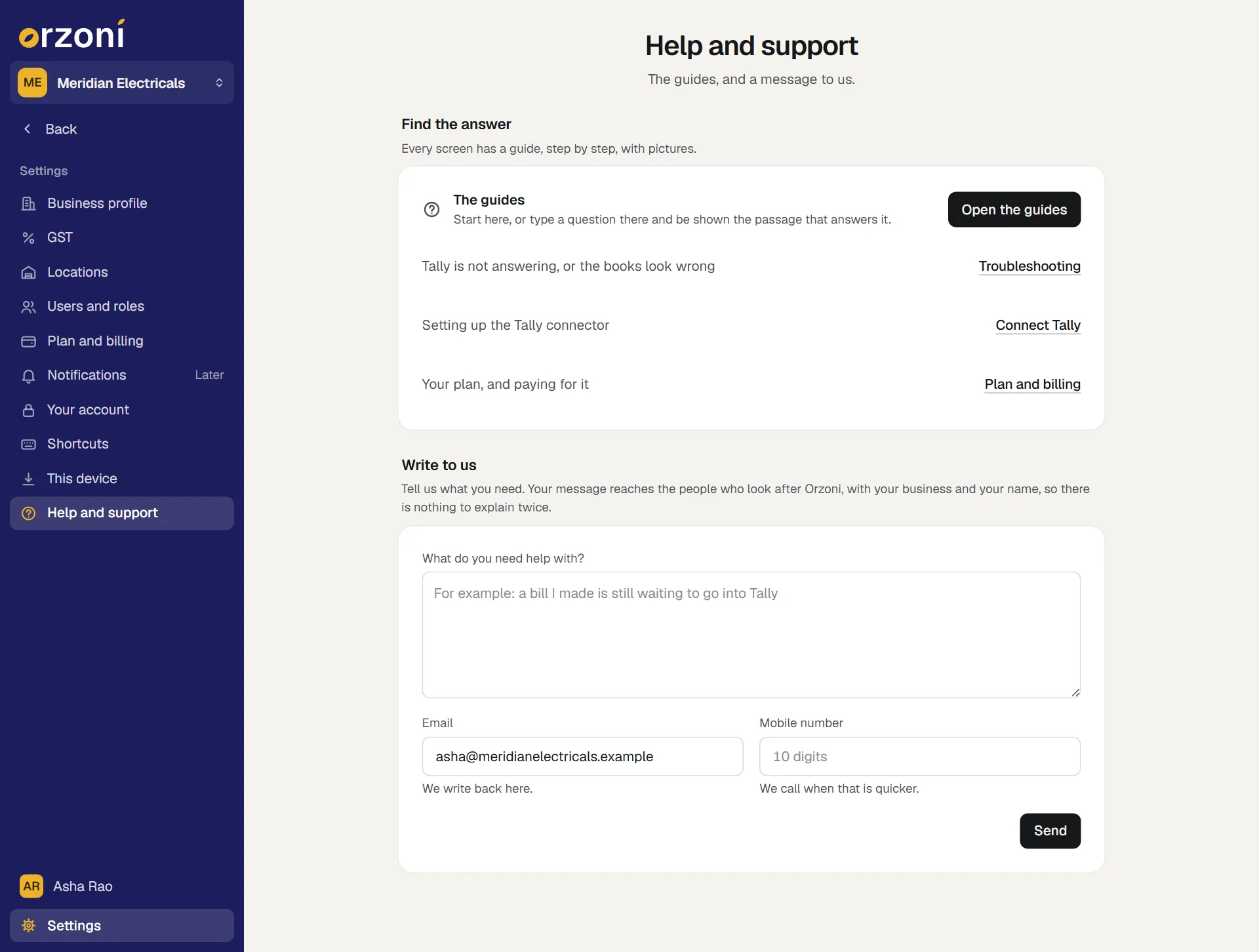
Settings, Help and support: Find the answer, with Open the guides and links to Troubleshooting, Connect Tally and Plan and billing. Under it, Write to us, with the box What do you need help with?, the box for a mobile number, and Send. - Under Write to us, type in What do you need help with? Say what you were doing and what the screen said.
- If you would like a call, type your number in Mobile number, if you would like a call. Leave it empty and we write to your email.
- Press Send.
The screen says Your message is with us, and names the email address we will write back to, and the number we may call if you gave one. There is nothing more to do.
Anyone in the business can use it, whatever their role.
What happens to your message
- It reaches the people who look after Orzoni, with your name, your email address, your role and your business, and the screen you came to Settings from where that is known. There is nothing to explain twice.
- Nothing from your books goes with it. Only the words you typed.
- You are written back to at the email address you sign in with, or called on the number you left.
The guides most people ask for
Find the answer has Open the guides, and three guides most people ask for:
| Line | Opens |
|---|---|
| Tally is not answering, or the books look wrong | Troubleshooting |
| Setting up the Tally connector | Connect Tally and link the computer |
| Your plan, and paying for it | Plan and billing |
If the form stops you
| The form says | What to do |
|---|---|
| "Say what you need help with, in a few words." | The box is empty, or nearly. Type a line or two |
| "Enter a 10-digit mobile number, or leave it empty and we will write to your email." | Type the ten digits of an Indian mobile number, with or without +91, or clear the box |
| "You have written to us several times today, and each message is with us. We will write back to your email." | A few messages a day is the limit for one person. Every one you sent has reached us |
| "Your message could not be sent just now. Try again in a moment." | Try again, or write to orzoni.official@gmail.com |
Send a report from the Tally connector
Use this when the Tally connector itself is not behaving: it will not read Tally, it stops, or its window shows a fault. It is done on the computer that runs Tally.
- Open the connector's window: Orzoni in the Start menu, or its icon beside the clock.
- Press the settings button at the top right.
- Under This computer, beside Something not right?, press Send a report.
The line under it changes to Sent. Thank you. If the computer is offline, it reads Saved on this computer. It is sent when the connector can reach its server.
| A report holds | A report never holds |
|---|---|
| The connector's version, and the version of Windows it runs on | Your figures |
| What failed, and where in the connector | Your entries, or anything else read from your books |
| The last lines of the connector's own activity log: when checks ran and what went wrong | The name of your Windows account. It is taken out of every file path |
| Which linked computer it came from, so we know whose it is |
A fault's message can carry Tally's own words, such as the reason Tally gave for refusing an entry.
A report carries no words of yours. After sending one, write to us as well and say what you were doing and when, so the two can be put together.
See The Tally connector on your computer.
What to have ready
The more of these a message holds, the fewer questions come back.
- What you were doing, and the step you were on.
- The exact words on the screen. Copy them, or send a picture of the screen.
- The entry's number. For a bill made in Orzoni, its reference, such as OZ-0042. For anything else, the number it has in Tally and its date.
- The payment id, for a question about a payment. It is under Settings, Plan and billing, What you have paid.
- The connector's version, for anything to do with Tally. It is at the foot of the connector's window, and under Settings, This device, beside the computer's name.
- Which Tally you use. The connector's window says, for example "TallyPrime 7.1 (64-bit)".
- Whether the computer that runs Tally was on, with Tally open, at the time.
Do not send your books. If we need something more, we ask for the smallest thing that shows the problem.
By email, or on a call
- Email: orzoni.official@gmail.com. Write from the address you sign in with, so we know which business it is about.
- A walk-through: ask for one and we go through Orzoni with you on a call.
- Our details: the contact page.
When you ask for a hand with a set-up or a fix, Orzoni's support can step in to help. See Where your data is kept.
What next
- Troubleshooting: organised by what you see.
- What Orzoni leaves to Tally, and what is coming.
- The words Orzoni uses.
Still stuck? Write to orzoni.official@gmail.com and say which step you are on, or book a walk-through call.