

On this page
Match your store's listings
Say which item in Tally each of your store's listings is. Approve what Orzoni puts forward, choose by hand, set aside what is not kept in Tally, do many at once, and work through products sold in several sizes and through collections.
10 minute read
What Listings is for
A listing is one thing your store sells: a product, or one variant of a product, such as a size or a colour. Listings sets every listing beside the item it is in Tally.
Nothing else about the store works for a listing until this is done. A listing with no item is left as it is on the store: no count is worked out for it, and an order for it cannot be made into a bill.
Orzoni does most of the work. It reads each listing's code, barcode and name, puts the likeliest item forward, and says how far to trust it. You approve, change or set aside.
Open Listings
- In the rail, press Connectors, then Shopify.
Press Listings.
The number beside Listings is how many are still to match.
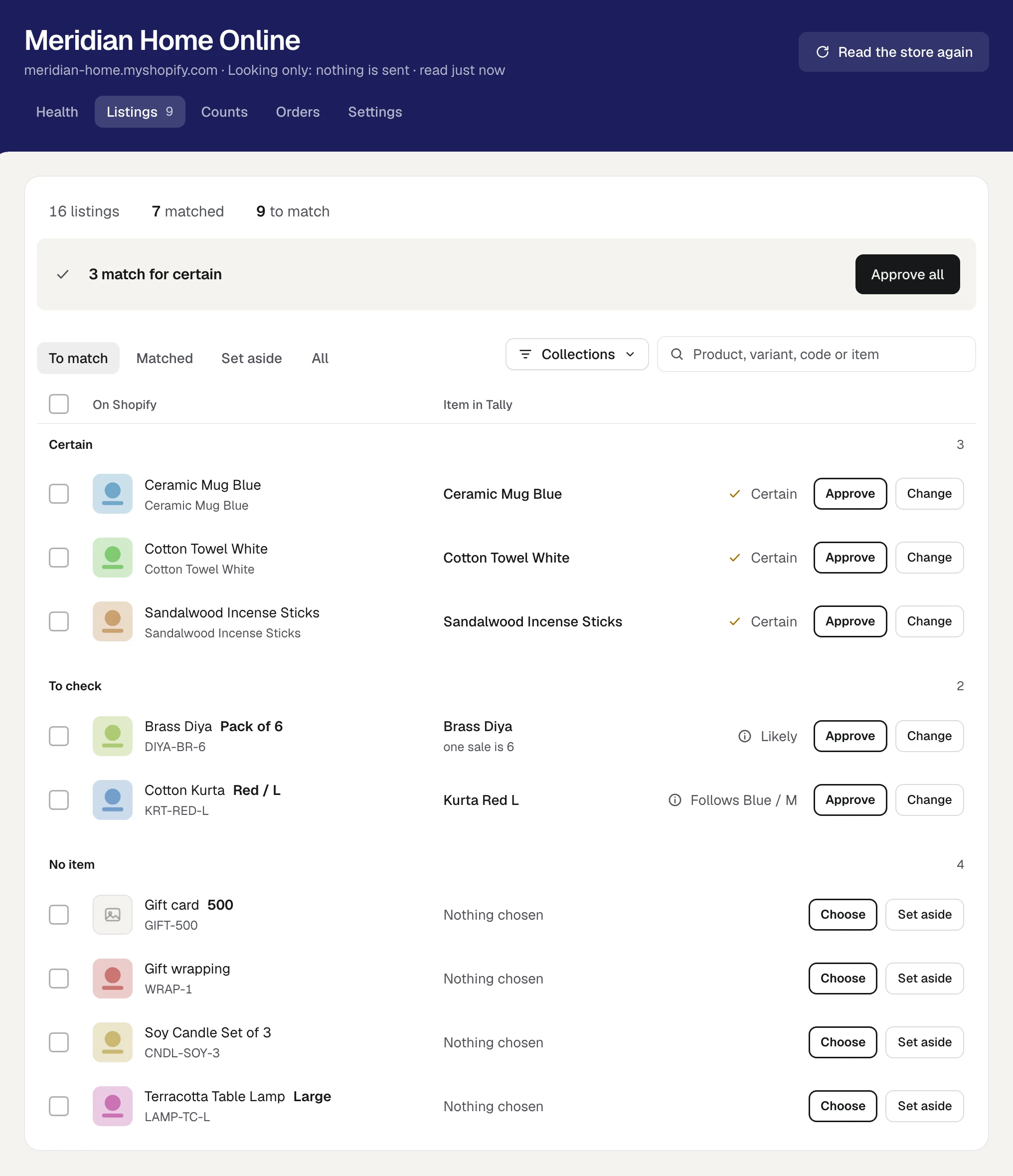
Read the list
The first line says how the store stands: how many listings it has, how many are matched, how many are still to match, and how many are set aside.
Each row has two sides:
| Column | What it shows |
|---|---|
| On Shopify | The listing's picture, the product's name with its variant in bold, and its code under it, or No code |
| Item in Tally | The item it is matched to, or the one put forward for it. Nothing chosen where there is none |
Four views stand above the list:
| View | What it holds |
|---|---|
| To match | Every listing still to be matched or set aside |
| Matched | Listings you have approved |
| Set aside | Listings you said are not kept in Tally |
| All | Every listing the store has |
To match puts the work in the order it is best done, under three headings, each with how many it holds:
| Heading | What is under it |
|---|---|
| Certain | An item is put forward, and it is sure |
| To check | An item is put forward, and a person should look first |
| No item | Nothing in Tally is close enough. You choose by hand, or set it aside |
How far to trust what is put forward
A few words beside the item say why it was put forward:
| It says | What it means |
|---|---|
| Certain | The listing's code or barcode is one item's and no other's. The code can be the item's name, its part number or an alias it has in Tally. A code that was matched on this store before is certain too |
| Likely | The very same name, the listing's code written inside the item's name, or names that agree closely with no other item coming near |
| One of several | The best of several items that could be it |
| Follows Blue / M | Another variant of the same product was matched, and this is the item that fits beside it. See Products sold in several sizes |
| Matched | You approved it |
| Set aside | You set it aside |
| Being added to Tally | Its item is being made in Tally from the store's product. See Products on Shopify and in Tally, shown as one |
What tells two items apart must agree before anything is put forward: a size, a colour, a weight or a number. A red shirt in medium is never put forward for the same shirt in large.
Where the words end with shared, as in Likely, shared, more than one listing is put forward for the same item with the same number of it to a sale. See What matching does to counts.
Approve what is certain
The line above the views says what is left, with the one press that does the most of it.
Where it says 3 match for certain, press Approve all. For one listing the button reads Approve it.
Orzoni says Approved, and those listings move to Matched.
Once nothing is certain, the line says how many need a look, and then how many have no item.
Approve, change or choose one listing
The buttons on a row are the ones that fit it:
| The row has | Buttons |
|---|---|
| An item put forward | Approve and Change |
| No item | Choose and Set aside |
| A match you approved | Change |
| Been set aside | Bring back |
To take what is put forward, press Approve. Orzoni says Matched.
To choose another item, or to choose one where there is none:
Press Change or Choose.
Two boxes open on the row.
- In Item in Tally, type a few letters and pick the item. It must be a stock item in your Tally books.
- If one sale of the listing is more than one of the item, type how many in the small box beside it. Left empty, one sale is 1.
- Press Save. Cancel, or Esc, closes the boxes with nothing changed.
A listing sold as a pack

Where a listing's name says it is a pack, such as Pack of 6 or Set of 3, Orzoni puts the loose item forward with one sale is 6 under it. One order for the listing then takes 6 of the item off the count, and the store is shown how many whole packs are left.
Check the number before you approve. Change it in the small box if the name misled.
Set a listing aside
Some things a store sells are not kept in Tally: a gift card, gift wrapping, a service.
Press Set aside on the row.
Orzoni says Set aside. The row now reads Not kept in Tally, and is left as it is on the store.
To undo it, open the Set aside view and press Bring back. The listing waits to be matched again.
Many at once
Tick the box at the start of a row to select it. A bar rises at the foot of the list.
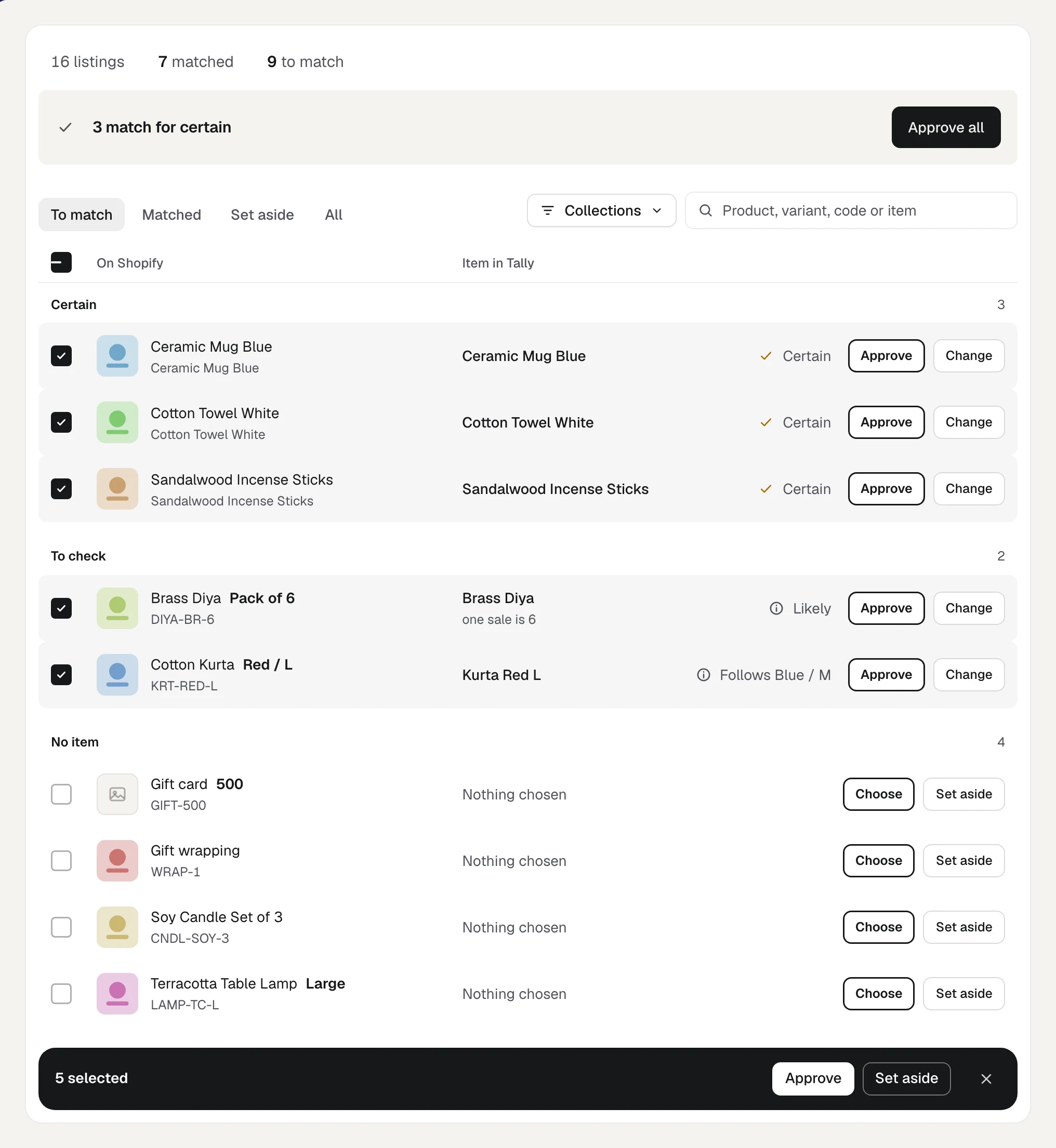
- Hold Shift and tick a second box to take every row between the two.
- The box in the heading takes every listing on show.
- The bar offers only what applies to at least one of the ticked listings: Approve, Set aside, Bring back, Clear match. Where a button applies to some and not all, it says to how many, as in Approve 3.
- Clear match takes a match away, so the listing waits to be matched again. It asks once more on the button itself: press it again within a few seconds. So does Set aside where it would drop a match.
- The cross at the end of the bar, or Esc, lets go of what is ticked. So does moving to another view, collection or search, for any listing no longer on show.
Orzoni then says what was done, such as 5 matched. If it adds 2 left as they were, those listings were showing something else by the time you pressed: an approval is only ever for the item you were shown.
One press can change 500 listings. Past that the screen says 500 at a time.
Products sold in several sizes
A product the store sells as several variants is one line that opens onto its listings.
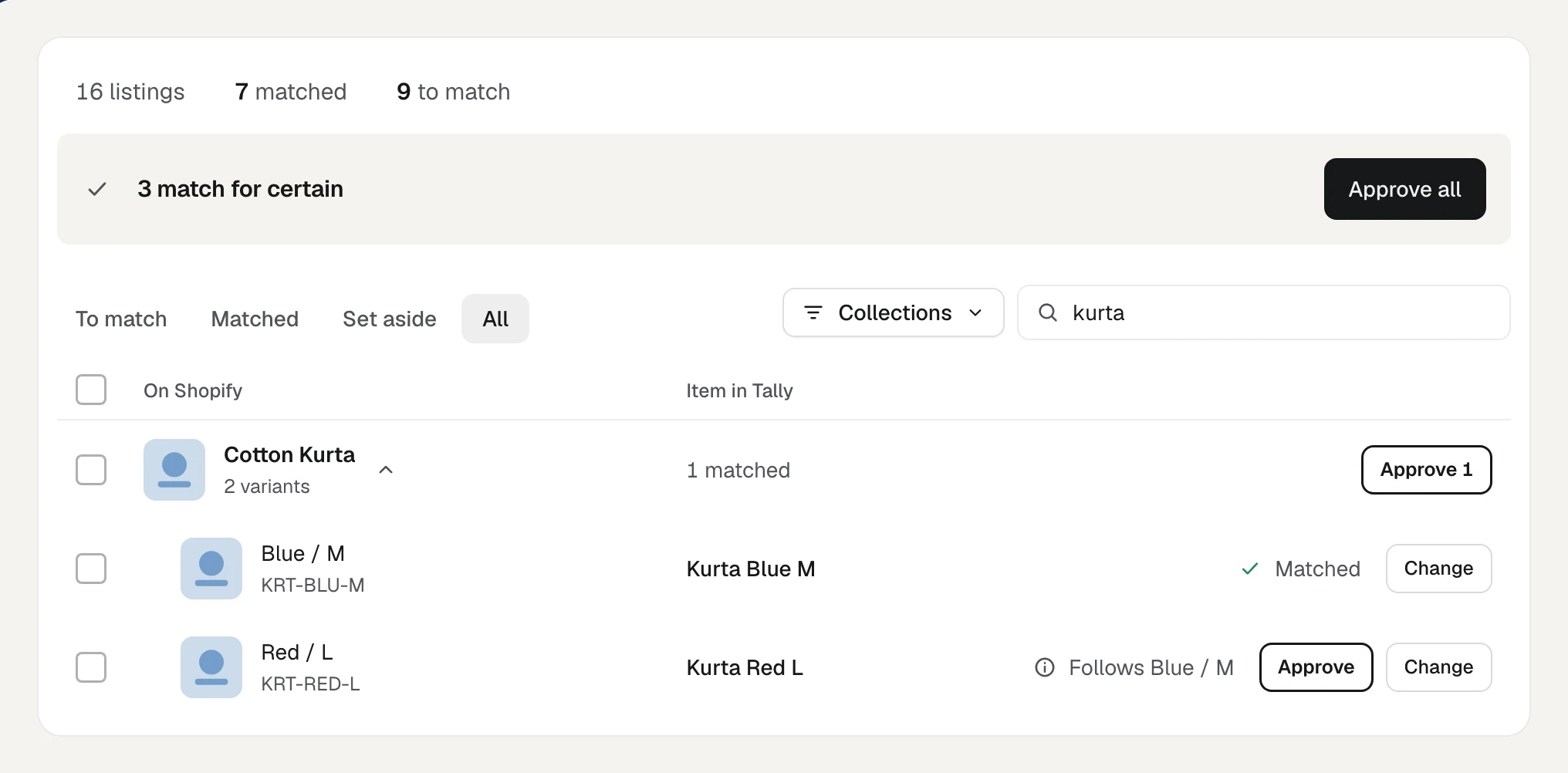
- The product's line says how many variants it has, such as 2 variants. Where only some are in the view on show, it says 5 of 6 variants.
- Press the line to open it, and again to close it. A search opens every product it finds.
- Beside the count it says 1 matched, or All matched.
Match one variant by hand and the rest often follow. Orzoni takes the item you chose, swaps the words that differ between the two variants, and looks for the one item in Tally with exactly that name. In the picture, Blue / M was matched to Kurta Blue M, so Kurta Red L is put forward for Red / L, marked Follows Blue / M.
To take what follows:
- Press Approve 2 on the product's own line. The number is how many variants have an item put forward this way.
- If the product was closed, it opens and the button asks Approve these 2? Look at them, then press again.
What follows is never taken by Approve all. It is put forward as likely, not certain, so it is always approved where you can see it.
Where no one item in Tally has a name that fits, or the item is already matched to another listing, nothing is put forward and you choose by hand.
The tick box on a product's line selects its variants that are on show, opening the product first.
Collections
Where your store arranges its products in collections, a Collections button stands beside the search.
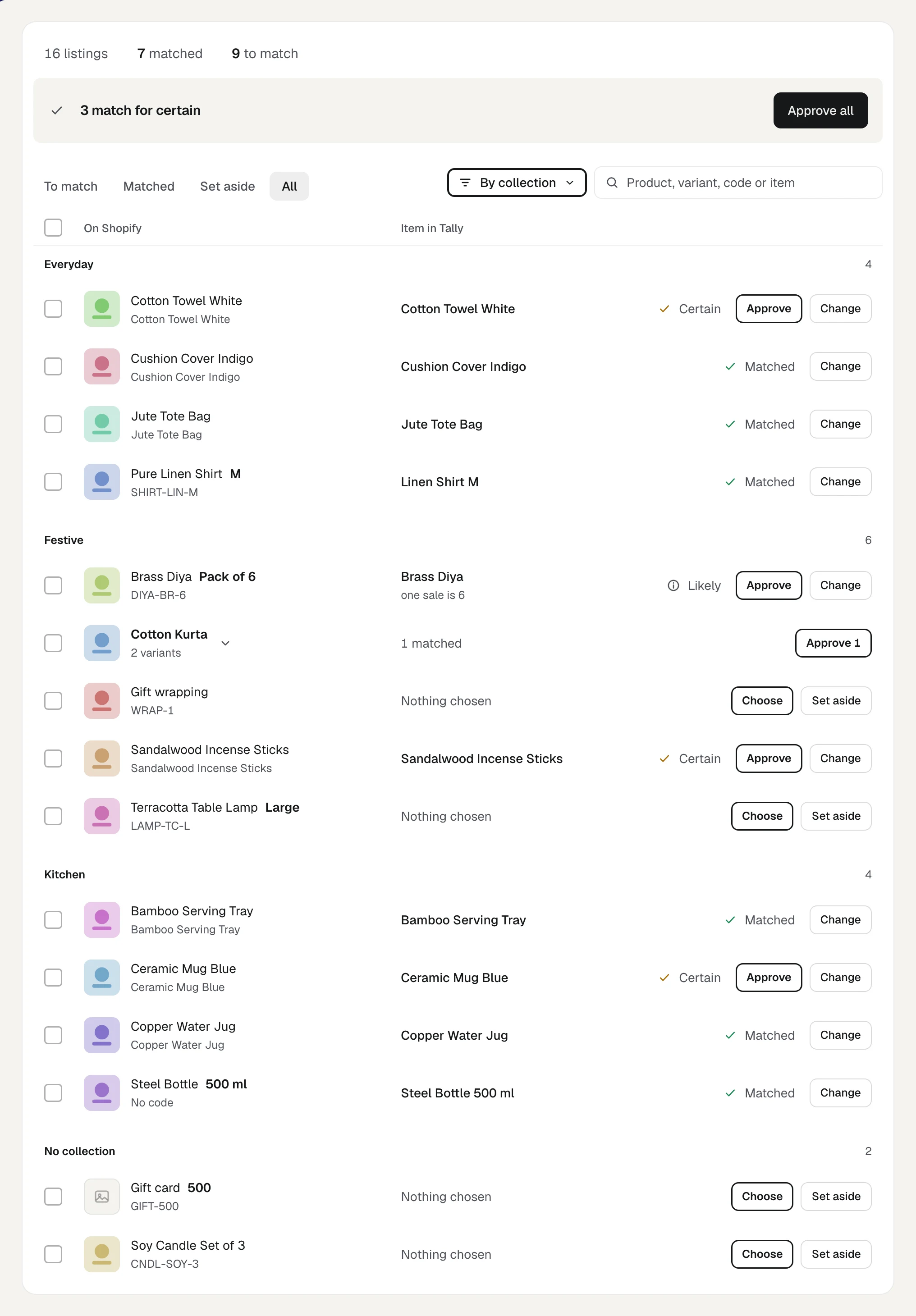
| In the list | What it does |
|---|---|
| All collections | Shows every listing |
| A collection's name, with how many listings it holds | Shows only that collection. The button then carries its name |
| No collection | Shows only the listings in no collection |
| Group by collection | Lays the whole list out under a heading for each collection. The button then reads By collection |
Grouped by collection, each listing is shown once, under the first of its collections by name. Listings in no collection come last, under No collection.
A collection narrows the view you are on. To match one collection at a time, stay on To match and choose the collection.
Search and long lists
The search box takes a product's name, a variant, a code or an item's name in Tally, and narrows the list as you type.
A long list shows 100 lines at a time. The button at its foot, such as Show 100 more of 250, brings the next.
What matching does to counts
Once a listing is matched, and its location is linked to a warehouse, its count is worked out and listed under Counts.
- While the store is looking only, nothing is sent, however many you match.
- While counts are being sent, a listing matched from its own row has its count sent in the usual way. Many matched in one press is different: Approve all, the button on a product's line and the bar at the foot. If more than 10 counts would be sent because of the one press, they wait for your word under Counts, and Orzoni says so, as in 5 matched. 12 counts wait for your word.
- Two listings matched to the same item, with the same number of it to a sale, are both left out of step. Tally cannot say how many of the item belong to which listing, so no count is sent for either. Counts lists them as The same item as another listing. A pack and the loose item do not clash: one sale of each is a different number.
A match is also remembered beyond the store. The listing's code is kept as a name the item goes by on Shopify, under Other names on the item's page, so an order file from the same store matches without a second round. See Repeating bills and sales channels.
A matched listing and its item are then one product, linked, wherever products are shown. See Products on Shopify and in Tally, shown as one.
If Orzoni will not take it
| Orzoni says | What to do |
|---|---|
| Choose the item from your Tally stock items. | The name typed is not an item in Tally. Pick one from the list under the box. To add the item first, see Items |
| Enter how many of the item one sale of the listing is. | Type a number above 0 in the small box, or leave it empty for 1 |
| One of those listings is not on this store any more. Read the store again. | The store stopped listing it. Press Read the store again at the top right |
| Choose 500 listings or fewer at a time. | Do them in two goes |
Who may do what
Listings is shown to everyone whose role includes See stock. Approving, choosing, setting aside and everything else that changes a match needs Change stock. Without it the list can be read, with no tick boxes and no buttons. See Users and roles.
What next
- Counts: what each matched listing should show, and turning counts on.
- Your store's health: what is still left to put right.
- Products on Shopify and in Tally, shown as one: where a linked product's two sides differ, and a product that is on Shopify only.
- Locations: the places you keep stock.
Still stuck? Write to support@orzoni.com and say which step you are on, or book a walk-through call.