

On this page
Choose your kind of business
Tell Orzoni whether you trade, sell online or run a café, and it opens on what you do most. What each kind switches on, how to switch a single part on or off afterwards, the four separate things that decide who can use a pilot, and what the choice never touches: your records, your plan, your books in Tally and what each person may do.
5 minute read
What this is for
Orzoni is one product for more than one kind of business. A trader wants bills and stock in front of them. Someone who sells online wants their store beside them. A café wants today's orders.
Settings, Business type is where you say which you are. Orzoni then lists the right places at the side, opens Home on the right screen, and puts the thing you make most at the top of New.
A kind is a starting point, not a fence. Any part can be switched on or off afterwards, whatever kind you chose.
Who can choose
The owner, and anyone who holds the permission Business settings. The section is listed in Settings only for them. See Users and roles.
Each company chooses for itself. A business with a trading company and a café company keeps each as it is set.
Before you start
- Nothing needs to be finished or closed first. You can choose on the first day or a year in.
- A company that has never chosen is exactly as it always was. The screen says so: You have not chosen yet: everything is as it has always been.
- A kind tagged Pilot is open to a few businesses while it is being tried. Café is one. See A pilot, open to a few businesses.
The kinds
| Kind | What the screen says of it | What it starts with |
|---|---|---|
| Trading and wholesale | Bills, purchases, stock and collections, for a business that buys and sells goods | The books, with no extra part switched on |
| Online selling | Everything a trader has, with a Shopify store kept in step with Tally | The books, with Online store switched on |
| Café, tagged Pilot | Orders at the counter, a kitchen queue and the day's takings, with the books behind them | The books, with Café counter switched on |
| Retail shop, tagged Pilot | One shop selling items you keep in stock, such as stationery, gifts or home goods, across a counter. Not for goods kept by batch or expiry | The books, with Shop counter switched on |
| Repairs and servicing, tagged Pilot | A small repair or maintenance business with simple jobs, such as appliance servicing: taken in, done, invoiced. Not a booking calendar, and not for clinics or salons | The books, with Jobs switched on |
| Wholesale and distribution, tagged Pilot | One company selling items it keeps in stock to known business customers on credit, order by order. Everything a trader has, with sales orders before the invoice | The books, with Sales orders switched on |
Bills, purchases, stock, parties, accounts, GST, analytics and the team are every company's, and are always on.
A kind you have not been let into is listed all the same. It cannot be picked, and reads Open to a few businesses while it is being tried. The rest of this guide follows the café.
Choose your kind
Open Settings, then Business type. On a phone, open the menu at the top right, then Settings, then Business type.
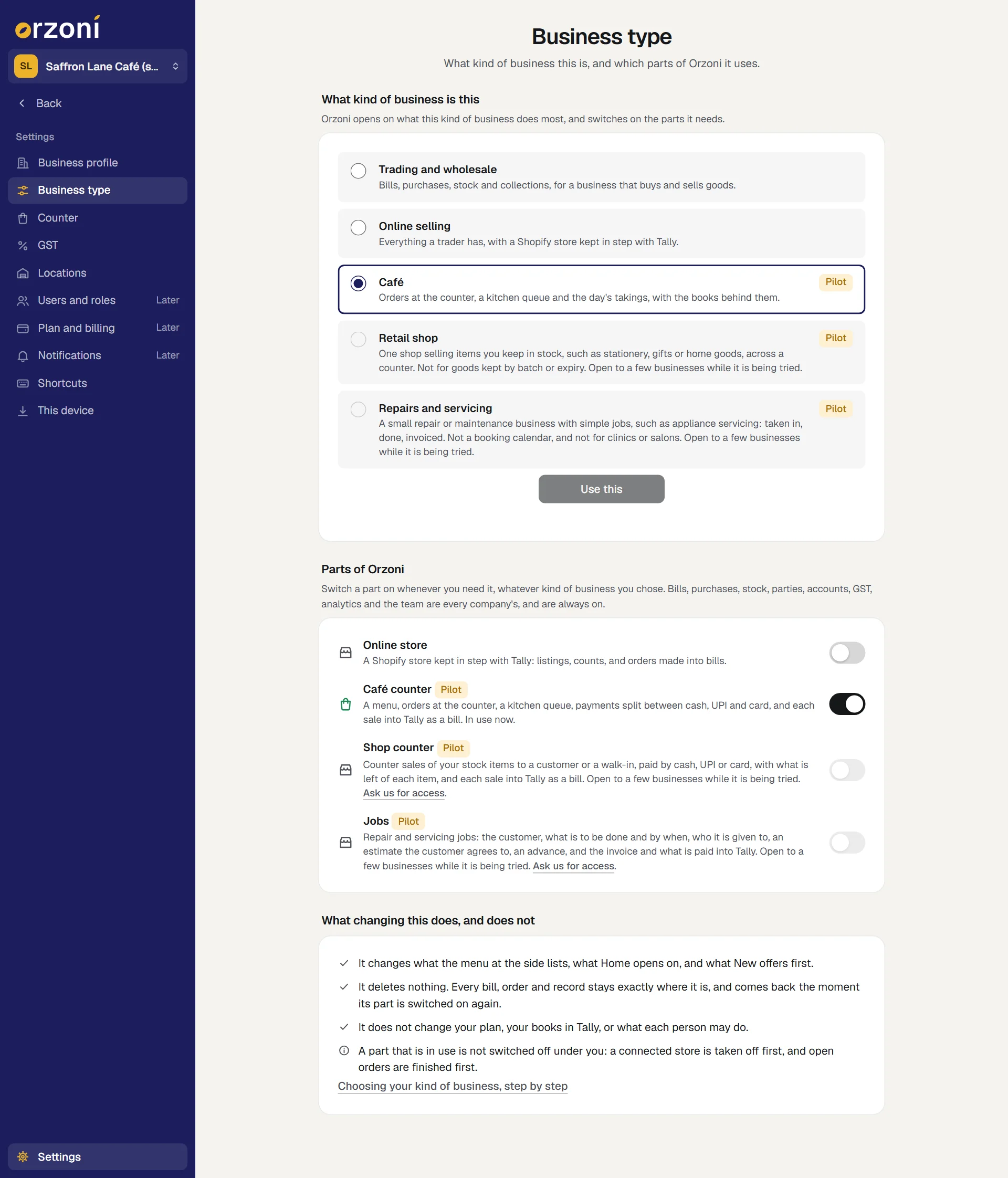
The screen is headed Business type, with What kind of business this is, and which parts of Orzoni it uses under it.
Under What kind of business is this, press the kind that fits.
The button Use this wakes as soon as you pick a kind other than the one in force.
Press Use this.
A small message says, for example, Set up for café. Nothing was deleted. Orzoni then loads afresh, so the list at the side, Home and New all agree.
What you should see afterwards
| You chose | The list at the side | Home opens on | New offers first |
|---|---|---|---|
| Trading and wholesale | Books, Workspace and Connectors, with Tally under it | Your figures | Sales invoice |
| Online selling | The same, with Shopify under Connectors | Your figures | Sales invoice |
| Café | A group named Counter above Books, holding Orders, Kitchen and Menu. Close the day and Days closed are under Orders | Today: the day at the counter | Order |
| Retail shop | A group named Shop above Books. Under Counter it holds New sale, Sales, Stock and Tally check and Set up | Your figures | Sales invoice |
| Repairs and servicing | A group named Service above Books. Under Jobs it holds Jobs, New job and Set up | Your figures | Sales invoice |
| Wholesale and distribution | A group named Orders above Books. Under Sales orders it holds Sales orders and New order | Your figures | Sales invoice |
For a café, the usual Home is one press away: Books overview, at the top of Today. On a phone, a café's tabs along the foot are Home, Orders, Kitchen, Bills and Analytics.
Each person still sees only what their role allows. See Find your way around.
Switch one part on or off
Under Parts of Orzoni there is a switch for each part that a company can add or leave out.
| Part | What it holds |
|---|---|
| Online store | A Shopify store kept in step with Tally: listings, counts, and orders made into bills |
| Café counter, tagged Pilot | A menu, orders at the counter, a kitchen queue, payments split between cash, UPI and card, and each sale into Tally as a bill |
| Shop counter, tagged Pilot | Counter sales of your stock items to a customer or a walk-in, paid by cash, UPI or card, with what is left of each item, and each sale into Tally as a bill |
| Jobs, tagged Pilot | Repair and servicing jobs: the customer, what is to be done and by when, who it is given to, an estimate the customer agrees to, an advance, and the invoice and what is paid into Tally |
| Sales orders, tagged Pilot | Orders from known customers at agreed rates: written, confirmed, fulfilled whole by one invoice, and paid for over time, with what each customer owes shown as the order is written |
Press the switch beside the part.
A small message says, for example, Café counter is switched on. or Online store is switched off. What it holds is kept. Orzoni loads afresh.
So a trader who opens a coffee counter keeps Trading and wholesale and switches Café counter on. Their Home stays on the figures, and Orders gains a screen named Today for the day at the counter.
An example
Saffron Lane Café is a made-up café used for the pictures in these guides. Its owner chooses Café and presses Use this. The side of the screen now lists Orders, Kitchen and Menu under Counter, and Home is Today.
Its first order of the morning is a latte with oat milk and an extra shot at ₹270.00 and two butter croissants at ₹280.00: ₹550.00 in all. The customer pays ₹300.00 in cash from a ₹500 note, takes ₹200.00 change, and pays the other ₹250.00 by UPI. That order, its kitchen ticket and its payments are in Orzoni. Its sales bill is in Tally. Set up a café walks through all of it.
Every invoice the business made before that morning is where it was. Nothing was moved or removed by the choice.
A pilot, open to a few businesses
The café counter works today, and is open to a few businesses while it is being tried. A business is let in by us. Until then:
- Café cannot be picked, and reads Open to a few businesses while it is being tried.
- The switch Café counter cannot be pressed, and carries the link Ask us for access. It opens Settings, Help and support, where a message reaches us with your name and business on it.
Not using Orzoni yet? Ask through the walk-through form and say you run a café.
Once you are let in, nothing is switched on for you. You choose Café, or switch Café counter on, when you are ready.
The shop counter is a pilot on the same terms. Until a business is let in, Retail shop and the switch Shop counter read the same way. See Set up a shop counter.
So are jobs, with Repairs and servicing and the switch Jobs. See Set up jobs.
And so are sales orders, with Wholesale and distribution and the switch Sales orders. A business that is not let in keeps everything Trading and wholesale has: bills, stock, dues and statements. See Write a sales order.
Four things, and none stands in for another
Whether one person can use the counter turns on four separate things.
| Thing | Who decides | What it does |
|---|---|---|
| The part is open to everyone | Orzoni | While a part is a pilot, it is not. If Orzoni opens it to every business, that switches it on for nobody: each business still switches it on for itself |
| Your business has been let in | Orzoni, at the support desk, when you ask | You can now choose Café, or switch Café counter on. Nothing is switched on for you |
| The part is switched on for this company | You: whoever holds Business settings | The group Counter appears, for the people who may use it. It gives nobody a permission |
| The person may do what they ask | You: whoever holds Users and roles | Each person does only what their role and switches allow: take orders, work the kitchen, close the day, put a finished order right, approve a cash difference |
So a business in the pilot, with the counter switched on, still decides person by person who takes orders and who closes the day. See Users and roles.
If the counter is closed to new orders
If a counter that was switched on is ever closed to a business, it is wound down, not shut. Nothing is lost, and nobody is left holding an unpaid order.
A bar at the head of each counter screen says The café counter is closed to new orders for this business. While it is there:
| Still works | Stopped |
|---|---|
| Recording a payment, taking one back, finishing an order, and voiding one | Taking a new order, or saving a draft |
| Taking something off an order | Adding something to an order |
| The kitchen's queue, and printing a ticket or a slip | Changing the menu, and changing how counter sales go into Tally or how prices are worked out |
| Giving money back, and putting a payment right, on a finished order | Emptying the training counter |
| Closing the day, and reading the days closed | |
| Reading every order, and saving any list as a spreadsheet |
Your records are kept either way. Ask us under Settings, Help and support: on the web the bar has a button, Ask us, that opens it.
If you change your mind
Choose another kind and press Use this, or press a switch again. That is all there is to undoing it.
- A part you switch off leaves the list at the side. What it holds is kept, and comes back the moment the part is switched on again.
- A part that is in use is not switched off under you. Finish what is open first: the table below says what.
- Choosing another kind leaves a part switched on while it is in use. A café with an order still open keeps its counter until that order is finished or voided.
| Orzoni says | What to do |
|---|---|
| A Shopify store is connected. Take it off under Connectors, Shopify first. | Take the store off, then switch Online store off. See Take the store off |
| One order is still open. Finish or void it first. (or a number of orders) | Open Orders, choose Open, and finish or void each one. See Take a café order |
| One counter sale is still being paid for. Finish or void it first. (or a number of sales) | Open Shop, Sales, choose Being paid for, and finish or void each one. See Ring up a counter sale |
| One job is still open. Complete or cancel it first. (or a number of jobs) | Open Jobs, look under Open and Ready, and complete or cancel each one. See Take in a job |
| One sales order is confirmed and not yet fulfilled. Fulfil or cancel it first. (or a number of sales orders) | Open Sales orders, look under To fulfil, and fulfil or cancel each one. See Write a sales order |
| Café counter is open to a few businesses while it is being tried. | Ask us under Settings, Help and support |
| The café counter is closed to new orders for this business. | Orders already taken can still be paid, finished or voided, and the day closed. See If the counter is closed to new orders |
What it does to your data and to Tally
The screen says it in four lines under What changing this does, and does not:
- It changes what the menu at the side lists, what Home opens on, and what New offers first.
- It deletes nothing. Every bill, order and record stays exactly where it is, and comes back the moment its part is switched on again.
- It does not change your plan, your books in Tally, or what each person may do.
- A part that is in use is not switched off under you: a connected store is taken off first, and open orders are finished first.
Nothing is sent to Tally by choosing. The change is written down under Settings, Users and roles, What was done, with who made it.
What next
- What the café counter covers: read it before your first order.
- Set up a café: the counter, the menu and a first sale.
- Set up a shop counter: for one shop selling its stock items across a counter.
- Set up jobs: for a small repair or maintenance business with simple jobs.
- Write a sales order: for a distributor who takes orders before billing.
- Connect your Shopify store: for a business that sells online.
- Settings and updates: the other sections of Settings.
- Users and roles: who may change this.
Still stuck? Write to orzoni.official@gmail.com and say which step you are on, or book a walk-through call.