

On this page
Warehouses and pack sizes
Tally's godowns with what each holds, bins and pick lists, moving stock or correcting a count, and keeping one count of an item you sell in packs.
10 minute read
Warehouses
Stock, then Warehouses, lists every godown in your Tally company. On a phone, open the Items tab and choose Warehouses from the row of names at the top.
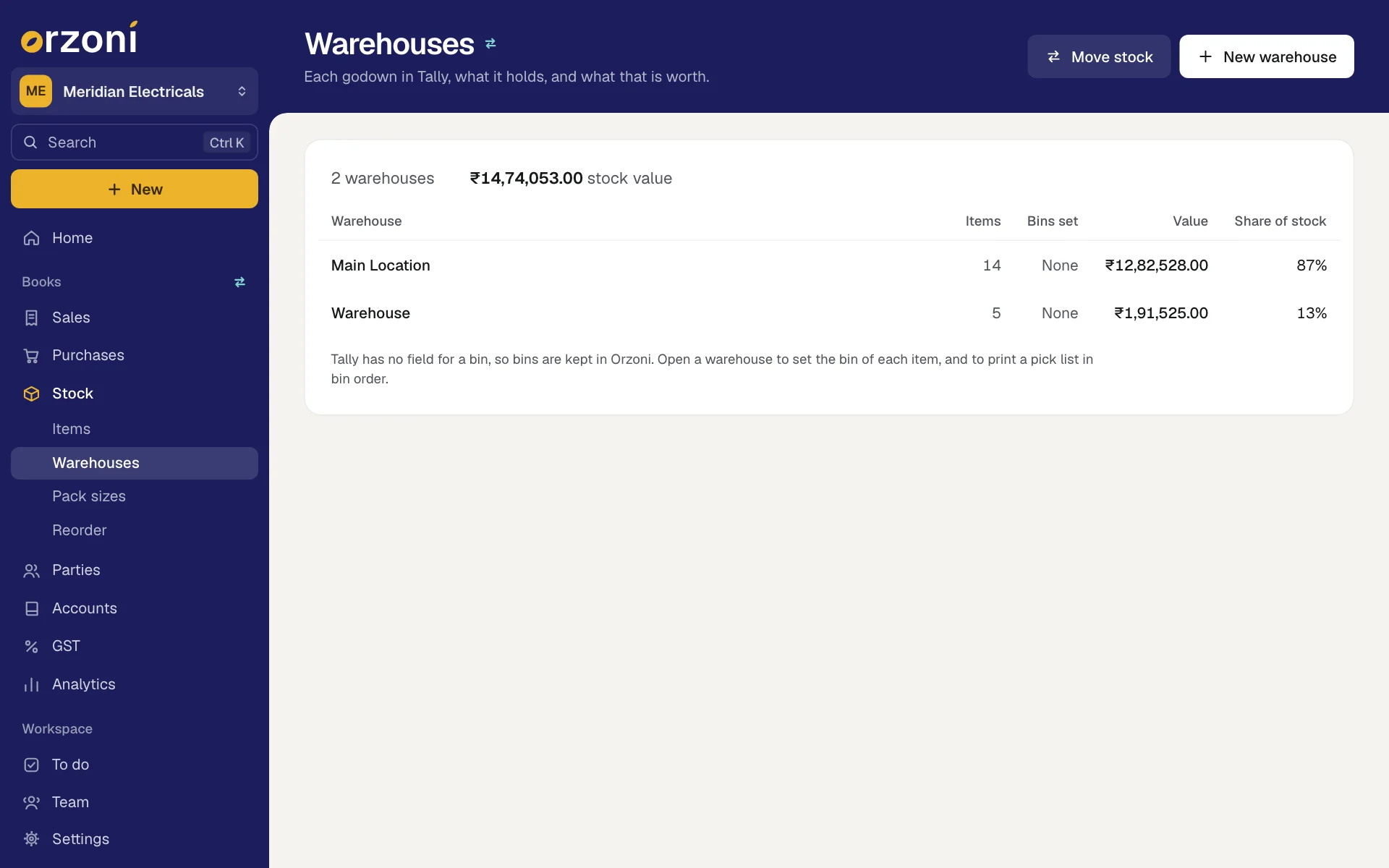
The first line says what the list comes to, such as 2 warehouses and ₹16,88,957.00 stock value. If stock has gone below zero anywhere, the same line says so once, in red, such as 3 items below zero.
| Column | Shows |
|---|---|
| Warehouse | The name. Under it, Inside Main Location for a warehouse kept inside another, and how many items are below zero there |
| Items | How many items it holds stock of |
| Bins set | How many items have a bin there, or None |
| Value | What the stock there is worth, at each item's average cost |
| Share of stock | Its value as a share of all your warehouses |
Below zero means more has left that warehouse than the books say came in. A purchase is usually missing, entered late, or entered into another warehouse.
A company with godowns switched off in Tally keeps everything in one place, Main Location. Where Tally has no godown and nothing is in stock yet, the screen says No warehouses yet.
Press a row to open the warehouse. Up and Down move through the rows and Enter opens the one you are on.
Add a warehouse
Press New warehouse at the top right, or Alt C.
The form New warehouse opens.
- Enter its Name. To keep a rack or a room as a warehouse inside another, choose that one under Inside. Leave it at Not inside another otherwise.
Press Add to Tally, or Ctrl A.
Orzoni says Added to Tally. The warehouse is a godown in Tally, and it is in the list here.
What you make in Orzoni goes into Tally through the Tally connector, a small Windows app that sits beside Tally. If that computer or Tally is off, your work waits, the screen says so, and it goes in by itself when both are back. A warehouse that is waiting is in the list with Waiting to go into Tally under its name. See When a bill is waiting or refused for the detail.
- A name must have at least two characters. If Tally already has one of that name, the form says so, as in "Shop Floor" is already a warehouse in Tally.
- You can also add a warehouse, and rename one, under Settings, Locations. See Locations.
One warehouse: bins and the pick list
Press a warehouse to open it.
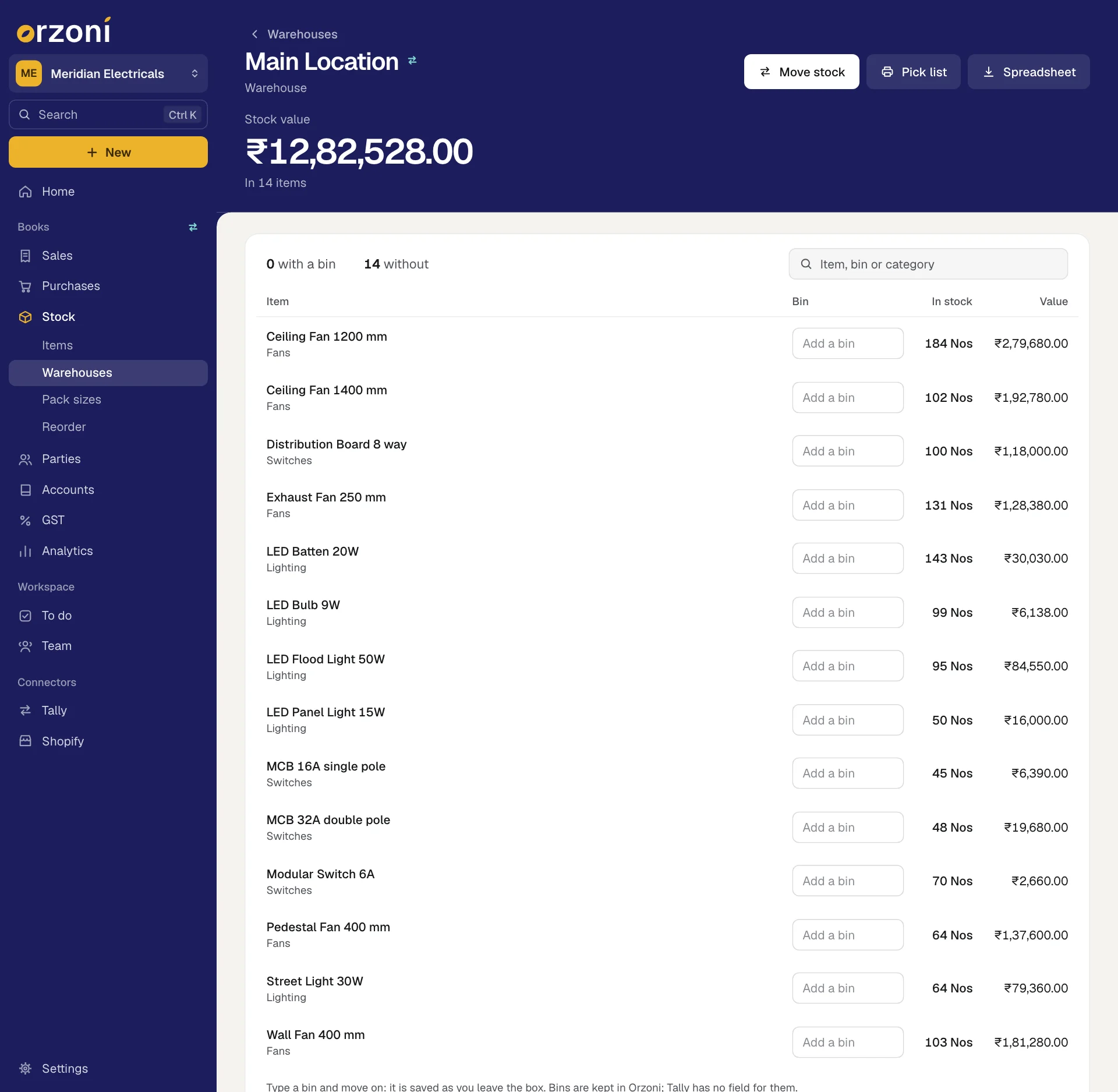
The figure at the top is the Stock value of what is there, with how many items that is. The first line of the list says how far the bins have got: how many items are with a bin and how many without, and how many are below zero. The search box finds an item, a bin or a category.
| Column | Shows |
|---|---|
| Item | The name, with its category under it. Press the row to open the item |
| Bin | A box holding the bin, or Add a bin |
| In stock | The quantity in this warehouse |
| Value | That quantity at the item's average cost |
The list is in bin order, so A-2 comes before A-10, with items that have no bin last. It shows the first 400 items. Search finds the rest.
Set a bin
- Type the bin in the box beside the item. A bin is a short code of up to 30 characters, such as
A-12orRack 3 Shelf 2. Move on to the next box, or press anywhere else.
The bin is saved as you leave the box, and Orzoni says Bin saved.
- Clear the box to remove a bin. Orzoni says Bin cleared.
- A bin starts with a letter or a number, and may hold spaces, full stops, slashes, underscores and hyphens. Anything else brings the message A bin is a short code, such as A-12 or Rack 3 Shelf 2.
- You can also set an item's bin on its own page, under Where it is.
- Bins show in the Bin column of the Items list, and the search there finds them.
Print a pick list
Press Pick list, or Ctrl P. Your browser's print box opens with a sheet headed with the warehouse's name, Pick list and today's date. It lists everything in stock there in bin order: Bin, Item, In stock, and an empty Counted column to fill in by hand.
Spreadsheet, on a wide screen, saves the same list as a CSV file with each item's category and value. Alt E does the same.
Move stock between two warehouses
Press Move stock on the Warehouses list or inside a warehouse. On an item's page, press Move.
The form Move stock opens. Opened inside a warehouse, From is that warehouse. Opened from an item, the item is already on the first line.
- Choose From and To, and the Date.
- Enter the item and the quantity. Add another item gives one more line.
- Add a Note, if any.
Press Send to Tally, or Ctrl A.
Orzoni says Moved, in Tally.
It goes into Tally as a stock journal. No money moves: the goods arrive in the other warehouse at the item's average cost.
- You need at least two warehouses. With one, Orzoni says There is only one warehouse. Add another to move stock between them.
- Only an item with a unit can be moved, since Tally keeps no quantity for the others.
- Orzoni refuses to move more than the warehouse holds, and says how much is there, as in Only 5 Nos of Copper Wire is in Main Location, and this takes 8. Stock you moved a moment ago is counted, even before Tally has taken it.
- One move can carry up to 30 items.
- An empty warehouse offers Move stock here, which opens the form with To already chosen.
Correct a count: write stock off, or add stock found
For stock that is damaged, expired or lost, or more on the shelf than the books show.
On the item's page press Adjust stock. Or press New in the rail, choose Stock journal (Alt F7), then Write stock off or Add stock found.
The form Correct the stock opens.
- Choose Write off or Stock found.
- Enter the Item, Quantity, Warehouse and Date, and say Why, such as "Damaged in transit".
Press Send to Tally, or Ctrl A.
Orzoni says Written off, in Tally or Added, in Tally.
You cannot write off more than the warehouse holds. Orzoni says how much is there.
Pack sizes
Use this when you buy or make an item loose and sell it in packs: 100 pieces sold in packs of 10, 25 and 50. Stock, then Pack sizes.
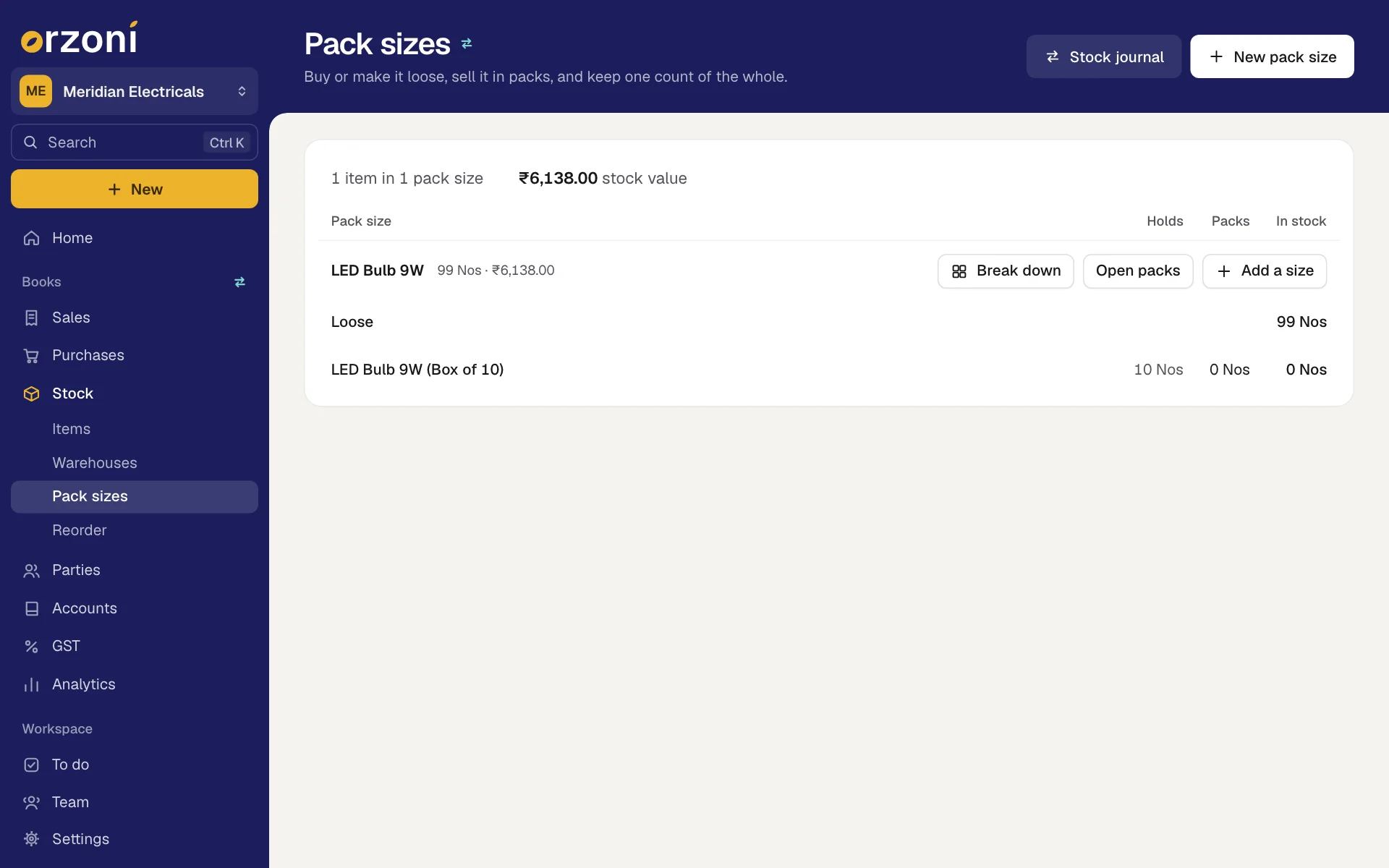
In Tally each pack is a stock item of its own. What ties a pack to its loose item, and how many it holds, is kept in Orzoni. That lets Orzoni show one count of the whole in the loose item's unit.
The first line says what the list comes to, such as 3 items in 7 pack sizes, and the stock value. Each loose item then heads rows of its own. Beside its name are the total in its own unit and what that is worth, and three buttons: Break down, Open packs and Add a size.
| Column | Shows |
|---|---|
| Pack size | Loose for what is still unpacked, then the name of each pack |
| Holds | How many of the loose item one pack holds |
| Packs | How many packs you have |
| In stock | The same stock counted in the loose item's unit, so the column adds up to the total |
Press a row to open that item. With nothing set up, the screen says No pack sizes yet and offers Add a pack size.
Add a pack size
- Press New pack size at the top right, or Alt C. For another size of an item already on the list, press Add a size beside it. On an item's page, press Add a pack size.
- Choose The item kept loose, and enter how many One pack holds, in that item's unit.
- Choose Make a new item or It is already an item.
For a new item, check The pack's name in Tally and what it is Counted in. Orzoni suggests a name, such as the item's name with "(Pack of 10)". Leave Counted in empty to use the loose item's unit. The pack takes the loose item's category, HSN code and GST rate.
For an item you already have, choose it under The pack.
Press Add the pack size, or Ctrl A.
A new pack goes into Tally as a stock item, and Orzoni says Pack added to Tally. An item you already had is tied to the loose item at once, and Orzoni says Pack size added.
| The form says | Why |
|---|---|
| Copper Wire has no unit in Tally, so it cannot be counted into packs. | The loose item needs a unit |
| Copper Wire is itself a pack of something else. Pack sizes go one level deep. | A pack cannot have packs of its own |
| Copper Wire already has packs of its own, so it cannot be a pack as well. | The same rule, the other way round |
| A pack and what it is packed from are two different items. | The same item was chosen on both sides |
Break loose stock into packs
Beside the loose item's name press Break down. The same button is on the item's page, on its Pack sizes card.
The form opens, headed Break down and the item's name.
- Choose the Warehouse and the Date. Each warehouse is listed with how much of the loose item it holds.
- Enter how many of each pack size to make. Under each pack is what it holds and how many you have. As you type, the form shows Loose in this warehouse, Goes into packs and Stays loose. Use up everything, largest packs first fills the counts for you.
Add a Note, if any, and press Send to Tally, or Ctrl A.
Orzoni says Packed, in Tally.
It goes into Tally as a stock journal: the loose stock leaves, the packs arrive, and the value follows the goods. Break 100 pieces worth ₹1,000 into packs of 10 and each pack stands at ₹100.
- You cannot pack more than the warehouse holds. The form says That is more than this warehouse holds.
- A pack size added a moment ago may not be in Tally yet. Orzoni then says Its pack sizes are still on their way into Tally. Try again in a moment.
Open packs back into loose stock
Open packs does the reverse. Choose the warehouse and the date, and enter how many of each pack to open. The form shows what Goes back into loose stock, and stops you opening more packs than you have. Press Send to Tally, and Orzoni says Packs opened, in Tally.
Stock journal
The Stock journal button on Pack sizes, Stock journal under New, and Alt F7 all open the same list of four:
| Choice | What it opens |
|---|---|
| Break stock into packs | The Pack sizes screen |
| Move between warehouses | The Move stock form |
| Write stock off | Correct the stock, set to Write off |
| Add stock found | Correct the stock, set to Stock found |
Each goes into Tally as a stock journal, and each is described above.
Goods kept by batch
An item Tally keeps by batch is moved, corrected and packed in Tally, where the batch is chosen. Orzoni names the item and says so, with the words is kept by batch in Tally, and an entry made here cannot say which batch. Make this one in Tally. Make that stock journal in Tally. It shows in Orzoni the next time Tally is read.
Who can do this
Everyone who can see stock can open these screens. Adding a warehouse, moving stock, correcting a count, setting bins and everything on Pack sizes need Change stock. Without it the buttons are not shown, and a bin reads as plain words. See Users and roles.
How it is checked
Every change is read back from Tally and compared with what was sent. If Tally refuses one, it stays in Orzoni with Tally's own reason beside it, and nothing in your books has changed. Adding a godown, and moving stock between two godowns, have been run on a real TallyPrime 7.1.
What next
- Items: the list of stock items, and one item's page.
- Locations: rename a warehouse, and see every place stock is kept.
- Reorder and stock analysis: what to buy, and what has sat too long.
- When a bill is waiting or refused: what waits for Tally, and what to do when Tally says no.
Still stuck? Write to support@orzoni.com and say which step you are on, or book a walk-through call.