

On this page
Your first ten minutes
The shortest way from nothing to working. Create your account, put the Tally connector beside Tally, link the computer with its six-character code, see your books, make a first bill, invite your accountant and add Orzoni to your phone.
5 minute read
What you need
| You need | In full |
|---|---|
| Tally on a Windows computer | TallyPrime, on Windows 10 or 11, 64-bit. Orzoni is made to work with TallyPrime, and is proven on TallyPrime 7.1. On another release, write to us before you start and we try it with you first |
| That computer online, with Tally open on your company | The Tally connector reads your books from there |
| An email address you can read right now | A six-digit code is sent to it. That is how you sign in |
There is nothing to install on a phone, or on any computer but the one that runs Tally.
Your first 7 days are free. Everything is included, for up to three companies, and no card is asked for. What comes after is in Plan and billing.
Do the steps below in order. Steps 2 and 3 are done at the computer that runs Tally. The rest can be done on any device.
Step 1: create your account
- Go to admin.orzoni.com/signin and type your Email address.
- Press Email me a code instead, and type the six digits from the email.
- On Set up your business, type Your name and the Business name, and press Open my business.
You are the owner. There is no password to choose. The page that follows is headed Link the computer that runs Tally and asks for a code you do not have yet: it comes from the Tally connector, in step 3. Leave the page open, or press Do this later.
In full: Create your account and sign in.
Step 2: put the Tally connector beside Tally
The Tally connector is a small Windows program that reads your books from Tally and sends into Tally what you make in Orzoni. It goes on the computer that runs Tally, and nowhere else.
- Get the installer onto that computer. Open the Tally connector page there and press Download the connector. The same download is in Orzoni, under Settings, This device.
- Open the file. When Windows shows Windows protected your PC, press More info, then Run anyway.
- Press Install, then Finish. The connector opens by itself.
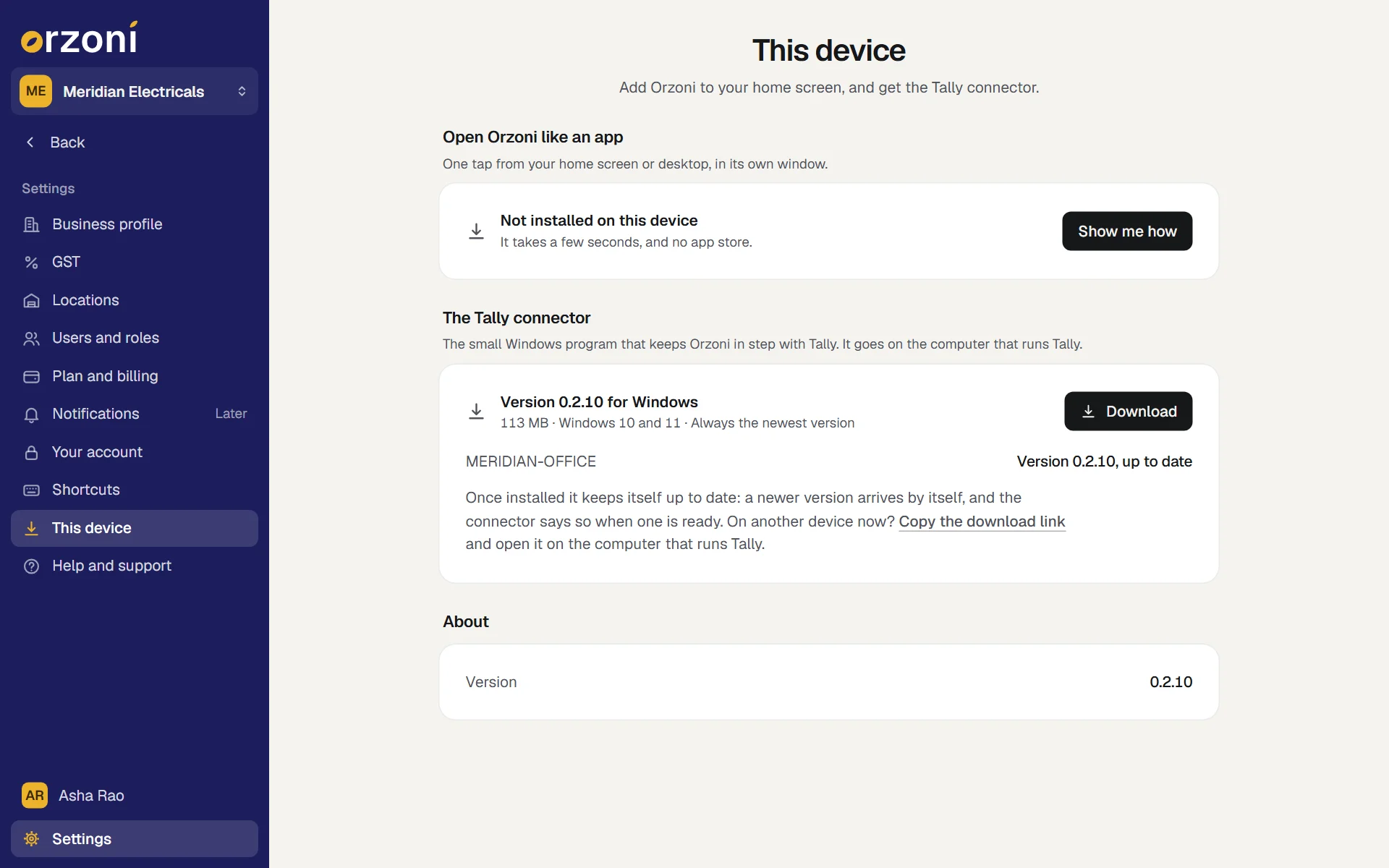
With Tally open on your company, the connector finds it, and you press the button that reads the books. It reads your entries, your ledgers and stock items and your unpaid bills, and then checks every balance against Tally. Keep Tally open meanwhile. You can carry on working in it.
When it is done the connector says In step with Tally. If it says Tally is not answering on the way, the same screen lists the three things to check in Tally.
In full: Install the Tally connector, then Connect Tally and link the computer.
Step 3: link the computer
Linking joins that computer to your business, so the books it read open in Orzoni.
In the connector, press Link this computer. It shows six characters, in two groups of three.
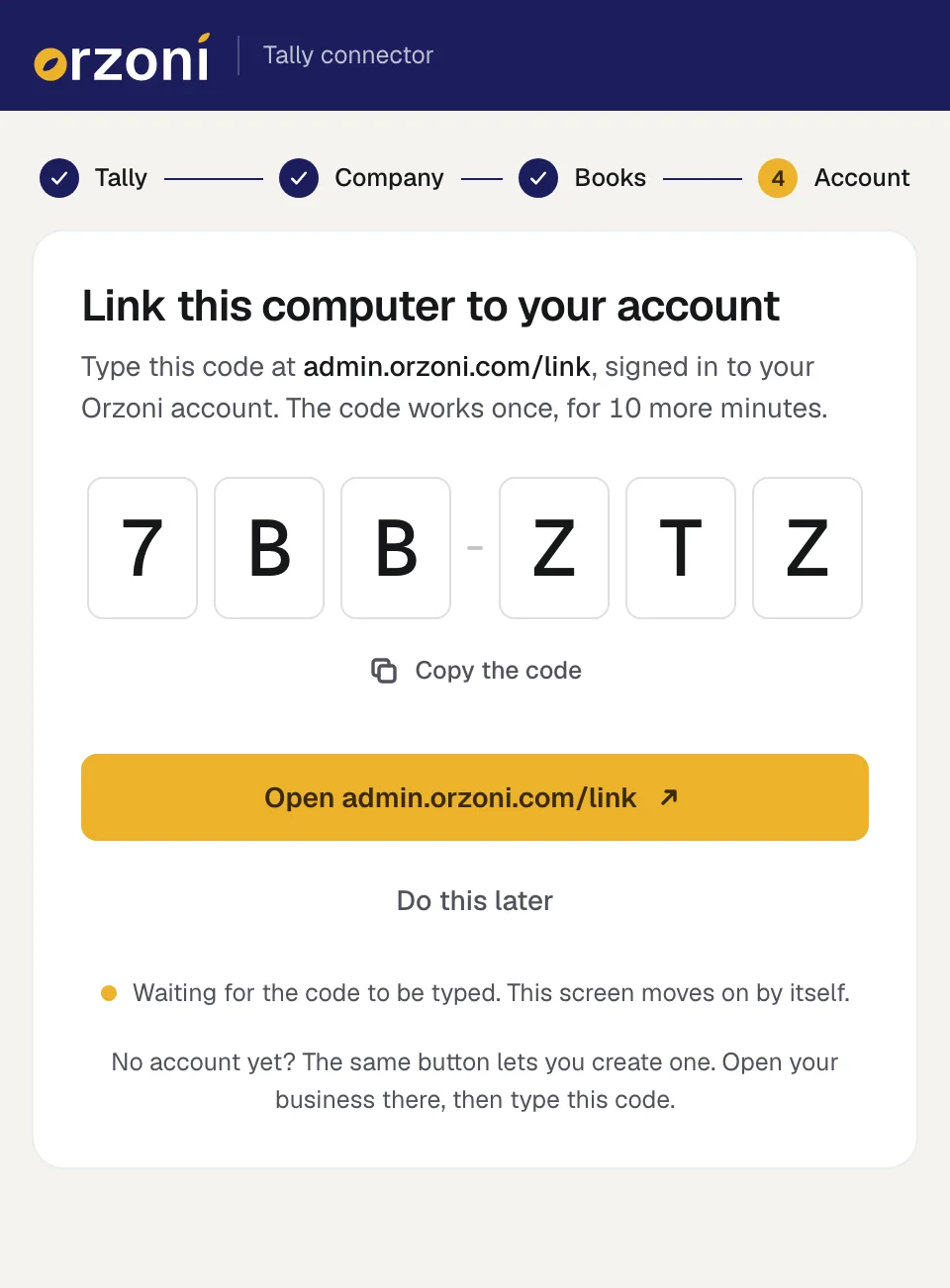
The Tally connector on its last step, Account: the six-character code to type at admin.orzoni.com/link, with Copy the code, the button that opens that page, and Do this later. - Press the button under the code. It opens admin.orzoni.com/link in that computer's browser with the code filled in. On another device, open the same page, or Home, and type the code there.
- Sign in if you are asked to. The page asks Link this computer? and names the computer and your business.
- Press Yes, link it. The page says Linked.
The code works once, for ten minutes, and the connector gives a new one at a press. It has no 0, O, 1, I or L in it, so it cannot be misread.
In full: Connect Tally and link the computer.
Step 4: see your books
Press Open Orzoni. Until the first read has been handed up, Home is headed Let us get your books in and shows where you are in three steps. It turns into your Home by itself when the books arrive. A large company takes a few minutes.
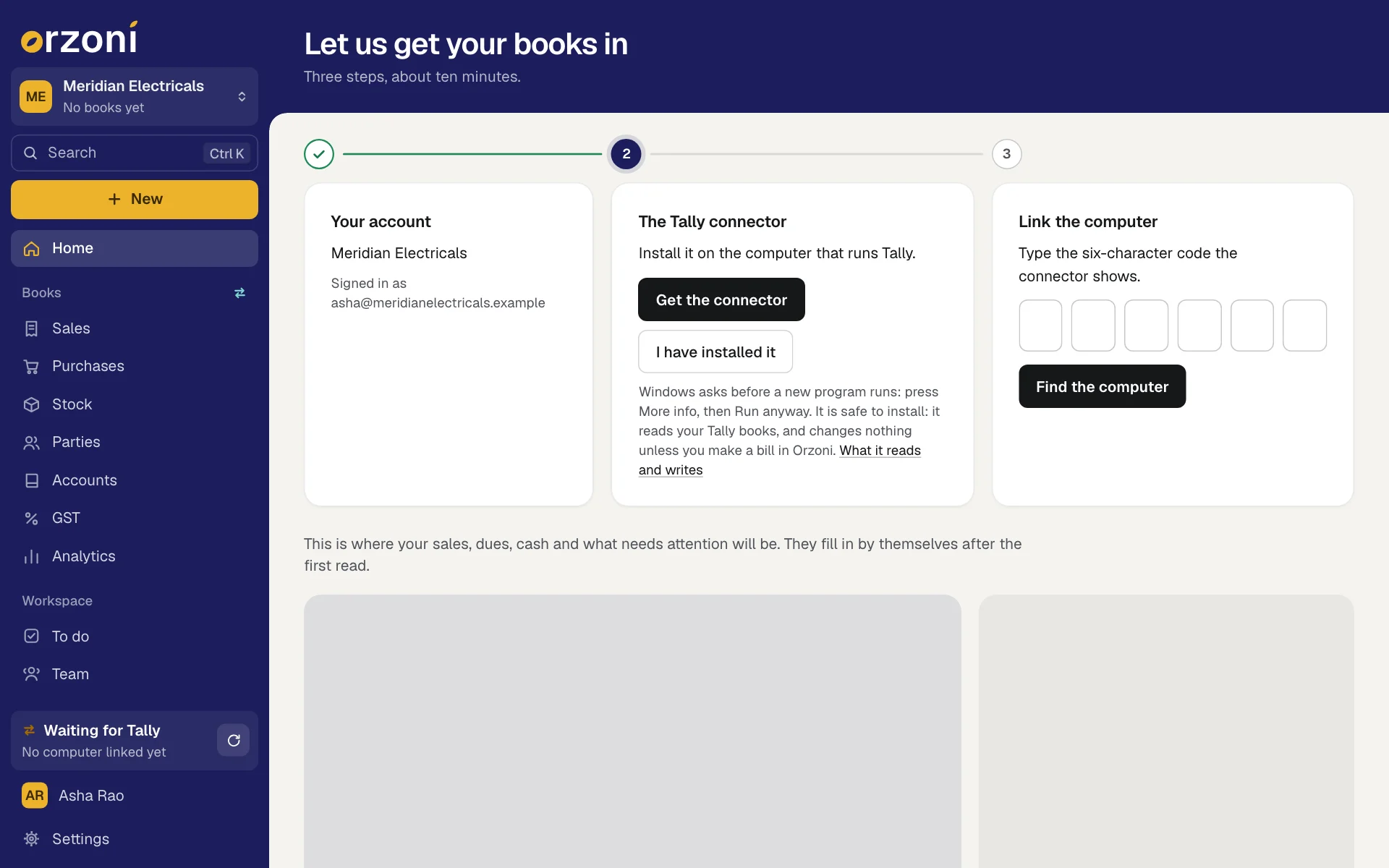
Home then shows your sales, what is to collect and to pay, cash and bank, and what needs attention. Across the top a strip reads Your books are in, with how many entries, ledgers and items were read and how many of the checks against Tally agree. Press See the checks to see each one.
In full: Find your way around and The Home screen.
Step 5: make your first bill
- Press Make your first bill on the strip, or F8 from any screen.
- Choose the customer, add the items, and press Send to Tally.
The bill is in your Tally books as an ordinary entry, with GST worked out. If Tally is closed at that moment, the bill waits and goes in by itself when Tally is open again.
In full: Make a sales invoice.
Step 6: invite your accountant
- Press Invite your accountant on the strip. It opens Settings, Users and roles.
- Press Invite someone, type their Email address, choose the role Accountant, and press Send invitation.
They get an email with a link, and sign in as themselves. An accountant sees the books in full, and not your team, pay or settings. The people you invite cost nothing extra: a plan is priced by companies, not by people.
In full: Invite your team and Users and roles.
Step 7: add Orzoni to your phone
- On the phone, open admin.orzoni.com/signin and sign in with the same email.
- Open the menu: the three lines at the top right.
- Tap Add Orzoni to your home screen and follow the steps it shows. On an iPhone this works in Safari.
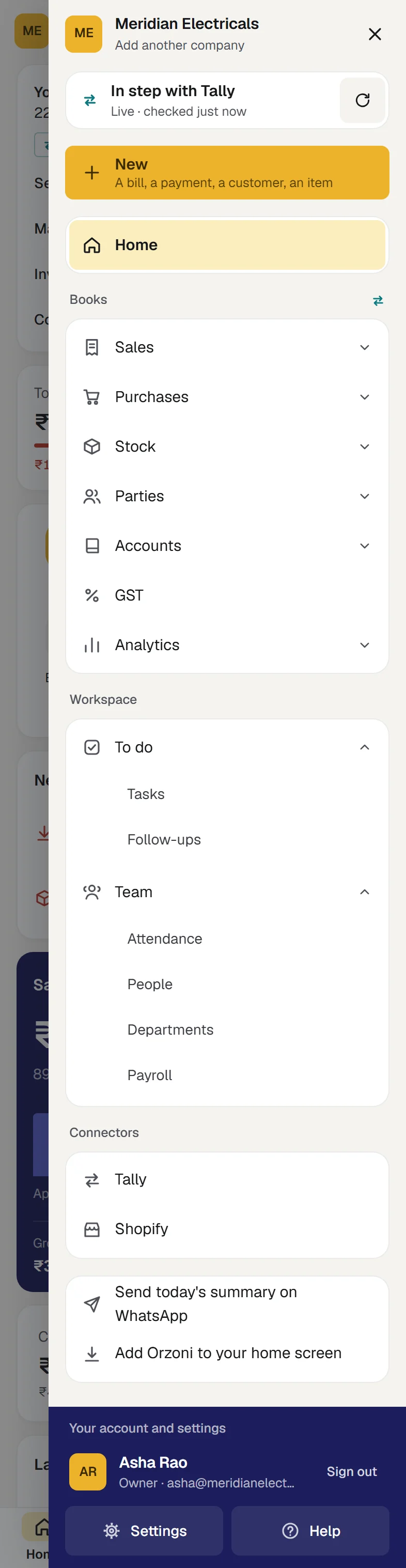
Orzoni then opens in one tap, like an app. The same steps are under Settings, This device, Show me how.
In full: Orzoni on your phone.
After the first ten minutes
| When you are ready | Guide |
|---|---|
| You sell on a Shopify store | Connect your Shopify store. Connect your store on the same strip leads there |
| Your free days are running out | Plan and billing: the two plans, and how to choose one |
| A word on a screen is new to you | The words Orzoni uses |
Keep one thing in mind
The computer that runs Tally does the Tally part. Leave it on and online through the working day, with Tally open on your company and the connector running beside the clock. When it is off, Orzoni shows your books as they last stood and says so, and what you make waits for it.
Where to get help
- In Orzoni: Settings, Help and support has the guides, and a box that sends a message to us.
- By email: orzoni.official@gmail.com.
- On a call: ask for a walk-through and we go through it with you.
In full: Get help. When something is not right: Troubleshooting.
What next
- What Orzoni does: the whole of it, in one page.
- Find your way around: the places, Search and New.
- How Orzoni stays in step with Tally.
Still stuck? Write to orzoni.official@gmail.com and say which step you are on, or book a walk-through call.