

On this page
Repeating bills and sales channels
Have a bill made again every week or month, and turn the order file from a marketplace or an online shop into draft sales bills. Each step, what the tags mean, and what the order file does and does not do.
9 minute read
Repeating bills
A repeating bill is a copy of a bill already in your books, made again each time its day comes: rent billed every month, a subscription, a standing order from a supplier every week.
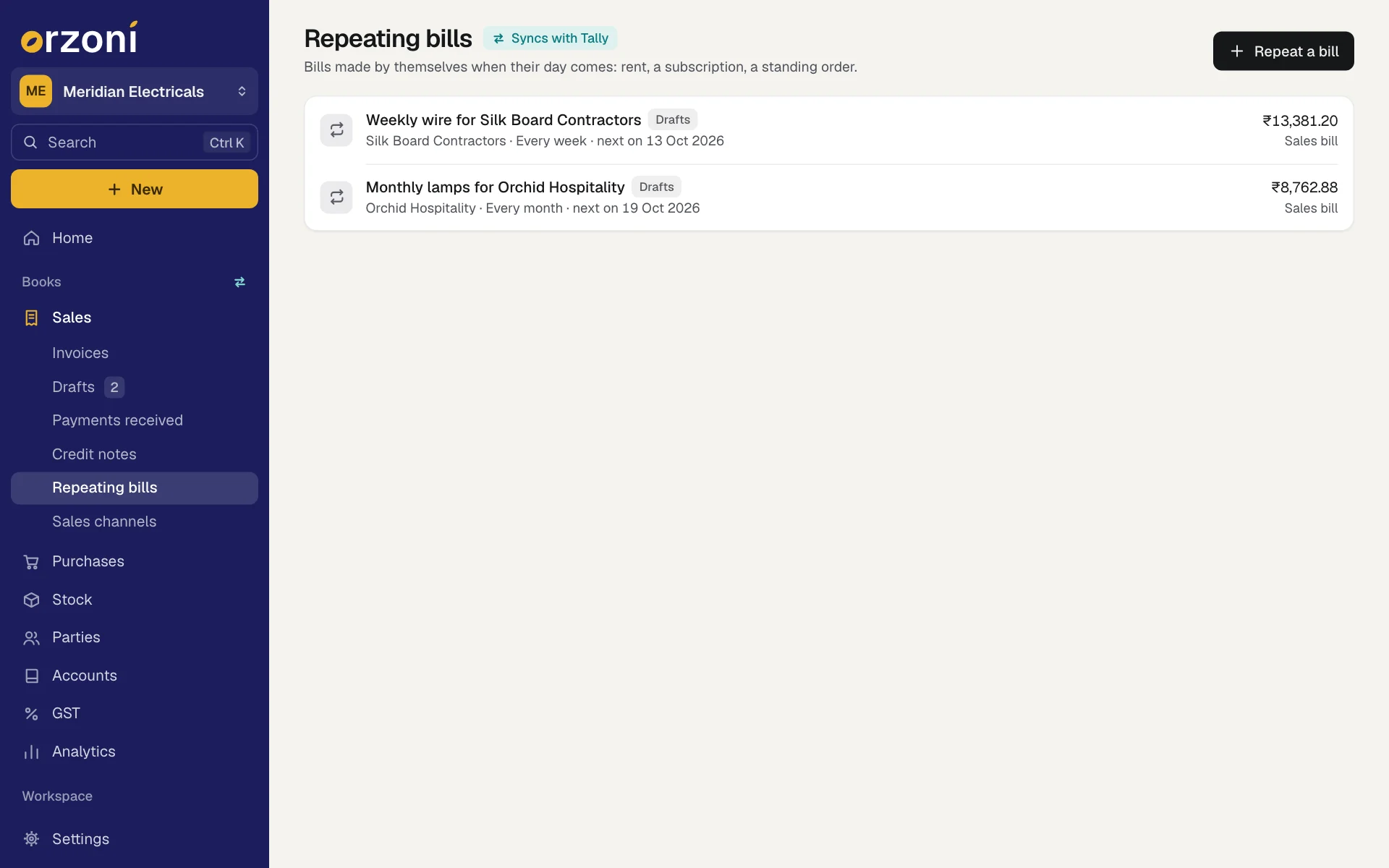
Open Sales, Repeating bills. Repeating bill in the New list leads to the same screen.
Set a bill to repeat
Press Repeat a bill, or Alt C on this screen. The sheet Repeat a bill opens.
Or open the bill itself, press the round ... button and choose Repeat this bill. The sheet then opens with that bill already chosen, and you start at step 3.
- Choose Sales bill or Purchase bill, then type the customer or supplier. Their latest bills are listed under Which bill should repeat. Press the one to copy.
- Under Call it, give it a name you will know it by, such as "Monthly rent, Shop 4".
- Under Every, say how often: a number, and weeks, months, quarters, years or days.
- Set Next one on. If it should stop, set Last one on, if it ends.
Choose what happens on the day.
Choice What happens on the day Make a draft The bill waits in Drafts for you to look over and send Send to Tally It goes into your books by itself - Press Start repeating. You see It will be made when its day comes.
Each one is made with the items and rates of the bill you chose, on its own date, with prices and GST worked out afresh. It is made as a regular bill to be paid later: record the payment when it comes.
When it is made
A repeating bill is made on its day, a few minutes into the day, whether or not anyone has Orzoni open.
What can repeat
- A sales invoice or a purchase bill that is regular, and that Orzoni can edit. See Change, cancel or delete an entry for which those are.
- Not a cash bill: it has no one to bill again.
- Not a credit note, a debit note, a payment or a journal.
Read the list
Each row shows the name, the party, how often, when the next one falls due, how many have been made, and what one comes to today.
| Tag | Meaning |
|---|---|
| Drafts | Each one is made as a draft |
| Sends itself | Each one goes into Tally on the day |
| Paused | Nothing is made until you start it again |
| Ended | Its last day has passed |
| Needs a look | The last one could not be made. The reason is on the row, in red |
Press a row for what can be done with it:
| Choice | What it does |
|---|---|
| Make the next one now | Makes the next bill without waiting for its day, and opens it |
| Change how often | Opens the sheet again: the name, how often, the next and last day, draft or send |
| Open the last one made | Opens the bill it made last |
| Pause or Start again | Stops it making bills, or lets it carry on |
| Stop and remove | Takes it off the list. Bills it has already made stay as they are |
Good to know
- A bill set for the 31st falls on the last day of a shorter month, and goes back to the 31st after.
- A bill for a month that is already over is never sent by itself, even when it is set to Send to Tally. It is made as a draft, so nothing lands back-dated in a month you may have filed.
- Next one on cannot be more than two months back. Make the earlier bills by hand.
- Needs a look usually means the customer or an item on the bill is no longer in Tally. Put that right in Tally. It is tried again the next day, or at once with Make the next one now.
- If it says "That one has already been made.", the bill for that day exists already: open it with Open the last one made.
Sales channels
A sales channel is a place you sell besides your own counter: a marketplace, an online shop, a quick-commerce app. Open Sales, Sales channels.
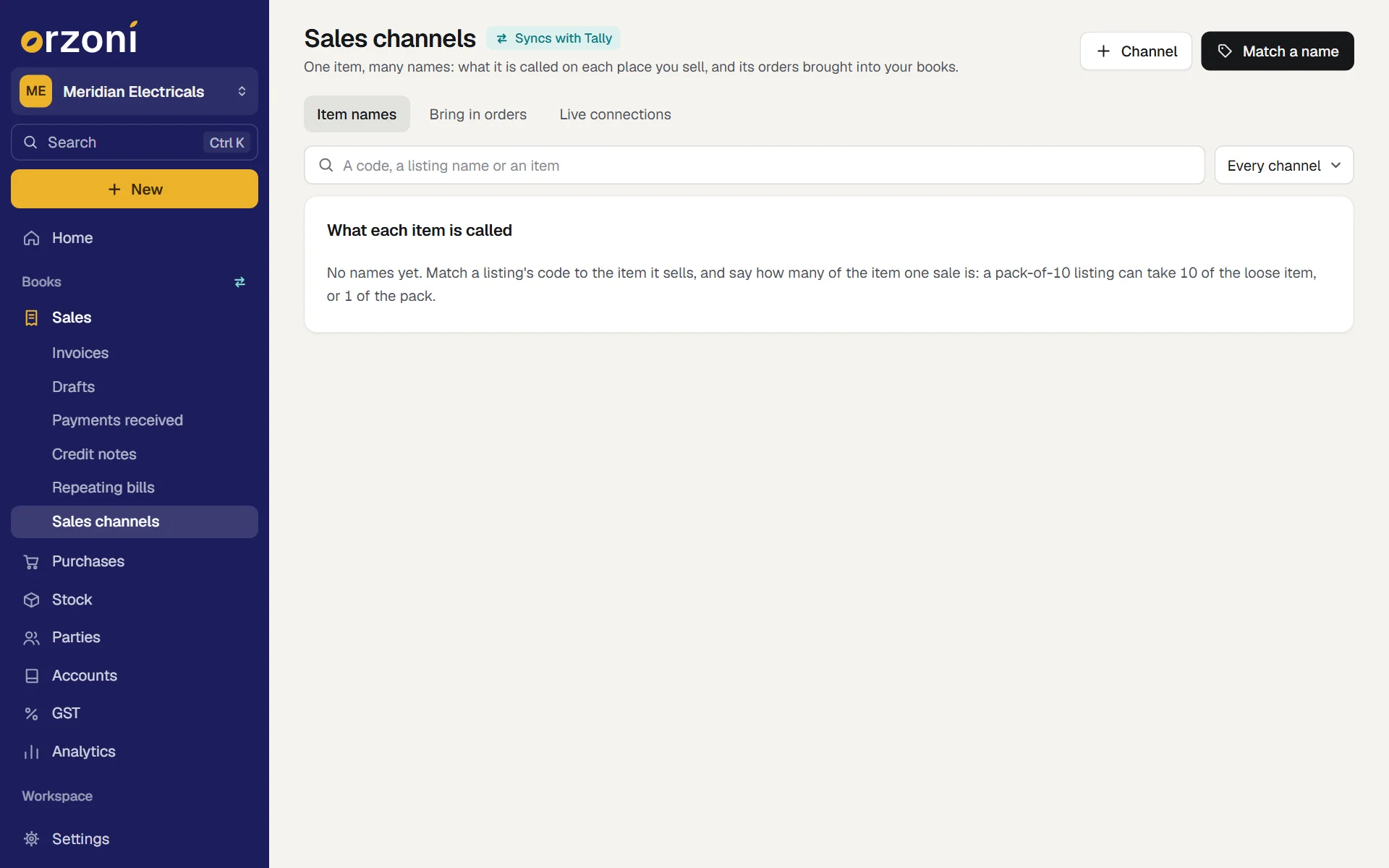
The screen does two things. It keeps the names your items go by on each channel. And it reads the order file a channel lets you download, and turns it into draft sales bills.
1. Add the channel
- Press Channel. The sheet New channel opens.
- Type its Name. The list suggests the usual marketplaces and Own website. Any other name can be typed.
- Under Bill its sales to, choose a customer in Tally that stands for the channel. Keep one customer for each channel and settle it against the channel's payouts. If it is not in Tally yet, add it first with New, Customer.
- Under Its stock leaves from, choose a warehouse, or leave it as Wherever most of the item is.
- Press Save.
The channel appears at the head of Item names, with how many names it has. A channel with no customer chosen is tagged No one to bill yet. Its names can be matched, but no bills can be made for it. Press a channel to change it, or to remove it with all its names.
2. Match the names
A listing on a channel rarely has the name the item has in Tally.
- Press Match a name, or Alt C on this screen.
- Fill in the Channel.
- Under Name or code there, type the listing's code or name, as the order file writes it.
- Under Item in Tally, choose the item.
- Under One sale of it is this many of the item, type how many. A pack-of-10 listing can take 10 of the loose item out of stock, or 1 of the pack item.
- Press Save. You see Matched. Enter moves from one box to the next and saves on the last.
A name is matched once and remembered for every file after. Item names lists them all, with a search and a filter by channel. The cross on a row removes a name. A name whose item has since been removed from Tally is tagged Not in Tally now.
3. Bring in an order file
- Download the order or sales report from the channel's seller panel as a CSV file. A spreadsheet file (.xlsx) has to be saved as CSV first.
- Open Bring in orders, choose the Channel, and choose the File.
- Orzoni finds the columns by their headings: item code, quantity, amount, order date, state, order number, status and product title. If it cannot find one it needs, it asks Which column is which. Any column can be changed under Columns read from the file.
- Read what it found: how many lines and orders, the dates, and how many cancelled or returned lines were left out.
- Names still to be matched are listed under names to match. Press Match beside each.
- Under Make the bills, set the Date on the bills. Say whether The amounts in the file include GST or are before GST, and whether the amount column holds the total for the line or the price of one.
- Press Make a draft bill.
Each draft is billed to the channel's customer, with stock leaving the channel's warehouse. Open each one, look it over, and press Send to Tally. Nothing reaches your books until you do. The drafts are under Sales, Drafts.
How many drafts are made
- One draft for each state the goods went to, because GST depends on the place of supply.
- A file that spans two months is billed month by month, so that one month's sales do not land in the next month's bill.
What the order file does and does not do
- An amount that includes GST is taken apart at each item's own GST rate. If an item has no rate on record, the bills are not made until you fill it in, or say the amounts are before GST.
- If the file has no amounts, the drafts carry quantities only. Fill in the rates before sending.
- Nothing is billed twice. Orders already brought in are left out of a later file. A file brought in whole a second time is refused, unless you press Make the bills again anyway.
- A row whose amount cannot be read stops the bills being made, so that none comes out short. Save the file with plain figures, such as 1234.50, and choose it again.
- A file of up to about 5,000 lines at a time. Download a shorter period for more.
- It does not read the channel's fees, tax collected at source or payouts. Enter those from the settlement report, as a payment received and a journal.
If something stops you
| The screen says | What to do |
|---|---|
| Add a channel first | Add the channel, with who its sales are billed to |
| That is a spreadsheet file | Open it and save it as CSV, then choose the CSV |
| That file is too large to read in one go | Download a shorter period from the seller panel, and bring it in part by part |
| Choose who to bill | The channel has no customer yet. Press it and choose one |
| "This file was already made into draft bills" | Bring it in again only if those drafts were discarded |
Who can do what
Adding or changing a channel needs the permission Business settings. Matching a name needs that, or Change stock. Making the draft bills needs Make bills and record payments. See Users and roles.
Channels that buy your stock
Some channels buy stock from you against purchase orders and sell it themselves. There are no customer orders to bring in. Make a sales invoice to the channel for each purchase order it raises. A repeating bill suits a standing order.
What next
- Drafts: where a repeating bill set to draft, and every bill from an order file, waits.
- Make a sales invoice.
- Items: the items a channel's names are matched to.
- When a bill is waiting or refused.
Still stuck? Write to support@orzoni.com and say which step you are on, or book a walk-through call.