

On this page
Your account
The screen that is each person's own. Your name, an optional password, where you are signed in, the businesses you belong to and moving between them, leaving a business, handing one over, and signing out.
5 minute read
Where it is
Your account belongs to you, not to the business. Everyone has one, whatever their role, and nobody else can open yours.
| On | Open it with |
|---|---|
| A computer | Your name at the foot of the rail. Or Settings, then Your account |
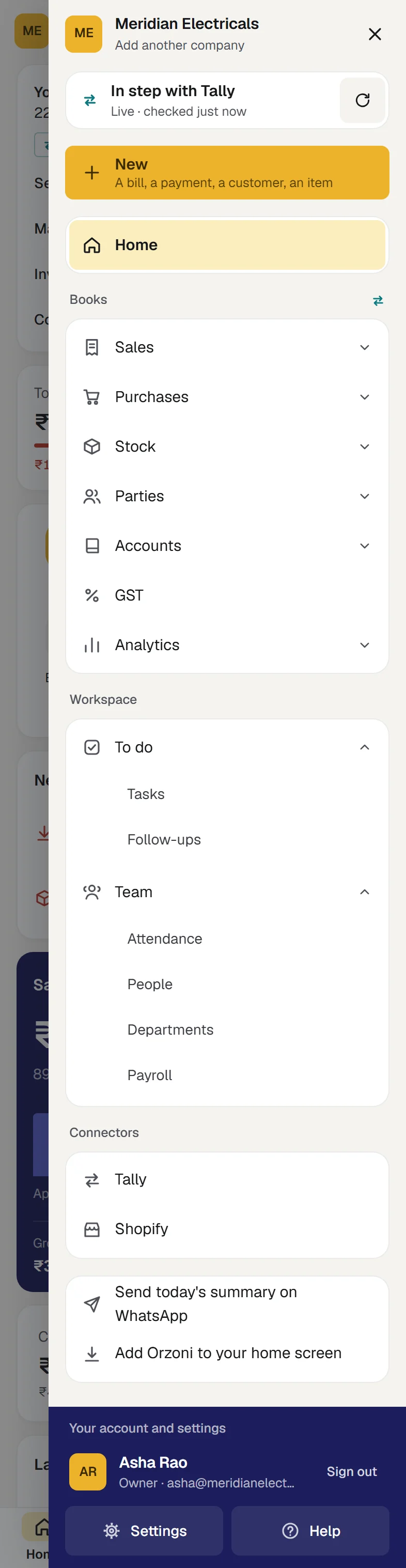
| A phone | The menu at the top right, then your name under Your account and settings at its foot. Or the menu, Settings, Your account |
The screen has five parts.
| Part | What is there |
|---|---|
| You | Your name, and the email address you sign in with |
| Password | An optional password |
| Your businesses | Every business this account can open |
| Where you are signed in | Each browser or phone, with Sign out beside it |
| Sign out | Signs out this browser only |
Creating the account and signing in for the first time are in Create your account and sign in. Your account needs a connection: nothing about it is kept on a phone for use without signal.
Your name
Your name is what the rest of your business sees beside what you do: on the list of people, and in the record of who made or changed each thing.
- Under You, type in Your name.
- Press Save. It wakes as soon as the name is changed.
Email address is shown and cannot be changed. A code sent to that address always signs you in.
A password, if you want one
A password is optional. With one set you can type it at the sign-in page and not wait for a code. The code keeps working either way.
| To | Do this, under Password |
|---|---|
| Set one | Type it in Password and press Set a password |
| Change it | Type your Current password and a New password, and press Change password |
| Remove it | Type your Current password and press Remove the password. You sign in by code alone from then on |
- A password has at least 8 characters. One that is too easy to guess is turned away: a common word, your own email address, or one character repeated.
- Setting or changing it signs you out of every other browser and phone, and you are told by email.
A forgotten password
You never need the old one. Sign out, and on the sign-in page type your email address and press Forgot password? A code sent to your email sets a new password and signs you in. The steps are in Create your account and sign in.
Where you are signed in
Where you are signed in lists each browser and phone your account is signed in on.
| On each line | What it tells you |
|---|---|
| The browser and the device, such as "Chrome on Windows" or "Safari on iPhone or iPad" | Which one it is. The one you are using is marked This one |
| A place, when it is known | Where it signed in from |
| signed in and last used | How long ago each was |
- Sign out, beside a line, signs that one out. You see Signed out there.
- Sign out everywhere else keeps this one and signs out all the rest. It is shown when there is another to sign out.
Sign out any line you do not know. If you use a password, change it as well. A browser stays signed in for 30 days after it was last used, and you are told by email when your account is signed in on a browser it has not used before.
More than one business
Your businesses lists every business this account can open, each with your role in it. The one on screen is marked Open now.
| To | Do this |
|---|---|
| Move to another business | Press Open beside it. Orzoni opens on that business's Home |
| Open a new business of your own | Press Open another business. One account can open three |
| Rename the business on screen | Press Rename. It is offered to whoever holds Business settings |
Each business has its own books, its own people and its own linked computer. Your role can differ from one to the next. Moving to another business clears the figures this browser kept from the one you left.
Leave a business
Leaving is for a business you do not own.
- Open the business you want to leave, with Open under Your businesses.
- Press the red button Leave, followed by the business's name.
- The box says you will lose access to its books, and that the owner can invite you again. Confirm.
You are out of that business at once, in every browser. Everything you entered stays in its books, under your name. Invitations you sent that nobody has accepted yet are withdrawn. Your account, and any other business it belongs to, are untouched.
The owner is not offered Leave. An owner hands the business over first.
Hand a business to someone else
Only the owner can do this, and only to a person who is already in the business.
- Open Settings, then Users and roles, and press the person under People.
- Under Hand over the business, press the button that makes them the owner, and confirm.
- If your account has a password, type it when asked.
They become the owner, and you become an admin. Only the new owner can hand it back. Both of you are told by email. Users and roles has the rest.
Sign out
| On | Do this |
|---|---|
| A computer | Settings, Your account, then Sign out at the foot |
| A phone | The menu at the top right, then Sign out beside your name at its foot. It asks "Sign out of Orzoni on this device?" first |
It signs out that browser only. Your other devices stay signed in. Signing out also clears the figures that browser kept, so on a shared computer always sign out when you finish.
If something stops you
| What you see | What to do |
|---|---|
| "Enter your name." | The name cannot be left empty |
| "Choose a password of at least 8 characters." | Type a longer one |
| "That password is too easy to guess." | Choose one that is not a common word, your email address, or one character repeated |
| "Your current password is not right." | Type it again. If you have forgotten it, sign out and use Forgot password? |
| "Enter your current password to remove it." | Removing a password asks for it first |
| "Too many tries. Wait a quarter of an hour, or sign out and choose Forgot password." | The current password was mistyped several times. Wait, or set a new one with a code |
| "One person can open 3 businesses." | Write to us if you need more |
| "The owner cannot leave. Hand the business to someone else first." | Hand it over, as above |
| "Enter your password to hand the business over." | An owner with a password types it to hand over |
What next
- Users and roles: who may sign in, and what each may do.
- Create your account and sign in: the sign-in page, codes and passwords.
- Where your data is kept: what a browser keeps, and what is recorded.
- Get help.
Still stuck? Write to orzoni.official@gmail.com and say which step you are on, or book a walk-through call.