

On this page
Ring up a counter sale
How to sell across the shop counter. Find an item by its name or its code, scan with a scanner that types like a keyboard, bill the sale to a walk-in or to a customer in your books, take the payment by cash, UPI or card or part by each, print the slip, take a payment back, and void a sale that will not be paid for.
9 minute read
What a sale is
A sale is what one customer takes across the counter: stock items, how many of each, and what they come to. Three things about it move apart from one another, and the screens say each in its own words.
| Thing | Its words |
|---|---|
| The sale | Being paid for, finished, or Voided |
| The money | Unpaid, Part paid, Paid |
| Tally | Waiting for Tally, In Tally, not checked yet, In Tally, checked, and the others in Shop sales, stock and Tally |
A sale can be paid and still waiting for Tally. That is not a fault.
Who this is for
Whoever stands at the counter. Ringing up a sale, recording a payment, taking one back and voiding a sale need Ring up counter sales and take payment. The roles Shop assistant and Shop supervisor start with it. See Users and roles.
The shop counter is a pilot, open to a few businesses while it is being tried. Before a first sale, the counter has been set up: see Set up a shop counter.
Start a sale
Open Shop, then New sale. On a phone, New sale is the first of the tabs across the top of the shop's screens.
The screen has two parts. On the left, one box, Item name or code, with the sale under it. On the right, an indigo panel headed This sale, with who it is billed to, the totals and one button.
The box has the keyboard from the moment the screen opens, and has it back after every item. You can start typing or scanning at once.
Find an item
By name. Type a few letters. Every word you type has to be in the item's name, in any order: pen blue finds Gel Pen Blue 0.5 mm. Up to eight items are listed, each with its first code, how many are left and its price. If more match, a line says so: type more of the name.
By code. Type the start of a code and the item is listed. Type or scan a code whole and press Enter, and one of that item is added, with no list to pick from. The codes are the part number and the aliases Tally holds for the item.
| Key | What it does |
|---|---|
| Enter | Adds one of the item whose code was typed whole, or else the item that is lit in the list |
| ↓ and ↑ | Move through the list |
| Esc | Clears the box |
You can also press an item in the list.
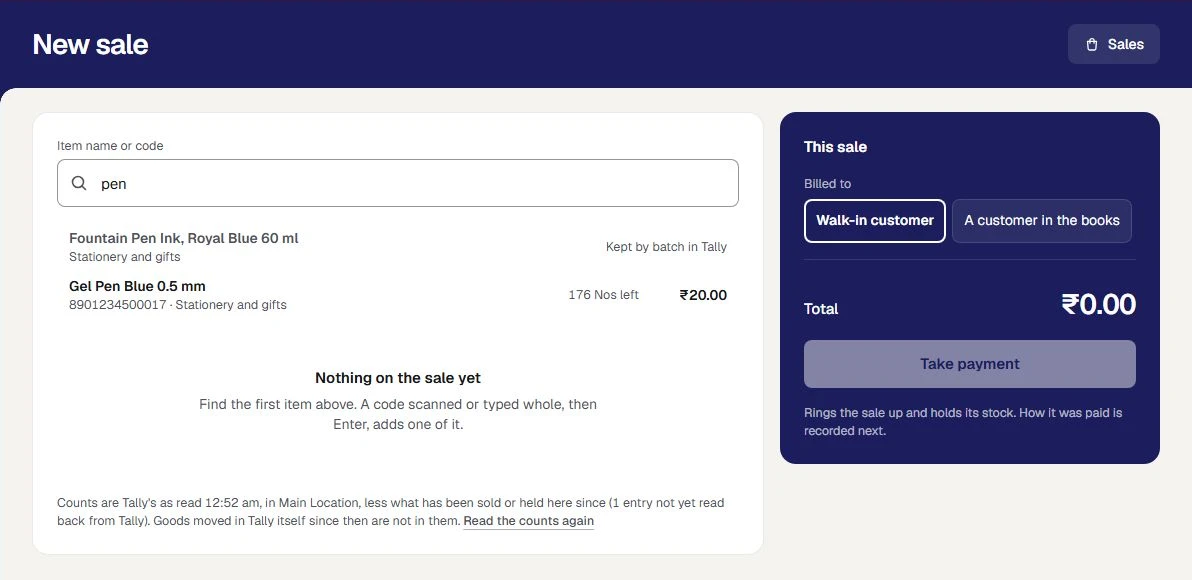
An item that cannot be sold at the counter is still listed, with the reason beside it, and cannot be pressed. The reasons are in Set up a shop counter.
If nothing matches, the screen says Nothing in your items matches, with what you typed, and adds nothing. Check the code, or add the item under Items.
With a scanner
A scanner that types like a keyboard sends the code's characters and then Enter. The counter takes that exactly as if you had typed it: scan, and one of the item is added. Scan the same item again and it becomes two.
Orzoni does not drive a scanner, and has no setting for one. This way of scanning has been tried only as typed characters followed by Enter, with no scanner in hand. Try yours on the practice counter before your first sale: see Practise first.
How many
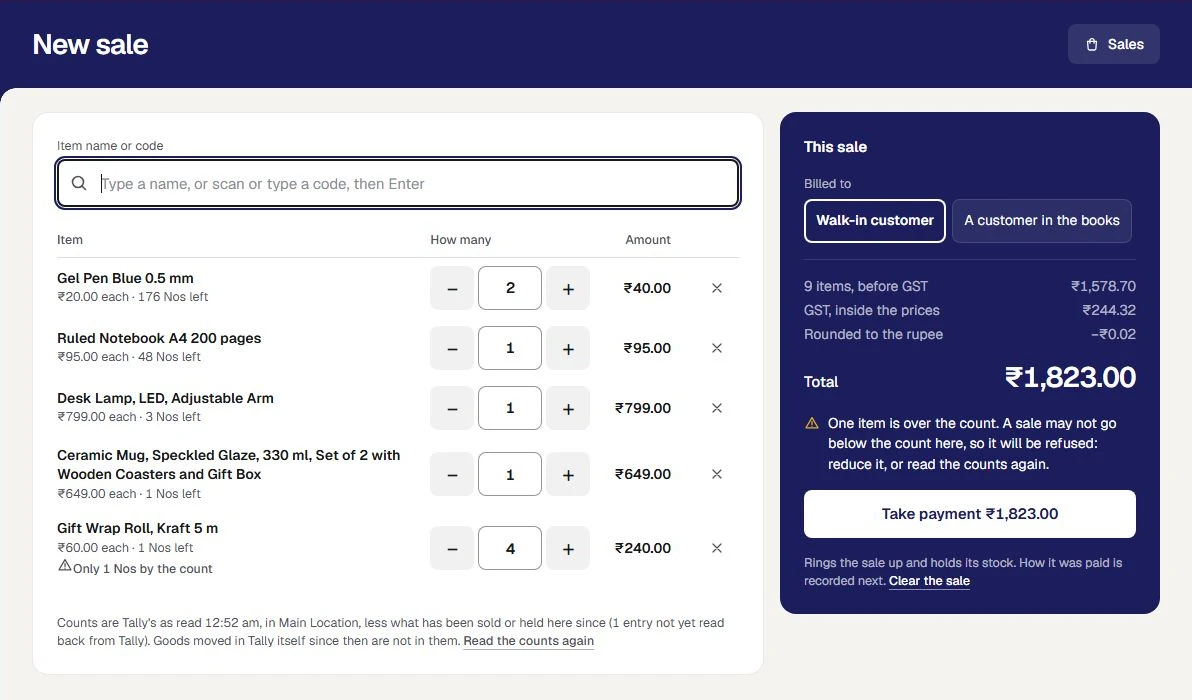
Each item on the sale is one line: its name, the price of one, how many are left, and what the line comes to.
- Press + or −, or type the number in the box between them.
- Press the cross at the end of a line to take the item off the sale.
- Clear the sale, under the button, empties it.
How many is a whole number, up to 9,999 of one item. A sale holds up to 60 lines. No price is typed at the counter, and there is no discount.
When a line wants more than is left
The line says so at once: Only 1 Nos by the count, or None left by the count. What happens when you take payment depends on the rule your owner chose.
- Refuse the sale. The panel says the sale will be refused. Reduce the line, or press Read the counts again under the sale.
- Allow it, and mark the sale. The line adds it will be sold below the count, and the sale goes through, marked.
Under the sale, one line says when Tally was last read, and that the counts are Tally's less what has been sold or held here since. What that means is in Shop sales, stock and Tally.
Who the sale is billed to
Under Billed to, in the panel:
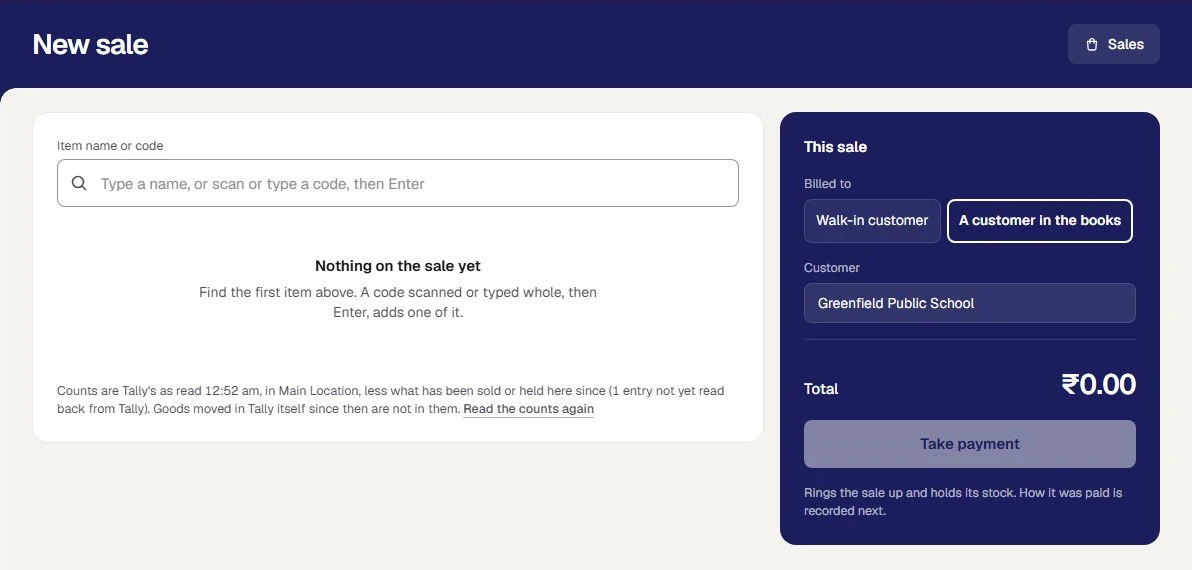
- Walk-in customer. The sale's bill goes to the walk-in customer chosen under Set up. This is what a sale starts as.
- A customer in the books. A box named Customer opens. Start typing the name and choose one from the list.
The customer has to be one your books already hold. If the name is not among them, the screen says so and nothing is rung up. A new customer is added under Customers first.
A sale billed to a customer is still paid for at the counter before it is finished. A sale on credit is made as a sales bill: see Make a sales bill.
Take the payment
Press the white button, Take payment with the total on it. It does three things in one step.
- It rings the sale up, and gives it its number for the day: Sale 6.
- It holds the sale's stock, so no other till can sell the same goods.
- It opens the sale's own page, with the keyboard on the amount.
Nothing has been paid yet. The sale reads Being paid for.
| If the screen says | What happened | What to do |
|---|---|---|
| Prices have changed since this screen was opened. The sale now comes to a sum | A selling price was changed while the sale was on screen. Nothing was saved | Look at the sale, which now shows the new prices, then take payment |
| Only 2 Nos of an item are left, and this sale takes more | Another sale took some first, or the count is short. Nothing was saved | Take it off the sale or reduce it, or check the shelf |
| Choose the customer this sale is billed to, or bill it to a walk-in. | A customer in the books is chosen and the box is empty | Choose a customer, or press Walk-in customer |
Pressing Take payment twice rings up one sale, not two.
Record how it was paid
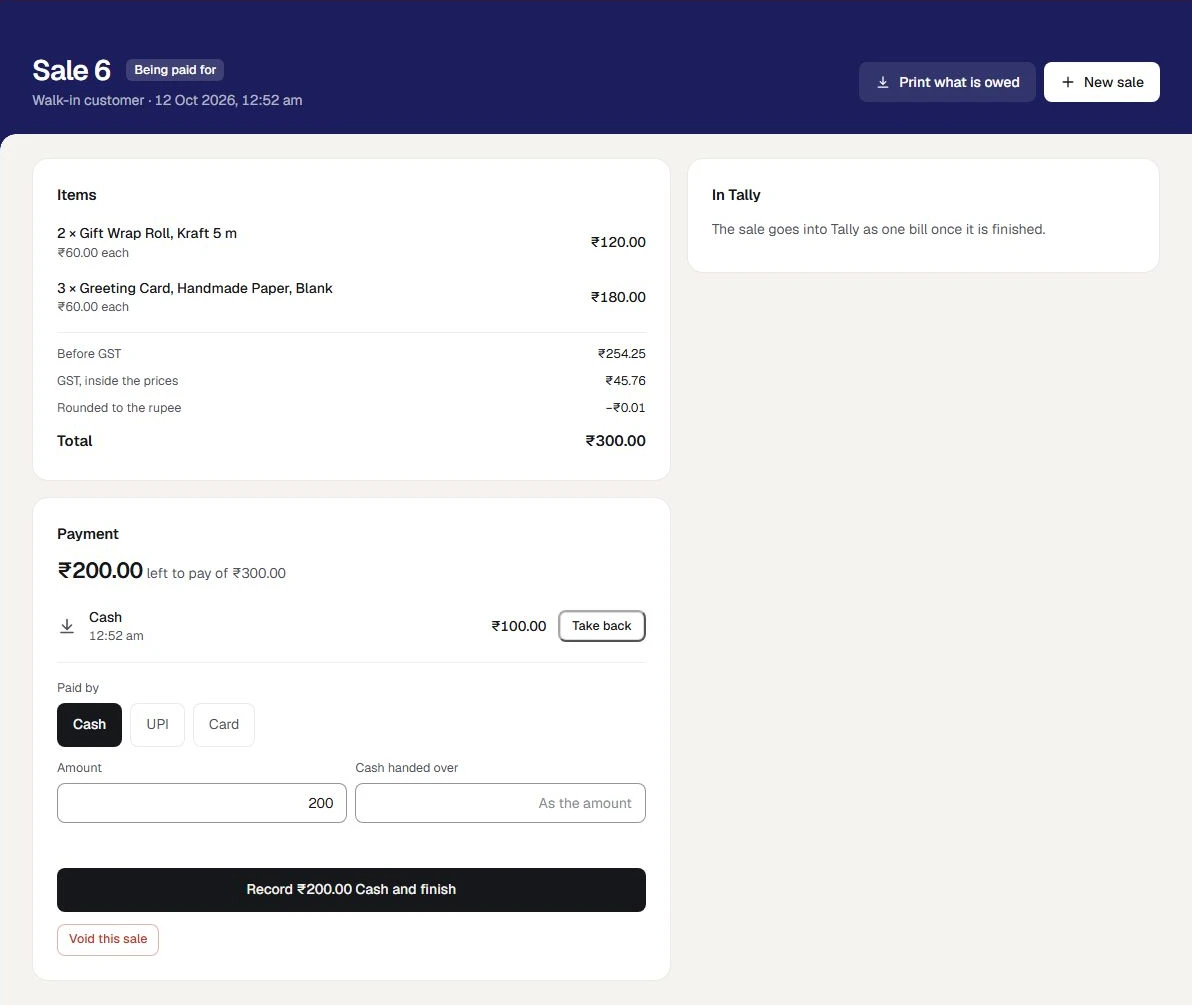
The card Payment on the sale's page says what is left to pay, and has a short form.
- Under Paid by, press Cash, UPI or Card.
- Check Amount. It starts as what is left to pay.
- For cash, type what the customer handed you in Cash handed over. The form shows Change to give.
- For UPI or card, look at your own phone or card machine first. You can type a note in Reference, if you want one.
- Press the button. It says exactly what it will do, such as Record ₹200.00 Cash and finish.
A payment that pays the sale in full finishes it in the same press. A message at the top says the sale is finished and paid, with the change to give, and that its bill goes into Tally by itself.
UPI and card are recorded by hand. Orzoni does not ask a bank or a payment company whether the money arrived, and a reference you type is a note, not a proof.
A split payment
Record one payment, then the rest. Sale 7 of the sample shop is a gel pen and a ruled notebook: ₹115.00.
- Cash is chosen. Type
50in Amount and press Record ₹50.00 Cash. The card reads ₹65.00 left to pay of ₹115.00. - Press UPI. The button now reads Record ₹65.00 UPI and finish. Press it.
The sale is finished and paid, with two payments under Payment. A UPI or card payment cannot be for more than is left. Cash can be: the difference is the change.
If a sale is paid in full and still reads Being paid for, press Finish sale.
Take a payment back
Until the sale is finished, a payment recorded by mistake can be taken back.
- Beside the payment, press Take back.
- Say why, in a few words, and press Take the payment back.
The payment stays on the sale, marked as taken back with your reason. Record it again if it was only the wrong kind.
Once a sale is finished its payments stay as they were recorded. A wrong kind of payment on a finished sale is put right another way: see Returns at the shop counter.
Void a sale
A sale that was rung up and will not be paid for is voided, which frees the stock it was holding.
- On the sale's page, press Void this sale.
- Say why, and press Void the sale.
The sale is kept, marked Voided, with your reason. It makes no bill.
- A sale with money recorded against it is not voided. Take each payment back first.
- A finished sale is never voided. Goods brought back are a return: see Returns at the shop counter.
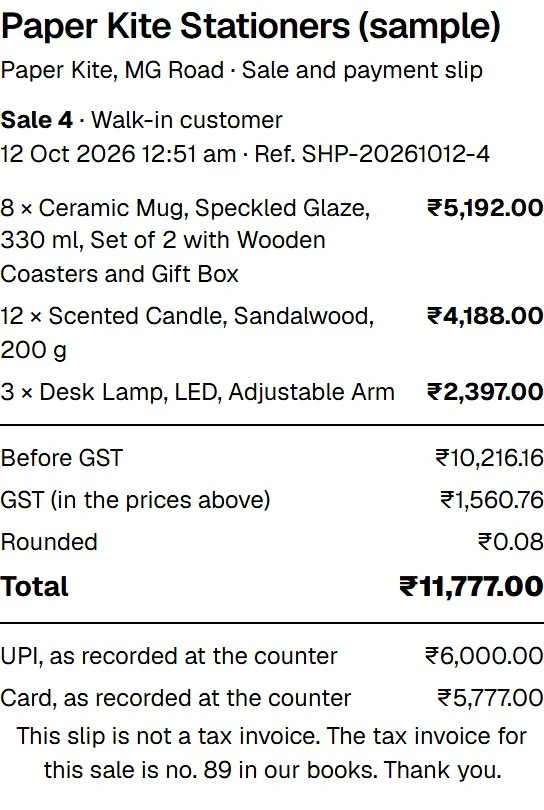
Print the slip
On a finished sale, press Print slip. It prints from this browser, on whatever printer the device has: the browser's own print box opens, and you choose the printer.
The slip holds:
- your company's name, the shop's name, and the words Sale and payment slip
- the sale's number, who it was billed to, the date and time, and its reference, such as SHP-20261012-4
- each item with how many, and what it came to
- Before GST, GST and Total, with rounding where there was any
- each payment: how it was paid and, for cash, what was handed over and the change
- money given back on a return, where there was one
It says This slip is not a tax invoice, and gives the number of the tax invoice in your books once the bill is in Tally. Printed a second time, it is headed COPY 2. Not a second sale or payment.
On a sale that is still being paid for, the button reads Print what is owed, and the slip shows Still to pay.
The Sales list
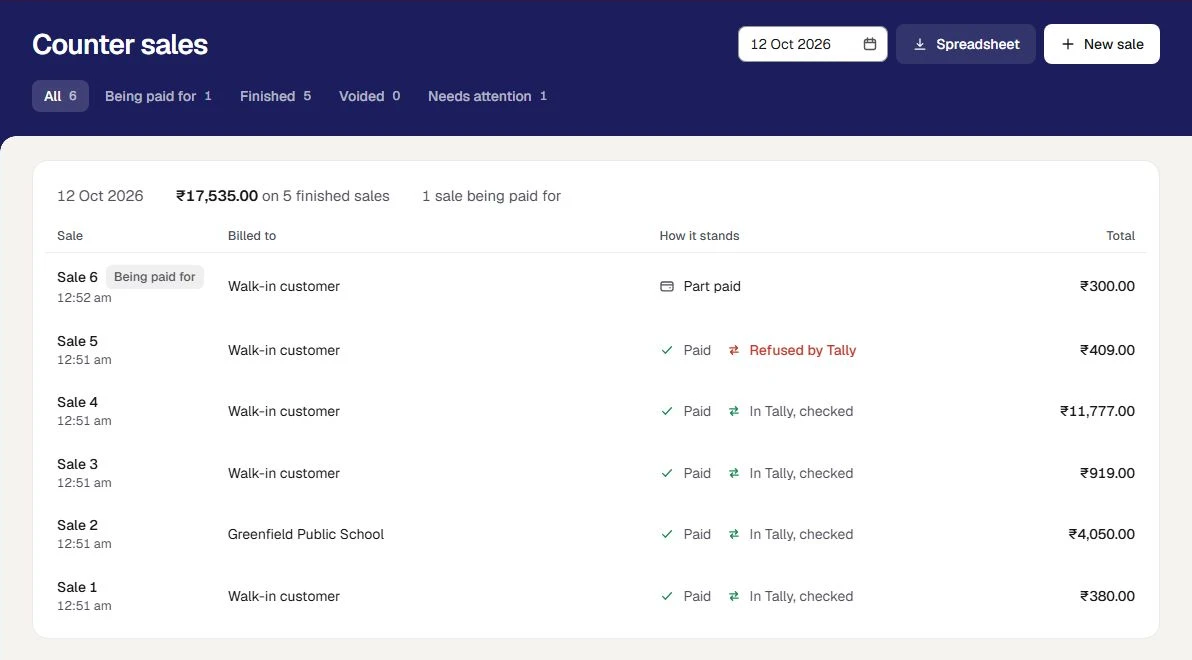
Shop, Sales opens Counter sales: the sales of one day, newest first. Choose another day with the date at the top.
| View | What it lists |
|---|---|
| All | Every sale of the day |
| Being paid for | Every sale rung up and not yet finished, from any day, with what is still to collect |
| Finished | The day's finished sales |
| Voided | The day's voided sales |
| Needs attention | Every finished sale, from any day, that is not in Tally as it should be. Shown only when there is one |
Each row says who the sale was billed to and, under How it stands, two things side by side: the money (Unpaid, Part paid, Paid) and Tally. Press a row to open the sale.
Whoever holds See figures and reports or Business settings also has Spreadsheet, which saves the list as a file.
If something stops you
| The screen says | Why | What to do |
|---|---|---|
| Nothing can be rung up yet | No item has a selling price, or the warehouse the shop sells from has still to be chosen | Whoever holds Business settings presses Set up |
| Ringing up a sale is not yours to do | Your role does not have Ring up counter sales and take payment | Ask the owner for the Shop assistant role |
| The shop counter is closed to new sales | The business is no longer in the pilot | Sales already rung up can still be paid for and finished from Sales |
| An item can no longer be sold here and was taken off the sale | Its price, rate or unit changed while the sale was on screen | Look at the sale, then carry on |
| This sale was changed on another screen | Someone else recorded a payment or voided it | The sale is shown as it now stands. Look, then make your change again |
| This did not reach Orzoni, or its answer was lost | The connection dropped as you pressed | Check the connection and press again. The same sale or payment is not recorded twice |
| The shop counter could not be opened | There is no connection | Get a signal, then press Try again |
These screens need the internet. Nothing is kept on the device to be sent later.
Mistakes you can undo
| The mistake | How to put it right |
|---|---|
| A wrong item or number, before taking payment | Change the line, or take it off |
| A sale rung up that will not be paid for | Void this sale |
| A payment recorded by mistake, before the sale is finished | Take back, then record it again |
| A payment recorded as the wrong kind on a finished sale | Put a payment right. See Returns at the shop counter |
| A finished sale the customer brings back | Record a return. See Returns at the shop counter |
What it does to your data and to Tally
- A sale on the screen is nowhere else until you take payment. Closing the page loses it.
- A sale rung up is kept in Orzoni with its number, and holds its stock. Nothing goes to Tally.
- A payment, a payment taken back and a voided sale are kept in Orzoni. None of them goes to Tally by itself.
- A finished sale makes one sales bill in Tally, with a receipt for each way it was paid. See Shop sales, stock and Tally.
- What was done is written down under Settings, Users and roles, What was done: a sale voided, a payment taken back, a return, a payment put right, a change to the set-up.
What next
- Shop sales, stock and Tally: the bill a sale becomes, and what is left of each item.
- Returns at the shop counter: goods brought back, and a payment put right.
- Set up a shop counter: the set-up, the roles and the practice counter.
What ringing up a sale does not do
- No price is typed, and nothing is discounted. An item is sold at its own selling price. There are no schemes and no loyalty points.
- No sale on credit. A sale is paid for in full before it is finished. A customer who pays later is given a sales bill.
- Nothing is weighed, and no batch is chosen. How many is a whole number, and an item kept by batch is not sold here.
- No payment is checked with a bank. UPI and card are recorded by the person at the counter.
- No scanner, receipt printer or cash drawer is driven. A scanner types into the box, and the slip prints from the browser.
- No exchange in one step. It is a return, then a new sale.
- Nothing works with no internet. The screen says so, and rings nothing up.
The whole list is in Set up a shop counter.
Still stuck? Write to orzoni.official@gmail.com and say which step you are on, or book a walk-through call.