

On this page
Orders from your store
The Orders view of a connected Shopify store. Which orders wait for a bill and what that does to the count, choosing the customer the store's sales are billed to, making a draft bill from an order, and how an order clears once its bill is in Tally.
9 minute read
What Orders is for
An order on your store lowers what may be sold there at once. Tally only hears of the sale when its bill is made, which may be hours later. Until then the units are owed out of Tally's count.
Orders lists every order in that gap: taken on the store, still to be billed in Tally. Their units are held off the count, so the store is never shown stock it has already sold. See Counts for how that enters the sum.
From here you can make the bill for an order in one press. It is made as a draft, so nothing reaches Tally until someone has looked it over.
Of an order, Orzoni reads its number, what was ordered and what was paid. No buyer's name, address, phone or email is read.
Open Orders
- In the rail, press Connectors, then Shopify.
Press Orders.
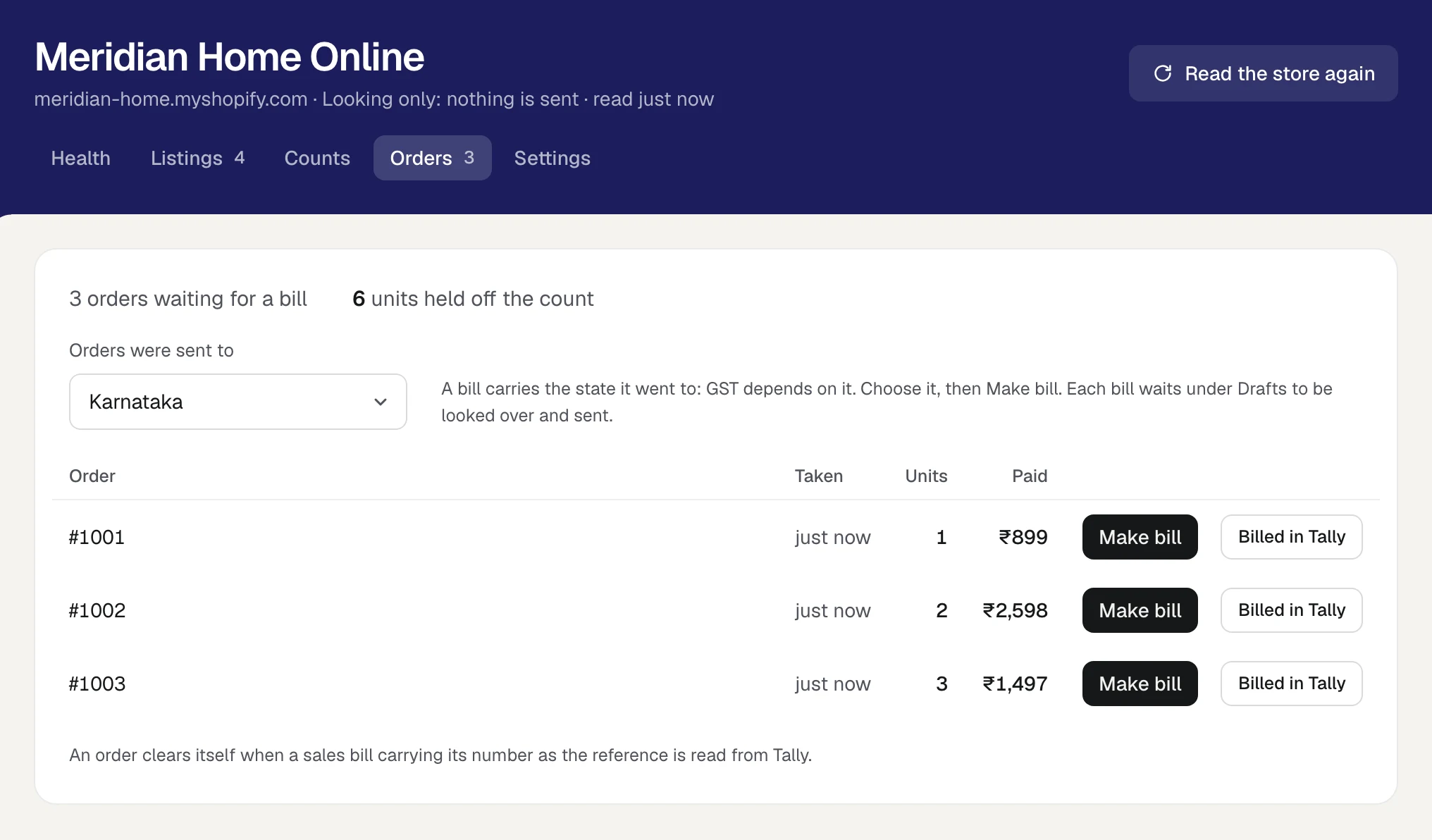
The number beside Orders is how many orders wait for a bill.
Read the list
The first line says how many orders are waiting for a bill and how many units they hold off the count.
| Column | What it shows |
|---|---|
| Order | The order's number on your store, such as #1001 |
| Taken | How long ago it arrived |
| Units | How many units it holds off the count |
| Paid | What the buyer paid for the order, in whole rupees |
The oldest order comes first. The list shows up to 500, and says so when there are more.
- An order cancelled on the store leaves the list, and its units go back on the count.
- An order changed on the store is brought up to date here.
- When nothing waits, the view says No order is waiting.
Orders are counted while the store is looking only as well. Turning counts on is not needed to see them.
Which orders count
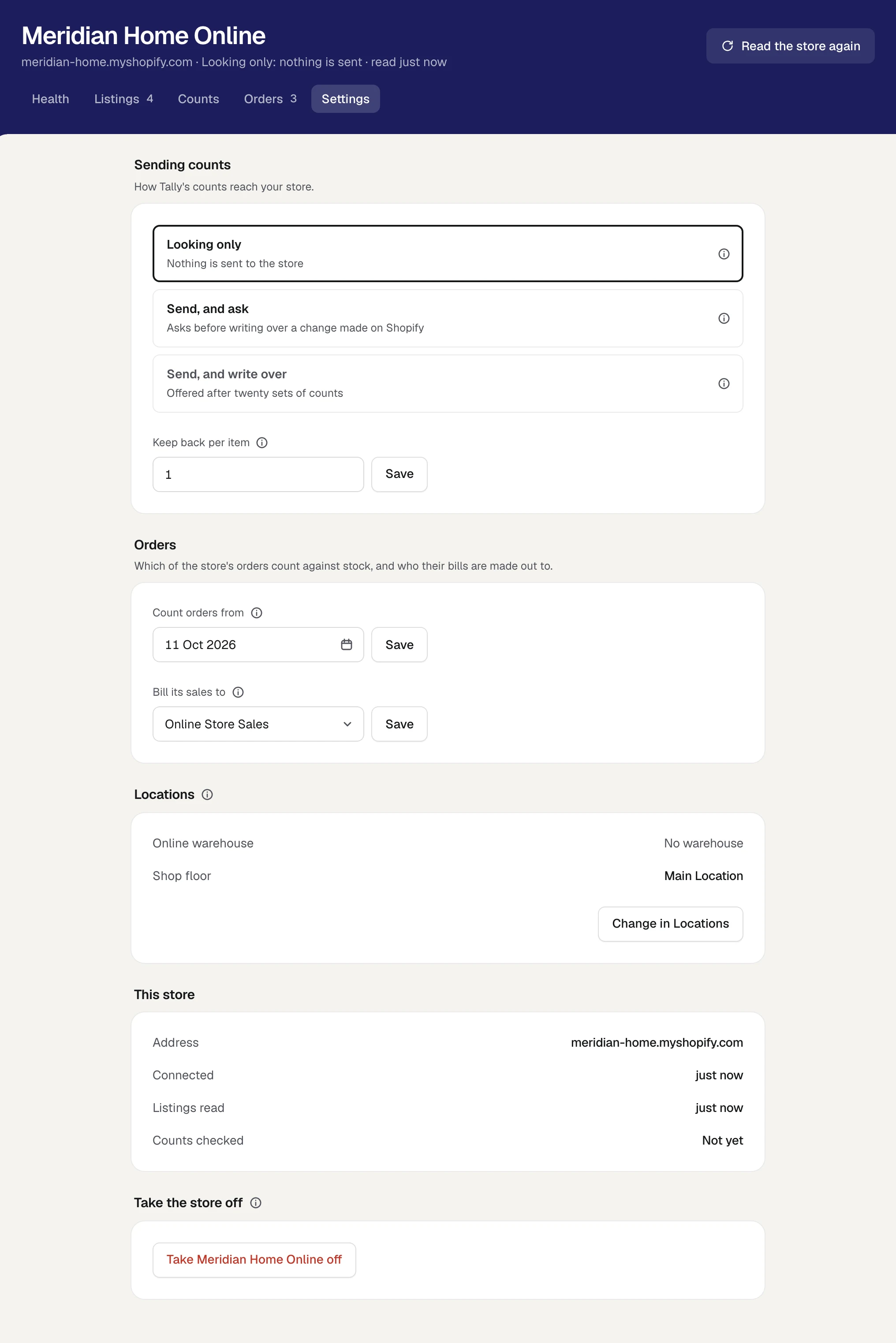
Orders placed before a certain day are history: billed long ago, or never to be. They are not taken off the count and are not listed here. The day is Count orders from.
- Open the store's Settings.
- Under Orders, set Count orders from.
- Press Save.
- It starts as the day the store was connected.
- Move it back to take in older orders. The store is then asked afresh for every open order since that day.
- Moving it forward changes nothing for an order already listed. It stays until it is billed, or until you press Billed in Tally. Only orders that arrive afterwards are judged by the new day.
Choose who the store's sales are billed to
A bill needs a customer, and Orzoni does not read who bought. So every bill made from one of the store's orders is made out to one customer in Tally: a customer that stands for the store, such as Online Store Sales.
- Open the store's Settings.
- Under Orders, press the box Bill its sales to.
- Type a few letters and pick the customer. It must be a customer in your Tally books.
Press Save.
Orzoni says Saved. Make bill now appears on every order under Orders.
If Tally has no such customer yet, add one first: see Customers and suppliers. Until a customer is chosen, Orders says To make bills from these orders, first choose under Settings the customer in Tally the store's sales are billed to.
The choice does a second job. Once it is made, a sales bill clears an order only if it is made out to this customer. See How an order clears itself.
The state the orders were sent to
GST on a bill depends on the state the goods went to. The store gives that only with the buyer's address, which Orzoni does not read. So you say it.
The box Orders were sent to, above the list, starts on your own company's state. Choose the state before you press Make bill. It becomes the bill's Place of supply.
The box holds one state at a time and is used for the next bill you make. Where orders went to different states, set it for each one before pressing Make bill on that row.
Make a bill from an order
- Check Orders were sent to.
Press Make bill on the order's row.
Orzoni says the bill is under Drafts, and opens it.
- Look it over: the items, the rate, the tax and the total.
- Check how it is paid. The draft opens as any new sales invoice does, usually on Paid now into your usual account. Nothing about how the buyer paid is read from the order. Choose Pay later if the money has not reached you, or another account under Received in.
- Press Send to Tally.
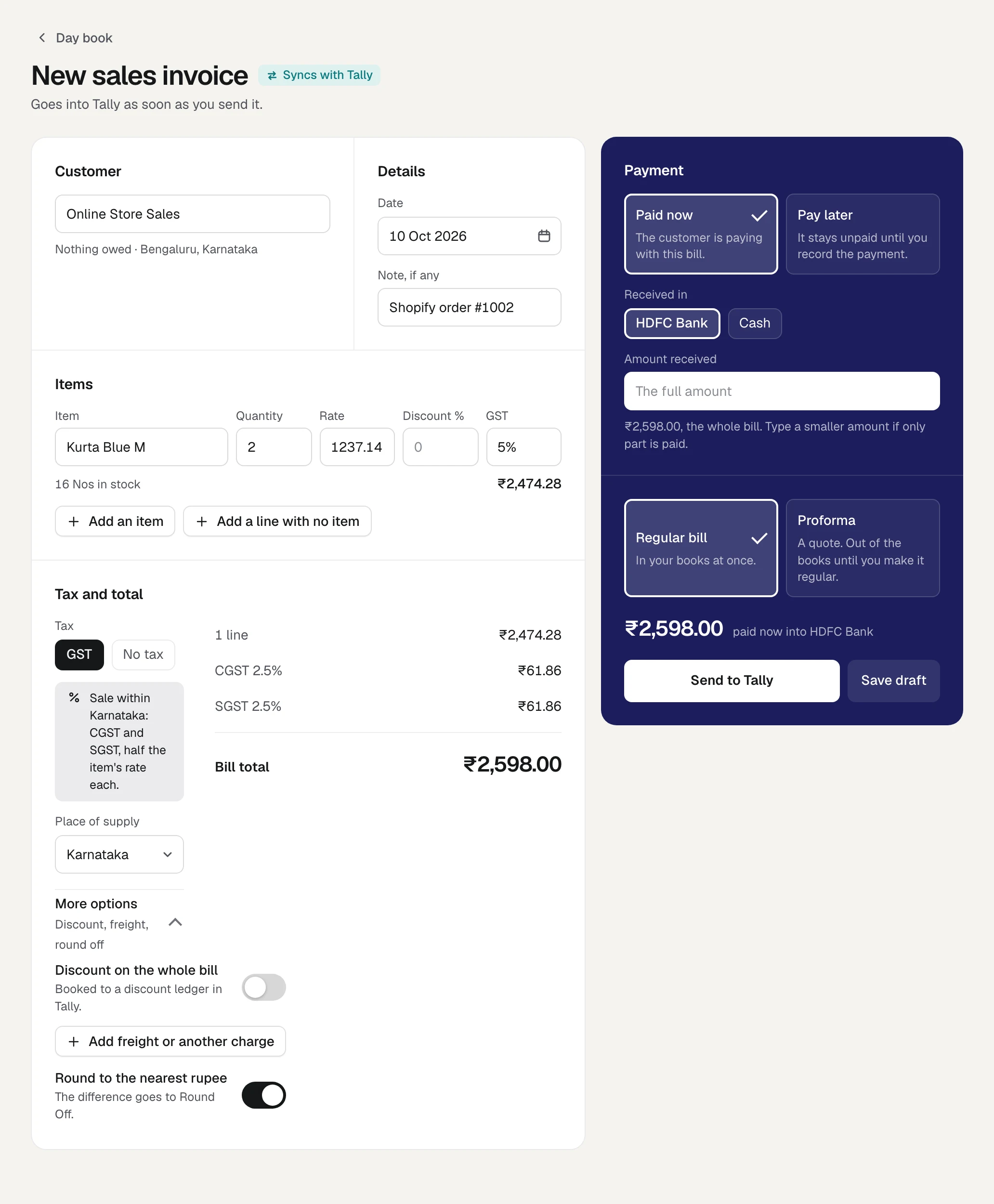
The draft is kept under Sales, Drafts until it is sent. On the order's row, Make bill gives way to Its draft, which opens it again. Once the bill is sent, the button carries the bill's own number instead, or reads Its bill, and opens the bill. See Drafts.
What the draft carries
| On the bill | Where it comes from |
|---|---|
| The customer | The one chosen under Bill its sales to |
| The lines | One line for each item on the order, by the item its listing is matched to. A listing sold as a pack of 6 puts 6 of the item on the line |
| The rate | What the buyer paid. Where your store's prices include tax, GST is taken out at the item's own rate. In the picture, the buyer paid ₹2,598 for two, so each is ₹1,237.14 before GST at 5% |
| Shipping | A line of its own, named Shipping, at the GST rate of the goods. Where the goods carry different rates, at the highest |
| The warehouse | The one linked to the store's location the order leaves from |
| Place of supply | The state you chose |
| The note | The order's number, as in Shopify order #1002 |
| The reference in Tally | The order's number. This is what clears the order later |
The bill is dated today, and rounded to the nearest rupee.
If Orzoni will not make the bill
No bill is made where it would carry the wrong tax. Orzoni says why:
| Orzoni says | What to do |
|---|---|
| Match the listing named to an item in Tally first (Listings). | One of the order's listings has no item. Match it under Listings, then press Make bill again |
| No GST rate is on record for the item named | The tax inside the store's price cannot be taken out without the item's rate. Fill the rate in under GST, then make the bill. See GST |
| This order's lines come to one sum, and the buyer paid another | Something was taken off the whole order, money was given back, or the order carries something that is not one of the store's listings. Make this bill in Tally. Give it the order's number as its reference and it clears the order by itself. Otherwise press Billed in Tally |
| This store takes its orders in another currency | A bill here is in rupees. Make this bill in Tally |
| A bill for this order was already made | Its draft waits under Drafts. Open it from Its draft, or discard it to make another |
| This order's bill is already in Tally. | Nothing to do. The order clears at the next read of Tally |
| That order has nothing left to bill | It was cancelled, or every line was given back |
| This order has more lines than one bill can hold (60). | Make it in Tally |
| No sales ledger was found in Tally to bill the shipping to. | Shipping is billed to a sales ledger. Add one in Tally, then try again |
Billed in Tally
Some bills are typed straight into Tally, without the order's number. Such a bill does not clear its order here, and the order's units stay off the count until someone says the bill is there. Billed in Tally is how you say so.
Press Billed in Tally on the order's row.
The button asks Its bill is in Tally?
Press it again within a few seconds.
Orzoni says Cleared. The order leaves the list and its units are no longer held off the count.
An order that has waited over a week is also raised on Health, under Needs you, with the same button.
How an order clears itself
An order clears itself when a sales bill carrying its number as the reference is read from Tally. A bill made here with Make bill always does.
The rules, for a bill typed in Tally by hand:
- It is a sales bill, not cancelled and not a proforma.
- Its reference is the order's number. #1001 and 1001 are read as the same.
- Where a customer is chosen under Bill its sales to, the bill is made out to that customer.
- Where none is chosen, the bill carries at least one of the items the order is for. The number alone is not enough: a courier's reference typed as 1005 must not clear order #1005.
- An order number of one or two characters is too short to be told from anything else, and is never cleared this way.
The order is cleared in the same step in which Tally's lower count is read. The sale is taken off once, never twice, and never put back early.
How orders reach Orzoni
Your store tells Orzoni of an order as it is taken. Orzoni also asks the store for its orders: every 5 minutes while counts are being sent, and every 30 minutes while the store is looking only. That asking is what makes sure of every order, should a notice be lost.
If Shopify stops showing its orders, Health says Shopify is not showing Orzoni its orders, and no count is sent until it does. See Your store's health.
Who may do what
| To do this | A person needs |
|---|---|
| See Orders | See stock |
| Make bill, open Its draft, and send the bill | Make bills and record payments |
| Billed in Tally, Count orders from, Bill its sales to | Change stock |
Someone who may not make bills sees the list without Make bill. See Users and roles.
What next
- Drafts: where the bill waits, and how to send or discard it.
- Make a sales invoice: every part of the bill form.
- Counts: how units waiting for a bill enter the count.
- When a bill is waiting or refused: if Tally is closed or says no when the bill is sent.
Still stuck? Write to support@orzoni.com and say which step you are on, or book a walk-through call.