

On this page
Set up a café and its menu
From a company in Tally to a first sale at the counter. Choose Café as your kind of business, read the list that says whether the counter is ready, say how counter sales go into Tally, build the menu with its choices, give your staff their roles, practise, then take a first order from start to finish. The café counter is a pilot.
14 minute read
What you will have at the end
A counter you can serve from. A menu on screen, an order taken in a few taps, a ticket in the kitchen's queue, the money recorded, the sale in your Tally books as an ordinary sales bill, and the day closed with the drawer counted.
It takes about half an hour, most of it typing the menu. Do it once, in the order below.
Who this is for
The owner of a café with counter service, or whoever sets it up. A bakery or a canteen with a counter works the same way. A restaurant with table service needs more than a café counter gives: read What the café counter covers first.
| To do this | You need |
|---|---|
| Choose Café, fill in Counter under Settings, and build the Menu | Business settings |
| Give people their roles | Users and roles |
| Take the practice order, record its payment and finish it | Take orders and payments |
| Move the practice ticket through the kitchen | Work the kitchen queue |
| Close the day | Close the day |
The owner holds all of them. See Users and roles.
A pilot, and what it needs first
The café counter works today, and is open to a few businesses while it is being tried. Three things have to be in place.
- You have been let in. Ask us from Settings, Help and support, or through the walk-through form. Until then Café cannot be picked under Business type.
- Your books are open in Orzoni. The computer that runs Tally is linked and your company has been read. If not, start with Your first ten minutes.
- Tally has the ledgers a counter needs. They are listed next.
What to have ready in Tally
Orzoni offers you the ledgers Tally has. It does not invent any. Check that these are there.
| In Tally | For | An example |
|---|---|---|
| A customer, under Sundry Debtors | The one customer every counter sale is billed to | Counter Sales |
| A sales ledger | What is sold, where a thing on the menu names nothing of its own | Café Sales |
| A cash ledger | Cash taken at the counter | Cash |
| A bank ledger for UPI | Where UPI money arrives | UPI Collections |
| A bank ledger for cards | Where card money arrives | Card Settlements |
| Output GST ledgers, if you charge GST | The tax on each bill | Output CGST, Output SGST |
| A ledger named Round Off, if you round | The paise a rounded total moves by | Round Off |
| A stock item, for anything sold as it was bought | Stock that a sale takes from | Bottled Water 500 ml |
The customer can be added from Orzoni: New, then Customer. The other ledgers are made in Tally, and appear in Orzoni after the next read.
Step 1: choose your kind of business
- Open Settings, then Business type.
- Under What kind of business is this, press Café. It carries the tag Pilot.
Press Use this.
A small message says Set up for café. Nothing was deleted. Orzoni loads afresh. The side of the screen now has a group named Counter, holding Orders, Kitchen and Menu, and Settings has a section named Counter. Close the day and Days closed are under Orders.
Already trading in the same company, and adding a counter? Leave your kind as it is and switch Café counter on under Parts of Orzoni. Choose your kind of business has both ways.
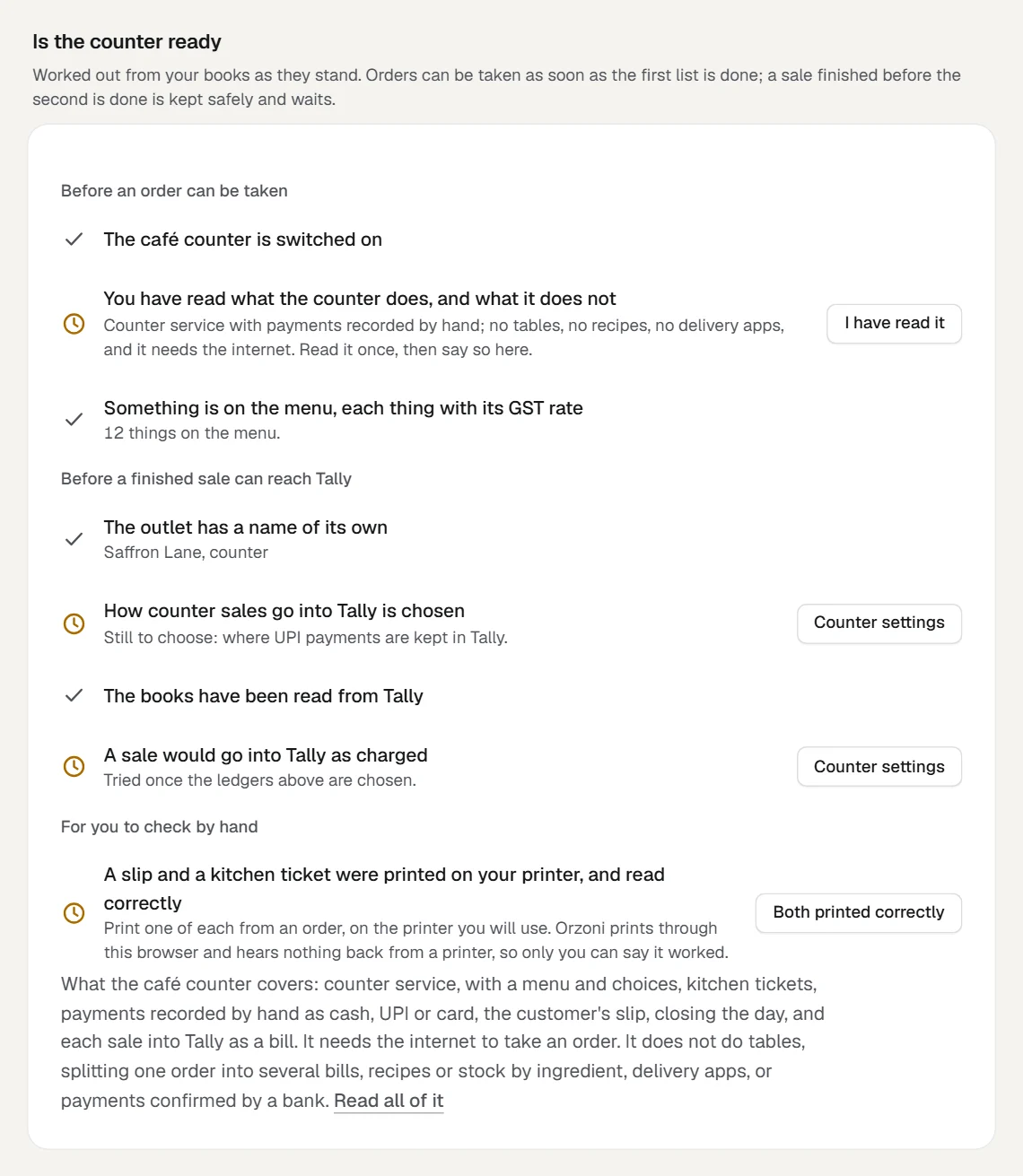
Is the counter ready
From now on Orzoni tells you what is still to do. You do not have to work it out from this guide.
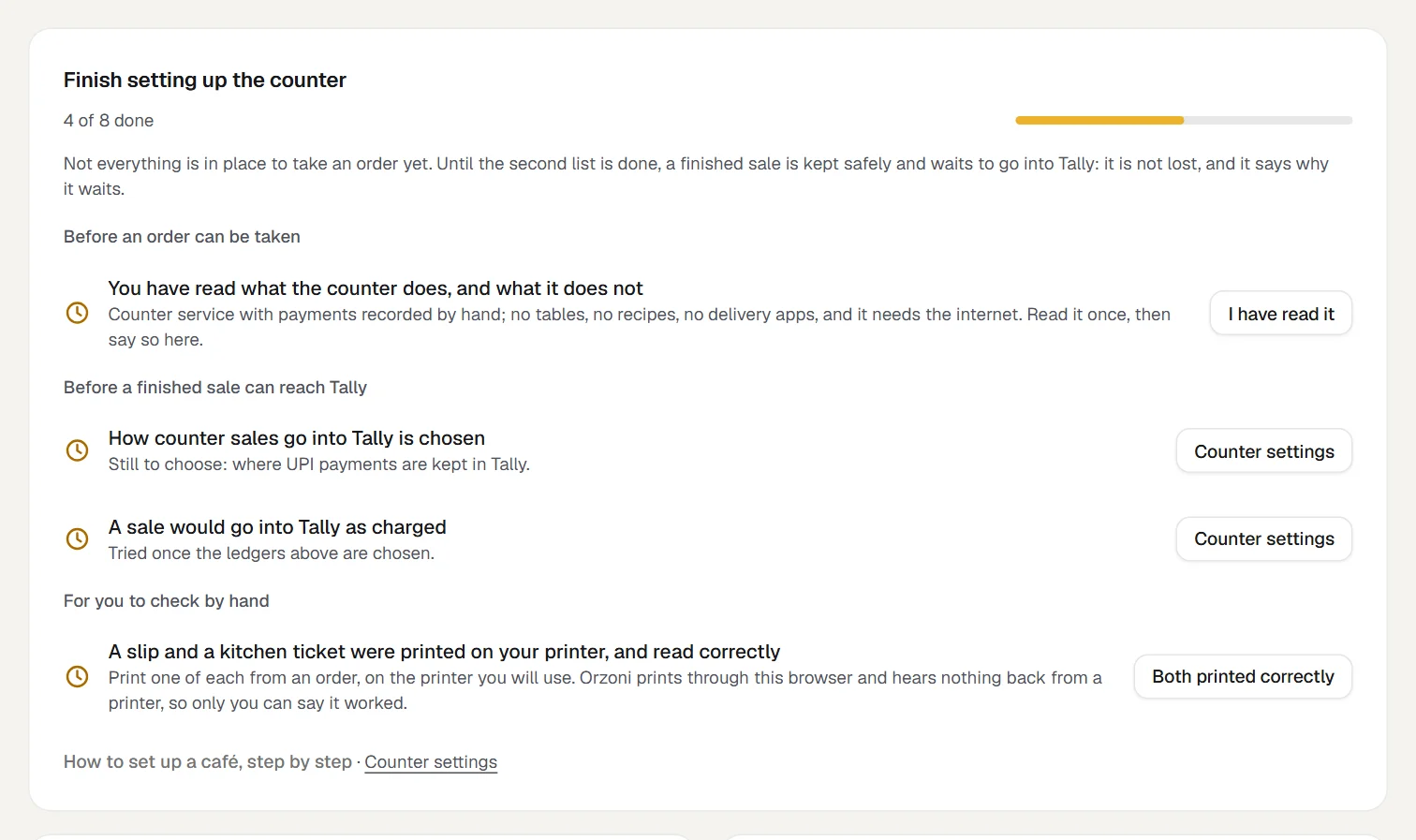
- On Today, a card named Finish setting up the counter lists what is left, each line with a button that leads to where it is done. The card goes when nothing is left.
- Under Settings, Counter, the first part lists every line, done or not. It is headed Is the counter ready, and The counter is ready once every line is done.
The list is worked out from your books as they stand, each time you look. It is in two lists, because they are two different things, and a third short part for what only you can say.
Before an order can be taken
| The line | It is done when |
|---|---|
| The café counter is switched on | The part is switched on under Settings, Business type |
| You have read what the counter does, and what it does not | You press I have read it. Read What the café counter covers first |
| Something is on the menu, each thing with its GST rate | The menu has at least one thing on it |
| Someone may take orders, and someone may close the day | At least one person in the business may do each. The line says how many may. Where it is still to do, its button leads to Settings, Users and roles. It is listed where people sign in to Orzoni on the web |
Before a finished sale can reach Tally
| The line | It is done when |
|---|---|
| The outlet has a name of its own | It is no longer called Main outlet. Its name is printed on every slip |
| How counter sales go into Tally is chosen | The customer, the sales ledger, and where cash, UPI and card money are kept are all chosen |
| The books have been read from Tally | Tally has been read at least once |
| A sale would go into Tally as charged | Orzoni tries one sale of the first thing on your menu against your Tally set-up, writes nothing, and it comes to the same sum. If it would not, the line says why, in the words a real sale would be refused with |
For you to check by hand
| The line | It is done when |
|---|---|
| A slip and a kitchen ticket were printed on your printer, and read correctly | You press Both printed correctly, after printing one of each from an order on the printer you will use |
The two lines with a button of their own are the two things Orzoni cannot find out for itself. It prints through the browser and hears nothing back from a printer, so only you can say that the paper came out and reads correctly. Both buttons are shown to whoever holds Business settings.
Orders can be taken as soon as the first list is done. The second list does not hold the counter up. A sale finished before it is done is kept safely and waits to go into Tally: it is not lost, and it says why it waits. The list is there so that you hear about a missing ledger before your first busy morning, not from a row of waiting sales.
The steps below do each line in turn.
Step 2: name your outlet
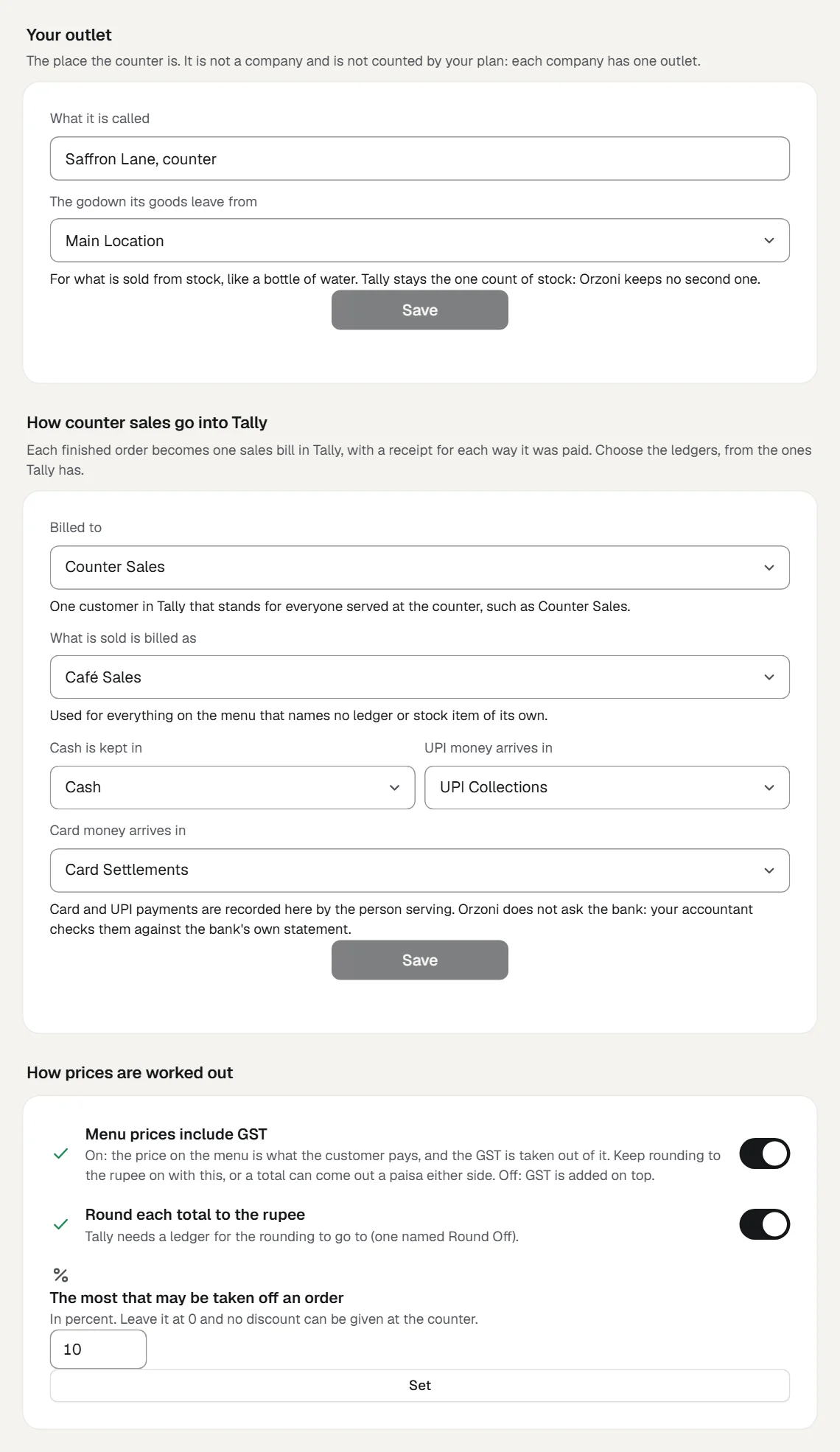
An outlet is the place the counter is. It is not a company and is not counted by your plan. Each company has one.
- Open Settings, then Counter.
- Under Your outlet, type a name in What it is called. It starts as Main outlet.
- In The godown its goods leave from, choose the godown that holds what you sell from stock. Leave it on Wherever Tally keeps most of each item if you keep one place.
Press Save.
A small message says Saved. The name now stands under Today on Home.
Step 3: say how counter sales go into Tally
Each finished order becomes one sales bill in Tally, with a receipt in Tally for each way it was paid. Here you choose the ledgers.
- Under How counter sales go into Tally, choose a customer in Billed to.
- Choose a sales ledger in What is sold is billed as.
- Choose a ledger in Cash is kept in, in UPI money arrives in and in Card money arrives in.
Press Save.
A small message says Saved. Finished sales go into Tally this way from now on. The part named Still to choose, above Your outlet, lists whatever is left, and goes when nothing is. The line A sale would go into Tally as charged, in the list at the top, is then tried.
Step 4: say how prices are worked out
Three choices, under How prices are worked out. Each is saved as you press it.
| Choice | What it does |
|---|---|
| Menu prices include GST | On: the price on the menu is what the customer pays, and the GST is taken out of it. Off: GST is added on top |
| Round each total to the rupee | On: an order's total is a whole number of rupees. Tally needs a ledger named Round Off for the difference |
| The most that may be taken off an order | A percent. Type it and press Set. Left at 0, no discount can be given at the counter |
A change here applies to orders taken from then on. Orders already taken keep how they were priced.
Step 5: build the menu
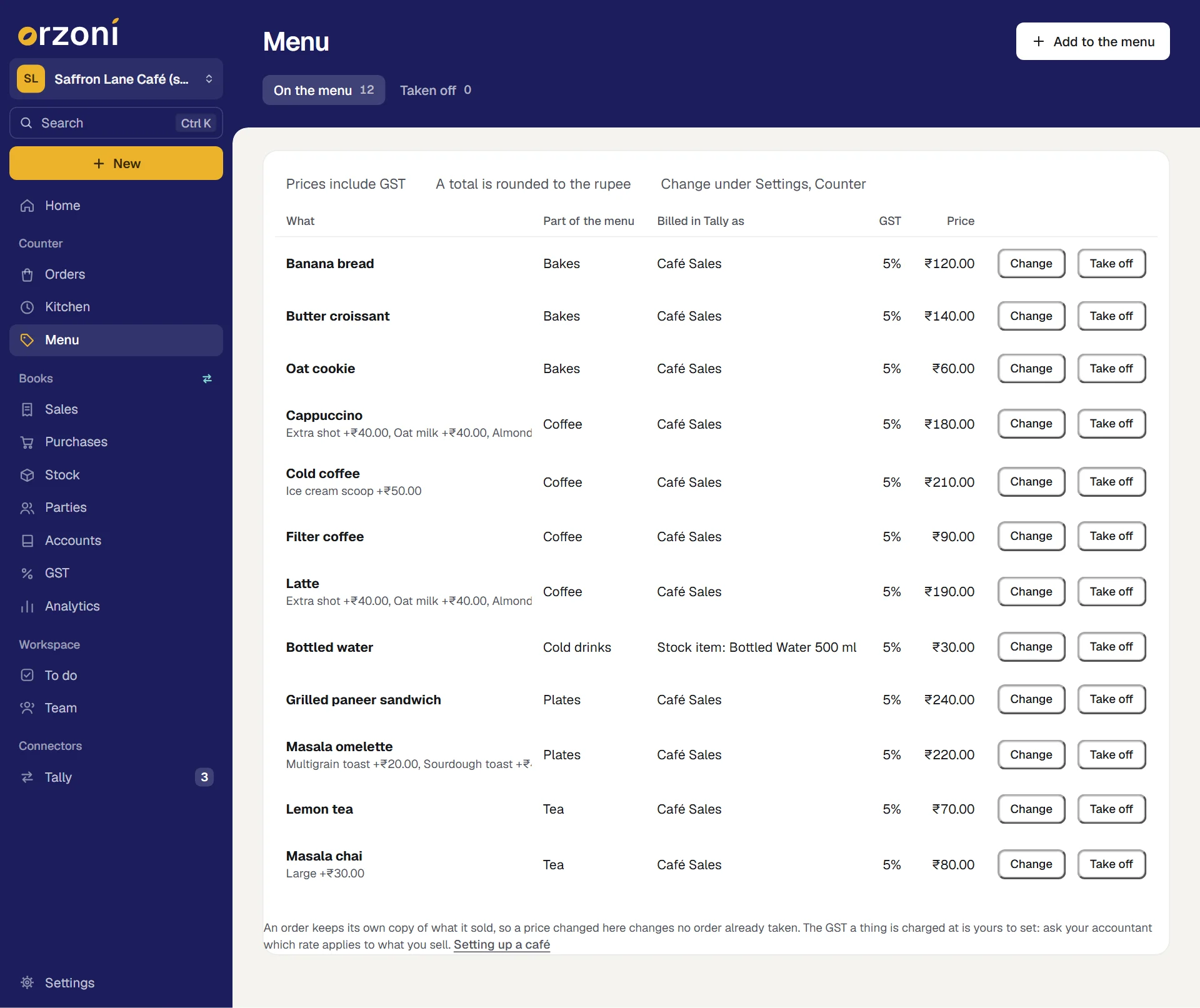
- Press Menu, under Counter at the side.
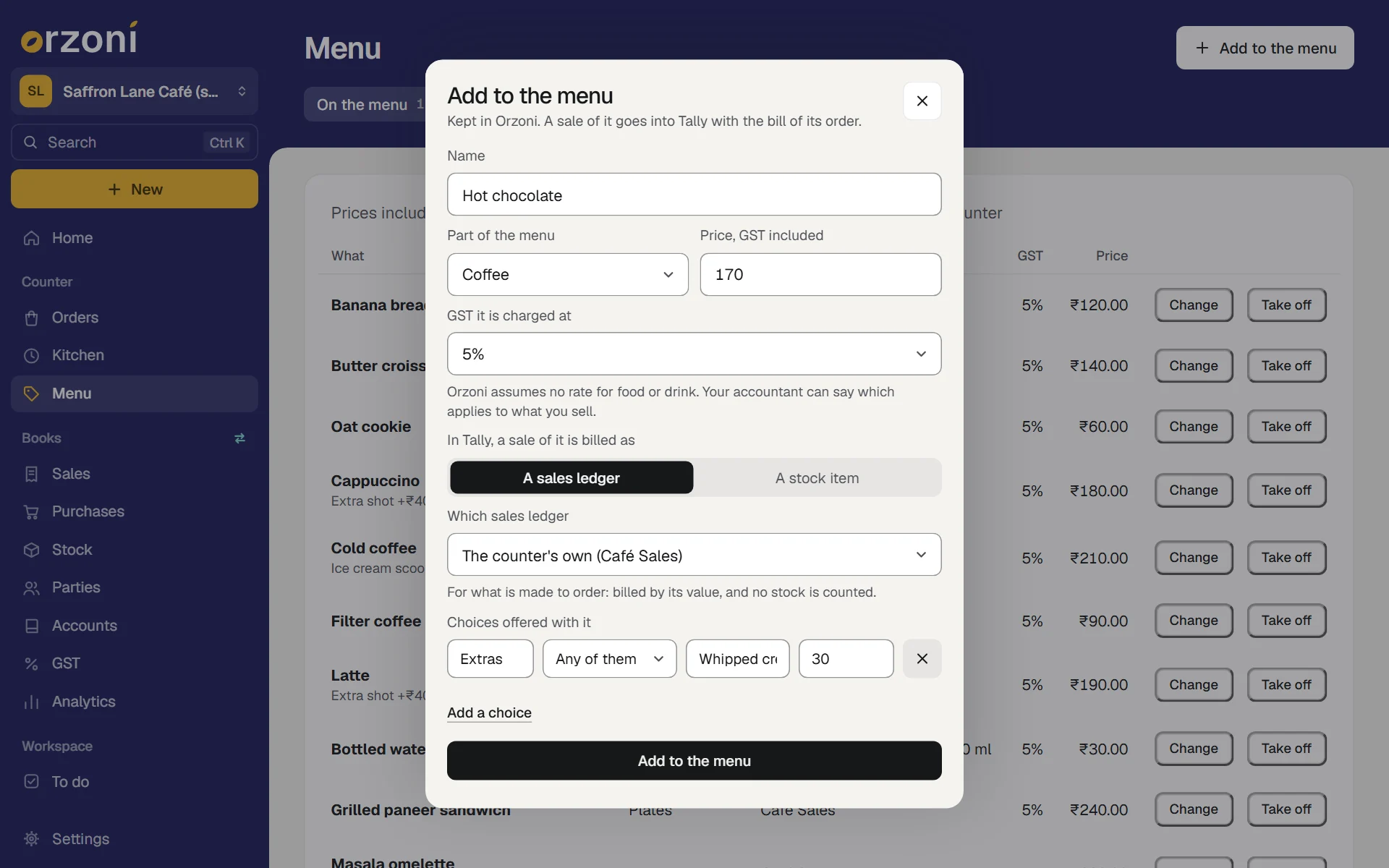
- Press Add to the menu. On an empty menu the button in the middle reads Add the first thing.
- Type the Name, as your staff should see it.
- Type the Part of the menu it belongs to, such as Coffee or Bakes. Parts you have used are offered as you type.
- Type the Price. The label says whether it is GST included or before GST, as you chose in step 4.
- Choose the GST it is charged at. See The GST on each thing.
Under In Tally, a sale of it is billed as, choose one:
Choice Use it for What happens A sales ledger What is made to order: a latte, a sandwich It is billed by its value, and no stock is counted. Leave Which sales ledger on The counter's own, or pick another A stock item What is sold as it was bought: a bottle of water Choose it under Which stock item. Each sale takes one from Tally's stock, through the bill Press Add to the menu.
A small message says, for example, Hot chocolate is on the menu. It joins the list, and can be ordered at once.
The GST on each thing
Orzoni assumes no rate for food or drink. You choose the rate for each thing on the menu, and 0% is there for what carries none. Nothing is saved without a choice.
Which rate applies depends on your business and on what you sell. Ask your accountant, and set each thing as they say. The rates on a bill in Tally come from here, so it is worth getting right before the first sale.
Choices offered with a thing
A choice is something the customer picks with the thing: the milk in a coffee, an extra shot, the size of a chai. Some kitchens call these modifiers or add-ons.
- In the form, under Choices offered with it, press Add a choice.
- Type the group it belongs to, such as Milk.
- Choose One only where the customer picks one of the group, or Any of them where they may pick several.
- Type the choice, such as Oat milk, and what it adds to the price. Leave the price empty where it adds nothing.
- Press Add a choice again for the next one, then Add to the menu or Save.
At the counter, a thing with choices opens a sheet where they are picked. See Take a café order.
Change a price, or take something off
- Change, on a row, opens the same form. Press Save when done. A small message says Saved. Orders already taken keep what they sold at.
- Take off, on a row, takes the thing off the menu. It is kept under Taken off, and Put back returns it.
An order keeps its own copy of what it sold. Changing the menu changes no order already taken.
Step 6: give your staff their roles
A café gets three roles of its own, beside the seven every business has.
| Role | What it starts with |
|---|---|
| Counter staff | Takes orders and payments at the counter, and works the kitchen queue. No bills, figures, stock or settings |
| Shift manager | Everything counter staff do, and closes the day, records cash in and out of the drawer, and puts a finished order right. Does not approve a cash difference |
| Kitchen | Sees the kitchen queue and marks tickets as being prepared and as ready. Sees nothing else, and no money |
- Open Settings, then Users and roles.
- Press Invite someone, type their Email address, and choose Counter staff, Shift manager or Kitchen under Role.
- Press Send invitation.
Who closes the day is worth deciding now. Until someone else holds Close the day, the owner or an admin closes it. Approving a close whose cash did not agree is a separate switch, Approve a cash difference, which the owner and an admin hold. See Close the day.
Each person signs in as themselves, so every order says who took it, and every close says who counted. The menu and the Counter settings stay with whoever holds Business settings. Invite your team has what the invited person sees.
Step 7: practise, then take a first order
Take one order from start to finish, so you have seen every step before a customer is waiting. The example is the sample café's: a latte with oat milk and an extra shot, and two butter croissants.
- On Home, which is now Today, press New order.
- Tap Latte. A sheet opens with its choices. Tick Extra shot, choose Oat milk, and press Add. The button carries the price: Add · ₹270.00.
Tap Butter croissant twice. Its tile shows 2.
The order is at the right, with each line and its price. Total reads ₹550.00. Orzoni works the total out. Nobody types it.
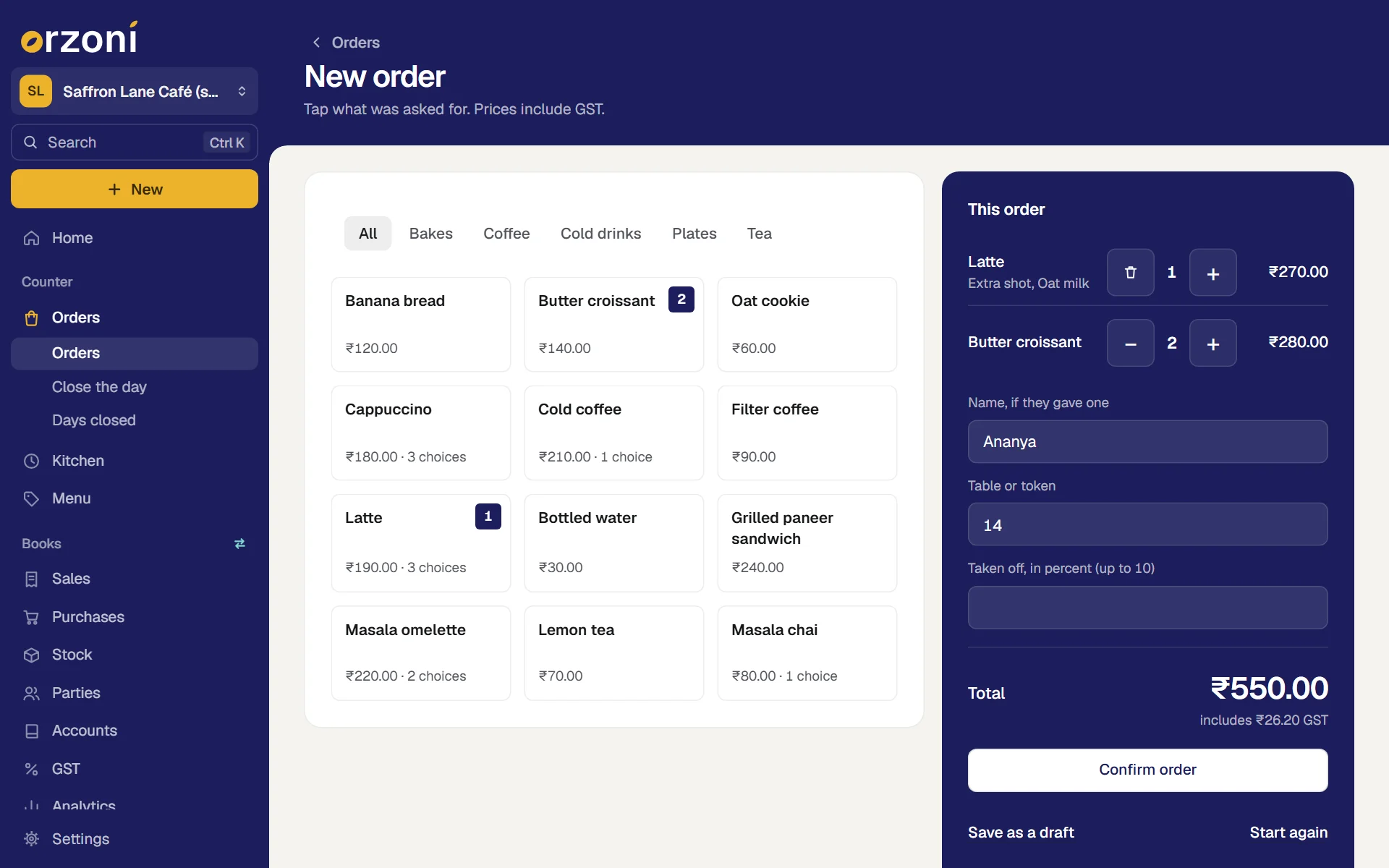
New order for the made-up Saffron Lane Café (sample). The menu is at the left, with Butter croissant marked 2 and Latte marked 1. This order, at the right, holds a Latte with Extra shot and Oat milk at ₹270.00 and two Butter croissants at ₹280.00, the name Ananya, table or token 14, and Total ₹550.00, which includes ₹26.20 GST. Under it are Confirm order, Save as a draft and Start again. Press Confirm order.
The order's page opens and says Order 7 is confirmed and with the kitchen. One ticket is now in the kitchen's queue. In the sample it was the seventh order of the day. Yours carries its own number, starting from 1 each day.
- Press Kitchen at the side. The ticket is under Waiting. Press Print ticket once, to try the kitchen's printer. Then press Start preparing, and when the order is made, Ready.
- Go back to the order: press Orders, then the order's row.
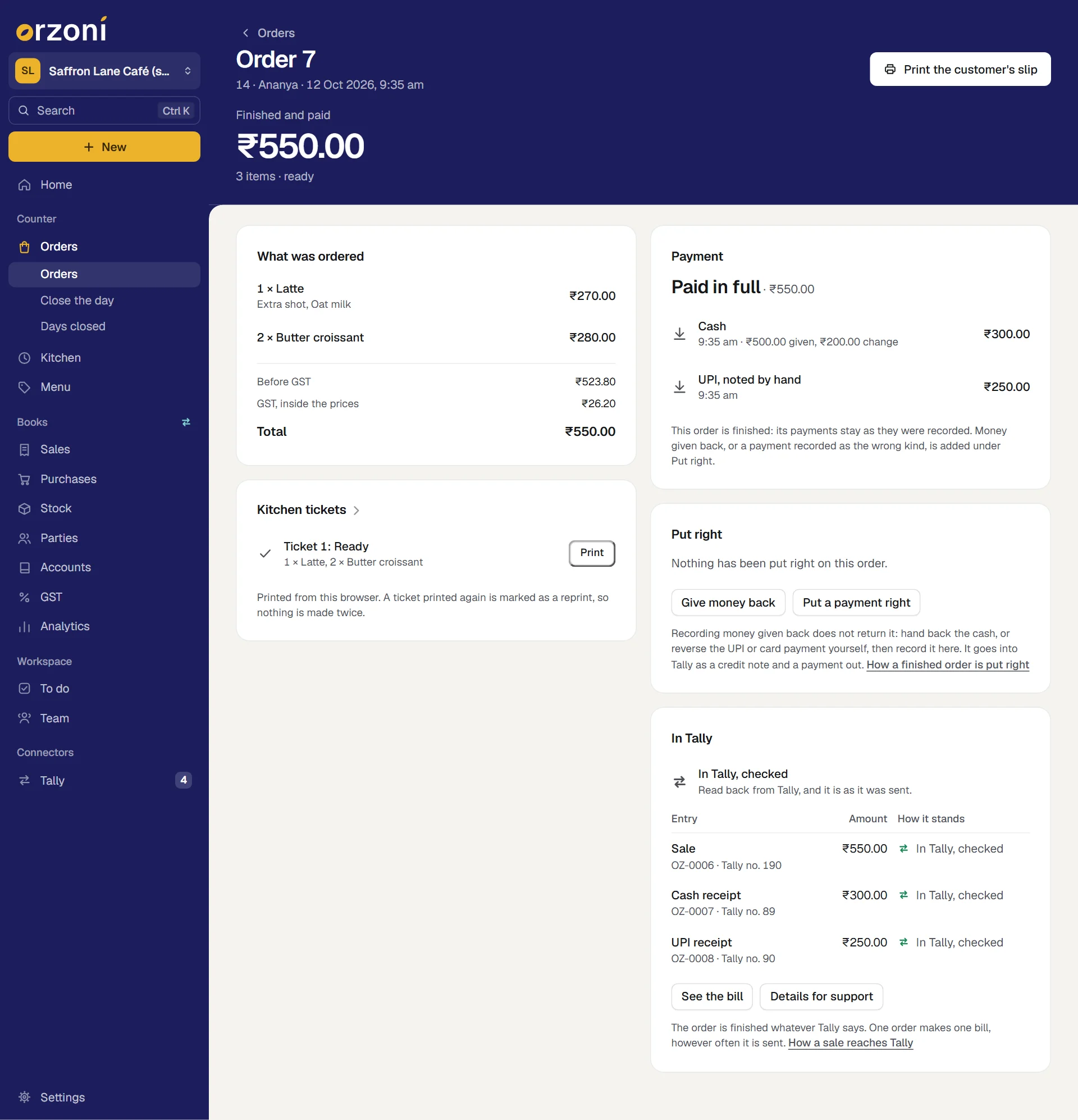
Under Payment, with Cash chosen, type 300 in Amount and 500 in Cash handed over.
The line under the boxes reads Change to give: ₹200.00. Left to pay after this: ₹250.00.
Press Record payment. Then choose UPI. Amount already holds the ₹250 that is left. Check the payment on your own phone, and press Record payment.
The card now reads Paid in full.
Press Finish order.
A small message says Order 7 is finished. The card In Tally reads Waiting for Tally, then In Tally, not checked yet, then In Tally, checked. Under that line it lists the sale and a receipt for each way it was paid, each with its own number in Tally.
- Press Print the customer's slip if the customer wants one, and See the bill to look at the sales bill itself.
- With a slip and a kitchen ticket printed and read, open Settings, Counter, and press Both printed correctly.
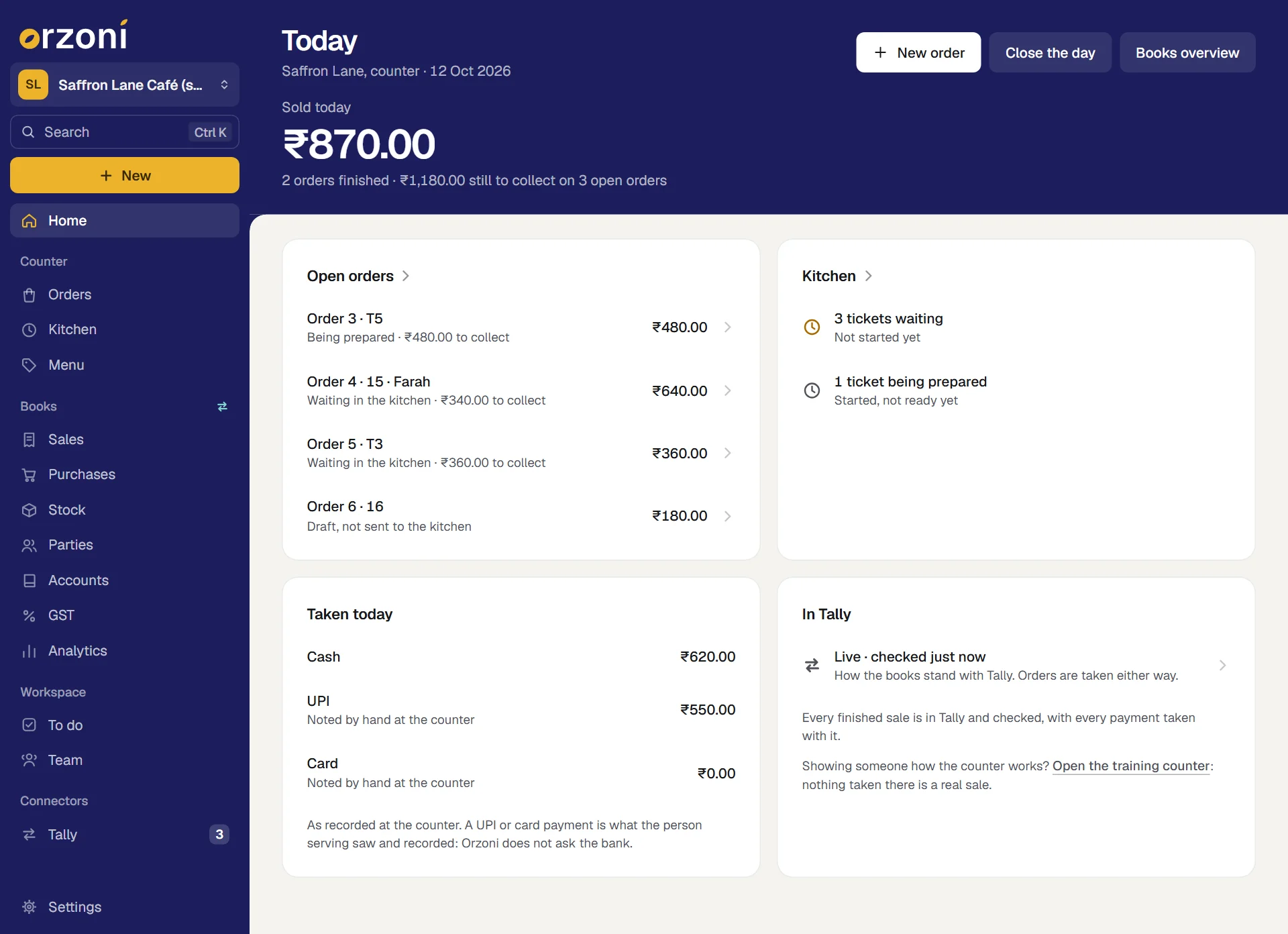
That is one order. Today now shows the sale under Sold today, and the money under Taken today.
Step 8: close your first day
When the counter shuts, press Close the day on Today. Count the drawer, type what is in it, and press Close. The day's sales and money are then kept as they stood.
Record the starting cash before the first sale of the day, and Orzoni can tell you what should be in the drawer at the end. Close the day has every step.
Mistakes you can undo
| The mistake | How to put it right |
|---|---|
| The wrong kind of business | Choose another under Settings, Business type. Nothing is deleted |
| A wrong ledger under Counter | Choose the right one and press Save. Sales finished from then on use it |
| A wrong price, rate or name on the menu | Change on its row. Orders already taken keep what they sold at |
| Something on the menu by mistake | Take off. Put back returns it |
| A practice order taken at the real counter that you do not want in the books | Before finishing it: press Take back on each payment and give a reason, then Void and give a reason. Nothing reaches Tally. Next time, use the training counter |
| A finished order that should not stand | Hand the money back, then press Give money back on the order, under Put right, and say why. A credit note and a payment out go into Tally. It needs Put a finished order right. See Put a finished order right |
Where the line is
The pilot is counter service for one outlet. These are not part of it. Each has a plain way to work today, and What the café counter covers has the whole list.
| Not built | What to do instead |
|---|---|
| More than one outlet for a company | One outlet for each company. A second place that keeps its own books in Tally is a second company |
| Moving or merging tables, courses, and splitting one bill between people | An order carries one optional table or token, and all of it goes to the kitchen when it is confirmed. People paying apart: take an order for each, or take one order and record each person's payment against it |
| Recipes, ingredients and wastage | Tally stays the one count of stock. Something sold as it was bought is billed as a stock item. Ingredients are bought and counted in Tally as you do today |
| Orders from food delivery services | They are not brought in. Take the order at the counter as it arrives, with the service's name in Table or token |
| Asking a bank whether a UPI or card payment arrived | The person serving checks their own phone or card machine, then records it. Your accountant checks the day against the bank's statement |
| A receipt printer driven by Orzoni | Tickets and the customer's slip print from the browser, on the printer it has |
| Working with no internet | The counter needs to be online, and says so when it is not, so that nothing is taken twice |
| Changing what a finished order sold, or opening it again | A finished order stays as it was. Money given back and a payment recorded as the wrong kind are added to it under Put right: see Put a finished order right |
| A company registered for GST in more than one state | The bill for a counter sale is not made, and the sale says why. Such bills are made in Tally |
What this does to your data and to Tally
- Kept in Orzoni: the outlet, the menu and its choices, every order, every kitchen ticket, every payment recorded, whatever was put right on a finished order, and each day's close. They are kept with the company's books on the web. See Where your data is kept.
- Sent to Tally: one sales bill for each finished order, with a receipt for each way it was paid. Where money was given back on a finished order, a credit note and a payment out, and for a payment recorded as the wrong kind, a transfer. Nothing else. Setting up the counter, building the menu and closing the day send nothing.
- Never changed in Tally: your ledgers, your items and your settings. Orzoni only chooses among the ledgers Tally has.
- Stock: something billed as a stock item leaves Tally's stock through its bill. Orzoni keeps no second count.
What next
- Practise on the training counter.
- Take a café order: the order screen in full, on a computer and on a phone.
- Use the kitchen queue.
- Collect a split payment.
- Café receipts, and how a sale reaches Tally.
- Put a finished order right.
- Close the day.
Still stuck? Write to orzoni.official@gmail.com and say which step you are on, or book a walk-through call.