

On this page
Tasks and follow-ups
A to-do list that knows your books, and a collections diary: who owes you, what they said when you asked, the day they promised to pay, sending a reminder, and recording the payment when it comes.
9 minute read
Two lists, kept in Orzoni
To do in the rail, under Workspace, has two screens: Tasks and Follow-ups.
Both are kept in Orzoni only. Nothing you write on them is ever sent to Tally: not a task, not a note, not a promised day. They read your books where they need to, for what a customer owes and how late it is, and they change nothing there.
The one thing that does reach Tally from here is a payment you record from a follow-up. That is an ordinary receipt, and it is covered under Record payment below.
Tasks
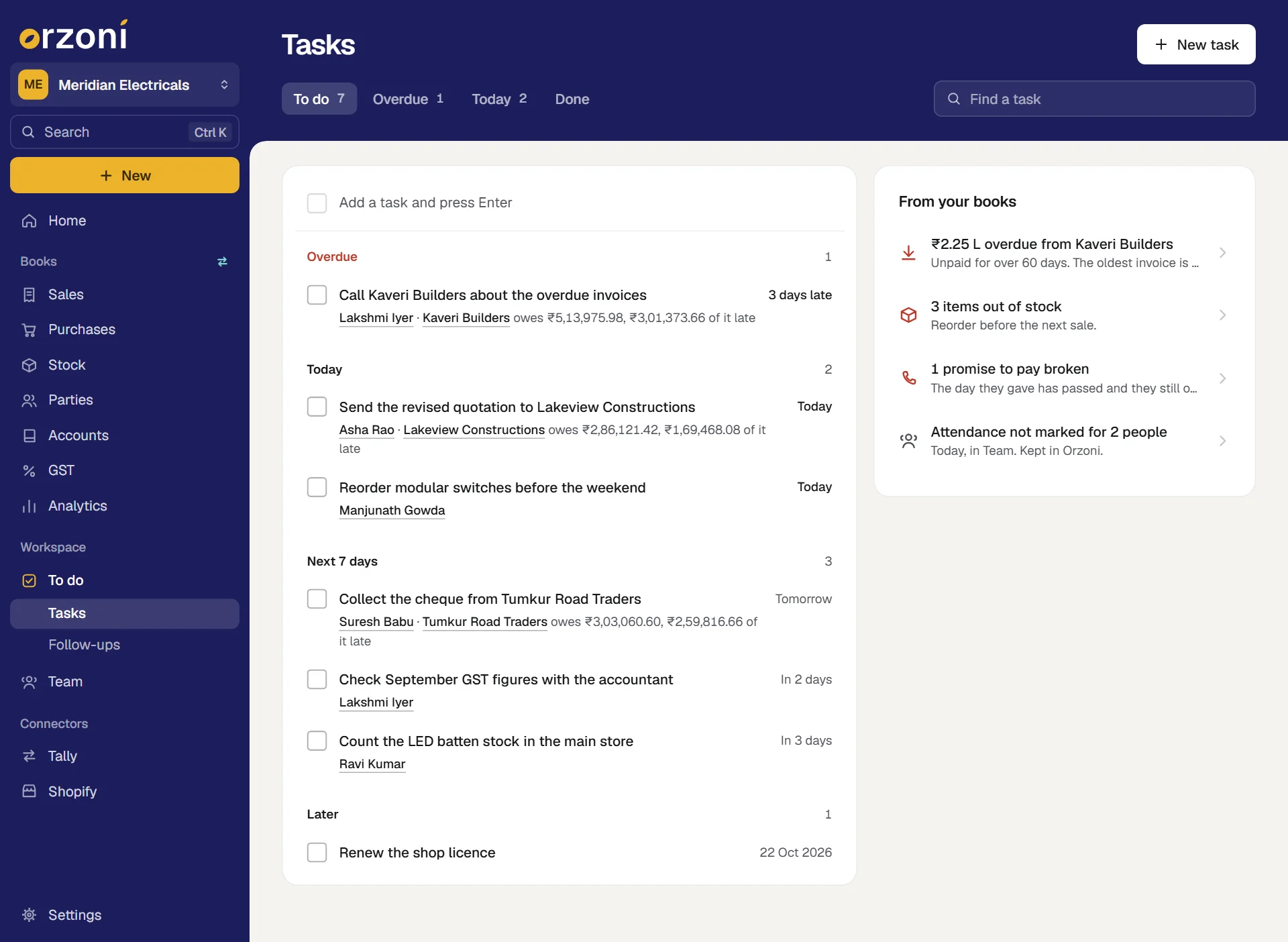
Add a task
The quick way, for something to remember:
- Press the box Add a task and press Enter at the head of the list.
Type what needs doing, and press Enter.
The task joins the list under No day set, as yours. The box stays ready for the next one.
The full way, for a task with a day, a person or a party:
- Press New task, or Alt C.
- Type What needs doing. This is the only box that must be filled.
- Give it a day under Due. Today, Tomorrow and In a week fill the day in. You can also press the box for a calendar, or type the date the way you write it:
12-10,12/10/26or12 Oct. - Choose who it is Given to. The list has the people in your Team who still work with you. Left as Me, the task is yours.
- Under About a customer or supplier, start typing a name and pick it from your books. Pick it as it is spelt there, so the task can lead to their account.
- Add a Note if it helps.
- Press Add task.
Read the list
The views on the band are To do, Overdue, Today and Done. The first three carry a count. Find a task searches the titles, the names of people and parties, and the notes.
Under To do the tasks stand by when they fall due, each heading with its count:
| Heading | Holds |
|---|---|
| Overdue | Tasks whose day has passed. The heading is in red |
| Today | Tasks due today |
| Next 7 days | Tasks due from tomorrow to a week from today |
| Later | Tasks due after that |
| No day set | Tasks with no day |
Inside each, the task due soonest is first.
A task's row has:
- The box to tick it off.
- Its title. Press it to change the task.
- Who it is given to. The name leads to that person's page in Team.
- Who it is about. The name leads to their account. For a customer who owes you, the row goes on: "owes ₹4,55,634.14, ₹3,04,124.24 of it late".
- The note, if there is one.
- When it is due, at the right: Today, Tomorrow, "In 3 days", Yesterday, "3 days late", or the date when it is a week or more away.
Tick off, change and delete
- Tick the box beside a task and it moves to Done, marked with the day it was done. Ticking it there brings it back.
- Press the title to open the task. Change anything, and press Save.
- Delete this task is at the foot of that sheet. It deletes at once, with no second question.
Done keeps the latest 50 tasks ticked off.
From your books
Beside your own tasks is what the books themselves say needs doing today. It is the same list as Needs attention on Home, without the line about these tasks:
- entries Tally refused, entries to look at in Tally, and entries still waiting to go in
- drafts not sent
- money overdue for more than 60 days, from a customer or to a supplier
- items out of stock or running low
- details missing in your Tally data
- promises to pay that were broken, and promises due today
- attendance not marked
Each line leads to the place it is dealt with. When there is nothing, it reads Nothing in the books needs you today.
A task from where the work is
- On a customer's or a supplier's page, the Tasks card has Add a task, with that party already filled in. The card lists the open tasks about them.
- On a person's page in Team, the Tasks card has Give a task, given to that person.
Tasks made this way are in the same list, and can be ticked off where they are shown.
Follow-ups
Follow-ups is the collections diary. It lists every customer who owes you, from your books, most pressing first.
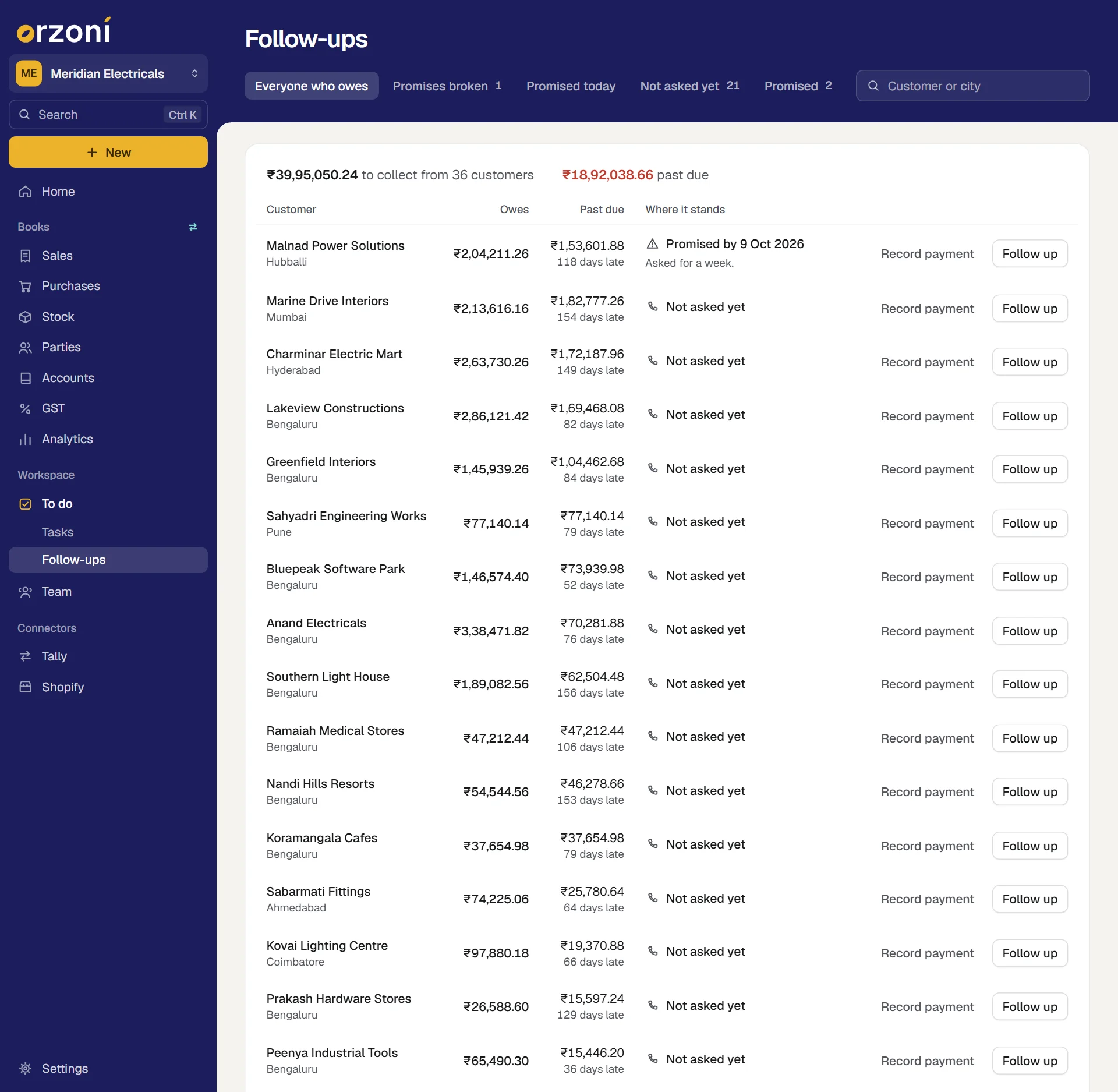
The first line says what there is to collect, from how many customers, and how much of it is past due. Past due means the bill has gone past its due date. Each row then has:
| Column | Shows |
|---|---|
| Customer | The name, and the city from their address in Tally |
| Owes | Everything they owe today |
| Past due | How much of it is past due, and how many days late the oldest bill is. None when nothing is late yet |
| Where it stands | How things stand with this customer, and under it what was last said |
Where it stands
| The row reads | It means |
|---|---|
| A warning mark, and Promised by a day that has passed | A promise broken: the day they gave has gone and they still owe |
| Promised today, with the amount if they named one | They said they would pay today |
| Not asked yet | Money is past due and nobody has written down asking for it |
| Asked and the day | You asked, and no day was promised |
| Promised by a day still to come | A promise that has not fallen due |
| Not due yet | They owe, none of it is past due, and nobody has asked |
That is also the order of the list. Within each, the customer with the most past due is first.
It is the latest follow-up that counts. If a customer promised a day last week and you wrote a new note yesterday with no day in it, they now read Asked.
The views on the band pick some of them out: Everyone who owes, Promises broken, Promised today, Not asked yet and Promised. The search box takes a customer's name or a city. The first line always adds up the customers on show.
Write down a follow-up
Press Follow up on the customer's row, or press the row itself.
A sheet opens with the customer's name, what they owe and how much of it is past due.
- Choose How you asked: Call, WhatsApp, Visit or Other.
- Type What was said.
- If they named a day, fill in Promised to pay on. It takes today or a later day.
- If they named an amount, type it under How much, if they said.
Press Save follow-up.
Orzoni says Saved. With a day promised, it also says the day the customer will be on your list.
A follow-up needs what was said, or the promised day. One of the two is enough.
With a day promised, the customer moves to Promised. On the day, they come up under Promised today. If the day passes and they still owe, they come up under Promises broken, and Home says so too.
The same sheet lists what was said Earlier, newest first, with how you asked and any promise. The cross beside a note removes it, at once.
With the keyboard: Up and Down move through the customers, and Enter opens the follow-up for the one you are on.
Send a reminder
- Open the customer's follow-up sheet.
Press Send a reminder.
A message is written for you: a polite line with the amount past due, the total outstanding and your business's name. The customer's phone number from Tally is filled in.
- Read it, and change it if you like.
- Press Open WhatsApp, and press send there.
Then write down that you asked: choose WhatsApp under How you asked and save the follow-up.
Record payment
Press Record payment on the customer's row, or in their follow-up sheet.
Payment received opens with the customer and the amount filled in: what is past due, or everything they owe when nothing is past due yet.
- Check the amount against what came in, and choose the account it came into.
- Send it. Record a payment has every step.
This is the one thing on these screens that goes into your books. What you make in Orzoni goes into Tally through the Tally connector, a small Windows app that sits beside Tally. If that computer or Tally is off, your work waits, the screen says so, and it goes in by itself when both are back. See When a bill is waiting or refused.
Once your books show that a customer owes nothing, they leave the list. Their notes are kept, and the latest are on their page.
Open account, in the follow-up sheet, takes you to the customer's page.
Elsewhere in the app
- A customer's page has a Follow-ups card with the latest notes, and Follow up when they owe. See Customers and suppliers.
- Home says under Needs attention when tasks are due or overdue, when a promise was broken, and when a customer promised to pay today.
- The Workspace page of Analytics has tiles for open tasks, the tasks due next, promises to pay and who to follow up.
If something is not right
| You see | What it means |
|---|---|
| No books here yet, on Follow-ups | The first read from Tally has not finished. Follow-ups list who owes you, which comes from your books. Tasks work without them |
| Nobody owes you anything | No customer has an unpaid invoice. There is nobody to follow up |
| A customer you expect is not listed | Their balance in your books is nought, or in their favour. Check their account |
| That person is not in your team any more, on saving a task | The person it was given to has been deleted. Choose someone else under Given to |
| A name on a task is plain words, not a link | Your role does not include that person's or that party's page |
| No Record payment button | Your role does not include making bills and recording payments |
Who sees To do
To do is for people whose role includes Tasks and follow-ups. Record payment is offered only to someone who also holds Make bills and record payments. See Users and roles.
Everyone with To do sees the same tasks and the same follow-ups for the company: Given to says whose a task is, and does not hide it from anyone else.
What next
- Record a payment: record what a customer paid, and set it against their bills.
- Customers and suppliers: a customer's account, bills and notes on one page.
- Cash and dues: everything owed to you and by you, by age.
- Team: the people a task can be given to.
- Home: what needs attention today.
Still stuck? Write to support@orzoni.com and say which step you are on, or book a walk-through call.