

On this page
Drafts
Bills saved without sending. Where the two lists of drafts are, what lands in them, how to carry on with one, send it or discard it, and what happens to a bill you left half written.
4 minute read
What a draft is
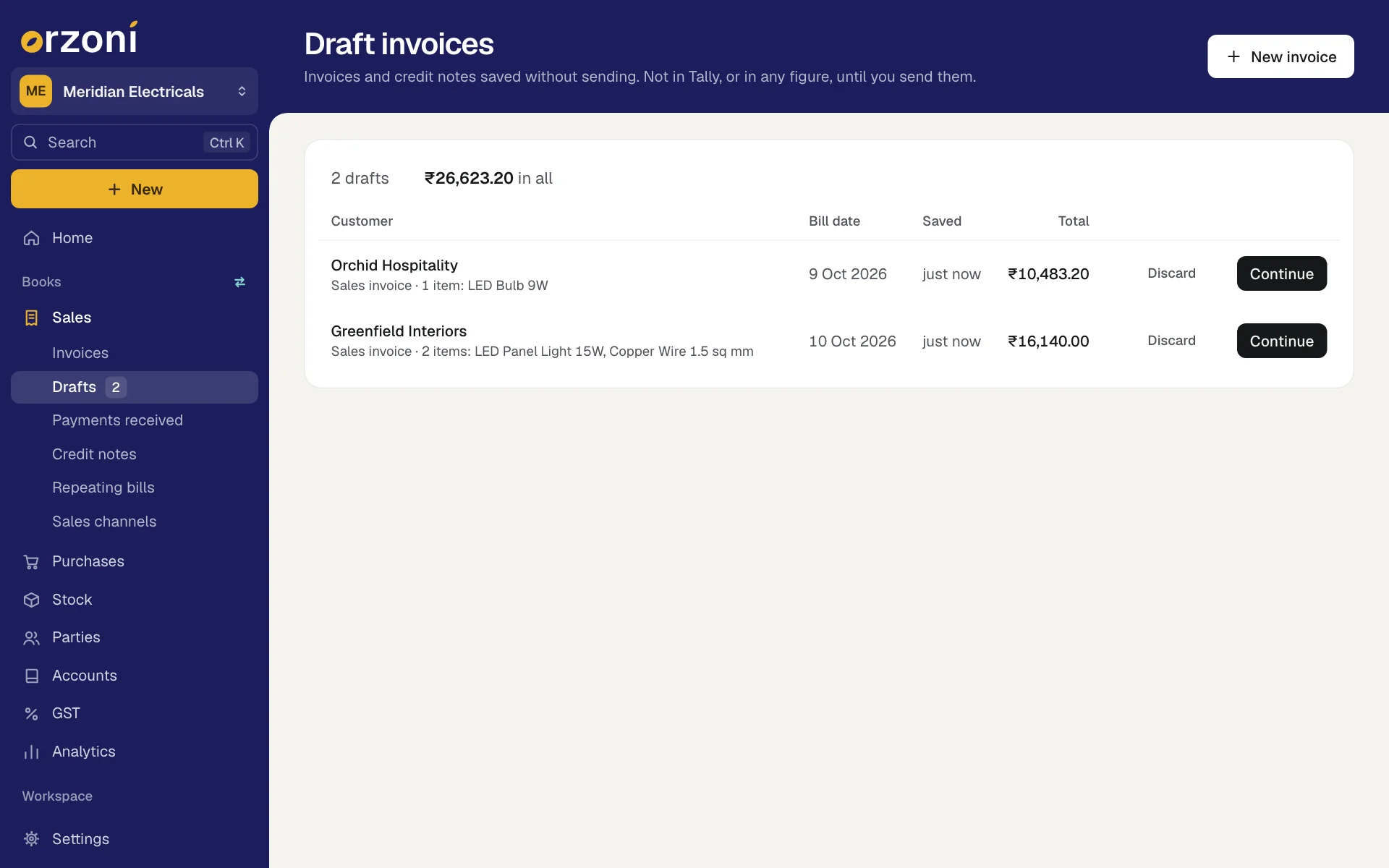
A draft is a bill kept in Orzoni, waiting to be sent. It is not in Tally, and it is in no figure, list or report until you send it. It can be unfinished: a draft with no customer, or with nothing on it yet, is kept all the same.
There are two lists, one for each side of the books. The rail shows how many drafts each holds, beside its name.
| In the rail | The list is headed | It holds |
|---|---|---|
| Sales, Drafts | Draft invoices | Sales invoices and credit notes |
| Purchases, Drafts | Draft purchase bills | Purchase bills and debit notes |
Payments and other entries cannot be saved as drafts. They are sent, or they are not.
What lands in drafts
- A bill you saved. Press Save draft on a sales invoice, a purchase bill, a credit note or a debit note. You see Draft saved and land on the list.
- A repeating bill set to Make a draft. It is made on its day and waits here for you to look over. See Repeating bills and sales channels.
- Bills made from an order file. Each one made under Sales channels, Bring in orders is a draft.
Read the list
The first line of the sheet says how many drafts there are and what they come to in all.
| Column | What it shows |
|---|---|
| Customer or Supplier | Who the draft is for, or No customer yet. Under it: what kind of bill it is, whether it is a proforma, and what is on it, such as "3 items: Rice 5 kg, Sugar 1 kg and 1 more" |
| Bill date | The date the bill will carry |
| Saved | How long ago it was saved |
| Total | What it comes to, or Not worked out when it is too unfinished to add up |
With no drafts the sheet says Nothing left unfinished.
Carry on with a draft
- Press Continue on its row, or anywhere on the row. Up and Down move through the rows and Enter opens one.
- The bill form opens with everything as you left it, its date included.
Finish it and press Send to Tally, or Ctrl A. It leaves the drafts and goes into Tally.
Or press Save draft again to keep it for later.
The New list also offers up to three drafts under Drafts to finish, on a wide screen.
Discard a draft
- Press Discard on its row. The button changes to Yes, discard.
- Press it again within a few seconds. You see Draft discarded.
Leave the button alone and it goes back to Discard by itself. A discarded draft cannot be brought back.
A bill left half written
If you leave a bill half written without pressing Save draft, what you typed is kept in that browser tab for up to 12 hours. It is listed with the drafts, at the top, marked half written and In this tab only.
- Continue opens it where you left it.
- Clear drops it. It asks once more on the button: Yes, clear.
It is kept only in that tab. Close the tab, or open Orzoni on another device, and it is not there. To keep a bill for later, or to pick it up on your phone, press Save draft.
Who can do what
Only someone who may make bills is offered Continue, Discard and the button that makes a new bill. Someone who can see bills but not make them sees the list, and can open a draft to read it. See Users and roles.
Good to know
- A draft keeps its bill date. If you send it days later, check the date first.
- GST and the total are worked out again when the draft is opened, from the items and rates on it.
- A draft takes no bill number. Tally numbers the bill when it goes in.
- New invoice on Draft invoices, and New purchase bill on Draft purchase bills, start a fresh bill. F8 and F9 do the same from anywhere.
What next
Still stuck? Write to support@orzoni.com and say which step you are on, or book a walk-through call.