

On this page
Items
Every stock item in your Tally books with what is in stock and what it is worth, one item's page, and how to add, alter or hide an item.
12 minute read
The Items list
In the rail, Stock opens on Items: every stock item in your Tally company, with what is in stock today. On a phone, Items is one of the tabs at the foot of the screen, and a row of names at the top leads on to Warehouses, Pack sizes and Reorder.
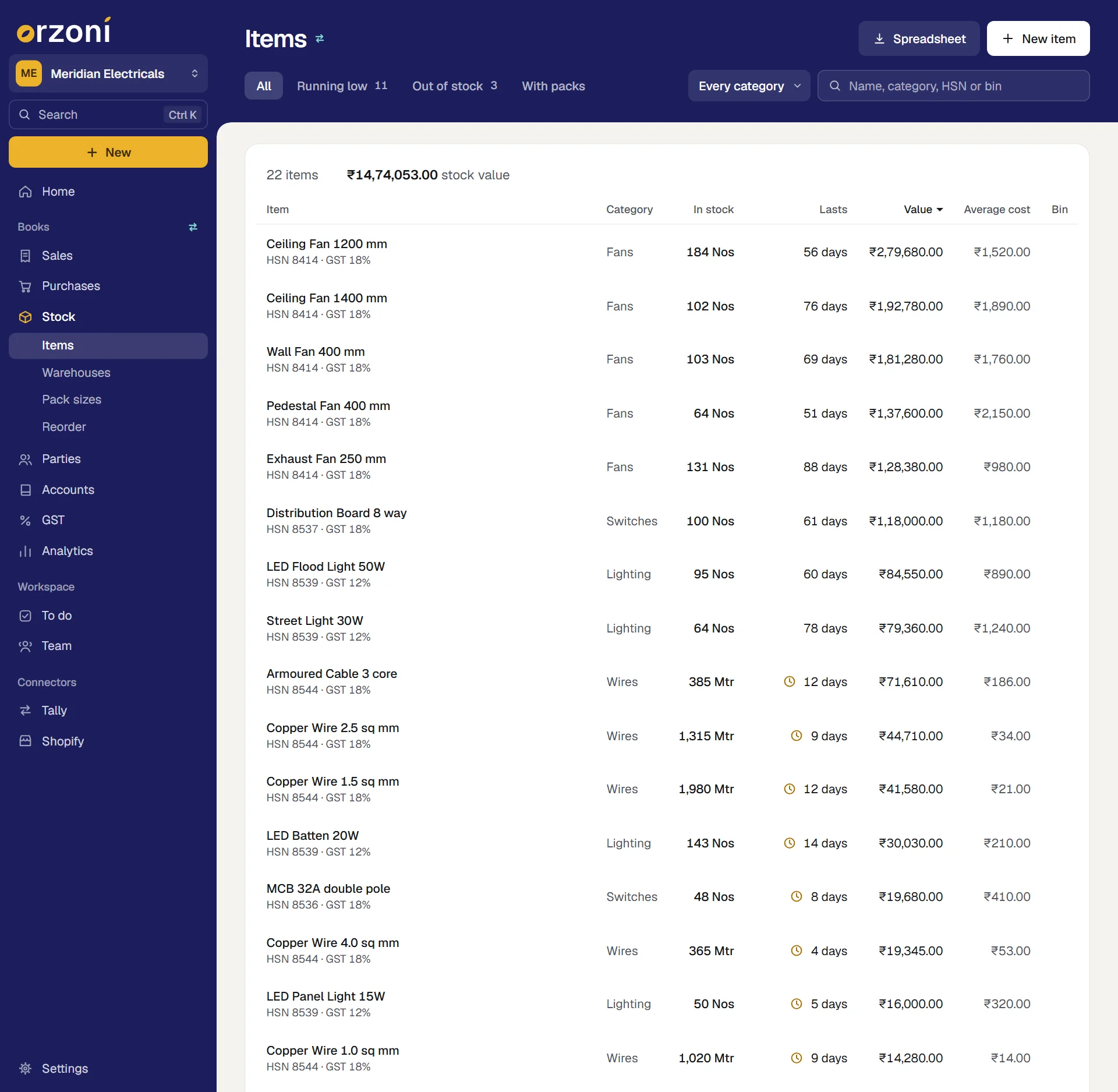
The heading carries the mark Syncs with Tally: an item you add or change here goes into your Tally books, and one added in Tally appears here. The first line of the list says what the list on show comes to, such as 22 items and ₹16,88,957.00 stock value.
The views
| View | What it holds |
|---|---|
| All | Every item you have not hidden |
| Running low | Items at or under their reorder level, or with under 15 days of stock left, that still have some left |
| Out of stock | Items with a unit that have nothing left, or have gone below zero |
| With packs | Items you sell in packs, and the packs themselves |
| Hidden | Items you have hidden. The view appears once you have hidden one |
A number beside Running low, Out of stock and Hidden says how many items the view holds.
Find and sort
- Every category narrows the list to one stock group.
- The search box finds an item by name, category, HSN code or bin.
- Press the heading Item, In stock, Lasts or Value to sort by it. Press it again to turn the order round. The list opens with the largest value first.
- The list shows 80 items at first. A button at its foot, such as Show 100 more of 240, brings the next 100.
- When nothing fits, the list says No item matches. Clear the search and view brings everything back.
- Spreadsheet, on a wide screen, saves the list as a CSV file: item, category, unit, stock, value, average cost, the rates it was last bought and sold at, HSN code, GST rate, reorder level and bins.
| Key | What it does |
|---|---|
| Up and Down | Move through the rows |
| Enter | Open the row you are on |
| Alt C | New item |
| Alt E | Save the list as a spreadsheet |
What a row shows
| Column | Shows |
|---|---|
| Item | The name. Under it are the HSN code (or No HSN), the GST rate, and Pack of 10 or 2 pack sizes where the item is sold in packs |
| Category | The stock group it is under in Tally |
| In stock | The quantity in its unit. By value for an item with no unit, since Tally keeps no quantity for it |
| Lasts | How long the stock will last at the rate it has been selling: a number of days, Over a year, or No sales. An item running low shows the days in amber, or Under its level when it has not sold lately. One that has run out says Out of stock in red |
| Value | What the stock of it is worth |
| Average cost | What one unit has cost you, on average |
| Bin | Where it is kept, once you have set bins. See Warehouses and pack sizes |
On a narrower screen the list gives up Bin, then Average cost, then Category, so the name always has room. On a phone each item is a row of its own, with its category and value under the name.
An item is running low when its stock is at or under the Reorder at level you set on its page. With no level set, it is running low when under 15 days of stock are left at the rate it sold over the last 60 days (or over as many days as your books hold, if they are younger than that). An item with no unit is never low or out.
Where a Shopify store is connected
Where a store is connected, a product carries a small mark beside its name. On its own page the mark is spelled out: Linked (on Shopify and in Tally, as one product), Shopify only or Tally only. See Connect your Shopify store.
One item's page
Press a row to open the item. The way back at the top left, or Esc, returns you to the list you came from.
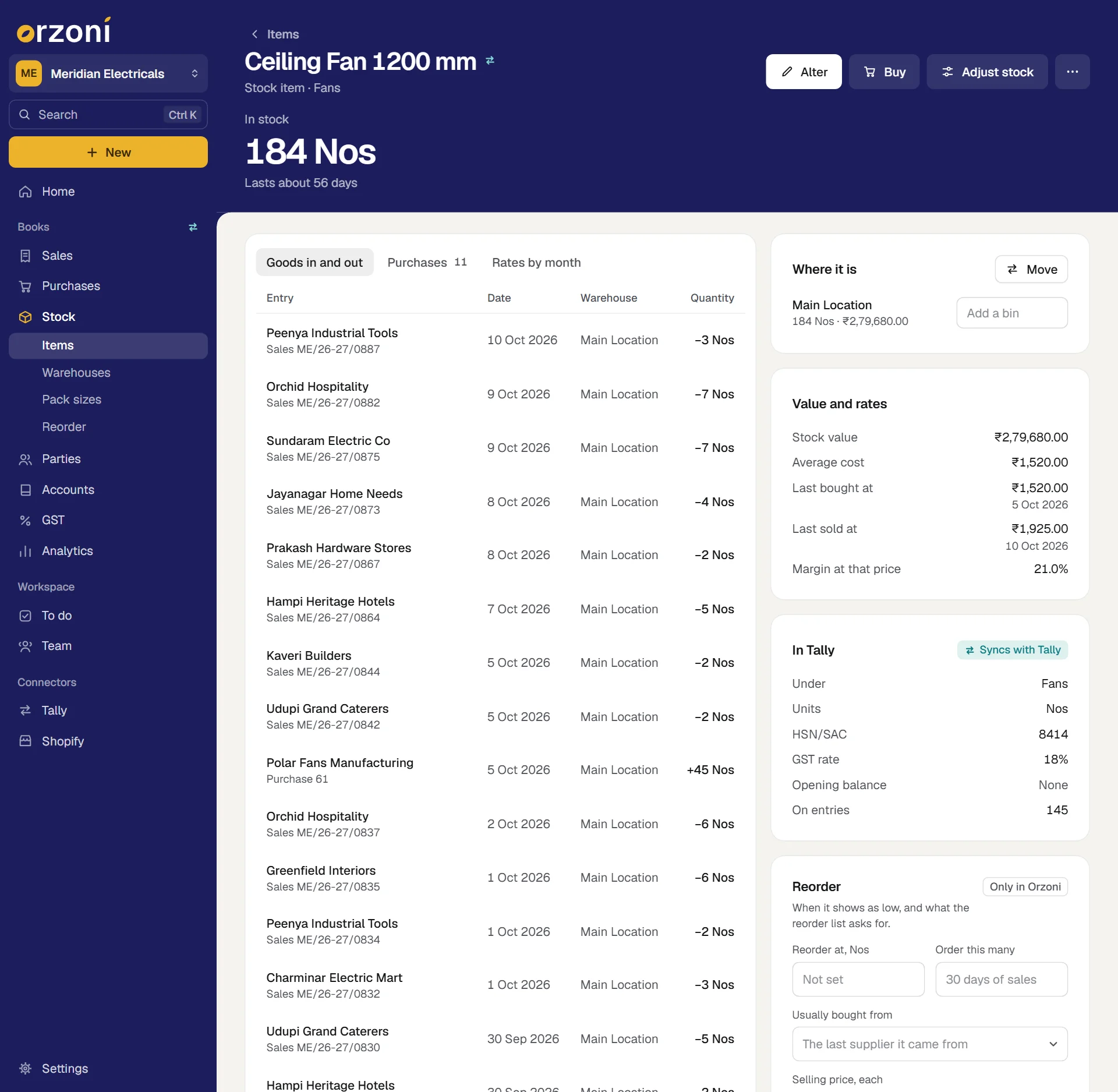
Under the name are the words Stock item, its category, and Pack of 10 or 2 pack sizes where that applies. The one figure at the top is In stock, with a line under it:
| The line says | It means |
|---|---|
| Lasts about 64 days | How long the stock lasts at the rate it has sold over the last 60 days |
| Lasts over a year | More than 365 days of stock |
| No recent sales | Nothing sold in those 60 days, so no rate to work from |
| Running low | At or under its reorder level, or under 15 days left |
| Out of stock | Nothing left |
| Below zero | More has gone out than the books say came in. A purchase is usually missing or entered late |
An item with no unit shows Stock value there instead, with the line Tally keeps no quantity for it.
Three views of its history
- Goods in and out lists the latest 25 movements: the party or the kind of entry, the date, the warehouse, and the quantity with a plus for goods in and a minus for goods out. Press a row to open the entry.
- Purchases lists the latest 60 purchases with supplier, date, bill number, quantity, rate and amount. A small figure such as +4.2% beside a rate says how it moved from the purchase before.
- Rates by month is a chart of the rate you bought at and the rate you sold at. It appears once two months have a rate.
The cards beside it
| Card | What it holds |
|---|---|
| Where it is | Each warehouse that holds the item, with the quantity, the value and a box for its bin there. Press a warehouse's name to open it. Move sends some of the item to another warehouse |
| Value and rates | Stock value, Average cost, Last bought at and Last sold at with their dates, and Margin at that price: how far the last selling rate is over the average cost, as a share of the selling rate |
| In Tally | Under, Units, HSN/SAC, GST rate, Opening balance, and On entries: how many entries the item is on |
| Reorder | Reorder at, Order this many, Usually bought from and Selling price, each. Press Save after changing any of them. See Reorder and stock analysis |
| Pack sizes | The packs the item is sold in, or the item this one is a pack of. See Warehouses and pack sizes |
| Other names | What the item is called on each sales channel, so order files can be matched to it. See Repeating bills and sales channels |
Reorder and Other names carry the mark Only in Orzoni. They are kept in Orzoni and never sent to Tally. So are bins.
What you can do from here
At the top right are Alter, Buy (a new purchase bill) and, for an item with a unit, Adjust stock. The three-dot button holds the rest: Move to another warehouse, Adjust stock, New sales invoice, Hide it here and Delete. On a phone Adjust stock is under the three-dot button only.
| Key | What it does |
|---|---|
| Ctrl Enter | Alter the item |
| Alt C | New item |
| Alt D | Delete, which explains why it cannot be done from here |
| Esc | Back to the list |
Add an item
On the Items list press New item, or Alt C. From anywhere else, press New in the rail and choose Item.
The form Stock item creation opens. It has Tally's own fields, in Tally's order.
- Fill in the fields. Enter moves to the next one. Only Name must be filled in.
Press Accept, or Ctrl A. Esc closes the form without saving.
Orzoni says Added to Tally and opens the item's page.
| Field | What to enter |
|---|---|
| Name | The item's name, at least two characters. It must not be the name of an item already in Tally |
| Under | The stock group. Leave it empty for Primary. Type a group Tally does not have and the form says A new category. It is added to Tally with the item. |
| Units | The unit of measure, such as Nos or Kg. Leave it empty for Not applicable: the item is then kept by value, with no quantity. For a unit Tally does not have, the form asks for its Formal name and Decimal places (0 to 4) and adds it with the item |
| HSN/SAC | 4, 6 or 8 digits |
| GST rate | One of the rates in the list, or Not set |
| Quantity, Rate and Warehouse | The opening balance: how much you start with, what each one cost, and where it is. Value is worked out as you type. An item needs a unit to have opening stock |
What you make in Orzoni goes into Tally through the Tally connector, a small Windows app that sits beside Tally. If that computer or Tally is off, your work waits, the screen says so, and it goes in by itself when both are back. See When a bill is waiting or refused for the detail.
- When the item has to wait, Orzoni says Saved. It goes into Tally in a moment. or Saved. It goes into Tally when Tally opens.
- A waiting item stays at the top of the Items list with Waiting to go into Tally under its name. Its own page opens by itself once Tally has taken it.
- If Tally refuses the item, the refused entry opens with Tally's reason on it.
If the form will not accept
| The form says | What to do |
|---|---|
| "Copper Wire" is already a stock item in Tally. | Choose another name, or open the item that is there |
| An HSN or SAC code has 4, 6 or 8 digits. | Correct the code, or leave it empty and fill it in later |
| Give the item a unit before entering how much of it you start with. | Fill in Units, or clear the opening Quantity |
| A unit's symbol is a short word, such as Nos, Kg, Box or Pkt. | Shorten the new unit to a word that starts with a letter |
Alter an item
Open the item and press Alter, or Ctrl Enter.
The form Stock item alteration opens with what Tally holds now.
- Change what you need.
Press Accept changes, or Ctrl A.
Orzoni says Changed in Tally.
- Only what you changed is sent to Tally. A new HSN code does not disturb the opening stock.
- Units cannot be changed once the item is on entries. That is Tally's rule, and the form says so with the number of entries. Add a new item with the unit you want instead.
- If you press Accept changes with nothing altered, the form says Nothing was changed.
- One change at a time. A newer change replaces one that is still waiting.
- While a change is on its way, the item's page says A change to this item is waiting for Tally. If Tally said no, it says A change to this item was refused by Tally, with Tally's reason. Press the line to open the change.
Hide an item, and why it cannot be deleted here
Delete in the three-dot menu, or Alt D, does not remove the item. A small box opens headed with the item's name and cannot be deleted from here, the reason, and a Hide it here button.
| The reason given | What to do |
|---|---|
| It is on entries in your books | Tally only removes an item that nothing has been entered for. Hide it here instead |
| It has opening stock in Tally | Clear the opening stock in Tally first, or hide the item here |
| Something made in Orzoni that uses it is still waiting to go into Tally | Send or discard that first |
| Nothing has been entered for it | Open it in Tally with Alter and press Alt D there. It disappears from Orzoni the next time Tally is read |
To hide an item: press the three-dot button, then Hide it here. Orzoni says Hidden here. It is still in Tally. and returns to the list.
- A hidden item is left out of the All view, the other views and the Reorder list. It is still in Tally, and still counts in your figures.
- The first line of the All view says how many are hidden, such as 3 hidden, left out.
- To bring it back: open the Hidden view, open the item and press Show it again. The three-dot menu has Show it here again as well.
An item sold in packs
An item you buy or make loose and sell in packs is two or more stock items in Tally: the loose item, and one for each pack size. Orzoni ties them together.
- On the list, the loose item's row says how many pack sizes it has, such as 2 pack sizes, and each pack's row says Pack of 10. The With packs view shows them all.
- On the loose item's page, the Pack sizes card lists each pack with how many you have. Break down turns loose stock into packs, and Pack size adds another size.
- On a pack's page, the card says what it holds and of which item, with See all pack sizes.
- An item with no pack sizes has Add a pack size on its card.
Setting up pack sizes is in Warehouses and pack sizes.
Items kept by batch
An item that Tally keeps by batch is billed and moved in Tally, where the batch is chosen. Orzoni names the item and says so, in these words: Paracetamol 500 is kept by batch in Tally, and an entry made here cannot say which batch. Make this one in Tally.
Make that bill, move or correction in Tally. It appears in Orzoni the next time Tally is read. The item still shows in the list, with its stock and its history, like any other.
Items with no unit
An item with Units left as Not applicable is kept by value. Tally holds no quantity for it, so in Orzoni:
- In stock reads By value, and the item's page leads with Stock value.
- It is never Running low or Out of stock, and it is left off the Reorder list.
- It cannot be moved between warehouses, written off, or given pack sizes or opening stock.
How it is checked
Every change is read back from Tally and compared with what was sent, so if Tally refuses one you see Tally's own reason and nothing is lost: the change stays in Orzoni with the reason beside it. Adding an item with opening stock, a new unit and a new stock group has been run on a real TallyPrime 7.1.
What next
- Warehouses and pack sizes: where stock is kept, moving it, correcting a count, and packs.
- Locations: the places you keep stock, and what each is called in Tally.
- Reorder and stock analysis: what to buy, and which items carry the business.
- Make a sales invoice: putting items on a bill.
- When a bill is waiting or refused: what waits for Tally, and what to do when Tally says no.
Still stuck? Write to support@orzoni.com and say which step you are on, or book a walk-through call.