

From a Shopify order to a GST invoice in one press
How a store order becomes a draft GST invoice in Orzoni, what to check on it (customer, state, CGST or IGST), and how it reaches Tally on Send.
On this page
It is half past six. The courier comes at seven, fourteen parcels are taped and stacked by the godown door, and not one of them has a bill. Somebody will type fourteen sales vouchers into Tally tonight, or tomorrow, or on the 28th with the rest of the month.
In Orzoni a store order becomes a draft GST invoice in one press. Open Orders, choose the state the parcel is going to, and press Make bill. The draft opens with the customer, the items and the tax already worked out. You check three things and press Send to Tally. The order ticks itself off when the bill is read back from Tally.
This post goes through that press slowly: what Orzoni reads from the order, what the draft carries, what the GST rules want on it, and the three decisions that stay with a person.
What Orzoni reads from an order, and what it never reads
Of an order on your Shopify store, Orzoni reads five things:
- its number, such as #1002;
- what was ordered: which listing, and how many;
- what the buyer paid, and the shipping charged;
- when it was taken;
- which of the store's locations it leaves from.
It never reads who bought. No name, no address, no phone number, no email. Your buyers' details stay on your store.
Your store tells Orzoni of an order as it is taken. Orzoni also asks the store for its orders, every 5 minutes while counts are being sent and every 30 minutes while the store is only being looked at, so an order is not missed if a notice is lost.
Every order Tally has not billed yet sits in one list.
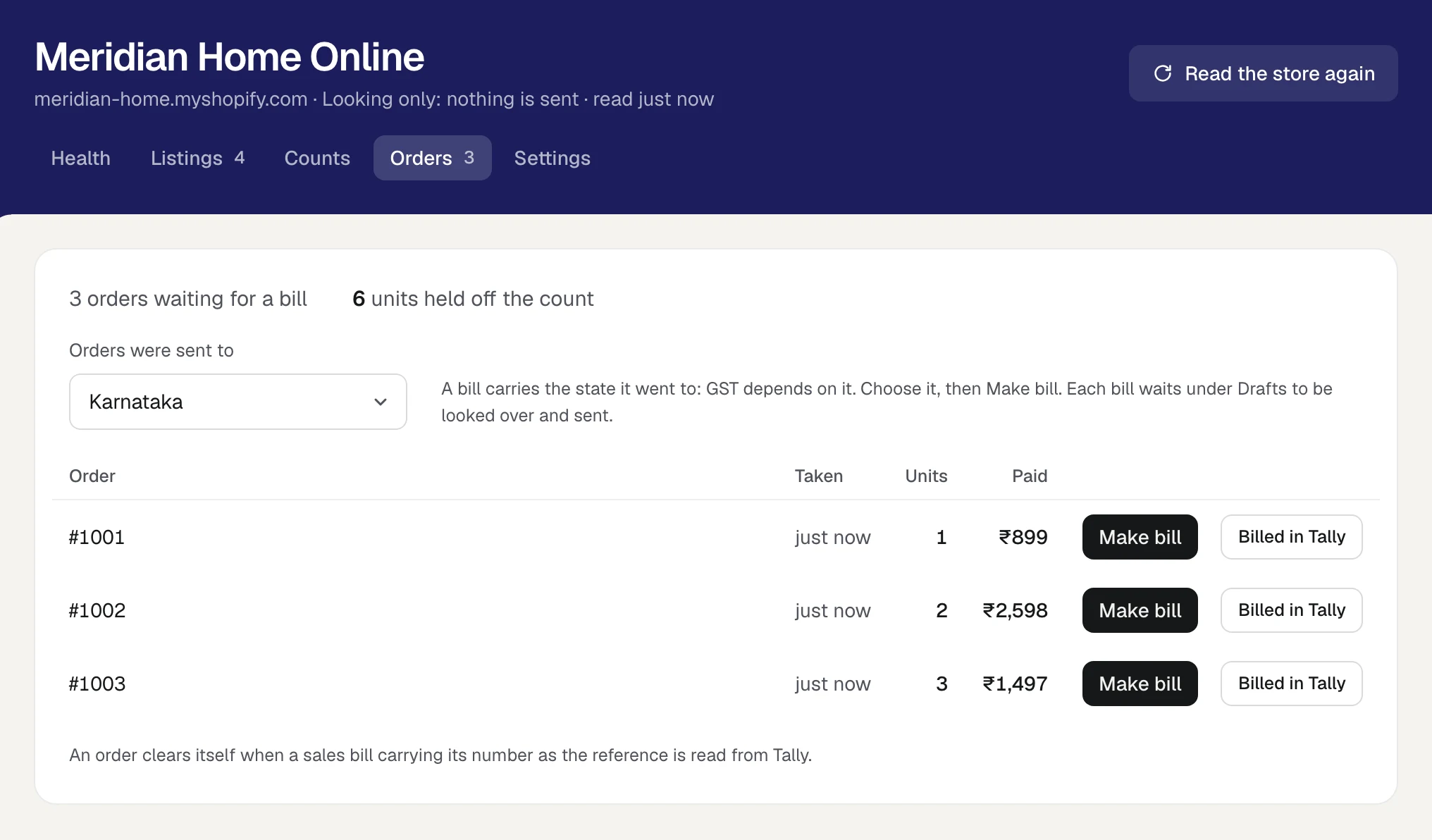
Notice the first line: 6 units held off the count. An order lowers what the store may sell the moment it lands, before any bill exists. Tally only hears of the sale when the bill goes in, which may be hours later. In that gap the units are held, so the store is never shown stock it has already sold.
Two things to set once
The customer the store's sales are billed to. A bill needs a customer, and Orzoni does not read who bought. So every bill made from the store's orders is made out to one customer in your Tally books that stands for the store. Most people name it Online Store Sales. You choose it once, under the store's Settings, in Bill its sales to. Until you do, there is no Make bill button.
Each listing matched to its item in Tally. A line on the bill is a Tally stock item, with that item's HSN code and GST rate. So each listing on the store has to be matched to its item first, under Listings. Where the code or the name agrees, Orzoni puts the match forward and you approve it. A listing sold as a pack of 6 is matched once as six of the loose item. Match your store's listings has the steps.
The first is a minute's work. The second takes longer the first time, an afternoon for a couple of hundred listings in the worked example in One SKU for the store and the books, and after that only a moment when you add a product.
The draft in one press
- Open Connectors, then Shopify, then Orders.
- Set Orders were sent to to the state the parcel is going to.
- Press Make bill on the order's row. Orzoni says the bill is under Drafts, and opens it.
- Look it over: the customer, the state, the items, the total.
- Check how it is paid.
- Press Send to Tally.
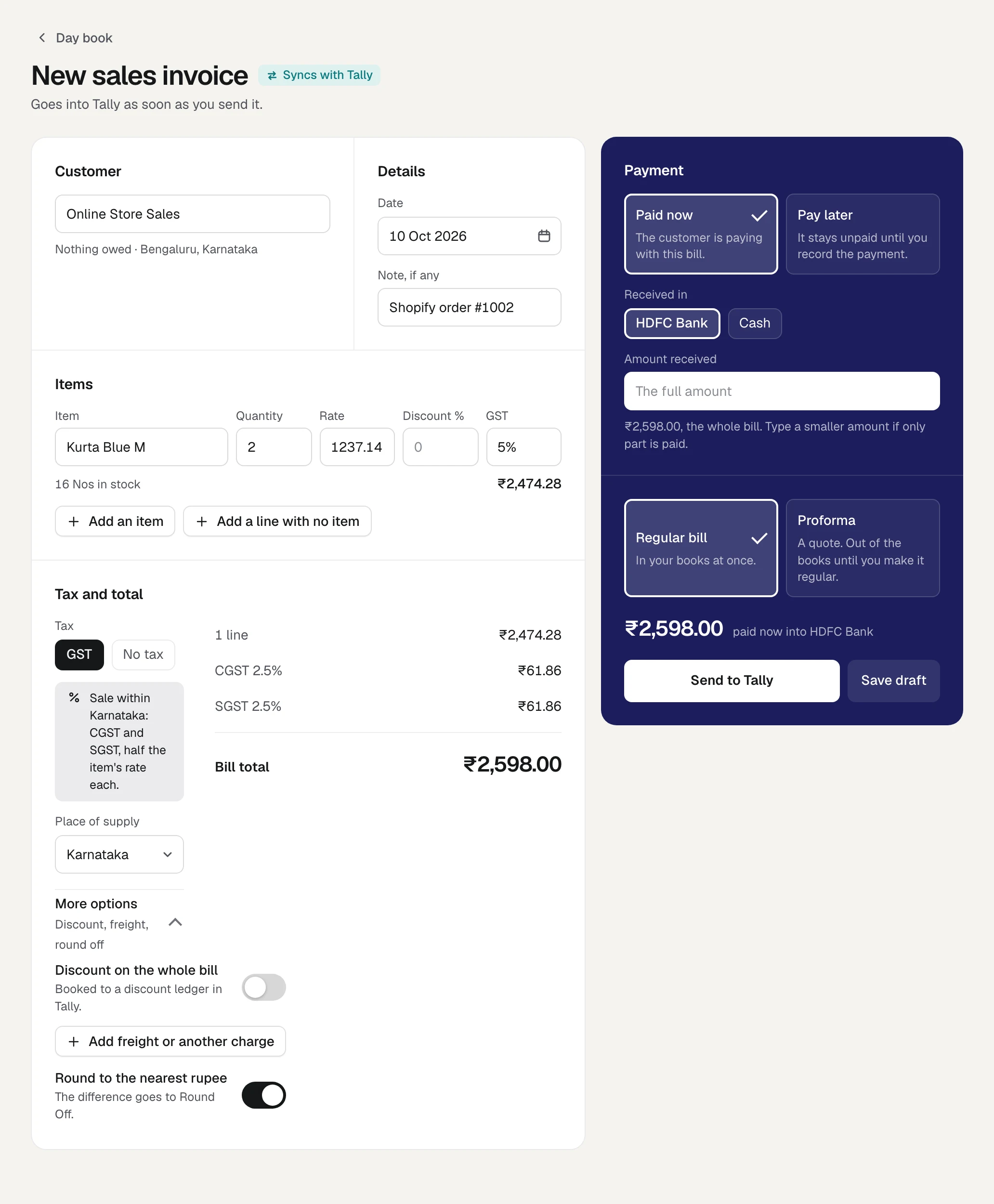
Here is where each part of the draft comes from.
| On the draft | Where it comes from |
|---|---|
| The customer | The one you chose under Bill its sales to |
| The lines | One for each item on the order, by the Tally item its listing is matched to |
| The rate | What the buyer paid, with GST taken out at the item's own rate where your prices include tax |
| Shipping | A line of its own, at the GST rate of the goods |
| The warehouse | The Tally godown linked to the store location the order leaves from |
| Place of supply | The state you chose |
| The note and the reference | The order's number |
| The date | Today, the day you press |
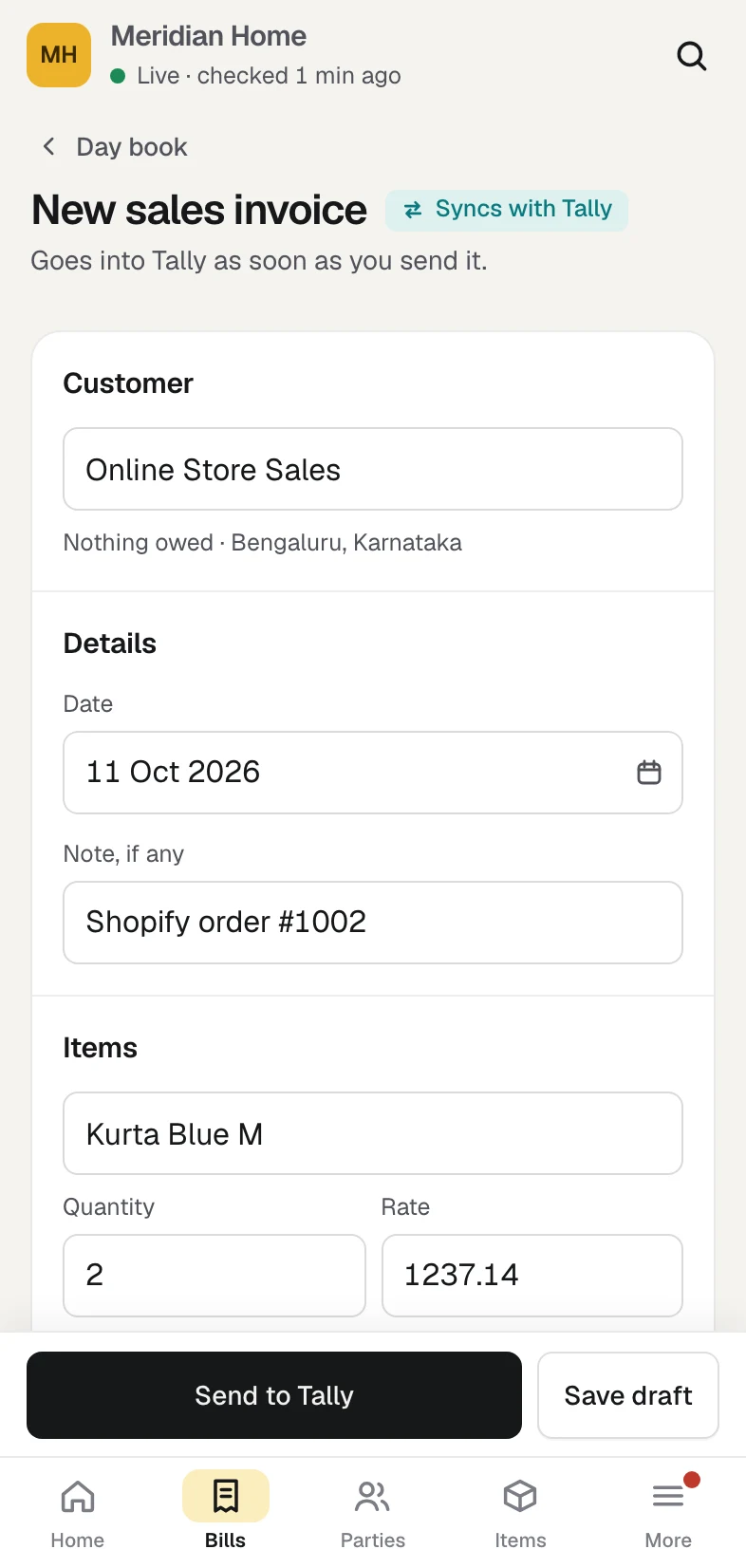
The same draft opens on a phone, which matters when the person packing is the person billing.
How a price that includes GST becomes a rate and a tax
An online price in India is usually the price the buyer pays, tax and all. The invoice has to show the two apart. This is the sum that goes wrong most often by hand, so it is worth doing once slowly.
The buyer paid ₹2,598 for two kurtas, and the item's GST rate in Tally is 5%. The tax is inside the ₹2,598, so you divide, you do not multiply:
- ₹2,598 ÷ 1.05 = ₹2,474.29 for the two, before tax.
- That is ₹1,237.14 each, to the paisa. This is the rate on the line.
- 2 × ₹1,237.14 = ₹2,474.28. This is the taxable value.
- CGST at 2.5% of ₹2,474.28 is ₹61.86. SGST is the same.
- ₹2,474.28 + ₹61.86 + ₹61.86 = ₹2,598.00.
The mistake is to take 5% of ₹2,598 and call ₹129.90 the tax. That overstates the tax by ₹6.18 on one order. On 600 such orders a month it is ₹3,708 paid over out of your own margin.
Orzoni does this division on every line, at each item's own rate. An order with a ₹1,260 kurta and ₹105 of shipping, both at 5%, becomes a line of ₹1,200 and a Shipping line of ₹100, with ₹65 of tax, and totals ₹1,365.
Shipping follows the goods. Under Section 15 of the CGST Act the value of a supply includes incidental charges made by the supplier at or before delivery, and under Section 8 a composite supply is taxed as its principal supply. So Orzoni bills shipping at the GST rate of the goods it travelled with, and where the goods on one order carry different rates, at the highest. If your accountant treats shipping another way, the GST box on that line of the draft can be changed before you send.
Three things to check before you send
A draft from an order is only as good as three decisions. Orzoni fills in each from what it knows. You are the one who knows whether it is right.
1. The customer
For an ordinary sale to a consumer, the store's one customer is the right party. Rule 46 of the CGST Rules, which lists what a tax invoice must carry, asks for different things by who the buyer is:
- A registered buyer: name, address and GSTIN.
- A buyer who is not registered, where the taxable value is ₹50,000 or more: name and address, and the address of delivery, with the name of the State and its code.
- A buyer who is not registered, below ₹50,000: the same details only where the buyer asks for them to be recorded.
So two kinds of order deserve a second look. One is an order of ₹50,000 or more. The other is a business buyer who has sent you a GSTIN and wants the invoice in the firm's name, for input tax credit.
For those, change the customer on the draft. Type the buyer's name in the customer box. If they are not in Tally yet, Create is the first line of the list, and the customer's form opens over the bill for the name, address, state and GSTIN, which you copy from the order in your Shopify admin. The bill then carries them.
A bill made out to another customer does not clear its order by itself, because Orzoni matches an order to a bill by the store's customer as well as the number. Once that bill is in Tally, press Billed in Tally on the order's row.
2. The state
This is the decision that changes the tax. A sale delivered in your own state carries CGST and SGST, half the rate each. A sale delivered to another state carries IGST at the full rate. The total is the same. Where the tax is owed is not.
For goods sold to a buyer who is not registered, the place of supply is the address recorded on the invoice, and recording the name of the State counts as recording the address. Where the billing address and the delivery address are in different states, CBIC has clarified that the delivery address decides. That is clause (ca) of Section 10(1) of the IGST Act, set out in Circular 209/3/2024. A daughter in Bengaluru orders a kurta to be delivered to her mother in Nagpur. That is a Maharashtra sale, whatever the billing address says.
The store gives the delivery state only with the buyer's address, which Orzoni does not read. So you say it. The box Orders were sent to, above the list, starts on your own company's state. Set it before you press Make bill, and it becomes the bill's Place of supply. It holds one state at a time. A quick way to work a mixed batch is to sort your packing slips by state, do all the home-state orders first, then change the box for each of the rest.
It is worth getting right at the door. Take a store with 600 orders a month at an average of ₹1,300, which is ₹7.8 lakh of sales. If one order in ten leaves the state and is billed as local, that is ₹78,000 of sales and about ₹3,714 of tax a month shown as CGST and SGST that was owed as IGST. Putting it right later is your accountant's time and yours.
Rates differ by item too. Apparel sold at up to ₹2,500 a piece carries GST at 5%, and above ₹2,500 a piece it carries 18%, since the changes of 22 September 2025. A jacket sold at ₹3,540, tax included, is ₹3,000 of taxable value and ₹540 of tax: ₹270 of CGST and ₹270 of SGST at home, or ₹540 of IGST across a state line. Orzoni takes each item's rate from Tally, so the rate on the draft is as right as the rate on the item. Where one of your prices sits near ₹2,500, ask your accountant which side of the line it falls. GST rates and rules change, and the sources at the foot of this post are dated.
3. The items
Each line on the draft is the Tally item that the listing is matched to, in the units Tally counts in. Check three things:
- It is the right item. Kurta Blue M, not Kurta Blue L. This was decided when the listing was matched, and the draft is where a wrong match shows.
- The quantity is in Tally's units. A listing sold as a pack of 6 puts 6 of the item on the line.
- The rate in the GST box is the item's own. It comes from Tally. Where your store's prices include tax and the item has no rate on record, Orzoni does not guess. It asks you to fill the rate in first.
The HSN code is not typed on the draft. It belongs to the item in Tally and is printed on the invoice from there.
The invoice number and the date
Rule 46 asks for "a consecutive serial number not exceeding sixteen characters", unique for a financial year, and the date of issue.
The number is Tally's. A bill sent from Orzoni goes into Tally as a sales entry, and Tally numbers it the way it numbers every sales bill. Store orders do not get a series of their own that could run out of step with the counter bills. The order's number travels as the reference and in the note, as "Shopify order #1002", so the bill can always be traced back to the order.
The date is the day you press Make bill. For goods, Section 31(1) of the CGST Act asks for the tax invoice before or at the time the goods are removed for supply. In plain words, the bill should exist when the parcel leaves. That is the case for making the draft at the packing table and not at month-end. The date box on the draft can be changed where it needs to be. (Services run to a different clock: Rule 47 allows thirty days.)
Send to Tally, and the order clears itself
Before you send, look at the payment panel. The draft opens the way any new invoice does, usually on Paid now into your usual account, because nothing about how the buyer paid is read from the order. If the money has not reached you, as with cash on delivery or a payment gateway that settles days later, choose Pay later. When the payout arrives, record it as a payment received from the store's customer. Orzoni sets a payment against the oldest unpaid bills first. Payments covers this.
Then press Send to Tally. The bill goes into Tally through the Tally connector as a real sales entry, and Orzoni reads it back to check it.
Two things then happen by themselves:
- Tally's stock falls by what was sold, in the godown linked to the store's location.
- The order clears. When Orzoni reads back a sales bill that carries the order's number as its reference and is made out to the store's customer, the order leaves the list and its units stop being held. The lower count and the cleared order are settled in the same step, so a sale is taken off once and never twice.
If Tally is closed or its computer is off, the button reads Save, send when Tally opens. The bill is kept and goes in when Tally is back. Until then the order's units stay held, so the store's count is still right.
If you are not ready to send, press Save draft. The bill waits under Sales, Drafts, and the order's row shows Its draft in place of Make bill, so nobody makes a second one.
Share the bill on WhatsApp, or print it
Once the bill is in Tally, its page has Print, PDF and WhatsApp.
The printed sheet is laid out the way Tally prints an invoice, headed Tax Invoice, with your details, the invoice number and date, the place of supply, the goods with HSN, quantity, rate and amount, each tax, the amount in words and your signatory. Your business address has to be filled in once, under Your details on bills, before the first print.
WhatsApp opens a sheet with a message you can change and the bill as a PDF. Orzoni does not have the buyer's number, so leave the number box empty and pick the chat in WhatsApp yourself. It goes from your own WhatsApp when you press send there. Orzoni sends nothing by itself. Invoices, bills and the Day book has the details.
Returns today: a credit note
Under Section 34 of the CGST Act, goods that come back are recorded with a credit note against the invoice. A sale is not deleted.
A refund on the store does not write to your books. The credit note is yours to make, in Orzoni, from the invoice it belongs to, and it takes about as long as the bill did:
- Open the invoice.
- Under the round ... button, press New credit note. It opens with the customer filled in.
- Add the items that came back. For money returned with no goods, such as a part refund for a delayed parcel, use Add a line with no item.
- Send it to Tally. The pieces come back into stock in Tally.
An order cancelled on the store before it was billed needs nothing from you. It leaves the Orders list and its units go back on the count.
When Orzoni will not make the bill
Orzoni makes no bill where the bill would carry the wrong tax. It says why, and each reason has a way through.
| Orzoni says | What to do |
|---|---|
| Match the listing named to an item in Tally first | Match it under Listings, then press Make bill again |
| No GST rate is on record for the item | Fill the rate in under GST, then make the bill |
| This order's lines come to one sum, and the buyer paid another | A discount was taken off the whole order, money was given back, or the order holds something that is not a listing. Make this bill in Tally with the order's number as its reference, and it clears by itself |
| This store takes its orders in another currency | A bill here is in rupees. Make this one in Tally |
| A bill for this order was already made | Open it from Its draft, or discard it to make another |
| This order has more lines than one bill can hold (60) | Make it in Tally |
A bill typed straight into Tally clears its order when its reference is the order's number and it is made out to the store's customer. If it was typed without the number, press Billed in Tally on the order's row once the bill really is in Tally.
A checklist for the packing table
Before you press Send to Tally on a draft from an order:
- The state in Place of supply is where this parcel is going.
- The tax lines agree with it: CGST and SGST for your own state, IGST for another.
- The bill total is what the buyer paid.
- Each line is the item in the parcel, in the right quantity.
- An order of ₹50,000 or more, or one for a buyer with a GSTIN, is made out to that buyer by name.
- Paid now or Pay later matches where the money actually is.
Six looks, and most days all six are right the first time. The point of a draft is the day one of them is not.
FAQ
Does the invoice go into Tally by itself?
No. Make bill makes a draft, and a draft is in no book and no figure. It goes into Tally when a person presses Send to Tally. What happens by itself comes after: the order clears once the bill is read back from Tally.
Can I bill an order to the actual buyer?
Yes. Change the customer on the draft before you send it, creating the buyer in Tally from the same box if need be. Because that bill is not made out to the store's customer, press Billed in Tally on the order afterwards.
I already typed this order's bill in Tally. What now?
If its reference is the order's number and it is made out to the store's customer, nothing. The order clears at the next read of Tally. Otherwise press Billed in Tally.
Do store orders need an e-invoice?
E-invoicing applies to businesses with an aggregate turnover of ₹5 crore and above, from 1 August 2023 under Notification 10/2023-Central Tax, and the IRIS invoice registration portal describes it as applying only to invoices to registered buyers and to exports. A sale to a consumer is outside it. Where an invoice does need an e-invoice number, that is made in Tally, and the invoice is printed from there. The portal's page is from August 2023, so check the current threshold with your accountant.
Who in my team can make these bills?
Anyone whose role lets them make bills and record payments. Seeing the Orders list needs only leave to see stock. Orzoni has seven roles. Billing staff can see the orders, make the bills and add a buyer as a customer, without seeing profit, cash or ledgers. Billed in Tally is for someone who may change stock. See Users and roles.
What to do today
Make the draft from one paid order. It is one press, and you decide whether it goes to Tally.
If your store is not connected yet, Orders from your store shows the whole screen, and the plans are on the pricing page. Nothing is charged today.
Where to read more:
- Orders from your store: every part of the Orders view.
- Make a sales invoice: every part of the bill form the draft opens in.
- Invoices, bills and the Day book: printing, PDF and sharing on WhatsApp.
- GST: the working papers your accountant will ask for, and where to fill in a missing rate.
- Payments: recording the payout when it arrives.
- Four ways to get Shopify orders into Tally, compared: how this route sits beside the others.
Facts and sources
Every rule here was read on 11 October 2026 from the page named. GST rules and rates are amended often. Read the current text, or ask your accountant, before you rely on a summary.
| Fact | Source |
|---|---|
| Rule 46, CGST Rules: what a tax invoice carries, the serial number "not exceeding sixteen characters", and the buyer's details by registration and by the ₹50,000 line | taxinformation.cbic.gov.in, Rule 46 |
| Rule 47, CGST Rules: an invoice for services within thirty days | taxinformation.cbic.gov.in, Rule 47 |
| Section 31(1), CGST Act: a tax invoice for goods before or at the time of removal | taxinformation.cbic.gov.in, Section 31 |
| Section 34, CGST Act: a credit note where goods are returned | taxinformation.cbic.gov.in, Section 34 |
| Section 15(2)(c), CGST Act: the value of a supply includes incidental expenses charged by the supplier | taxinformation.cbic.gov.in, Section 15 |
| Section 8, CGST Act: a composite supply is treated as its principal supply | taxinformation.cbic.gov.in, Section 8 |
| Place of supply of goods to an unregistered buyer: clause (ca) of Section 10(1), IGST Act, in force from 1 October 2023, and the delivery address where it differs from the billing address | CBIC Circular 209/3/2024-GST, 26 June 2024 |
| CGST and SGST for a local sale, IGST for a sale to another state, by the place of supply | help.tallysolutions.com, Record sales under GST |
| Apparel of sale value not exceeding ₹2,500 a piece at 5%, above that at 18% | PIB, Recommendations of the 56th GST Council meeting, 3 September 2025 |
| E-invoicing at ₹5 crore and above from 1 August 2023, Notification 10/2023 of 10 May 2023, for invoices to registered buyers and exports. The page is dated 1 August 2023 | einvoice6.gst.gov.in |
| What Orzoni reads from an order, what the draft carries, and when it will not make a bill | Orders from your store |
The arithmetic in the worked examples is ours. Check it with a calculator, as you should check any bill.

Guides this post leans on
Say which item in Tally each of your store's listings is. Approve what Orzoni puts forward, choose by hand, set aside what is not kept in Tally, do many at once, and work through products sold in several sizes and through collections.
Read the guide Record a paymentMoney a customer paid you, or money you paid a supplier. Where to start one from, each step of the form, how Orzoni sets it against the oldest unpaid bills, and what to do when it should go against one particular bill.
Read the guide Invoices, bills and the Day bookThe lists under Sales, Purchases and Accounts. Their views and search, how a row says whether a bill is paid, and what you can do from one entry: record a payment, print, save a PDF or send it on WhatsApp.
Read the guide Users and rolesEach person signs in as themselves. The seven roles and what each starts with, the single switches behind them, how to change or remove someone, hand over the business, and look back at what was done.
Read the guide Orders from your storeThe Orders view of a connected Shopify store. Which orders wait for a bill and what that does to the count, choosing the customer the store's sales are billed to, making a draft bill from an order, and how an order clears once its bill is in Tally.
Read the guide Make a sales invoiceCustomer first, then items, GST worked out for you, paid now or later, and Send to Tally. With Create from the bill itself, cash sales, proformas, drafts, Tally's keys, and what to do when a bill cannot be made.
Read the guide