

How to keep Shopify stock in step with your Tally godown
Which Tally godown feeds which store location, how to see the difference before sending a count, the three count modes, and a shop computer left off.
On this page
It is the second evening of a Diwali sale. At 9:40 pm a walk-in customer takes the last blue kurta in medium off the rack, and your counter staff bill it in Tally. At 9:52 a buyer in Pune pays ₹1,299 for the same kurta on your store. One piece, sold twice. Tomorrow someone writes to Pune, refunds the money and hopes there is no review.
Nobody did anything wrong. The store was simply never told that the godown had changed.
Keeping the two in step comes down to three rules. Counts travel one way, from the books to the store. They travel as a full count ("the count is 13"), never as a difference ("two fewer"). And a sale on the store holds its pieces at once, before anyone has billed it. Add one habit, a person looking at the first set of counts before it goes, and everything else in this post is detail: which godown feeds which location, what to keep back, and what happens when the shop computer is off.
The three rules, and why each is there
One way, from the books to the store. Tally is where every movement of goods ends up: the purchase bill, the counter sale, the sales return, the write-off for the piece that broke. The store knows only its own orders. If both are allowed to correct each other, the first disagreement turns into an argument that neither side can win. So the books lead and the store follows.
A count, not a difference. Suppose Tally holds 16 and two are sold. A tool that tells the store "two fewer" works until the day that message is lost, or sent twice. Sent twice, the store shows 12 when the shelf has 14, and nothing will ever put it right. A tool that says "the count is 14" can be sent twice, or late, and the store still shows 14.
Shopify itself draws this line. In its admin, a person changing a quantity chooses between Set to ("Set the quantity to a specific number") and Adjust by ("Add or subtract from the current inventory quantity"). Apps get the same two choices: one call sets quantities "using absolute values", the other applies "incremental changes". If the books are the record, set. Do not adjust.
A sale on the store holds its pieces at once. A store order is often billed in Tally hours later, when the accountant sits down. Until then Tally still says 16, and a count taken from Tally alone would put two sold pieces back on sale. The units of an order have to come off the store's count the moment the order lands, and stay off until the bill reaches Tally.
The habit: look before the first send. The first time counts go from the books to a live store, every old mistake in the books goes with them. A person reads that list first.
What Shopify means by a count
Before sending anything to the store, know what the number there means. Shopify keeps a quantity for each variant at each location: its help centre describes a location as "any physical place where you sell products, fulfill orders, or stock inventory", and inventory is tracked separately at each one.
At a location, every unit is in one of these states:
| State | Shopify's own words |
|---|---|
| On hand | "all inventory units that you have at a location" |
| Available | "inventory that you can sell" |
| Committed | "the number of units that are set aside and can't be sold", such as units in orders placed but not yet fulfilled |
| Unavailable | "units set aside by apps or held for other reasons" |
| Incoming | "on its way to your location from inventory transfers or apps" |
On hand is the sum of Committed, Unavailable and Available. Buyers can purchase what is Available.
Two switches on the store decide what a zero means, so check them before you trust any sync:
- Inventory tracked must be on for the variant. A variant that is not tracked has no count to keep in step.
- Continue selling when out of stock should be off for anything you cannot back-order. By default, Shopify says, "customers can't purchase an item until you adjust the inventory levels to add more stock". With the switch on, the store goes on selling past zero and no count from Tally will stop it.
Why counts drift in the first place
A store and a godown start the month agreeing. They part company through a short list of ordinary events: a return restocked on the store and never entered in the books, a pack of six taken off as one piece, a staff member "fixing" a number in the Shopify admin, two people correcting the same item on the same afternoon, the shop computer left off over a long weekend.
This post is the method for keeping the two together. If they have already parted and you need to find out where, the diagnosis is in Why your store's stock does not match the godown.
One godown or several: give each store location one godown
Tally keeps stock by godown. TallyPrime "by default maintains an internal godown named Main Location", and if you have made no others, everything is recorded there. Many traders add more: the shop floor, a godown across town, a place for damaged goods, stock lying with the tailor.
The rule is one store location to one godown, and one godown to one location.
Do not point the online location at the total of all godowns. Take a seller with 40 pieces in the Peenya godown, 6 on the shop floor and 3 in the damaged-goods godown. Tally's total is 49. Online orders are packed in Peenya, so the store should offer 40. Offer 49 and you have promised six pieces that are across town and three that nobody should receive.
Do not link one godown to two locations either. Shown at two, every piece is offered twice.
If a buyer's order can be packed only from Peenya, check the store's side too. Each Shopify location has a setting, "Use inventory at this location to fulfill online orders". Turn it off for a location and its stock drops out of what the online store offers.
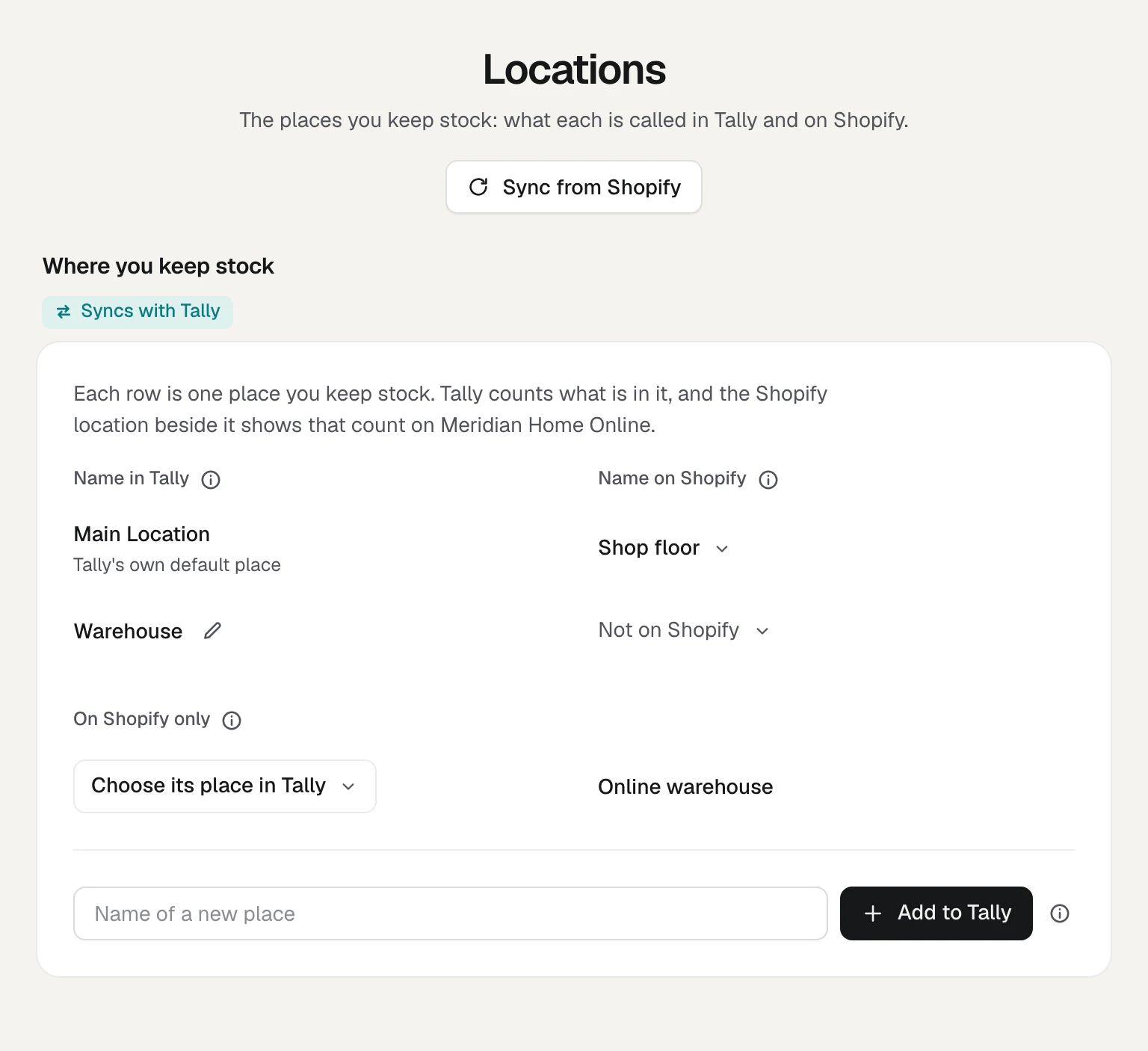
In Orzoni the links are under Settings, Locations. A store with one location and a company with one godown are linked by themselves when the store is read. A location with no godown is not counted, and nothing is sent for it.
Match the listings before you think about counts
A count belongs to a listing, and a listing is one variant: the kurta in blue and medium, not "the kurta". Each one has to be tied to the stock item it is in Tally. Until it is, there is nothing to work a count out from.
Orzoni reads each listing's code, barcode and name and puts the likeliest item forward, with how far to trust it:
| It says | What it means |
|---|---|
| Certain | The listing's code or barcode is one item's and no other's |
| Likely | The same name, the code written inside the item's name, or names that agree closely with no other item near |
| One of several | The closest of several items that could be it |
The certain ones are approved in one press. The rest get a look.
Three cases deserve care:
- Packs. Where a listing's name says "Pack of 6", Orzoni puts the loose item forward with "one sale is 6". One order then takes six pieces off the count. Check the number before approving.
- Things not kept in Tally. A gift card or gift wrapping is set aside. It is left as it is on the store.
- Two listings on one item. If two listings are matched to the same item with the same number to a sale, Tally cannot say how many belong to which, so no count is sent for either.
Matching sends nothing to the store. If your codes are a mess and half the listings come up with no item, fix that first: One SKU for the store and the books is the naming discipline, and Match your store's listings is the screen.
The sum behind every count
For each listing at each location, the count the store should show is a small sum. Start from what Tally holds in the linked godown, then take away what is already spoken for:
- What Tally holds of the item in that godown.
- Less what is waiting for a bill: units ordered on the store that Tally has not been billed for yet.
- Less what you keep back.
- In packs, where one sale is more than one piece. What is left is divided by the pack, and only whole packs count.
Two worked rows from the sample company:
| Listing | The sum | Store should show |
|---|---|---|
| Cotton Kurta, Blue / M | 16 in Tally, less 2 waiting for a bill, less 1 kept back | 13 |
| Brass Diya, Pack of 6 | 36 in Tally, less 6 waiting for a bill, less 1 kept back, leaves 29. In packs of 6 | 4 |
The diya is worth a second look. 29 loose pieces make four packs of six with five left over. The store shows 4, not 4.83 and not 5.
The answer is never below zero. If Tally's own count has gone below nothing, which usually means a purchase bill has not been entered, the store is shown 0.
Look at what would change before anything is sent
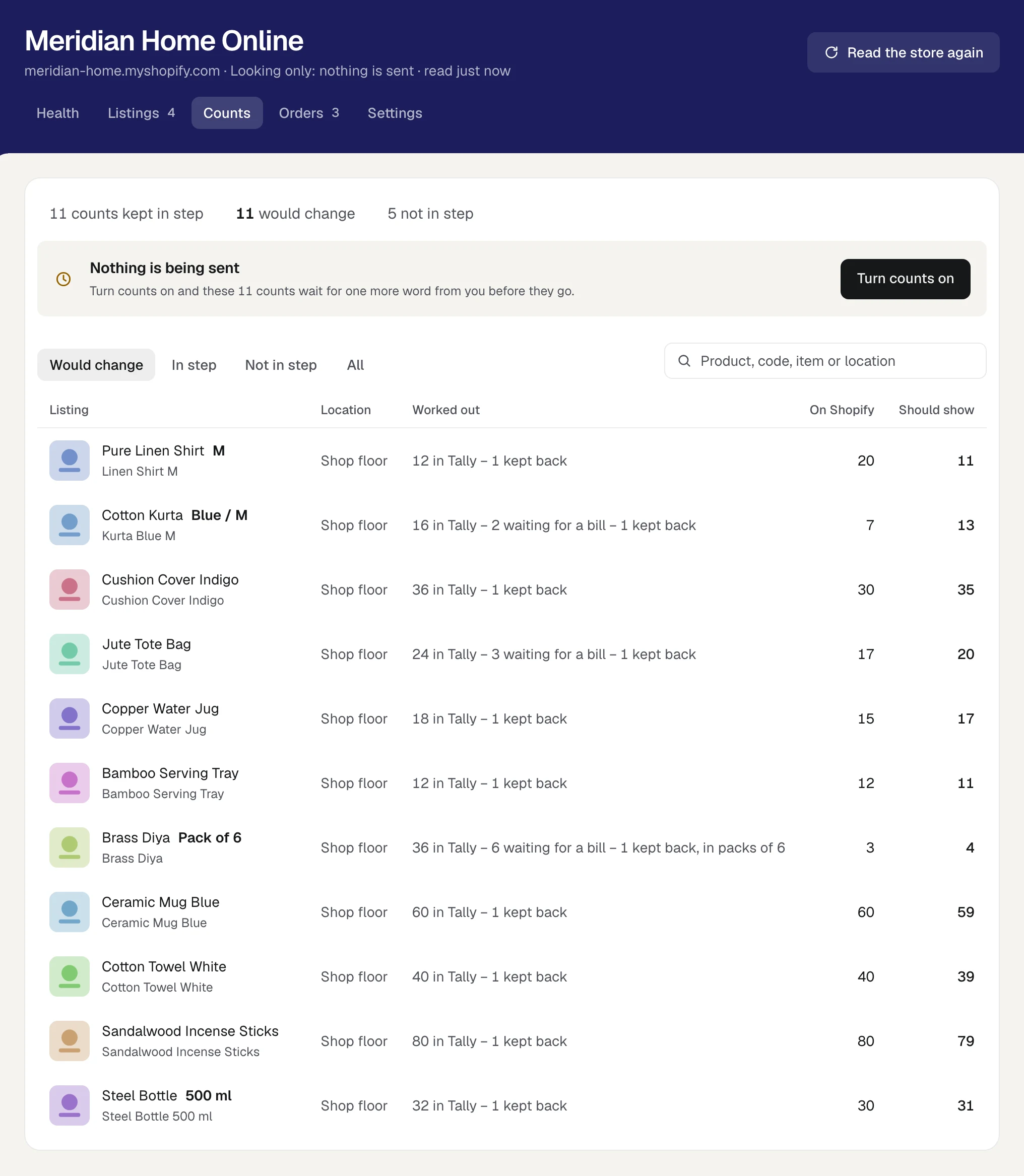
A connected store starts on Looking only. Nothing is sent. Orzoni works out what every listing should show and sets it beside what the store shows now, under Counts, in a view named Would change.
Read that list as a report on your books, not on the store. Each row is a disagreement, and Tally is not always the side that is right.
What to look for, in this order:
- The store is higher than it should be. Linen Shirt M shows 20 on the store and should show 11. Nine shirts are on sale that the books say are not there. This is the overselling risk, so check these first. Walk to the rack. If there are 11, send the count. If there are 20 or so, a purchase is missing from Tally. Enter it and read the row again.
- Counts that would go to zero. Each one takes a product off sale. Make sure the books are right before you do that to a fast seller.
- The store is lower than it should be. Kurta Blue M shows 7 and should show 13. Nothing will be oversold, but six kurtas you could be selling are not on offer.
- Large moves. A count jumping by hundreds is more often a unit problem (boxes against pieces) than a real change.
Where Tally is the side that is wrong, correct Tally with a purchase bill or a stock journal. Do not send a count you do not believe.
The three ways to send, and when to move up
How counts reach the store is a choice of three, made under the store's Settings.
| Choice | What it does | Use it when |
|---|---|---|
| Looking only | Nothing is sent. You read what would change | You are matching listings and checking the books |
| Send, and ask | Tally's counts go to the store as they change. A count someone changed on Shopify is not written over: both figures are shown, and you choose | You have read the list and believe it |
| Send, and write over | Tally's count replaces whatever the store shows, without asking | Nobody edits counts on the store any more |
Pressing Turn counts on is the same as choosing Send, and ask, and it still sends nothing. The first set of counts always waits for a person's word. You look through the list, then press Send these. If Tally was read or an order arrived while you were looking, Orzoni asks you to look again before anything goes.
After that, counts follow Tally by themselves, and a set is held for a person only when it is large or unusual. Two of the rules:
- More than 3 in 10 counts would change at once (and more than 10 counts, so a small shop is not held up every morning).
- One count would move by more than 10,000.
A worked case. A store has 140 counts. On Monday the accountant enters a purchase bill of 50 lines. 50 out of 140 is 36%, above 3 in 10, so the set waits and somebody reads it before it goes. That is the right moment for a pause: a 50-line bill entered in boxes instead of pieces would otherwise go straight to the store.
Send, and write over is not offered on day one. It opens once 20 sets of counts have gone through with nothing changed on the store. Stay on Send, and ask for the first month whatever the screen offers. In that month you find out who in your team still edits counts on the store, and why.
Keep some back if you also sell over the counter
The kurta in the opening was sold at the counter first. There is a mirror case: the buyer in Pune pays first, and the piece is still on the rack when a walk-in customer picks it up, because nobody has packed the order yet.
Software cannot take a piece off a rack. Two things do: a packing shelf, where a piece goes the minute its order prints, and a small reserve that the store never offers. In Orzoni the reserve is Keep back per item, one number for the store. Keep back 1, and the store is shown one fewer of each item than the sum would give.
It has a cost, and you should work it out. With 180 items and 1 kept back, 180 pieces are never offered online. For a shop where the counter is busy, that is cheap insurance. For a godown that only ships online orders, it is stock held back for nobody: leave the box empty.
An order lowers the count at once; Tally catches up when billed
Here is one item through one day, with 1 kept back:
| Time | What happens | In Tally | Waiting for a bill | Store shows |
|---|---|---|---|---|
| 10:00 am | The day starts | 16 | 0 | 15 |
| 10:20 am | A store order for 2 | 16 | 2 | 13 |
| 11:05 am | A counter bill for 1, made in Tally | 15 | 2 | 12 |
| 4:30 pm | The order's bill is sent to Tally and read back | 13 | 0 | 12 |
| 5:00 pm | A purchase of 10 is entered | 23 | 0 | 22 |
Look at 4:30 pm. Tally falls by 2 and the units waiting for a bill fall by 2 in the same step, so the store goes on showing 12. The sale is taken off once, never twice, and never put back early.
Orzoni hears of an order from the store as it is taken, and also asks the store for its orders every 5 minutes while counts are being sent, so a lost notice does not lose an order. Under Orders, each order waiting for a bill has a Make bill button. It makes a draft sales invoice with the order's number as its reference. A person looks it over and presses Send to Tally. When that bill is read back from Tally, the order clears itself.
Three things to know:
- A bill typed straight into Tally clears its order too, if it carries the order's number as its reference and is made out to the customer you chose for the store's sales. If it does not, press Billed in Tally on the order, or its units stay off the count.
- An order cancelled on the store leaves the list, and its units go back on the count.
- A refund is a credit note. Make it in Orzoni or in Tally, and the store follows Tally's count from there.
The whole flow, with the draft, is in Orders from your store.
When the shop computer is off
Tally lives on one computer in the shop, and that computer is the only place the books change. When it is off, asleep or without internet, two different things happen.
What carries on. Orders on the store still lower the store's count. The store cannot sell a piece it has already sold.
What waits. Tally's own changes: counter bills, purchases, write-offs. They reach the store when the computer is back. Orzoni says so plainly while it lasts, with a line such as "Computer offline · as of 3:42 pm", so nobody mistakes an old figure for a fresh one.
So the practical advice is short:
- During a sale, leave the computer on and switch off its sleep setting.
- If you billed on paper during a power cut, enter those bills in Tally first when the power returns, before anything else.
- If the counter is busy and the power is unreliable, that is one more reason to keep one back.
What each status line means is in Sync and status.
If you do this by hand
Everything above can be done with a spreadsheet, and for a store with 30 listings it is a fair way to start. The rules do not change.
- In Tally, open the stock summary for the one godown that feeds the store.
- From Shopify's orders, total the units in orders you have not yet billed in Tally, item by item.
- For each listing: Tally's figure, less unbilled units, less what you keep back. Divide for packs.
- In Shopify, type the answer with Set to. Never use Adjust by for this.
One caution from Shopify's own help page if you use the bulk editor for speed: "a record of your inventory movements isn't tracked when you use the bulk editor". You gain speed and lose the trail.
Then be honest about the time. At 20 seconds a listing, 150 listings take 50 minutes, and the answer starts going stale as you type the last one. A workable compromise is the 30 fast movers every morning (10 minutes) and the whole list once a week. That works, as long as everyone understands the other 120 listings can be a week old.
A ten-minute check every Monday
Counts that follow by themselves still deserve a weekly look, because the causes of drift are human. In Orzoni the place is the store's Health view, which gives one answer at the top and then lists what needs someone.
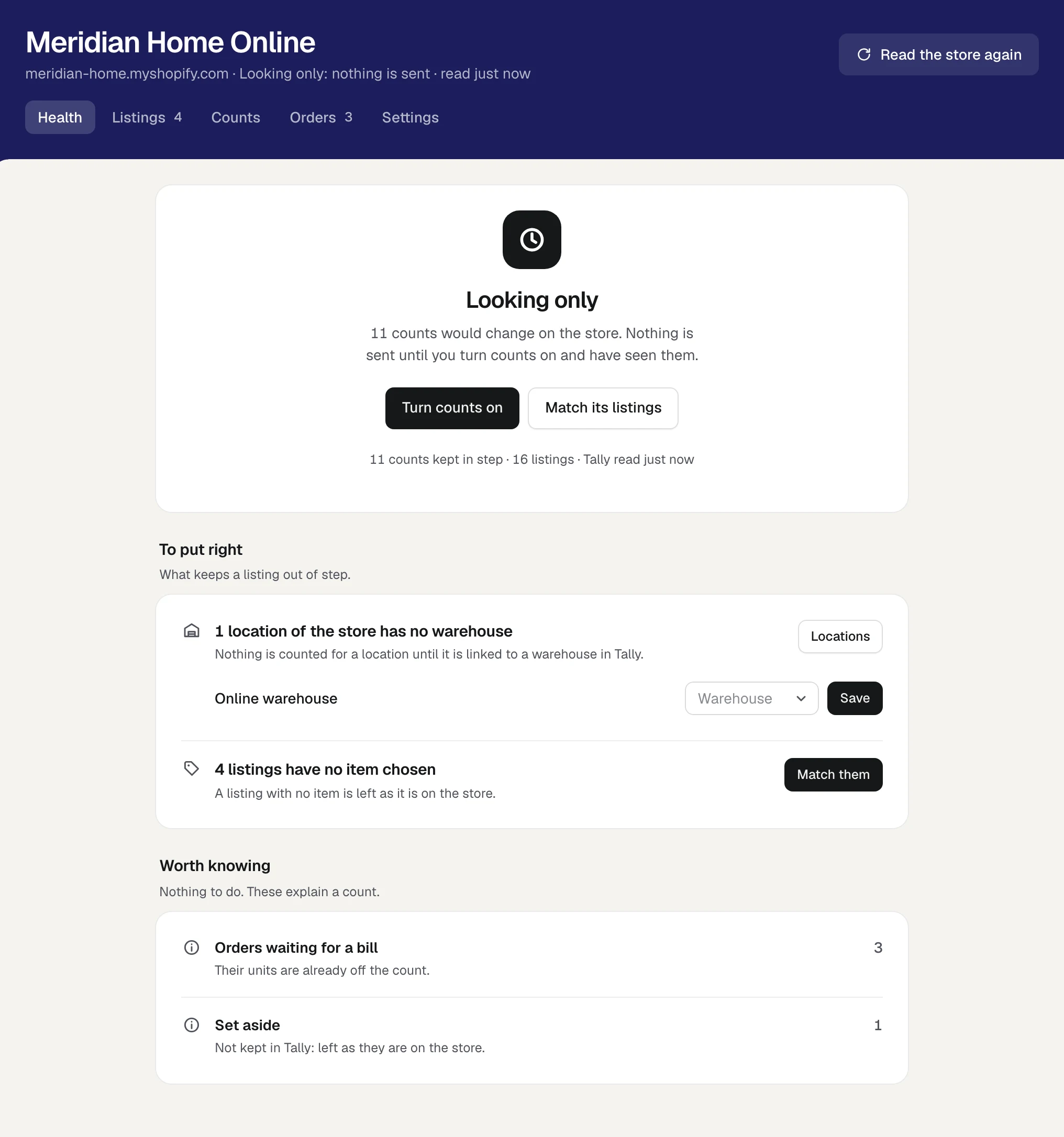
- Read the answer at the top. "Counts are in step with Tally" is the one you want.
- Clear Needs you: counts changed on Shopify, counts the store refused, orders that have waited over a week for a bill.
- Work down To put right: listings with no item, locations with no godown, items below zero in Tally.
- Check the line that says when every count was last read back from the store. Orzoni reads them all back each night.
- Glance at Lately sent: the last few sendings and how each went.
Once a month, add a shelf count of your twenty fastest items. The method for that, and for tracing a difference to its cause, is in the diagnosis post. The screen itself is described in Your store's health.
The order to set it up in
- Decide which godown feeds the online store, and move stock that should not be sold online out of it.
- On the store, check Inventory tracked is on and Continue selling when out of stock is off where it should be.
- Connect the store. It starts on Looking only. See Connect your Shopify store.
- Link each store location to its godown.
- Match the listings: approve the certain ones, check the rest, set aside what is not kept in Tally.
- Choose the customer the store's sales are billed to, so orders can become draft bills.
- Read Would change top to bottom. Correct Tally where Tally is wrong.
- Turn counts on, read the first set once more, and send it.
- Put the Monday check in someone's diary by name.
Questions people ask
Can the store's count update Tally instead?
Not as a habit, and that is deliberate: two masters drift. There is one step in that direction, taken by hand for one product at a time. Where a linked product's two sides have never agreed, or someone changed the count on Shopify and the store is the side that is right, Merge as one on the item's page brings the store's count into Tally as a stock journal. After that, Tally leads again. See Products on Shopify and in Tally, shown as one.
How often do counts move?
Orzoni reads Tally every minute unless you choose every 5 or 15 minutes, and sends the store a count when the figure changes. Orders are asked for every 5 minutes while counts are being sent. Every count is read back from the store each night.
What if someone changes a count in the Shopify admin?
Under Send, and ask, Orzoni does not write over it. Health shows both figures, such as "Shopify shows 20" and "Tally works out 11", and you choose: use Tally's count, or correct Tally first if the store was right. An order lowering the count is not treated as a change someone made.
Does anything else on my store change?
No. The count is the only thing Orzoni writes to a store. It does not change a name, a price, a code or a product, and it does not read a buyer's name, address, phone or email.
I keep stock in two godowns and ship online orders from both. What then?
Give the store two locations, one for each godown, and link each to its own. If the store has one location, link it to the godown you pack from and move stock into that godown with a stock journal when it runs low. Warehouses and pack sizes covers the move.
What does it cost?
Orzoni's plans are ₹999 a month for one company and ₹2,499 for up to three. Billing is not open, so nothing is charged today. See Pricing.
Start by looking
Look at the count difference before you push anything. Connect the store in Looking only and read what would change. We connect it with you on a short call, nothing is sent to your store until you have read the list and said so, and Tally is left exactly as it was. Start with Connect your Shopify store, then Keep your store's counts in step.
Facts and sources
Everything about Shopify and Tally below was read on the product's own pages on 11 October 2026. What is said about Orzoni comes from its own guides, linked in the text.
- Shopify, inventory states (On hand, Available, Committed, Unavailable, Incoming, and On hand as the sum of the other three): help.shopify.com/en/manual/products/inventory/fundamentals/inventory-states. Read 11 October 2026.
- Shopify, locations ("any physical place where you sell products, fulfill orders, or stock inventory"; inventory tracked separately at each): help.shopify.com/en/manual/locations. Read 11 October 2026.
- Shopify, selling when out of stock (the default, and the Continue selling when out of stock setting): help.shopify.com/en/manual/products/inventory/setup/selling-when-out-of-stock. Read 11 October 2026.
- Shopify, setting up inventory tracking (tracking is switched on per variant): help.shopify.com/en/manual/products/inventory/setup/set-up-inventory-tracking. Read 11 October 2026.
- Shopify, adjusting inventory quantities (Set to, Adjust by, and the bulk editor keeping no record of movements): help.shopify.com/en/manual/products/inventory/adjusting-inventory/adjusting-inventory-quantities. Read 11 October 2026.
- Shopify, locations and fulfilment ("Use inventory at this location to fulfill online orders"): help.shopify.com/en/manual/fulfillment/setup/locations/fulfillment. Read 11 October 2026.
- Shopify for developers, setting quantities "using absolute values": shopify.dev/docs/api/admin-graphql/latest/mutations/inventorySetQuantities. Read 11 October 2026.
- Shopify for developers, adjusting quantities "by applying incremental changes": shopify.dev/docs/api/admin-graphql/latest/mutations/inventoryAdjustQuantities. Read 11 October 2026.
- TallyPrime, godowns and locations (Main Location as the default godown; stock reports for each godown): help.tallysolutions.com/inventory-storage-using-godowns-locations-tally/. Read 11 October 2026.
- Orzoni's plans, and billing not being open: Pricing.
The times in the worked examples (20 seconds a listing, 50 minutes for 150) are arithmetic for illustration, not measurements.

Guides this post leans on
Say which item in Tally each of your store's listings is. Approve what Orzoni puts forward, choose by hand, set aside what is not kept in Tally, do many at once, and work through products sold in several sizes and through collections.
Read the guide Orders from your storeThe Orders view of a connected Shopify store. Which orders wait for a bill and what that does to the count, choosing the customer the store's sales are billed to, making a draft bill from an order, and how an order clears once its bill is in Tally.
Read the guide How Orzoni stays in step with TallyHow the Tally connector reads Tally and proves what it read, how the web is kept the same as the computer, where the status is shown, and what every status means with what to do about it.
Read the guide Your store's healthThe first view of a connected Shopify store. One answer to how it stands, then everything that needs someone, what is left to put right, and what explains a count, each dealt with on its own line.
Read the guide Connect your Shopify storeTwo ways to join your store to Orzoni: with us on a 15-minute call, or yourself in about ten minutes with a picture of every step.
Read the guide Products on Shopify and in Tally, shown as oneWhere a store is connected, a product is one row whichever side it is on. The three marks, the views on Items, merging what differs into Tally, a product that is on Shopify only, and a store's product on a bill line.
Read the guide