

How to get Tally on your phone without moving your books
Two ways to see your Tally books on a phone while they stay on the office computer: Tally's browser reports, and Orzoni. Steps and what to expect.
On this page
A wholesaler of plumbing fittings in Indore keeps eleven years of books in one Tally company, on the computer beside the cash drawer. His CA has told him more than once not to hand that data to anybody. His son, who now does the buying, wants the outstanding list on his phone before he walks into a supplier's office. Both of them are right.
You can have Tally on your phone and leave the books where they are. There are two ways to do it. Tally's own Reports in Browser shows your reports in the phone's browser, read only, and keeps nothing outside your computer. Orzoni shows the books as working screens and lets you make a bill, with Tally still the original and a checked copy kept on the web. Both need the office computer switched on for fresh figures.
This post walks through each, step by step. If you are still choosing between these and Tally's other options, the comparison of four setups weighs them with prices. Here we only do the work.
What "without moving" means
Moving your books means taking the company out of Tally on your computer and keeping it somewhere else: in another program, or in a Tally that runs on someone's hosted machine. After a move, the place you used to open is no longer where the entries are made.
Neither way in this post does that. In both, Tally on your computer stays the place where the books are kept, corrected, backed up and audited. Your accountant keeps working exactly as before.
The two ways do differ on one point, and you should know it before you start.
- Reports in Browser keeps no copy. Tally's FAQ says the data "is fetched on demand from your TallyPrime Company" and "is not stored anywhere else". When the computer is off, there is nothing to look at.
- Orzoni keeps a working copy on the web. The Tally connector reads your books and hands them up to your own business in Orzoni, where each company has a database of its own. That copy is checked against Tally's figures after every read, and it is what lets you open your books at night with the office shut. Nothing is uploaded until you link the computer yourself.
If your rule is that no copy may exist outside the office, use the first way. If your rule is that Tally must remain the original and nobody may change it behind your back, both ways keep it.
Before either way: get the office computer ready
Both ways lean on the same machine. Ten minutes spent on it now saves a week of "it is not opening".
- Keep it awake. In Windows power settings, set the computer not to sleep during the hours you will want figures. A sleeping computer is offline. A locked screen is fine.
- Keep it online. A steady broadband line is enough. Tally recommends at least 512 kbps for its browser reports.
- Keep Tally open on the company. Not just Tally: the company you want to see has to be loaded.
- Know your TallyPrime release. It is on Tally's own screen. You will need it if anything has to be looked up.
- Decide who will look. Just you, or your accountant, your partner and the counter staff too. Each person gets their own sign-in in both ways. Nobody shares a password.
Way 1: Tally's Reports in Browser
What you need
- A valid TallyPrime licence, Silver or Gold.
- An active TSS. Tally's page for owners says Reports in Browser "is included with an active TSS subscription". If yours has lapsed, renewing it is ₹4,500 a year plus GST for Silver, as published by Tally.
- A Tally.NET ID for each person who will view. It is simply an email address you authorise. Tally says the email ID on your Tally account is already one.
Switch it on in TallyPrime
The work is done once, at the office computer, under Tally's settings for online access.
- Connect the company for browser access. From the Company menu, connect the company to Tally.NET and choose the email ID that will view the reports.
- Add anyone else who should look. Under Users and Passwords, add each person's Tally.NET ID, give it a security level, and allow browser access for it. Tally's help says display access to a report lets a person view it, and print access lets them download it.
- Leave the company connected. Reports can be fetched only while it is.
The exact keys differ from one release to another, so follow Tally's own page for Reports in Browser with your release in hand. If someone needs a new Tally.NET ID, Tally's FAQ says it is created in the Control Centre on the Tally portal.
Open a report on the phone
- Open the browser on your phone and go to
www.tallysolutions.com. - Tap Log In and sign in with your Tally.NET ID and password.
- Your companies are listed, each marked Connected or Offline. Choose a connected one.
- Pick a report from the list, or search for it.
Tally's help lists the reports on offer, among them Ledger Outstanding, Bills Receivable, Bills Payable, the Day Book, Cash and Bank Books, Stock Summary, the Sales and Purchase Registers, Profit and Loss and the Balance Sheet. You can change the period, open a line to see what is behind it, and go down to the voucher in many reports. With print access you can download a report or an invoice as a PDF or an Excel file.
Chrome and Safari give the experience Tally recommends. Nothing is installed.
What to expect
It is Tally's own figures in Tally's own shapes, and it costs nothing more than the TSS you may already hold. For an owner who wants to read, it is hard to improve on.
It is read only. Tally's FAQ: "currently you can only view and download vouchers in a browser." And every report is fetched from the office computer at the moment you ask, so the day the computer sleeps is the day the list shows your company as Offline.
If reading is all you need, stop here. You are done, and you have spent nothing.
Way 2: Orzoni through the Tally connector
Orzoni is our product. It is for the reader who wants more than reports: the books as screens made for a phone, a bill made on the spot, a payment recorded, a reminder sent.
The whole set-up takes about ten minutes. Two parts happen on any device and the middle part happens at the computer that runs Tally.
What you need
- TallyPrime with your company in it. Orzoni is built for TallyPrime and proven on release 7.1. On another release, write to us first and we try it with you.
- The computer that runs Tally, on Windows 10 or 11, 64-bit.
- An internet connection on that computer.
- An email address you can read right now.
Step 1: create your account
On any device, open admin.orzoni.com/signin, type your email address and choose Email me a code instead. Six digits arrive by email. Type them in the same browser that asked for them, and you are in. There is no password to invent, though you can set one later.
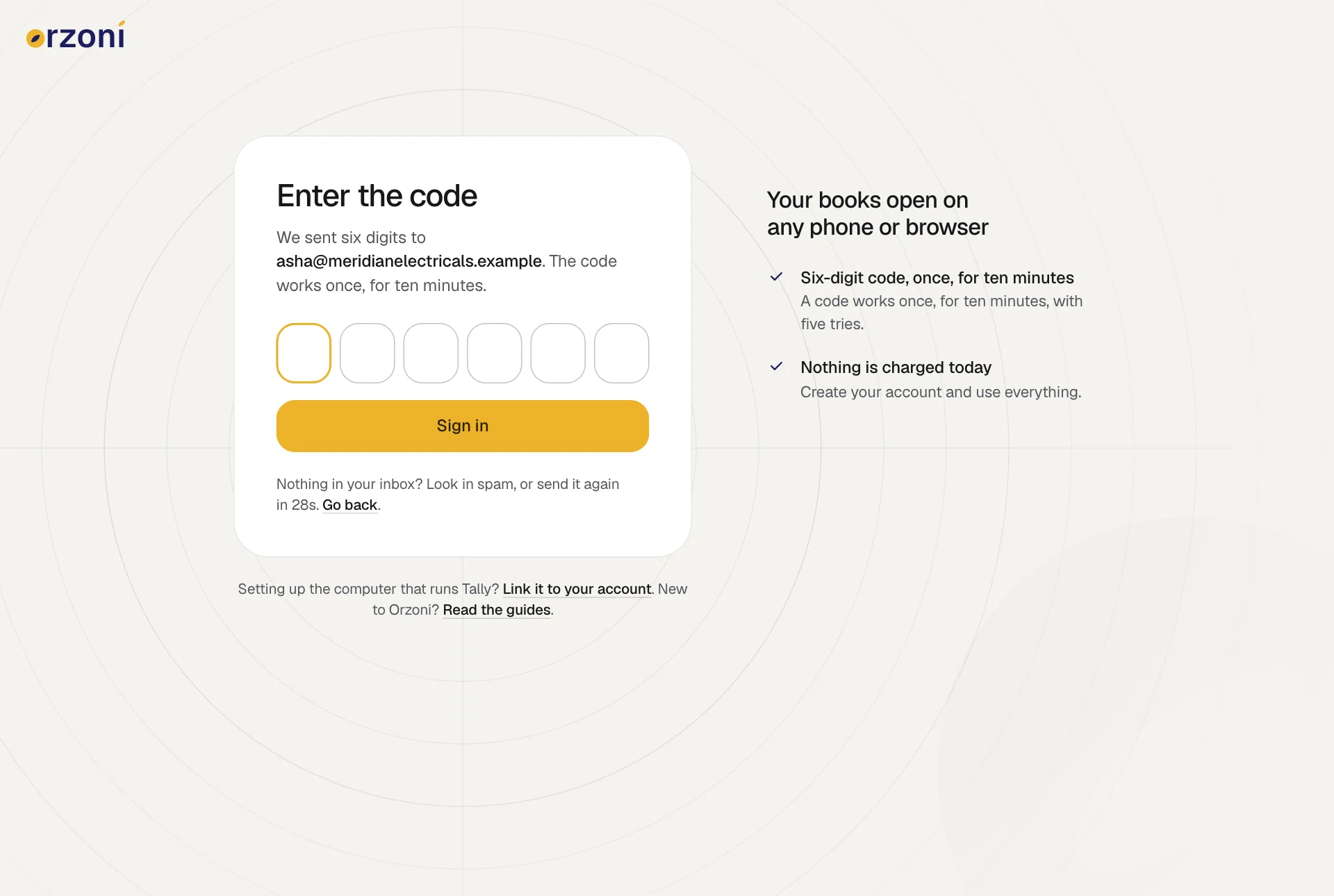
The code works once, for ten minutes, with five tries. The next page asks for your name and the business name as it appears on your bills. Press Open my business and you are its owner. When it asks for a linking code, choose Do this later. You will have that code in a few minutes.
The full walk-through is in Create your account and sign in.
Step 2: install the connector on the Tally computer
Sit at the computer that runs Tally. The Tally connector is a small Windows program that sits beside Tally. It is the only part of Orzoni that ever touches Tally, and nobody works in it: once set up, it runs quietly beside the clock. In Windows it goes by the name Orzoni for Tally.
Get the installer onto that computer as Install the Tally connector describes, and open it. You do not need an administrator password.
Windows will show a blue box headed Windows protected your PC. It does this for programs it has not seen often. The connector is safe to install: it only reads your Tally books, changes nothing unless you make a bill in Orzoni, and can be removed at any time with Tally left exactly as it was. Press More info, then Run anyway, then Install. Leave the box ticked to open it when it finishes.
Nothing is installed inside Tally, and Tally's own files are not changed.
Step 3: let it find Tally and choose the company
The connector shows four steps across the top of its window: Tally, Company, Books, Account. With TallyPrime open and your company loaded, it finds Tally by itself and lists the companies that are open, each with the date its books begin.
If it says Tally is not answering, Tally's own connection is switched off. The screen tells you which setting to change in Tally, and Connect Tally and link the computer shows it with pictures. The connector tries again by itself every few seconds.
Choose your company and start the read. Under the button the connector states the arrangement in one line: it only reads, and Tally changes only when you make or change something in Orzoni.
Step 4: the first read
The connector reads your entries, then ledgers and stock items, then unpaid bills, and then checks every balance against Tally's own. Keep Tally open. You can go on working in it meanwhile. A small business is read quickly; several years of entries take longer.
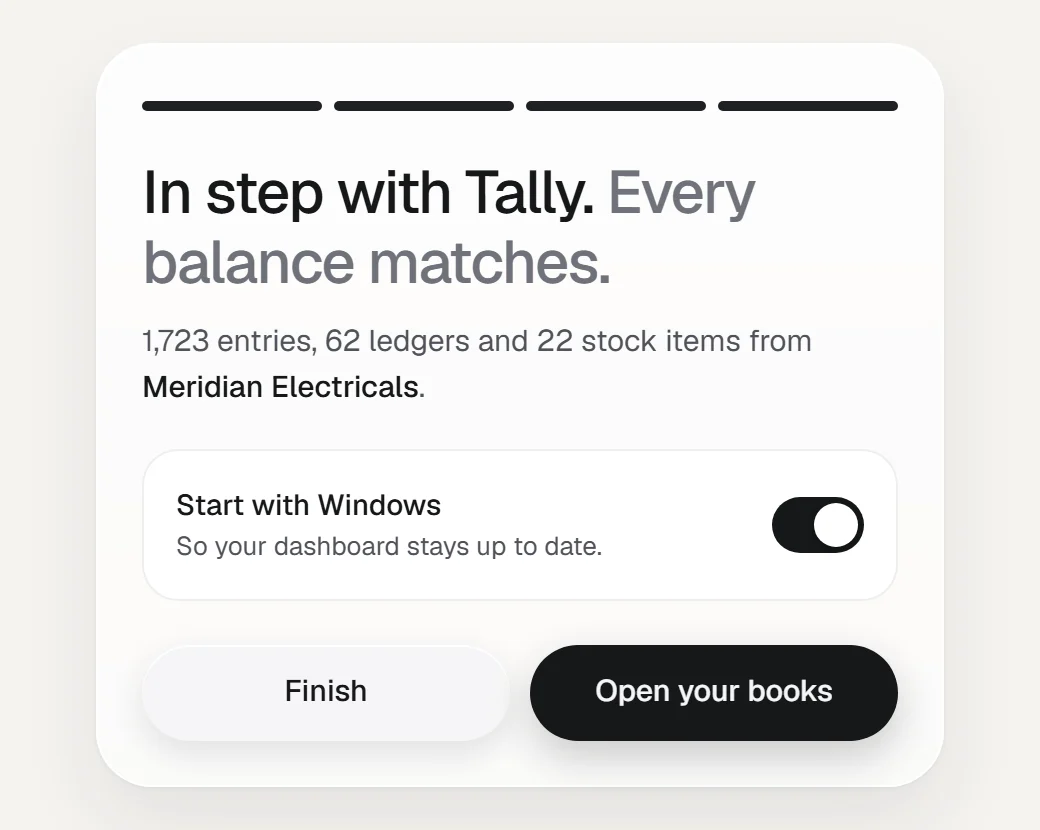
The result you want is In step with Tally: everything read, every balance matching. If some balances differ, the connector says so plainly and lists them. You can still carry on.
Leave Start with Windows switched on, so nobody has to open the connector each morning.
Step 5: link the computer with the code
This is the step that makes the books reachable, and it is in your hands. The connector shows six characters and the address admin.orzoni.com/link.
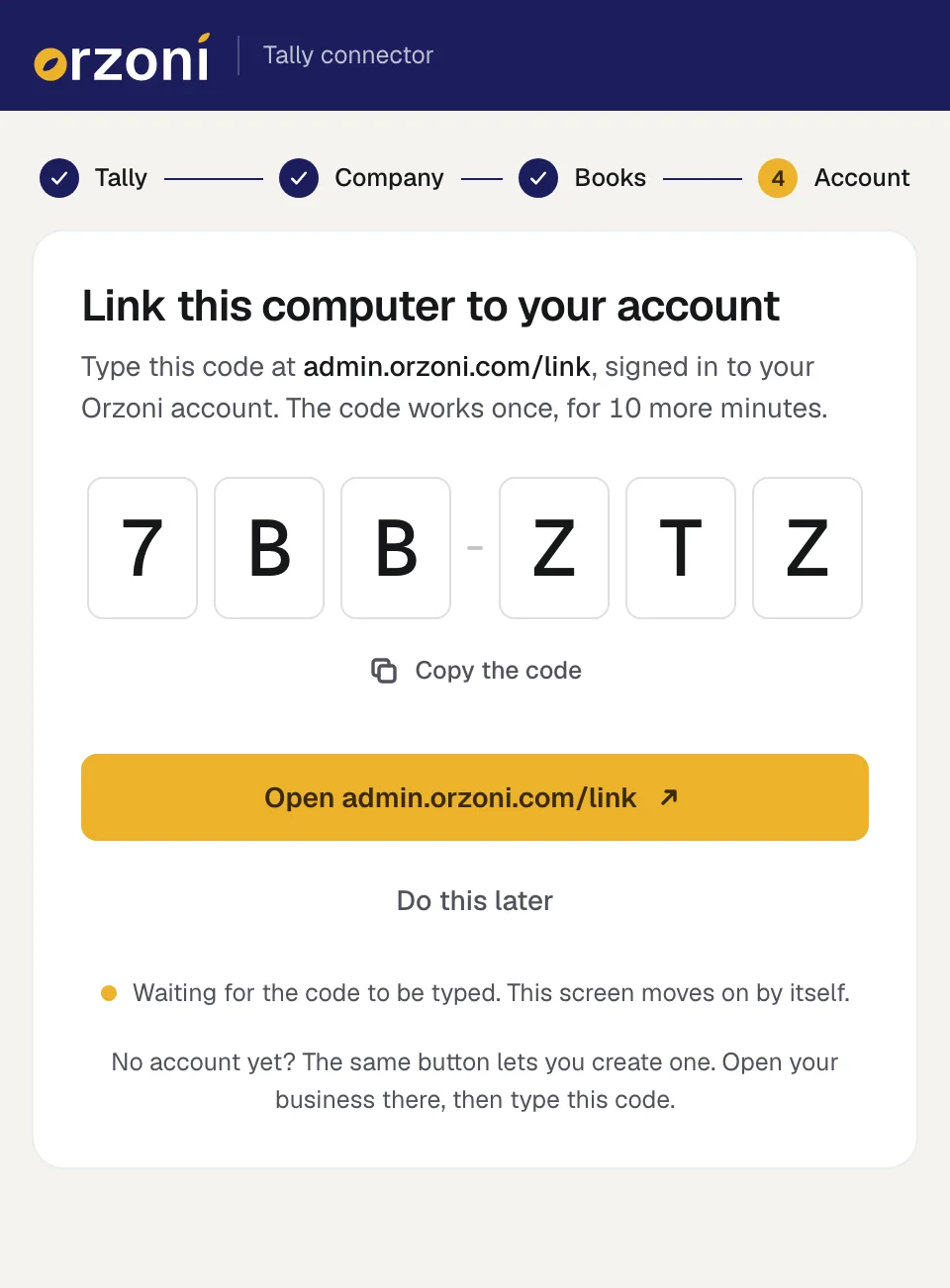
- Open that page, on this computer or on your phone, signed in to your account.
- Type the six characters.
- The page names the computer and the business it will be linked to. Check both, then press Yes, link it.
- It says Linked, and a little later that your company's books are here. Press Open Orzoni.
The code works once, for ten minutes. It is typed inside your account on purpose: a code alone gives nobody anything. Only the owner, or someone the owner has allowed, can link a computer, and the owner is told by email when one is linked.
From this point the computer only ever dials out. Nothing on the internet can reach into it or into Tally.
Step 6: open it on your phone
On the phone, open admin.orzoni.com/signin and sign in with the same email. Your books open on Home.
To keep it one tap away, add it to the home screen.
| Phone | Steps |
|---|---|
| iPhone, in Safari | Tap Share, then Add to Home Screen, then Add |
| Android, in Chrome | Tap the three dots, then Add to Home screen or Install app, then Install |
There is no app store involved and nothing to download. Orzoni on your phone has the rest.
What you see first
Home is built to answer the questions an owner asks at a supplier's counter.
- The line under the company's name says how things stand with Tally and since when. If the computer is off, this is where you are told.
- To collect and To pay are what customers owe you and what you owe suppliers today, each with the overdue part in red.
- The buttons are the things made every day: an invoice, a payment in, a purchase, a payment out.
- Needs attention lists what is waiting for you, the most pressing first: the largest amount overdue for more than 60 days, items out of stock, a promise to pay that was broken, drafts not sent.
Further down are sales, cash and bank, and the latest entries.
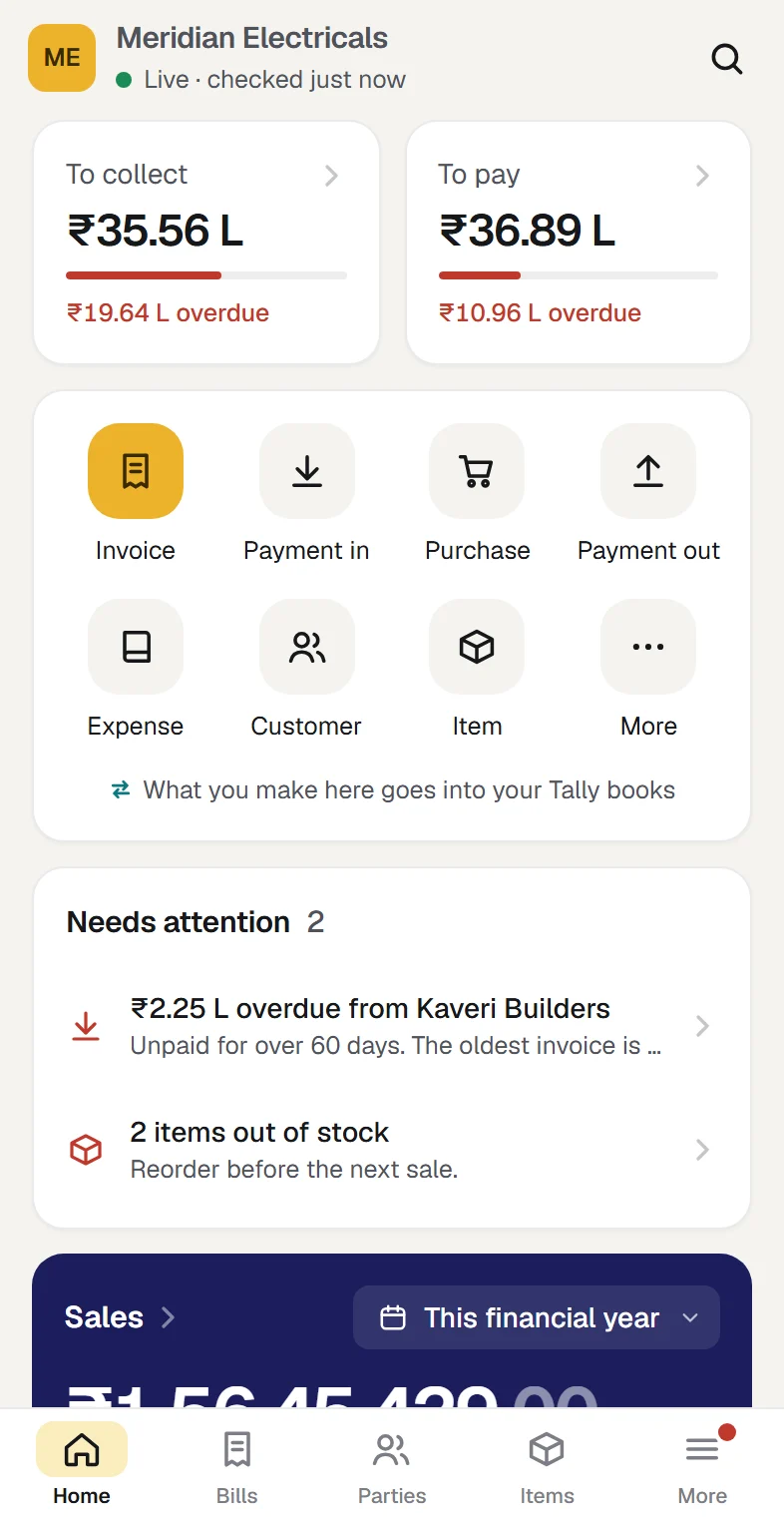
Every figure here came out of your Tally and has been set against it. Six things are compared on every read: ledger balances, stock quantities, stock value, net profit, unpaid bills, and each party's balance. If any of them stops agreeing, Orzoni says so in red. It never passes off a figure it could not prove.
What you can do from the phone
Within what the owner has allowed you:
- Make a sales invoice. Choose the customer, add the items, check the tax, press Send to Tally. It goes into Tally as a sales voucher, numbered by Tally, and is read back to check it. The steps are in Make a sales invoice.
- Record a payment against a customer. It settles their oldest unpaid bills first.
- Enter a purchase, add a customer or an item, mark attendance.
- Remind a customer. Their page lists the unpaid bills, and Remind writes the message for you to send from your own WhatsApp. You press send. Nothing goes out by itself.
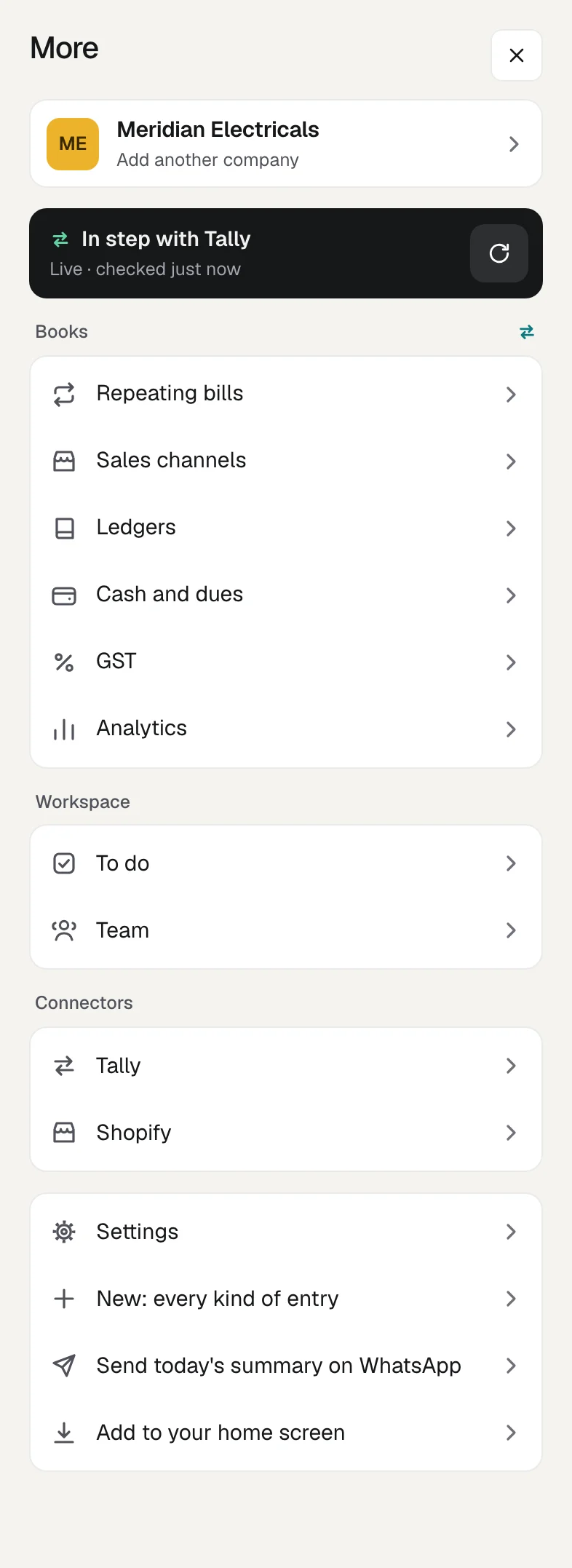
- Send yourself the day. In More, today's summary of sales, dues, bank, cash and stock can be shared on WhatsApp.
Some things stay in Tally. E-invoices and e-way bills are made there. So are sales orders, delivery notes and manufacturing entries. The full list is in what Orzoni leaves to Tally.
When the computer is off
This is the question everyone asks second, so here is exactly what happens.
The office computer is off, asleep or offline. Orzoni goes on showing your books as they stood at the last read, and the line at the top says so with the time, for example "Computer offline · as of 8:10 pm". You can look at everything and build reports. A bill you make now is saved. When the computer comes back with Tally open, the bill goes into Tally by itself and is read back.
Tally is closed, or on another company. The same, with a line that says which: Tally closed, or Company not open in Tally.
Your phone has no signal. Orzoni still opens and shows the last figures it was shown. Nothing can be made or changed without a connection. A bill is never kept on the phone to be sent later, so there is no half-saved entry to worry about.
Nothing is lost by a night with the computer off. In the morning the connector sends what was waiting, reads what changed, and proves the balances again.
Who else can see it
Your books open only to people in your business, each signed in as themselves. You invite a person by email and give them a role.
The counter staff can make bills without seeing your profit. The godown keeper can see stock without seeing a single bill. Your CA can be given the Accountant role, or View only. Behind the roles are single switches you can turn on or off for one person, and a record of who did what.
If a phone is lost, sign in elsewhere, open Settings, Your account, and sign that phone out. It can no longer open your books.
Errors and what they mean
| What you see | What it means | What to do |
|---|---|---|
| Tally's site lists your company as Offline | The office computer is off or asleep, or the company is not connected | Wake the computer, open the company, connect it again |
| A report in the browser stops answering | Tally's FAQ says to check whether the office computer has gone to sleep or hibernated | Change the power settings |
| A report you expect is not in the list | That Tally.NET ID's security level does not include it | Give display access in Tally |
| No books here yet | No computer is linked to the business | Link it with the six-character code |
| Computer offline, as of a time | The computer is off, asleep, offline, or the connector is not running | Switch it on and open Tally. What you made is waiting |
| Tally closed, as of a time | Tally is shut on the computer | Open it. The figures update by themselves |
| Company not open in Tally | Tally is open on a different company | Open this one beside it |
| That code ran out | Ten minutes passed | Ask the connector for a new code |
| 1 refused by Tally | Tally did not take something you sent, and says why | Open it, then change it, try again or discard it |
| Offline, on the phone | The phone itself has no connection | Check the phone's signal |
The longer list, in the order to check things, is in Troubleshooting.
If you change your mind
Either way can be undone, and neither leaves a mark on your books.
For Reports in Browser, disconnect the company in Tally or take browser access away from a Tally.NET ID.
For Orzoni, unlink the computer from the web or from the connector, and uninstall the connector from Windows. It asks whether to remove its working copy from the computer as well. The owner can remove the company's books from the web from the same Connection screen. None of these touches anything in Tally, and every bill you made through Orzoni remains in Tally as an ordinary entry. The Tally connector on your computer has each step.
FAQ
Will my accountant have to change how she works in Tally?
No. She keeps entering in Tally as today. With the computer on, what she enters is read into Orzoni at the next check, a minute later unless you choose a longer gap, and what you make in Orzoni shows up in her Tally as ordinary vouchers.
Is a copy of my books kept outside the office?
With Reports in Browser, Tally says no: reports are fetched on demand and not stored elsewhere. With Orzoni, yes: a working copy is kept on the web, in a database of its own for each company, so the books open when the office is shut. Tally remains the original, and the copy can always be read from it again.
Does anything get sent to my phone as an alert?
No. Notifications are not part of Orzoni today. What needs you is listed on Home under Needs attention, and Tally's browser reports send nothing either.
Can I look from an iPhone, an iPad or a Mac?
Yes. The device you look from can be anything with a browser, in both ways. What runs on Windows is the office end: the Tally connector needs 64-bit Windows 10 or 11 on the computer that runs Tally, and Tally's FAQ says TallyPrime should be on Windows Vista or later for browser access.
What does it cost?
Reports in Browser has no price of its own beyond an active TSS. Orzoni is ₹999 a month for one company and ₹2,499 for up to three. Billing has not opened, so nothing is charged today, and the pricing page will say so before that changes.
One thing to do today
Go to the office computer and change its power setting so it does not sleep in working hours. Whichever way you choose, that one change is what makes it dependable.
Link the computer and open the company on your phone this afternoon.
Facts and sources
Facts about Tally's features were read on Tally Solutions' own website on 11 October 2026.
| Fact | Source |
|---|---|
| Reports in Browser: connecting a company, allowing browser access for a Tally.NET ID, signing in at tallysolutions.com, the list of reports, PDF and Excel downloads. Page dated 14 May 2025 | help.tallysolutions.com/tally-reports-in-browser-tally |
| Reports in Browser FAQ: data "fetched on demand" and "not stored anywhere else", view and download only, sleep and hibernate, locked computer, 512 kbps, Chrome and Safari, Windows Vista or later, Tally.NET IDs made in the Control Centre. Page dated 14 May 2025 | help.tallysolutions.com/browser-reports-faq-tally |
| Reports in Browser "is included with an active TSS subscription"; the account's email ID is already a Tally.NET ID; a Tally.NET ID for each viewer | tallysolutions.com: mobile experience for business owners |
| TSS renewal for one year: Silver ₹4,500, Gold ₹13,500, plus 18% GST | tallysolutions.com/renew-tss |
| Orzoni's set-up, the codes, and what the connector does | Install the Tally connector, Connect Tally and link the computer |
| Orzoni on a phone, with no signal, and what it leaves to Tally | Orzoni on your phone |
| Orzoni: ₹999 a month for one company, ₹2,499 for up to three; billing has not opened | Pricing |
Left out because we did not verify it on TallyPrime 7.1 ourselves: the exact keys and menu names for switching on browser access. Tally's page above has them for your release.
Tally and TallyPrime are trademarks of Tally Solutions Pvt. Ltd. Orzoni is an independent product and is not affiliated with or endorsed by Tally Solutions.

Guides this post leans on
Create your Orzoni account with a code sent to your email, open your business, and sign in from any device afterwards. Also an optional password, more than one business, and signing out.
Read the guide Install the Tally connectorInstall the Tally connector on the computer that runs Tally, including the step where Windows asks before a new program runs. What it puts on the computer, and what to do if the installer will not run.
Read the guide Connect Tally and link the computerThe connector's set-up, step by step. It finds Tally, you choose your company, it reads your books and checks every balance, and you link the computer to your account with a six-character code. With what to do when a step stalls.
Read the guide Orzoni on your phoneSign in on a phone and your books are there. The five tabs, the create button, the More menu, how to add Orzoni to your home screen on an iPhone or an Android phone, and what works with no signal.
Read the guide Make a sales invoiceCustomer first, then items, GST worked out for you, paid now or later, and Send to Tally. With Create from the bill itself, cash sales, proformas, drafts, Tally's keys, and what to do when a bill cannot be made.
Read the guide What Orzoni leaves to Tally, and what is comingWhat Orzoni needs, what is made in Tally rather than here, how some figures are worked out, and what is coming next.
Read the guide